




HarmonyOS鸿蒙Next应用如何获取用户设备内音频资源文件?
HarmonyOS鸿蒙Next应用如何获取用户设备内音频资源文件? 鸿蒙应用蓝牙功能实现源码和步骤讲解

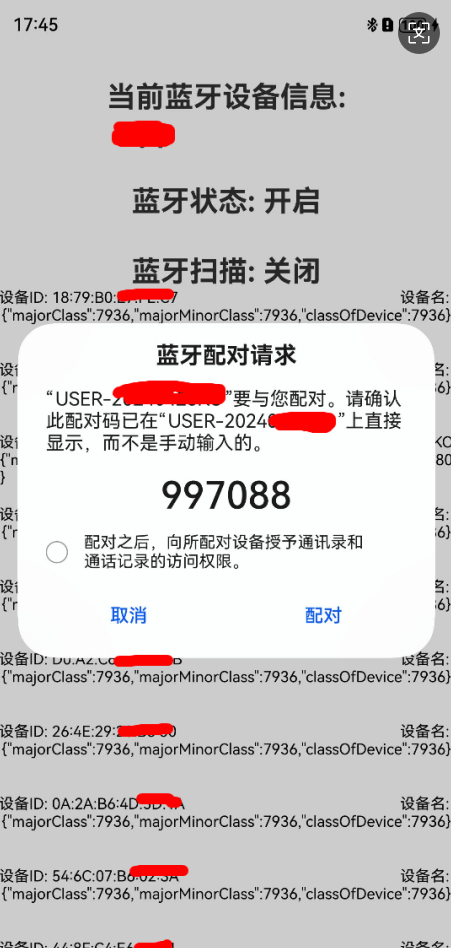
一、蓝牙配对业务流程
1.设备进入可被发现模式: 首先,设备需要进入可被发现模式,这样周围的蓝牙设备才能识别到它。一方设备(如手机)会主动搜索附近的蓝牙设备,并列出所有可用的配对选项。
2.选择并触发配对请求: 用户从列表中选择想要连接的设备,并触发配对请求。此时,双方设备会交换一系列的身份验证信息,以确保彼此的身份安全无误。在这个过程中,可能会要求用户输入配对码(如PIN码)或在设备上确认配对请求。
3.身份验证和加密: 一旦身份验证通过,设备间就会建立安全的连接通道,这一过程称为“配对成功”。配对完成后,设备之间的连接就建立了,它们可以开始传输数据。
4.数据传输: 设备间通过蓝牙进行数据传输,可以传输音频、文件等多种类型的数据。
5.断开连接: 当数据传输完成后,蓝牙设备可以断开连接。断开连接的操作可以通过设备上的按钮或者软件来实现。
蓝牙配对通常是一次性的,即一旦设备成功配对,它们会在后续的连接中自动识别并连接,无需再次进行配对过程(除非设备被重置或用户手动取消配对)
Demo包括以下内容: 1.蓝牙权限开启 2.蓝牙开启/关闭 3.蓝牙扫描开启/关闭 4.蓝牙配对 5.蓝牙code协议确认
三、常规蓝牙配对Demo源码:
蓝牙UI交互类
import { access } from '[@kit](/user/kit).ConnectivityKit';
import { BusinessError } from '[@kit](/user/kit).BasicServicesKit';
import { BlueToothMgr } from '../manager/BlueToothMgr';
import { abilityAccessCtrl, common } from '[@kit](/user/kit).AbilityKit';
import { connection } from '[@kit](/user/kit).ConnectivityKit';
import { map } from '[@kit](/user/kit).ConnectivityKit';
import { pbap } from '[@kit](/user/kit).ConnectivityKit';
import { HashMap } from '[@kit](/user/kit).ArkTS';
import { DeviceInfo } from '../info/DeviceInfo';
import { promptAction } from '[@kit](/user/kit).ArkUI';

@Entry
@Component
struct Index {

  private TAG: string = "BlueToothTest";

  // 扫描状态定时器
  private mNumInterval: number = -1;
  // 当前设备蓝牙名
  @State mCurrentDeviceName: string = "";
  // 蓝牙状态
  @State @Watch('onChangeBlueTooth') isStartBlueTooth: boolean = false;
  // 蓝牙扫描状态
  @State @Watch('onChangeBlueTooth') isStartScan: boolean = false;
  // 当前蓝牙权限
  @State userGrant: boolean = false;
  // 扫描到设备名
  @State mMapDevice: HashMap<string, DeviceInfo> = new HashMap();
  // ui展现的设备列表
  @State mListDeviceInfo: Array<DeviceInfo> = new Array();

  async aboutToAppear() {
    await this.requestBlueToothPermission();

    let state = access.getState();
    console.log(this.TAG, "getState state: " + state);
    if(state == 2){
      this.isStartBlueTooth = true;
      console.log(this.TAG, "getState isStartBlueTooth: " + this.isStartBlueTooth);
    }else{
      this.isStartBlueTooth = false;
      console.log(this.TAG, "getState isStartBlueTooth: " + this.isStartBlueTooth);
    }
  }

  private onChangeBlueTooth(){
    if(!this.isStartBlueTooth){
      this.mMapDevice = new HashMap();
      return;
    }

    this.mCurrentDeviceName = BlueToothMgr.Ins().getCurrentDeviceName();
  }

  // 用户申请权限
  async reqPermissionsFromUser(): Promise<number[]> {
    let context = getContext() as common.UIAbilityContext;
    let atManager = abilityAccessCtrl.createAtManager();
    let grantStatus = await atManager.requestPermissionsFromUser(context, ['ohos.permission.ACCESS_BLUETOOTH']);
    return grantStatus.authResults;
  }

  // 用户申请蓝牙权限
  async requestBlueToothPermission() {
    let grantStatus = await this.reqPermissionsFromUser();
    for (let i = 0; i < grantStatus.length; i++) {
      if (grantStatus[i] === 0) {
        // 用户授权,可以继续访问目标操作
        this.userGrant = true;
        promptAction.showToast({ message: "蓝牙授权成功!"});
      }else{
        promptAction.showToast({ message: "蓝牙授权失败!"});
      }
    }
  }

  setBlueToothScan = ()=>{
    if(!this.isStartScan){
      promptAction.showToast({ message: "开启扫描!"});
      BlueToothMgr.Ins().startScanDevice((data: Array<string>)=>{
        let deviceId: string = data[0];
        if(this.mMapDevice.hasKey(deviceId)){
          // 重复设备,丢弃不处理
        }else{
          // 添加到表中
          let deviceInfo: DeviceInfo = new DeviceInfo();
          deviceInfo.deviceId = deviceId;
          deviceInfo.deviceName = BlueToothMgr.Ins().getDeviceName(deviceId);
          deviceInfo.deviceClass = BlueToothMgr.Ins().getDeviceClass(deviceId);
          this.mMapDevice.set(deviceId, deviceInfo);
          this.mListDeviceInfo = this.mListDeviceInfo.concat(deviceInfo);
        }
      });
      this.mMapDevice.clear();
      this.mListDeviceInfo = [];
      // 开启定时器
      this.mNumInterval = setInterval(()=>{
        let discovering = BlueToothMgr.Ins().isCurrentDiscovering();
        if(!discovering){
          this.closeScanDevice();
        }
      }, 1000);
      this.isStartScan = true;
    }else{
      promptAction.showToast({ message: "关闭扫描!"});
      BlueToothMgr.Ins().stopScanDevice();
      this.closeScanDevice();
    }
  }

  private closeScanDevice(){
    clearInterval(this.mNumInterval);
    this.isStartScan = false;
  }

  setBlueToothState = ()=>{
    try {
      if(!this.isStartBlueTooth){
        // 开启蓝牙
        BlueToothMgr.Ins().setBlueToothAccess(true, (state: access.BluetoothState) => {
          console.log(this.TAG, "getState setBlueToothAccessTrue: " + state);
          if(state == access.BluetoothState.STATE_ON){
            this.isStartBlueTooth = true;
            promptAction.showToast({ message: "开启蓝牙!"});
            console.log(this.TAG, "getState isStartBlueTooth: " + this.isStartBlueTooth);
          }
        });
      }else{
        BlueToothMgr.Ins().setBlueToothAccess(false, (state: access.BluetoothState) => {
          console.log(this.TAG, "getState setBlueToothAccessFalse: " + state);
          if(state == access.BluetoothState.STATE_OFF){
            this.isStartBlueTooth = false;
            promptAction.showToast({ message: "关闭蓝牙!"});
            console.log(this.TAG, "getState isStartBlueTooth: " + this.isStartBlueTooth);
          }
        });
      }
    } catch (err) {
      console.error(this.TAG,'errCode: ' + (err as BusinessError).code + ', errMessage: ' + (err as BusinessError).message);
    }
  }

  private isLog(){
    console.log(this.TAG, "isLog isStartBlueTooth: " + this.isStartBlueTooth);
    return true;
  }

  build() {
    Column() {
      if(this.userGrant){
        if(this.isLog()){
          Text("当前蓝牙设备信息:\n " + this.mCurrentDeviceName)
            .fontSize(px2fp(80))
            .margin({ top: px2vp(100) })
            .fontWeight(FontWeight.Bold)

          Text(this.isStartBlueTooth ? "蓝牙状态: 开启" : "蓝牙状态: 关闭")
            .fontSize(px2fp(80))
            .margin({ top: px2vp(100) })
            .fontWeight(FontWeight.Bold)
            .onClick(this.setBlueToothState)

          Text(this.isStartScan ? "蓝牙扫描: 开启ing" : "蓝牙扫描: 关闭")
            .margin({ top: px2vp(100) })
            .fontSize(px2fp(80))
            .fontWeight(FontWeight.Bold)
            .onClick(this.setBlueToothScan)

          this.ListView()
        }
      }
    }
    .justifyContent(FlexAlign.Center)
    .height('100%')
    .width('100%')
  }

  @Builder ListView(){
    List() {
      ForEach(this.mListDeviceInfo, (item: DeviceInfo, index: number) => {
        ListItem() {
          Column(){
            Row() {
              Text("设备ID: " + item.deviceId).fontSize(px2fp(42)).fontColor(Color.Black)
              Blank()
              Text("设备名: " + item.deviceName).fontSize(px2fp(42)).fontColor(Color.Black)
            }
            .width('100%')
            Text(item.deviceClass).fontSize(px2fp(42)).fontColor(Color.Black)
          }
          .width('100%')
          .height(px2vp(200))
          .justifyContent(FlexAlign.Start)
          .onClick(()=>{
            // 点击选择处理配对
            AlertDialog.show({
              title:"选择配对",
              message:"是否选择该设备进行蓝牙配对?",
              autoCancel: true,
              primaryButton: {
                value:"确定",
                action:()=>{
                  promptAction.showToast({ message: item.deviceName + "配对ing!"});
                  BlueToothMgr.Ins().pairDevice(item.deviceId);
                }
              },
              secondaryButton: {
                value:"取消",
                action:()=>{
                  promptAction.showToast({ message: "取消!"});
                }
              },
              cancel:()=>{
                promptAction.showToast({ message: "取消!"});
              }
            })
          })
        }
      }, (item: string, index: number) => JSON.stringify(item) + index)
    }
    .width('100%')
  }
}
蓝牙管理类
import { access, ble } from '[@kit](/user/kit).ConnectivityKit';
import { BusinessError } from '[@kit](/user/kit).BasicServicesKit';
import { connection } from '[@kit](/user/kit).ConnectivityKit';

export class BlueToothMgr {

  private TAG: string = "BlueToothTest";

  private static mBlueToothMgr: BlueToothMgr | undefined = undefined;

  private advHandle: number = 0xFF; // default invalid value

  private mDeviceDiscoverArr: Array<string> = new Array<string>();

  public static Ins(){
    if(!BlueToothMgr.mBlueToothMgr){
      BlueToothMgr.mBlueToothMgr = new BlueToothMgr();
      BlueToothMgr.init();
    }
    return BlueToothMgr.mBlueToothMgr;
  }

  private static init(){
    try {
      connection.on('pinRequired', (data: connection.PinRequiredParam) =>{
        // data为配对请求参数
        console.info("BlueToothTest",'pinRequired pin required = '+ JSON.stringify(data));
      });
    } catch (err) {
      console.error("BlueToothTest", 'pinRequired errCode: ' + (err as BusinessError).code + ', errMessage: ' + (err as BusinessError).message);
    }
  }

  /**
   * 当前设备蓝牙设备名称
   */
  public getCurrentDeviceName(){
    let localName: string = "";
    try {
      localName = connection.getLocalName();
      console.info(this.TAG, 'getCurrentDeviceName localName: ' + localName);
    } catch (err) {
      console.error(this.TAG, 'getCurrentDeviceName errCode: ' + (err as BusinessError).code + ', errMessage: ' + (err as BusinessError).message);
    }
    return localName;
  }

  /**
   * 当前设备蓝牙可发现状态
   */
  public isCurrentDiscovering(){
    let res: boolean = false;
    try {
      res = connection.isBluetoothDiscovering();
      console.info(this.TAG, 'isCurrentDiscovering isBluetoothDiscovering: ' + res);
    } catch (err) {
      console.error(this.TAG, 'isCurrentDiscovering errCode: ' + (err as BusinessError).code + ', errMessage: ' + (err as BusinessError).message);
    }
    return res;
  }

  // STATE_OFF	0	表示蓝牙已关闭。
  // STATE_TURNING_ON	1	表示蓝牙正在打开。
  // STATE_ON	2	表示蓝牙已打开。
  // STATE_TURNING_OFF	3	表示蓝牙正在关闭。
  // STATE_BLE_TURNING_ON	4	表示蓝牙正在打开LE-only模式。
  // STATE_BLE_ON	5	表示蓝牙正处于LE-only模式。
  // STATE_BLE_TURNING_OFF	6	表示蓝牙正在关闭LE-only模式。

  public getBlueToothState(): access.BluetoothState {
    let state = access.getState();
    return state;
  }

  /**
   * 设置蓝牙访问(开关状态)
   * [@param](/user/param) isAccess true: 打开蓝牙
   */
  setBlueToothAccess(isAccess: boolean, callbackBluetoothState: Callback<access.BluetoothState>){
    try {
      if(isAccess){
        console.info(this.TAG, 'bluetooth enableBluetooth 1');
        access.enableBluetooth();
        console.info(this.TAG, 'bluetooth enableBluetooth 2');
        access.on('stateChange', (data: access.BluetoothState) => {
          let btStateMessage = this.switchState(data);
          if (btStateMessage == 'STATE_ON') {
            access.off('stateChange');
          }
          console.info(this.TAG, 'bluetooth statues: ' + btStateMessage);
          callbackBluetoothState(data);
        })
      }else{
        console.info(this.TAG, 'bluetooth disableBluetooth 1');
        access.disableBluetooth();
        console.info(this.TAG, 'bluetooth disableBluetooth 2');
        access.on('stateChange', (data: access.BluetoothState) => {
          let btStateMessage = this.switchState(data);
          if (btStateMessage == 'STATE_OFF') {
            access.off('stateChange');
          }
          console.info(this.TAG, "bluetooth statues: " + btStateMessage);
          callbackBluetoothState(data);
        })
      }
    } catch (err) {
      console.error(this.TAG, 'errCode: ' + (err as BusinessError).code + ', errMessage: ' + (err as BusinessError).message);
    }
  }

  private switchState(data: access.BluetoothState){
    let btStateMessage = '';
    switch (data) {
      case 0:
        btStateMessage += 'STATE_OFF';
        break;
      case 1:
        btStateMessage += 'STATE_TURNING_ON';
        break;
      case 2:
        btStateMessage += 'STATE_ON';
        break;
      case 3:
        btStateMessage += 'STATE_TURNING_OFF';
        break;
      case 4:
        btStateMessage += 'STATE_BLE_TURNING_ON';
        break;
      case 5:
        btStateMessage += 'STATE_BLE_ON';
        break;
      case 6:
        btStateMessage += 'STATE_BLE_TURNING_OFF';
        break;
      default:
        btStateMessage += 'unknown status';
        break;
    }
    return btStateMessage;
  }

  /**
   * 主播蓝牙广播
   */
  public registerBroadcast(){
    try {
      ble.on('advertisingStateChange', (data: ble.AdvertisingStateChangeInfo) => {
        console.info(this.TAG, 'bluetooth advertising state = ' + JSON.stringify(data));
        AppStorage.setOrCreate('advertiserState', data.state);
      });
    } catch (err) {
      console.error(this.TAG, 'errCode: ' + (err as BusinessError).code + ', errMessage: ' + (err as BusinessError).message);
    }
  }

  /**
   * 开启蓝牙广播
   */
  public async startBroadcast(valueBuffer: Uint8Array){

    // 表示发送广播的相关参数。
    let setting: ble.AdvertiseSetting = {
      // 表示广播间隔,最小值设置160个slot表示100ms,最大值设置16384个slot,默认值设置为1600个slot表示1s。
      interval: 160,
      // 表示发送功率,最小值设置-127,最大值设置1,默认值设置-7,单位dbm。推荐值:高档(1),中档(-7),低档(-15)。
      txPower: 0,
      // 表示是否是可连接广播,默认值设置为true,表示可连接,false表示不可连接。
      connectable: true
    };

    // BLE广播数据包的内容。
    let manufactureDataUnit: ble.ManufactureData = {
      // 表示制造商的ID,由蓝牙SIG分配。
      manufactureId: 4567,
      manufactureValue: valueBuffer.buffer
    };

    let serviceValueBuffer = new Uint8Array(4);
    serviceValueBuffer[0] = 5;
    serviceValueBuffer[1] = 6;
    serviceValueBuffer
更多关于HarmonyOS鸿蒙Next应用如何获取用户设备内音频资源文件?的实战系列教程也可以访问 https://www.itying.com/category-93-b0.html


在HarmonyOS Next中,获取设备内音频资源文件主要使用@ohos.file.fs和@ohos.file.picker模块。首先,通过picker模块的select方法启动系统文件选择器,让用户选取音频文件。用户授权后,返回所选文件的URI。然后,使用fs模块的open和read等API,根据URI读取文件内容或获取文件路径。注意,访问用户文件需在module.json5中声明ohos.permission.READ_MEDIA权限。

在HarmonyOS Next中,获取用户设备内的音频资源文件,核心是使用文件管理和媒体库管理能力。由于系统安全性和用户隐私考虑,应用不能直接无限制访问设备存储,必须通过明确的用户授权和标准的API接口来操作。
以下是实现此功能的关键步骤和源码讲解:
1. 声明必要的权限
首先,在项目的 module.json5 配置文件中对所需权限进行声明。
{
  "module": {
    "requestPermissions": [
      {
        "name": "ohos.permission.READ_MEDIA",
        "reason": "$string:reason_desc",
        "usedScene": {
          "abilities": ["EntryAbility"],
          "when": "always"
        }
      },
      {
        "name": "ohos.permission.MEDIA_LOCATION",
        "reason": "$string:reason_desc_location",
        "usedScene": {
          "abilities": ["EntryAbility"],
          "when": "always"
        }
      }
    ]
  }
}
2. 动态申请权限
在Ability中(通常是onWindowStageCreate阶段),动态向用户申请权限。
import abilityAccessCtrl from '[@ohos](/user/ohos).abilityAccessCtrl';
import common from '[@ohos](/user/ohos).app.ability.common';

async function requestPermissions(context: common.Context): Promise<void> {
  let atManager: abilityAccessCtrl.AtManager = abilityAccessCtrl.createAtManager();
  try {
    let permissions: Array<string> = ['ohos.permission.READ_MEDIA', 'ohos.permission.MEDIA_LOCATION'];
    let grantStatus: abilityAccessCtrl.GrantStatus = await atManager.requestPermissionsFromUser(context, permissions);
    if (grantStatus.authResults[0] === abilityAccessCtrl.GrantStatus.PERMISSION_GRANTED) {
      console.info('权限申请成功');
    } else {
      console.error('权限申请失败');
    }
  } catch (err) {
    console.error(`权限申请异常,错误码: ${err.code}, 信息: ${err.message}`);
  }
}
3. 查询媒体库中的音频文件
获得授权后,使用 [@ohos](/user/ohos).file.picker 和 [@ohos](/user/ohos).file.fs 等接口访问媒体库。
-
方式一:使用文件选择器(推荐) 让用户通过系统UI主动选择文件,这是最符合隐私规范的方式。
import picker from '[@ohos](/user/ohos).file.picker'; import fs from '[@ohos](/user/ohos).file.fs'; async function selectAudioFile(): Promise<string | undefined> { let audioPicker = new picker.AudioViewPicker(); try { let uris: Array<string> = await audioPicker.select(); if (uris.length > 0) { let fileUri = uris[0]; let file = fs.openSync(fileUri, fs.OpenMode.READ_ONLY); fs.closeSync(file); return fileUri; } } catch (err) { console.error(`选择音频文件失败,错误码: ${err.code}, 信息: ${err.message}`); } return undefined; } -
方式二:直接查询媒体库 如果需要直接扫描设备内的音频文件,可以使用
[@ohos](/user/ohos).data.medialibrary接口(注意:此接口在HarmonyOS Next中可能已被增强或调整,需参考最新API)。import mediaLibrary from '[@ohos](/user/ohos).multimedia.mediaLibrary'; async function getAudioFiles(context: common.Context): Promise<Array<mediaLibrary.FileAsset>> { let media = mediaLibrary.getMediaLibrary(context); let fileKeyObj = mediaLibrary.FileKey; let fetchOp = { selections: `${fileKeyObj.MEDIA_TYPE}=?`, selectionArgs: [mediaLibrary.MediaType.AUDIO.toString()], }; let fetchResult: mediaLibrary.FetchResult<mediaLibrary.FileAsset> = await media.getFileAssets(fetchOp); let fileAssets: Array<mediaLibrary.FileAsset> = await fetchResult.getAllObject(); return fileAssets; }
4. 处理获取到的音频文件URI
获取到文件的URI后,可以:
- 使用
[@ohos](/user/ohos).multimedia.systemSoundManager进行短音播放。 - 使用
[@ohos](/user/ohos).multimedia.avsession等接口进行完整的音频播放和控制。 - 将URI传递给
<audio>组件进行播放。
关键注意事项
- 隐私与安全:必须遵循“最小权限”和“用户知情”原则。方式一(文件选择器)是首选,因为它由用户主动触发。
- API变更:HarmonyOS Next的API可能处于Beta阶段,具体类名和方法请以发布的正式版开发文档为准。
- 资源路径:获取到的是代表文件的URI(如
file://media/...或datashare://...),而不是绝对物理路径,大部分文件操作都基于此URI进行。
通过以上步骤,你的应用可以安全、合规地获取并处理用户设备内的音频资源文件。
