




HarmonyOS鸿蒙Next中如何实现自定义图片质量压缩?
HarmonyOS鸿蒙Next中如何实现自定义图片质量压缩? 很多时候图片会较大,在业务场景中就会加载慢,如何实现自定义图片质量压缩呢?
3 回复

实现效果
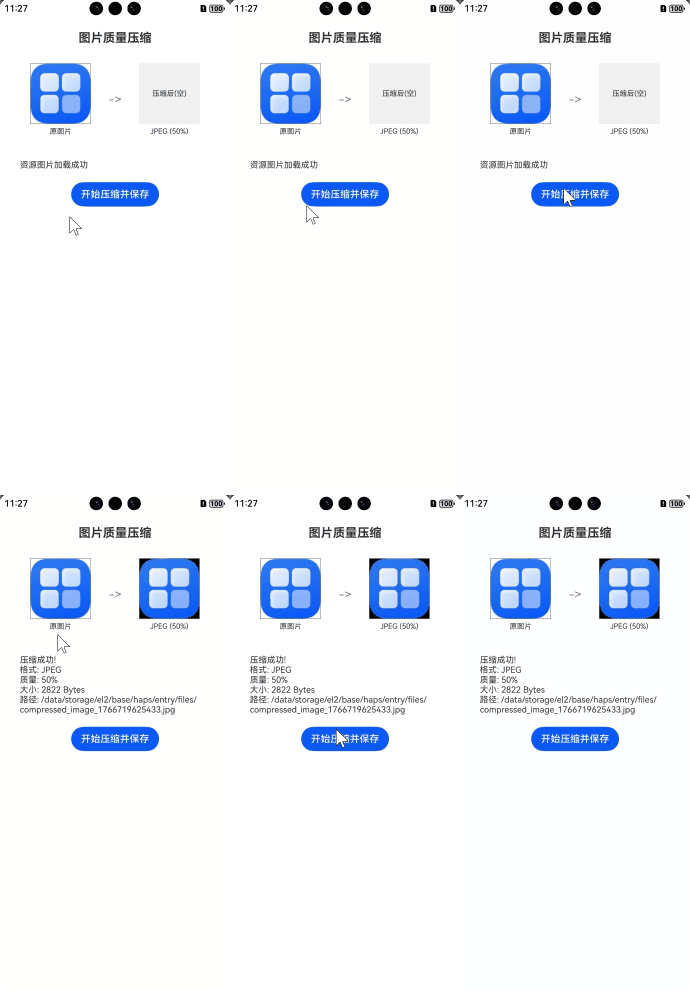
使用场景
用户拍摄高清照片后,在上传前自动压缩至指定大小,节省流量并提升上传速度。
实现思路
第一步:ImagePacker 初始化。
第二步:先通过 image.createImageSource 从本地读取图片并解码为 PixelMap。
第三步:创建 ImagePacker 实例,调用异步 pack 方法,将 PixelMap 压缩为 ArrayBuffer。
需要注意的是:需要在真机上实现。
完整实现代码
import image from '@ohos.multimedia.image';
import { common } from '@kit.AbilityKit';
import { BusinessError } from '@kit.BasicServicesKit';
import fs from '@ohos.file.fs';

@Entry
@Component
struct ImageCompressPage {
  @State sourceImage: PixelMap | undefined = undefined;
  @State compressedImage: PixelMap | undefined = undefined;
  @State logMsg: string = '准备就绪';

  // 获取 UIAbilityContext
  private getContext(): common.UIAbilityContext {
    return this.getUIContext().getHostContext() as common.UIAbilityContext;
  }

  async aboutToAppear() {
    try {
      const resourceMgr = this.getContext().resourceManager;

      const fileData = await resourceMgr.getMediaContent($r('app.media.startIcon'));


      const buffer = fileData.buffer.slice(fileData.byteOffset, fileData.byteOffset + fileData.byteLength);
    console.log(JSON.stringify(buffer))
      const imageSource = image.createImageSource(buffer);
      this.sourceImage = await imageSource.createPixelMap();

      this.logMsg = '资源图片加载成功';
    } catch (err) {
      const error = err as BusinessError;
      this.logMsg = `加载失败: ${error.code} - ${error.message}`;
      console.error('[ImageCompress] aboutToAppear Error:', JSON.stringify(err));
    }
  }

  async compressImage() {
    if (!this.sourceImage) {
      this.logMsg = '源图片未加载,无法压缩';
      return;
    }

    try {
      this.logMsg = '正在压缩...';
      const context = this.getContext();

      const packer = image.createImagePacker();

      const packOpts: image.PackingOption = {
        format: 'image/jpeg',
        quality: 50
      };

      const buffer: ArrayBuffer = await packer.packing(this.sourceImage, packOpts);

      packer.release();

      // 保存文件
      const targetPath = `${context.filesDir}/compressed_image_${Date.now()}.jpg`;
      const file = fs.openSync(targetPath, fs.OpenMode.CREATE | fs.OpenMode.WRITE_ONLY);
      fs.writeSync(file.fd, buffer);
      fs.closeSync(file);

      // 重新读取压缩后的图片用于展示
      const newImageSource = image.createImageSource(buffer);
      this.compressedImage = await newImageSource.createPixelMap();

      const fileSize = buffer.byteLength;
      this.logMsg = `压缩成功!\n格式: JPEG\n质量: 50%\n大小: ${fileSize} Bytes\n路径: ${targetPath}`;

    } catch (err) {
      const error = err as BusinessError;
      this.logMsg = `压缩失败: Code ${error.code}, Message: ${error.message}`;
      console.error(`[ImageCompress] Error: ${JSON.stringify(err)}`);
    }
  }

  build() {
    Column() {
      Text('图片质量压缩')
        .fontSize(20)
        .fontWeight(FontWeight.Bold)
        .margin({ top: 20, bottom: 10 })

      Flex({ justifyContent: FlexAlign.SpaceAround, alignItems: ItemAlign.Center }) {
        Column() {
          if (this.sourceImage) {
            Image(this.sourceImage)
              .width(100)
              .height(100)
              .objectFit(ImageFit.Cover)
              .border({ width: 1, color: Color.Gray })
          } else {
            Text('原图片(未加载)')
              .width(100)
              .height(100)
              .fontSize(12)
              .textAlign(TextAlign.Center)
              .backgroundColor('#f0f0f0')
          }
          Text('原图片')
            .fontSize(12)
            .margin({ top: 5 })
        }

        Text('->')
          .fontSize(20)
          .fontColor(Color.Gray)

        Column() {
          if (this.compressedImage) {
            Image(this.compressedImage)
              .width(100)
              .height(100)
              .objectFit(ImageFit.Cover)
              .border({ width: 1, color: Color.Gray })
          } else {
            Text('压缩后(空)')
              .width(100)
              .height(100)
              .fontSize(12)
              .textAlign(TextAlign.Center)
              .backgroundColor('#f0f0f0')
          }
          Text('JPEG (50%)')
            .fontSize(12)
            .margin({ top: 5 })
        }
      }
      .width('100%')
      .padding(20)

      Text(this.logMsg)
        .fontSize(14)
        .fontColor('#333')
        .width('90%')
        .margin({ top: 20, bottom: 20 })

      Button('开始压缩并保存')
        .onClick(() => {
          this.compressImage();
        })
    }
    .width('100%')
    .height('100%')
    .padding({ left: 20, right: 20 })
  }
}
更多关于HarmonyOS鸿蒙Next中如何实现自定义图片质量压缩?的实战系列教程也可以访问 https://www.itying.com/category-93-b0.html

在HarmonyOS Next中,可通过image模块的createImagePacker接口实现自定义图片压缩。首先获取ImagePacker实例,然后使用packing方法并设置PackingOptions参数,其中quality字段可指定压缩质量(范围1-100)。同时可结合size等选项控制输出尺寸。压缩后的数据可通过ImagePacker获取为ArrayBuffer或文件。

在HarmonyOS Next中,可以通过ImagePacker API实现自定义图片质量压缩。核心步骤是使用ImageSource创建图像源,然后通过ImagePacker设置压缩参数并打包输出。
关键代码示例:
import image from '@ohos.multimedia.image';
import fileIo from '@ohos.file.fs';

// 1. 获取图像源
let imageSource = image.createImageSource(uri); // uri为图片路径
let packOpts: image.PackingOption = {
  format: "image/jpeg", // 输出格式
  quality: 80 // 质量参数(0-100)
};

// 2. 创建打包器并设置参数
let imagePacker = image.createImagePacker();
imagePacker.packing(imageSource, packOpts)
  .then((data: ArrayBuffer) => {
    // 3. 保存压缩后数据
    let file = fileIo.openSync(outputPath, fileIo.OpenMode.CREATE | fileIo.OpenMode.READ_WRITE);
    fileIo.writeSync(file.fd, data);
    fileIo.closeSync(file);
  });
主要参数说明:
quality: 压缩质量(1-100),数值越小压缩率越高format: 支持JPEG/PNG/WEBP等格式- 可通过
getImageInfo()获取原图信息,动态计算压缩尺寸
注意事项:
- JPEG格式支持质量参数调整,PNG格式为无损压缩
- 建议结合
Image组件的alt属性实现渐进式加载 - 大图处理建议在Worker线程执行,避免阻塞UI
这种方案可直接控制输出质量和格式,适用于用户头像上传、相册缩略图生成等需要平衡画质与体积的场景。
