




HarmonyOS鸿蒙Next中采用AVPlayer实现音乐动态光谱
HarmonyOS鸿蒙Next中采用AVPlayer实现音乐动态光谱 如何采用 AVPlayer 实现音乐动态光谱效果?

实现效果
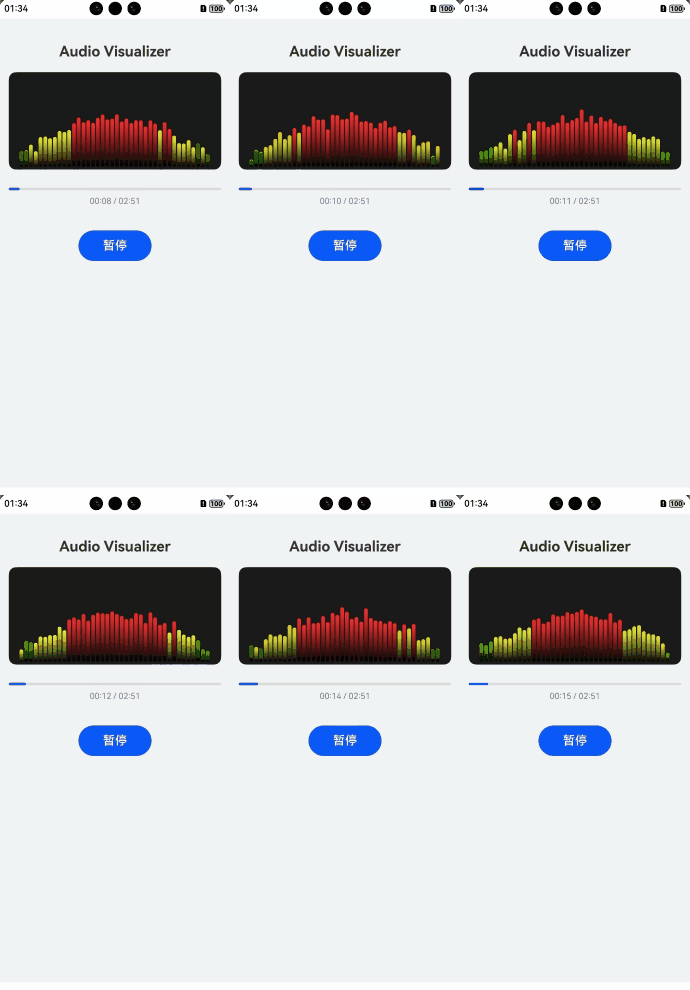
使用场景
主要使用在音乐播放,让效果看起来更加动感。
实现思路
第一步:创建频谱条数据模型,通过此数据模型存储频谱条动态数据。
第二步:创建 createAVPlayer,监听stateChange变更判断播放状态。
第三步:设置频谱条数据更新算法,播放时动态更新频谱条。
注意:需要在真机测试。
完整实现代码
import { media } from '@kit.MediaKit';
import { fileIo } from '@kit.CoreFileKit';
import { common } from '@kit.AbilityKit';
import { hilog } from '@kit.PerformanceAnalysisKit';
import json from '@ohos.util.json';
import { JSON } from '@kit.ArkTS';

const TAG = 'AudioVisualizerDemo';

// 频谱条数据模型
class BarData {
  height: number = 5; // 默认高度
  color: string = '#33ff00';
}

@Entry
@Component
struct AudioVisualizerPage {
  @State message: string = 'Audio Visualizer';
  @State isPlaying: boolean = false;
  @State currentProgress: number = 0; // 当前进度 0-100
  @State visualizerData: BarData[] = []; // 频谱数据源
  @State duration: number = 0; // 总时长
  @State timeStr: string = '00:00';

  private avPlayer: media.AVPlayer | null = null;
  private timerId: number = -1;
  private readonly BAR_COUNT = 40; // 频谱条数量
  private readonly SPEED = 1; // 刷新间隔 ms

  aboutToAppear(): void {
    // 初始化频谱数据
    for (let i = 0; i < this.BAR_COUNT; i++) {
      this.visualizerData.push(new BarData());
    }
    this.initAVPlayer();
  }

  aboutToDisappear(): void {
    this.releasePlayer();
    if (this.timerId !== -1) {
      clearInterval(this.timerId);
    }
  }

  // 初始化 AVPlayer
  async initAVPlayer() {
    try {
      this.avPlayer = await media.createAVPlayer();
      const avP = this.avPlayer;
      this.avPlayer.on('stateChange', (state) => {
        hilog.info(0x0000, TAG, `State changed to: ${state}`);
        switch (state) {
          case 'initialized':
            this.avPlayer?.prepare();
            break;
          case 'prepared':
            // 获取时长
            this.duration =  avP.duration;
            this.updateTimeStr(0);
            break;
          case 'playing':
            this.isPlaying = true;
            this.startVisualizerLoop(); // 启动频谱刷新
            this.startProgressLoop();
            break;
          case 'paused':
          case 'completed':
            this.isPlaying = false;
            this.stopVisualizerLoop();
            break;
          case 'released':
            this.isPlaying = false;
            break;
        }
      });

      // 设置播放源 : 这是一个测试的mp3,如果有需要自己换哈。
      this.avPlayer.url = 'https://files.freemusicarchive.org/storage-freemusicarchive-org/music/no_curator/Tours/Enthusiast/Tours_-_01_-_Enthusiast.mp3';

      this.avPlayer.setVolume(1.0);

    } catch (error) {
      hilog.error(0x0000, TAG, `Init AVPlayer failed: ${JSON.stringify(error)}`);
    }
  }

  private updateVisualizerData() {
    hilog.info(0x0000, TAG, JSON.stringify(this.visualizerData));
    const newData:BarData[] = [];
    for (let i = 0; i < this.BAR_COUNT; i++) {

      // 模拟波形:中间高两边低,带有随机跳动
      const baseHeight = Math.sin((i / this.BAR_COUNT) * Math.PI) * 60; // 0-60
      const randomNoise = Math.random() * 40; // 0-40

      // 如果正在播放,波动幅度大;暂停则缓慢归零
      const targetHeight = this.isPlaying ? (baseHeight + randomNoise) : 2;

      // 简单的平滑过渡算法
      const current = this.visualizerData[i].height;
      const diff = targetHeight - current;
      const newHeight = current + diff * 0.4; // 0.4 是平滑系数
      let  newColor = "#33ff00";
      // 动态颜色:高度越高越红,越低越绿
      if (newHeight > 60) {
        newColor = '#ff3333'; // Red
      } else if (this.visualizerData[i].height > 30) {
        newColor = '#ffff33'; // Yellow
      } else {
        newColor = '#33ff00'; // Green
      }
      newData.push({
        height:newHeight,
        color:newColor
      })

    }
    this.visualizerData = [...newData];
  }

  startVisualizerLoop() {
    if (this.timerId !== -1) return;
    this.timerId = setInterval(() => {
      this.updateVisualizerData();
    }, this.SPEED);
  }

  stopVisualizerLoop() {
    if (this.timerId !== -1) {
      clearInterval(this.timerId);
      this.timerId = -1;
    }
    // 停止时缓慢归零
    const resetInterval = setInterval(() => {
      let allZero = true;
      for (let i = 0; i < this.BAR_COUNT; i++) {
        if (this.visualizerData[i].height > 0.5) {
          this.visualizerData[i].height *= 0.8;
          allZero = false;
        } else {
          this.visualizerData[i].height = 0;
        }
      }
      if (allZero) clearInterval(resetInterval);
    }, 30);
  }

  startProgressLoop() {
    const progressTimer = setInterval(() => {
      if (!this.isPlaying || !this.avPlayer) {
        clearInterval(progressTimer);
        return;
      }
      const currentTime = this.avPlayer.currentTime;
      this.currentProgress = (currentTime / this.duration) * 100;
      this.updateTimeStr(currentTime);
    }, 1000);
  }

  updateTimeStr(ms: number) {
    const totalSeconds = Math.floor(ms / 1000);
    const minutes = Math.floor(totalSeconds / 60).toString().padStart(2, '0');
    const seconds = (totalSeconds % 60).toString().padStart(2, '0');
    this.timeStr = `${minutes}:${seconds}`;
  }

  async playOrPause() {
    if (!this.avPlayer) return;
    try {
      if (this.isPlaying) {
        this.avPlayer.pause();
      } else {
        this.avPlayer.play();
      }
    } catch (error) {
      hilog.error(0x0000, TAG, `Play/Pause error: ${JSON.stringify(error)}`);
    }
  }

  releasePlayer() {
    if (this.avPlayer) {
      this.avPlayer.release();
      this.avPlayer = null;
    }
  }

  build() {
    Column() {
      Text(this.message)
        .fontSize(24)
        .fontWeight(FontWeight.Bold)
        .margin({ top: 40, bottom: 20 })

      Row() {
        ForEach(this.visualizerData, (item: BarData, index: number) => {
          Column() {
            // 频谱柱
            Column()
              .width(6)
              .height(item.height)
              .borderRadius(3)
              .linearGradient({
                angle: 180,
                colors: [[item.color, 0.0], ['#000000', 1.0]]
              })
          }
          .justifyContent(FlexAlign.End)
          .height(150)
          .margin({ right: 2 })
        }, (item: BarData, index: number) => `${index}_${item.height}`)
      }
      .width('90%')
      .height(160)
      .backgroundColor('#1a1a1a')
      .borderRadius(12)
      .justifyContent(FlexAlign.Center)
      .margin({ bottom: 30 })

      // 进度条
      Progress({ value: this.currentProgress, total: 100, type: ProgressType.Linear })
        .width('90%')
        .color(Color.Blue)
        .margin({ bottom: 10 })

      Text(`${this.timeStr} / ${Math.floor(this.duration / 1000) / 60 > 0 ?
      Math.floor(Math.floor(this.duration / 1000) / 60).toString().padStart(2,'0') : '00'}:${(Math.floor(this.duration / 1000) % 60).toString().padStart(2,'0')}`)
        .fontSize(14)
        .fontColor(Color.Gray)
        .margin({ bottom: 40 })

      // 控制按钮
      Row() {
        Button(this.isPlaying ? '暂停' : '播放')
          .fontSize(20)
          .width(120)
          .height(50)
          .onClick(() => this.playOrPause())
      }
    }
    .width('100%')
    .height('100%')
    .backgroundColor('#F1F3F5')
  }
}
更多关于HarmonyOS鸿蒙Next中采用AVPlayer实现音乐动态光谱的实战系列教程也可以访问 https://www.itying.com/category-93-b0.html

HarmonyOS Next中AVPlayer结合AudioRenderer可实现音频频谱可视化。通过AVPlayer获取音频数据流,使用AudioRenderer的getAudioTime方法获取时间戳,配合FFT算法将时域信号转换为频域数据。开发者需调用OH_AVCapability获取音频参数,通过OH_AudioRenderer_GetFrameSize计算帧大小,利用OH_AudioRenderer_Write渲染音频流并提取振幅数据。频谱绘制需使用Canvas组件进行动态渲染,通过监听AVPlayer的on(‘timeUpdate’)事件实时更新频谱数据。
在HarmonyOS Next中,使用AVPlayer结合Canvas等图形绘制能力可以实现音乐动态光谱效果。核心思路是利用AVPlayer的音频播放能力获取实时音频数据,再通过图形接口进行可视化渲染。
主要步骤如下:
- 初始化AVPlayer:配置AVPlayer用于音频播放,并准备音频源。
- 获取音频数据(关键):通过AVPlayer的
audioRenderer或相关音频模块(如AudioRenderer)获取播放时的PCM音频数据。这通常需要设置音频回调,在回调中接收原始的、时域的音频样本数据。 - 数据处理:对获取的时域音频样本进行快速傅里叶变换(FFT),将其转换为频域数据。频域数据反映了各个频率成分的强度,这正是光谱可视化所需的基础数据。
- 图形绘制:
- 使用
CanvasRenderingContext2D或Canvas组件进行绘制。 - 将处理后的频域数据(通常是幅度谱)映射为可视化的柱状条、波形或粒子等图形元素。例如,每个频率区间对应一个垂直柱状条,其高度与该频率区间的幅度成正比。
- 在
onFrame回调或使用动画引擎(如Animator)中持续更新绘制,实现动态效果。
- 使用
简要代码思路示意:
// 1. 初始化AVPlayer
const avPlayer = new media.AVPlayer();
// ... 配置avPlayer

// 2. 获取音频数据(此处为概念示意,具体API可能涉及AudioRenderer或AVPlayer的回调)
// 假设通过某种回调获取到音频样本数组 audioSamples (时域数据)

// 3. 数据处理:对audioSamples进行FFT,得到频域数据frequencyData
let frequencyData = performFFT(audioSamples); // 需自行实现或使用第三方FFT库

// 4. 图形绘制
const ctx = canvas.getContext('2d');
function drawSpectrum() {
  ctx.clearRect(0, 0, canvas.width, canvas.height);
  const barWidth = canvas.width / frequencyData.length;
  for (let i = 0; i < frequencyData.length; i++) {
    const barHeight = frequencyData[i] * scaleFactor; // 缩放因子
    ctx.fillRect(i * barWidth, canvas.height - barHeight, barWidth - 1, barHeight);
  }
  requestAnimationFrame(drawSpectrum); // 持续更新
}
drawSpectrum();
注意事项:
- 实时性:确保音频数据获取和图形绘制的帧率足够高,以实现流畅的动态效果。
- 性能:FFT计算和图形绘制可能消耗较多资源,需注意优化,例如降低FFT点数、使用Worker线程处理计算等。
- API差异:HarmonyOS Next的AVPlayer及相关音频API可能与旧版本有差异,请以最新官方文档为准。
此方案实现了从音频播放、数据采集、频域转换到动态绘制的完整流程,是HarmonyOS Next上实现音乐动态光谱的典型方法。
