




HarmonyOS鸿蒙Next中实现高性能“跟随光标”的悬停交互效果
HarmonyOS鸿蒙Next中实现高性能“跟随光标”的悬停交互效果
如何实现“跟随光标”的这种悬停交互效果?
3 回复

实现效果
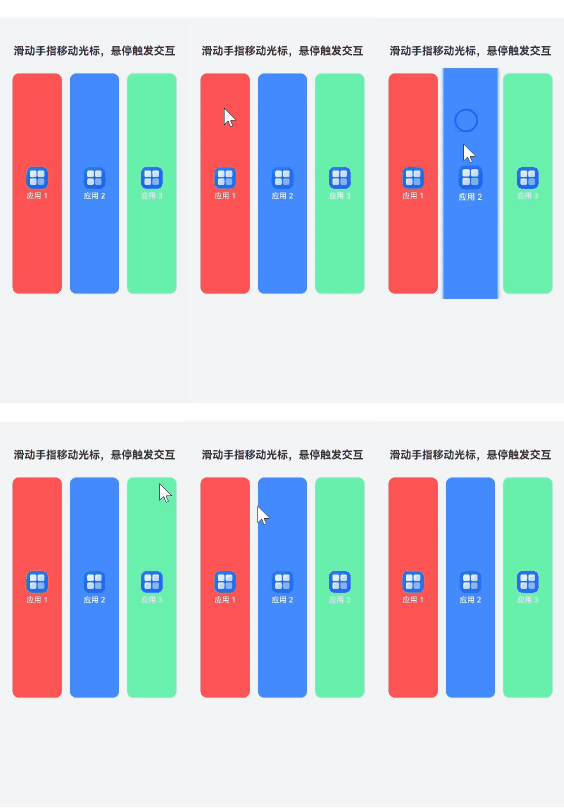
使用场景
在平板或智慧屏上,通过手指滑动即可精准瞄准图标,避免手指遮挡视线。或者为运动障碍用户提供“慢速光标模式”,帮助他们更准确地操作界面元素。
实现思路
第一步:创建一个覆盖全屏的透明容器,利用 PanGesture 监听手指的移动坐标。
第二步:使用 overlay 属性在手指位置绘制一个“瞄准镜”光圈。
几何碰撞检测(核心难点):ArkUI 中父组件无法直接获取子组件渲染后的动态绝对坐标(除非通过繁琐的 componentUtils 异步查询)。
高性能解法:假设网格布局规则固定(如 Grid 3列),通过数学公式 (index % columns, Math.floor(index / columns)) 反推每个子组件所在的坐标区域。
完整实现代码
// 定义子组件的数据模型
class GridItemModel {
  id: string;
  title: string;
  icon: Resource;
  color: string;

  constructor(id: string, title: string, icon: Resource, color: string) {
    this.id = id;
    this.title = title;
    this.icon = icon;
    this.color = color;
  }
}

@Entry
@Component
struct HoverCursorPage {
  @State private gridData: GridItemModel[] = [];
  // 光标当前的坐标
  @State private cursorX: number = -100;
  @State private cursorY: number = -100;
  // 当前光标悬停到的组件ID
  @State private activeItemId: string = "";

  // 布局常量配置
  private readonly CURSOR_SIZE: number = 40;
  private readonly ITEM_SIZE: number = 90;
  private readonly GAP: number = 15;
  private readonly COLUMNS: number = 3;

  aboutToAppear(): void {
    // 初始化模拟数据
    const icons = [
      $r('app.media.startIcon'), $r('app.media.startIcon'),
      $r('app.media.startIcon'), $r('app.media.startIcon'),
      $r('app.media.startIcon'), $r('app.media.startIcon'),
      $r('app.media.startIcon'), $r('app.media.startIcon'),
      $r('app.media.startIcon')
    ];
    const colors = ['#FF5252', '#448AFF', '#69F0AE', '#E040FB', '#FFAB40'];

    for (let i = 0; i < 9; i++) {
      this.gridData.push(new GridItemModel(
        `item_${i}`,
        `应用 ${i + 1}`,
        icons[i % icons.length],
        colors[i % colors.length]
      ));
    }
  }

  build() {
    Stack({ alignContent: Alignment.TopStart }) {
      // 1. 背景层:内容展示区
      Column() {
        Text("滑动手指移动光标,悬停触发交互")
          .fontSize(20)
          .fontWeight(FontWeight.Bold)
          .margin({ top: 50, bottom: 20 })
          .fontColor('#333')

        Grid() {
          ForEach(this.gridData, (item: GridItemModel) => {
            GridItem() {
              this.ItemBuilder(item)
            }
          }, (item: GridItemModel) => item.id)
        }
        .columnsTemplate(`1fr 1fr 1fr`)
        .rowsGap(this.GAP)
        .columnsGap(this.GAP)
        .width('90%')
        .height('60%')
        .padding(10)
      }
      .width('100%')
      .height('100%')
      .backgroundColor('#F1F3F5')

      // 2. 交互层:手势拦截与光标显示
      Column()
        .width('100%')
        .height('100%')
        .hitTestBehavior(HitTestMode.Transparent)
        .gesture(
          PanGesture({ direction: PanDirection.All })
            .onActionStart((event: GestureEvent) => {
              this.updateCursorAndHover(event.fingerList[0].localX, event.fingerList[0].localY);
            })
            .onActionUpdate((event: GestureEvent) => {
              this.updateCursorAndHover(event.fingerList[0].localX, event.fingerList[0].localY);
            })
            .onActionEnd(() => {
              // 手指离开,光标隐藏,状态重置
              this.cursorX = -1000;
              this.cursorY = -1000;
              this.activeItemId = "";
            })
        )
        .overlay(
          // 使用 @Builder 封装 overlay 内容
          this.CursorOverlayBuilder()
        )
    }
  }

  /**
   * 核心逻辑:更新光标位置并计算悬停目标
   * 使用数学反推代替组件坐标查询,保证高性能
   */
  private updateCursorAndHover(x: number, y: number) {
    this.cursorX = x;
    this.cursorY = y;

    // 假设 Grid 的起始 Y 坐标约为 120 (顶部文字 + margin)
    const gridStartY = 110;
    const itemTotalSize = this.ITEM_SIZE + this.GAP;

    if (y < gridStartY || y > gridStartY + 3 * itemTotalSize || x < 20 || x > (vp2px(100) - 20)) { // 简单边界检查
      // 仅重置状态,不做复杂计算
      this.activeItemId = "";
      return;
    }

    const relativeY = y - gridStartY;
    const colIndex = Math.floor(x / itemTotalSize);
    const rowIndex = Math.floor(relativeY / itemTotalSize);

    // 检查是否点击到了 GAP 缝隙中
    const modX = x % itemTotalSize;
    const modY = relativeY % itemTotalSize;
    const inGap = modX > this.ITEM_SIZE || modY > this.ITEM_SIZE;

    if (colIndex >= 0 && colIndex < this.COLUMNS && rowIndex >= 0 && !inGap) {
      const index = rowIndex * this.COLUMNS + colIndex;
      if (index >= 0 && index < this.gridData.length) {
        const targetId = this.gridData[index].id;
        if (this.activeItemId !== targetId) {
          this.activeItemId = targetId;
        }
      }
    } else {
      this.activeItemId = "";
    }
  }

  /**
   * 自定义 Overlay 构建器
   * 解决 CircleAttribute 类型错误问题
   */
  @Builder
  CursorOverlayBuilder() {
    // 仅当光标坐标有效时渲染
    if (this.cursorX > -100) {
      Circle()
        .width(this.CURSOR_SIZE)
        .height(this.CURSOR_SIZE)
        .fill(Color.Transparent)
        .stroke(this.activeItemId.length > 0 ? '#0A59F7' : '#999') // 悬停变色
        .strokeWidth(3)
        .position({
          x: this.cursorX - this.CURSOR_SIZE / 2,
          y: this.cursorY - this.CURSOR_SIZE / 2
        })
        .shadow({ radius: 8, color: '#40000000' })
        .animation({ duration: 50, curve: Curve.EaseOut })
    }
  }

  /**
   * 子组件构建器
   * 根据 activeItemId 动态改变样式
   */
  @Builder
  ItemBuilder(item: GridItemModel) {
    Column() {
      Image(item.icon)
        .width(40)
        .height(40)
        .objectFit(ImageFit.Contain)
        .margin({ bottom: 5 })

      Text(item.title)
        .fontSize(14)
        .fontColor('#FFFFFF')
        .fontWeight(FontWeight.Medium)
    }
    .width('100%')
    .height('100%')
    .backgroundColor(item.color)
    .borderRadius(12)
    .justifyContent(FlexAlign.Center)
    // 根据 ID 匹配触发样式变化
    .scale(this.activeItemId === item.id ? { x: 1.1, y: 1.1 } : { x: 1.0, y: 1.0 })
    .shadow(this.activeItemId === item.id ?
      { radius: 15, color: item.color, offsetX: 0, offsetY: 5 } :
      { radius: 0 })
    .animation({ duration: 200, curve: Curve.FastOutSlowIn })
    .renderGroup(true)
  }
}
更多关于HarmonyOS鸿蒙Next中实现高性能“跟随光标”的悬停交互效果的实战系列教程也可以访问 https://www.itying.com/category-93-b0.html

在HarmonyOS Next中,实现高性能“跟随光标”悬停交互效果,主要利用ArkUI的触摸事件处理能力。通过onHover事件监听组件悬停状态,结合@State装饰器动态更新组件位置或样式。使用Canvas或自定义组件绘制跟随效果,通过translate或position属性实现平滑移动。避免频繁UI更新,可采用@Reusable装饰器优化组件复用,或使用LazyForEach减少渲染开销。

