




HarmonyOS鸿蒙Next中圆环形状的倒计时咋写
HarmonyOS鸿蒙Next中圆环形状的倒计时咋写 类似于下面这中的,,并且要求如果在倒计时的过程中如果关闭应用,再点击应用时需要判断倒计时到哪里了,然后自动跳转到这个tab页面继续计时
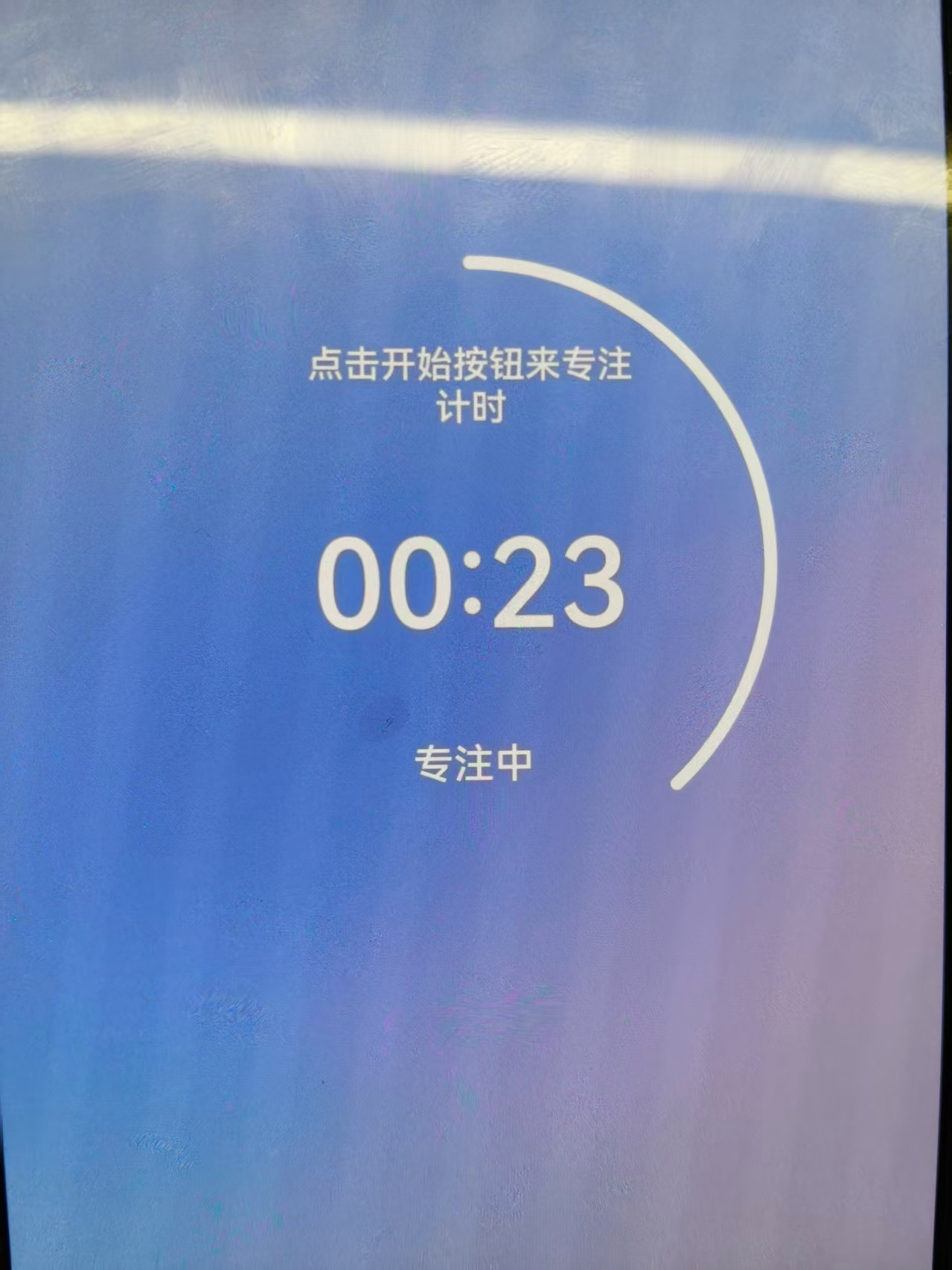
更多关于HarmonyOS鸿蒙Next中圆环形状的倒计时咋写的实战教程也可以访问 https://www.itying.com/category-93-b0.html
4 回复

开发者你好:
1、环形倒计时,首先需要用到Progress进度条组件;
2、如果在关闭应用,期望下次打开应用还从上次结束未完(或者未达到期望值)时继续,需要使用首选项进行数据保存;
3、重启应用时如果想要自动跳转到预期页面,需要在windowStage.loadContent前使用getPreferenceValue判断时间是否结束(或者是否达到期望值)。
可以参考以下demo:
- 在EntryAbility的onCreate事件中初始化首选项:
async onCreate(want: Want, launchParam: AbilityConstant.LaunchParam): Promise<void> {
    GlobalContext.getContext().setObject("UIAbilityContext",this.context)
    preferenceUtil.loadPreference(this.context,"test")
    //初始化60s
    let time = await preferenceUtil.getPreferenceValue("test","time",60) as number
    // 初始化time,如果倒计时未结束,不重新初始化。(需要根据具体业务进行调整)
    if( !time ){
      preferenceUtil.putPreferenceKeyValue("test","time", 0)
    }

    ethernet.getMacAddress().then((data: Array<ethernet.MacAddressInfo>) => {
      console.info("getMacAddress promise data = " + JSON.stringify(data));
    }).catch((error: BusinessError) => {
      console.error("getMacAddress promise error = " + JSON.stringify(error));
    });
  }
- 环状倒计时可以使用Progress组件实现:
import { GlobalContext } from "../util/GlobalContext"
import { preferenceUtil } from "../util/PreferenceUtil"
import { common } from '@kit.AbilityKit';

@Entry
@Component
struct ProgressTest {
  @State message: string = 'Hello World';
  private linearGradientColor: LinearGradient =
    new LinearGradient([{ color: Color.Red, offset: 0.5 }, { color: Color.Yellow, offset: 1.5 }])
  private ctx:common.UIAbilityContext = GlobalContext.getContext().getObject("UIAbilityContext") as common.UIAbilityContext;
  @State time:number = 0;

  async aboutToAppear(): Promise<void> {
    preferenceUtil.loadPreference(this.ctx,"test")
    this.time = await preferenceUtil.getPreferenceValue("test","time",60) as number
    setInterval(()=>{
      preferenceUtil.putPreferenceKeyValue("test","time", ++this.time)
      console.log("======>111")
    },1000)
  }

  build() {
    RelativeContainer() {
      Progress({ value: this.time, total: 60, type: ProgressType.Ring }).width(200)
        .color(this.linearGradientColor)
        .alignRules({
          center: { anchor: '__container__', align: VerticalAlign.Center },
          middle: { anchor: '__container__', align: HorizontalAlign.Center }
        })
    }
    .height('100%')
    .width('100%')
  }
}
- 涉及到的工具类GlobalContext与PreferenceUtil:
export class GlobalContext {
  private constructor() {
  }

  private static instance: GlobalContext;
  private _objects = new Map<string, Object>();

  public static getContext(): GlobalContext {
    if (!GlobalContext.instance) {
      GlobalContext.instance = new GlobalContext();
    }
    return GlobalContext.instance;
  }

  getObject(value: string): Object | undefined {
    return this._objects.get(value);
  }

  setObject(key: string, objectClass: Object): void {
    this._objects.set(key, objectClass);
  }
}
import preferences from '@ohos.data.preferences';
import { GlobalContext } from "./GlobalContext"

export class preferenceUtil {
  static loadPreference(context: Context, name: string) {
    let preferenceFun: Function = (() => {
      let preference: Promise<preferences.Preferences> = preferences.getPreferences(context, name);

      return preference;
    });
    preferenceFun().then(async (preferences: preferences.Preferences) => {
      let observer = (key: string) => {
        console.info("The key " + key + " changed.");
      }
      preferences.on('multiProcessChange', observer);
    })
    GlobalContext.getContext().setObject('getPreferences', preferenceFun);
  }

  static async putPreferenceKeyValue(name: string, key: string, value: preferences.ValueType) {
    try {
      let getPreferences: Function = GlobalContext.getContext().getObject('getPreferences') as Function;
      getPreferences().then(async (preferences: preferences.Preferences) => {
        await preferences.put(key, value);
        preferences.flush();
      });
    } catch (err) {
    }
  }

  static async deletePreferenceKey(key: string) {
    try {
      let getPreferences: Function = GlobalContext.getContext().getObject('getPreferences') as Function;
      getPreferences().then(async (preferences: preferences.Preferences) => {
        await preferences.delete(key);
        preferences.flush();
      });
    } catch (err) {
    }
  }

  //读取本地数据********************************* MyPreferences
  static async getPreferenceValue(name: string, key: string, defaultValue: preferences.ValueType): Promise<preferences.ValueType> {
    try {
      let getPreferences: Function = GlobalContext.getContext().getObject('getPreferences') as Function;
      let str = await (await getPreferences()).get(key, "") as preferences.ValueType;
      return str;
    } catch (err) {
      return "查询失败";
    }
  }
}
更多关于HarmonyOS鸿蒙Next中圆环形状的倒计时咋写的实战系列教程也可以访问 https://www.itying.com/category-93-b0.html


在HarmonyOS Next中实现圆环倒计时,使用Canvas组件绘制。通过CanvasRenderingContext2D的arc方法绘制圆环背景和进度条。使用setInterval或requestAnimationFrame更新进度角度,实现动态效果。关键步骤:计算角度,绘制圆弧,更新UI。
在HarmonyOS Next中实现圆环倒计时并支持状态持久化,可以通过以下步骤完成:
1. 圆环倒计时绘制
使用Canvas组件绘制圆环进度:
// 绘制圆环进度
@Builder
ProgressCanvas(progress: number) {
  Canvas(this.context)
    .width(200)
    .height(200)
    .onReady(() => {
      const ctx = this.context.getContext('2d')
      const centerX = 100
      const centerY = 100
      const radius = 80
      const lineWidth = 10

      // 绘制背景圆环
      ctx.beginPath()
      ctx.arc(centerX, centerY, radius, 0, Math.PI * 2)
      ctx.lineWidth = lineWidth
      ctx.strokeStyle = '#e5e5e5'
      ctx.stroke()

      // 绘制进度圆环
      const endAngle = (Math.PI * 2 * progress) / 100
      ctx.beginPath()
      ctx.arc(centerX, centerY, radius, -Math.PI / 2, endAngle - Math.PI / 2)
      ctx.lineWidth = lineWidth
      ctx.strokeStyle = '#007dff'
      ctx.stroke()
    })
}
2. 倒计时逻辑
使用定时器更新进度:
@State progress: number = 0
private totalTime: number = 60 // 总秒数
private remainingTime: number = this.totalTime
private timer: number | null = null

startCountdown() {
  this.timer = setInterval(() => {
    if (this.remainingTime > 0) {
      this.remainingTime--
      this.progress = ((this.totalTime - this.remainingTime) / this.totalTime) * 100
    } else {
      this.clearTimer()
    }
  }, 1000)
}

clearTimer() {
  if (this.timer) {
    clearInterval(this.timer)
    this.timer = null
  }
}
3. 状态持久化
使用PersistentStorage保存倒计时状态:
// 定义持久化数据
PersistentStorage.PersistProp('remainingTime', 0)
PersistentStorage.PersistProp('lastUpdateTime', 0)
PersistentStorage.PersistProp('targetTab', '')

// 保存状态
saveCountdownState() {
  PersistentStorage.PersistProp('remainingTime', this.remainingTime)
  PersistentStorage.PersistProp('lastUpdateTime', new Date().getTime())
  PersistentStorage.PersistProp('targetTab', 'countdownTab')
}

// 恢复状态
restoreCountdownState() {
  const savedTime = PersistentStorage.Get('remainingTime')
  const lastUpdate = PersistentStorage.Get('lastUpdateTime')
  const currentTime = new Date().getTime()

  if (savedTime > 0) {
    // 计算应用关闭期间经过的时间
    const elapsedSeconds = Math.floor((currentTime - lastUpdate) / 1000)
    this.remainingTime = Math.max(0, savedTime - elapsedSeconds)

    if (this.remainingTime > 0) {
      this.progress = ((this.totalTime - this.remainingTime) / this.totalTime) * 100
      this.startCountdown()
      // 跳转到对应tab
      router.pushUrl({ url: 'pages/CountdownPage' })
    }
  }
}
4. 生命周期管理
在页面生命周期中处理状态:
aboutToAppear() {
  this.restoreCountdownState()
}

aboutToDisappear() {
  this.saveCountdownState()
  this.clearTimer()
}
5. 完整组件示例
@Component
struct CountdownComponent {
  @State progress: number = 0
  private remainingTime: number = 60
  private totalTime: number = 60
  private timer: number | null = null

  aboutToAppear() {
    this.restoreState()
  }

  build() {
    Column() {
      // 圆环倒计时
      this.ProgressCanvas(this.progress)

      // 时间显示
      Text(`${this.remainingTime}s`)
        .fontSize(24)
        .margin({ top: 10 })
    }
  }

  // 启动倒计时
  startCountdown() {
    this.timer = setInterval(() => {
      if (this.remainingTime > 0) {
        this.remainingTime--
        this.progress = ((this.totalTime - this.remainingTime) / this.totalTime) * 100
        this.saveState()
      } else {
        this.clearTimer()
      }
    }, 1000)
  }
}
关键点说明:
- Canvas绘制:通过计算圆弧角度实现圆环进度效果
- 状态管理:使用
@State装饰器实现UI自动更新 - 持久化存储:应用关闭时保存剩余时间和时间戳,重启时恢复并计算实际剩余时间
- 生命周期:在
aboutToAppear和aboutToDisappear中处理状态恢复和保存 - 路由跳转:恢复状态后自动导航到对应tab页面
这种实现方式确保了倒计时在应用重启后能继续正确运行,同时保持UI同步更新。
