




HarmonyOS 鸿蒙Next中某些播放器和设备不支持HDR视频播放,怎么解决?
HarmonyOS 鸿蒙Next中某些播放器和设备不支持HDR视频播放,怎么解决? 如何将HDR视频转为SDR视频?

👍
更多关于HarmonyOS 鸿蒙Next中某些播放器和设备不支持HDR视频播放,怎么解决?的实战系列教程也可以访问 https://www.itying.com/category-93-b0.html

首先需要理解HDR和SDR的根本区别:
HDR
- 高亮度:支持最高1000、4000、甚至10000尼特亮度。
- 宽色域:通常使用Rec.2020色彩空间,能显示更丰富、更鲜艳的颜色。
- 高比特深度:通常使用10-bit或12-bit,使得色彩过渡非常平滑,几乎看不到色阶断层。
SDR
- 低亮度:标准亮度约为100尼特。
- 窄色域:通常使用Rec.709色彩空间,色彩范围小。
- 低比特深度:传统为8-bit,现在也有10-bit SDR,但是亮度范围有限。
将HDR Vivid视频转码成SDR视频是一个涉及多个技术要点的复杂过程。
在Native侧可以使用AVCodec原生能力转码,而在Arkts侧使用AVTranscoder将HDR视频转SDR。
可以通过调用canIUse接口来判断当前设备是否支持AVTranscoder,当canIUse(“SystemCapability.Multimedia.Media.AVTranscoder”) 的返回值为true时,表示可以使用转码能力。
效果预览:
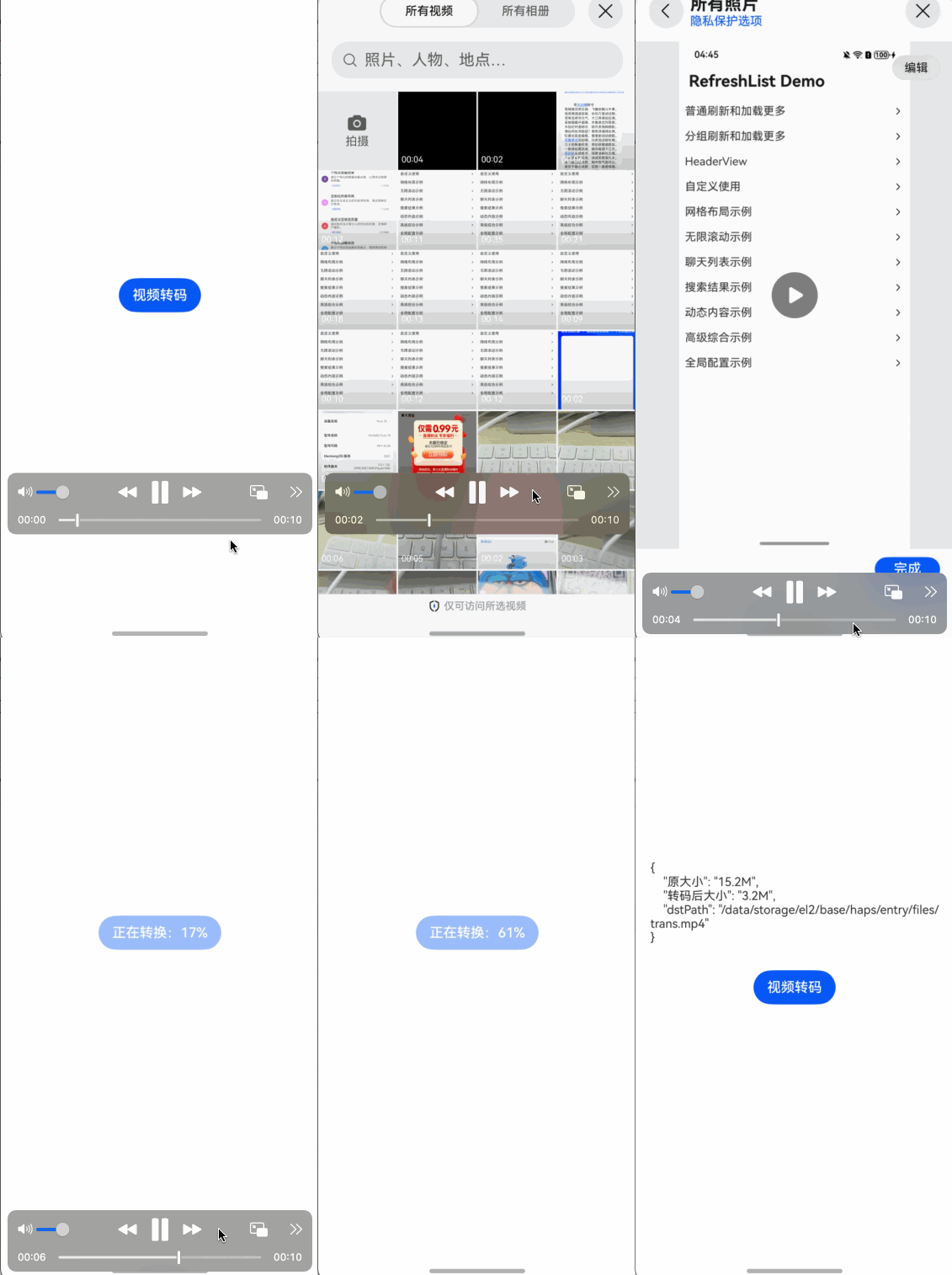
1、封装一个 Transcoder 类,方便直接调用转换:
/**
 * @fileName : Transcoder.ets
 * @author : @cxy
 * @date : 2025/12/20
 * @description : 视频转码
 */

import { media } from '@kit.MediaKit';
import { BusinessError } from '@kit.BasicServicesKit';
import { fileIo } from '@kit.CoreFileKit';

export class Transcoder {
  processCallback?: (completed: boolean, progress: number, error?: BusinessError) => void
  private avTranscoder: media.AVTranscoder | undefined = undefined;
  private context: Context | undefined;
  private currentProgress: number = 0;
  private avConfig: media.AVTranscoderConfig = {
    audioBitrate: 100000, // 音频比特率。
    audioCodec: media.CodecMimeType.AUDIO_AAC, // 音频编码格式。
    fileFormat: media.ContainerFormatType.CFT_MPEG_4, // 封装格式。
    videoBitrate: 200000, // 视频比特率。
    videoCodec: media.CodecMimeType.VIDEO_AVC, // 视频编码格式。
  };

  constructor(context: Context | undefined) {
    if (context != undefined) {
      this.context = context;
    }
  }

  static canIUse() {
    return canIUse('SystemCapability.Multimedia.Media.AVTranscoder')
  }


  // 注册avTranscoder回调函数。
  setAVTranscoderCallback() {
    if (Transcoder.canIUse()) {
      if (this.avTranscoder != undefined) {
        // 转码完成回调函数。
        this.avTranscoder.on('complete', async () => {
          console.log(`AVTranscoder is completed`);
          this.processCallback?.(true, this.currentProgress)
          await this.releaseTranscoderingProcess();
        });
        // 错误上报回调函数。
        this.avTranscoder.on('error', (err: BusinessError) => {
          console.error(`AVTranscoder failed, code is ${err.code}, message is ${err.message}`);
          this.processCallback?.(false, this.currentProgress, err)
        });
        // 进度上报回调函数
        this.avTranscoder.on('progressUpdate', (progress: number) => {
          console.info(`AVTranscoder progressUpdate = ${progress}`);
          this.currentProgress = progress;
          this.processCallback?.(false, this.currentProgress)
        })
      }
    }
  }

  // 开始转码对应的流程。
  async startTranscoderingProcess(srcPath: string, dstPath: string) {
    if (Transcoder.canIUse()) {
      if (this.avTranscoder != undefined) {
        await this.avTranscoder.release();
        this.avTranscoder = undefined;
      }
      // 1.创建转码实例。
      this.avTranscoder = await media.createAVTranscoder();
      this.setAVTranscoderCallback();
      // 2.获取转码源文件fd和目标文件fd赋予avTranscoder;参考FilePicker文档。
      if (this.context != undefined) {
        try {
          let fileDescriptor = await fileIo.open(srcPath, fileIo.OpenMode.READ_ONLY);
          this.avTranscoder.fdSrc = fileDescriptor;

          let file = await fileIo.open(dstPath, fileIo.OpenMode.READ_WRITE | fileIo.OpenMode.CREATE);
          this.avTranscoder.fdDst = file.fd;
          this.currentProgress = 0;
        } catch (error) {
          console.error('error', error);
        }
      }
      // 3.配置转码参数完成准备工作。
      await this.avTranscoder.prepare(this.avConfig);
      // 4.开始转码。
      await this.avTranscoder.start();
    }
  }

  // 暂停转码对应的流程。
  async pauseTranscoderingProcess() {
    if (Transcoder.canIUse()) {
      if (this.avTranscoder != undefined) { // 仅在调用start返回后调用pause为合理调用。
        await this.avTranscoder.pause();
      }
    }
  }

  // 恢复对应的转码流程。
  async resumeTranscoderingProcess() {
    if (Transcoder.canIUse()) {
      if (this.avTranscoder != undefined) { // 仅在调用pause返回后调用resume为合理调用。
        await this.avTranscoder.resume();
      }
    }
  }

  // 释放转码流程。
  async releaseTranscoderingProcess() {
    if (Transcoder.canIUse()) {
      if (this.avTranscoder != undefined) {
        // 1.释放转码实例。
        await this.avTranscoder.release();
        this.avTranscoder = undefined;
        // 2.关闭转码目标文件fd。
        fileIo.closeSync(this.avTranscoder!.fdDst);
      }
    }
  }

  // 获取当前进度
  getCurrentProgress(): number {
    console.info(`getCurrentProgress = ${this.currentProgress}`);
    return this.currentProgress;
  }
}
2、使用示例,选择图库中的HDR视频,拷贝到沙箱后再进行转换。
/**
 * @fileName : TranscoderDemo.ets
 * @author : @cxy
 * @date : 2025/12/21
 * @description : 视频转码demo
 */
import { photoAccessHelper } from "@kit.MediaLibraryKit";
import { fileIo } from "@kit.CoreFileKit";
import { Transcoder } from "./Transcoder";

@Component
export struct TranscoderDemo {
  @State message: string = ''
  @State isTransing: boolean = false
  @State progress: number = 0

  build() {
    Column({ space: 30 }) {
      if (this.message) {
        Text(this.message)
          .fontSize(14)
      }

      Button(this.isTransing ? `正在转换:${this.progress}%` : '视频转码')
        .enabled(!this.isTransing)
        .onClick(() => {
          this.onPickerVideo()
        })
    }
    .width('100%')
    .height('100%')
    .alignItems(HorizontalAlign.Center)
    .justifyContent(FlexAlign.Center)
  }

  onPickerVideo() {
    const photoSelectOptions = new photoAccessHelper.PhotoSelectOptions();
    photoSelectOptions.MIMEType = photoAccessHelper.PhotoViewMIMETypes.VIDEO_TYPE;
    photoSelectOptions.maxSelectNumber = 1;

    const photoPicker = new photoAccessHelper.PhotoViewPicker();
    photoPicker.select(photoSelectOptions).then((photoSelectResult: photoAccessHelper.PhotoSelectResult) => {
      const uri = photoSelectResult.photoUris[0]
      this.copyToSandBox(uri)
    }).catch((err: BusinessError) => {
    });
  }

  async copyToSandBox(uri: string) {
    const context = this.getUIContext().getHostContext()
    if (!context) {
      return
    }
    const tempDir = context.filesDir + '/'
    const cacheFilePath = tempDir + 'test.mp4';
    const srcFile = fileIo.openSync(uri);
    const dstFile = fileIo.openSync(cacheFilePath, fileIo.OpenMode.READ_WRITE | fileIo.OpenMode.CREATE);
    fileIo.copyFileSync(srcFile.fd, dstFile.fd);

    const srcInfo = await fileIo.stat(srcFile.fd)

    const transPath = tempDir + 'trans.mp4'
    const path = await this.onTransCoder(cacheFilePath, transPath)
    if (!path) {
      console.error('转换失败')
      return
    }

    const trans = await fileIo.stat(path)

    const transInfo: Record<string, Object> = {
      '原大小': this.getSizeStr(srcInfo.size),
      '转码后大小': this.getSizeStr(trans.size),
      'dstPath': transPath
    }
    this.message = JSON.stringify(transInfo, null, 4)

    fileIo.close(srcFile)
    fileIo.close(dstFile)
  }

  async onTransCoder(srcPath: string, dstPath: string): Promise<string> {
    this.isTransing = true
    this.progress = 0
    return new Promise((resolve) => {
      const transcoder = new Transcoder(this.getUIContext().getHostContext())
      transcoder.startTranscoderingProcess(srcPath, dstPath)
      transcoder.processCallback = (completed: boolean, progress: number, error?: BusinessError) => {
        this.progress = progress
        if (completed) {
          this.isTransing = false
          resolve(dstPath)
        } else if (error) {
          this.isTransing = false
          resolve('')
        }
      }
    })
  }

  getSizeStr(size: number): string {
    if (size === 0) {
      return '0KB'
    } else if (size > 1024 * 1024 * 1024) {
      return Number(size / 1024.0 / 1024.0 / 1024.0).toFixed(1) + 'G'
    } else if (size > 1024 * 1024) {
      return Number(size / 1024.0 / 1024.0).toFixed(1) + 'M'
    } else {
      return Number(size / 1024.0).toFixed(1) + 'KB'
    }
  }
}
3、完整的demo

鸿蒙Next中HDR播放问题可通过以下方式解决:
- 确认设备硬件支持HDR显示(查看设备规格)
- 使用系统预装视频播放器(已做HDR适配)
- 更新播放器到最新版本(部分第三方播放器已适配)
- 检查视频源是否为标准HDR格式(HDR10/HLG/Dolby Vision)
- 确保系统版本为最新(修复已知兼容性问题)
若仍无法播放,可能是该设备/播放器暂未完成HDR功能适配。

针对您提出的在HarmonyOS Next中某些播放器或设备不支持HDR视频播放的问题,核心解决方案是进行色彩空间转换,即将HDR视频转换为标准动态范围(SDR)视频。以下是具体的技术实现路径和关键注意事项:
1. 核心方案:使用媒体处理能力进行转码
HarmonyOS Next提供了强大的媒体编解码和媒体处理能力(@ohos.multimedia.media),这是实现HDR转SDR的官方推荐方案。您需要通过创建一个转码任务来完成。
关键步骤:
- 创建转码实例:使用
media.createMediaTranscoder()初始化。 - 配置输入/输出:设置输入视频文件(HDR格式)和输出文件路径。在配置输出视频格式时,必须明确指定色彩标准为SDR(例如BT.709),并选择兼容性高的编码格式(如H.264)。
- 执行转码:调用
transcode()方法启动转换过程。系统编解码器会在后台自动完成从HDR(如HLG、HDR10)到SDR的色彩映射和色调映射。
2. 重要注意事项
- 性能与质量平衡:转码是计算密集型操作,会消耗设备资源和时间。建议在系统空闲时(如连接充电器时)进行,或提供清晰的任务进度提示。
- 色彩信息损失:HDR转SDR本质上是将宽色域、高亮度信息压缩到标准范围,画面动态范围和色彩鲜艳度会有所降低,这是技术原理决定的客观结果。
- 格式兼容性:优先将输出视频封装为广泛支持的格式(如MP4),编码使用AVC/H.264,以确保在绝大多数设备和播放器上正常播放。
3. 备选方案:云端预处理 如果应用场景允许,可以在视频上传到服务器后,在云端进行HDR到SDR的转码处理。待用户播放时,根据其设备能力动态分发SDR或HDR版本的流媒体。这需要配套的云端服务支持。
总结:
解决HarmonyOS Next上HDR视频兼容性问题的直接有效方法,是利用系统media API进行本地转码,将视频转换为通用的SDR格式。开发者需在代码中显式配置输出色彩标准,并妥善管理转码任务的资源消耗与用户体验。
