




HarmonyOS 鸿蒙Next隔空传送分享开发源码和流程讲解
HarmonyOS 鸿蒙Next隔空传送分享开发源码和流程讲解

一、结论
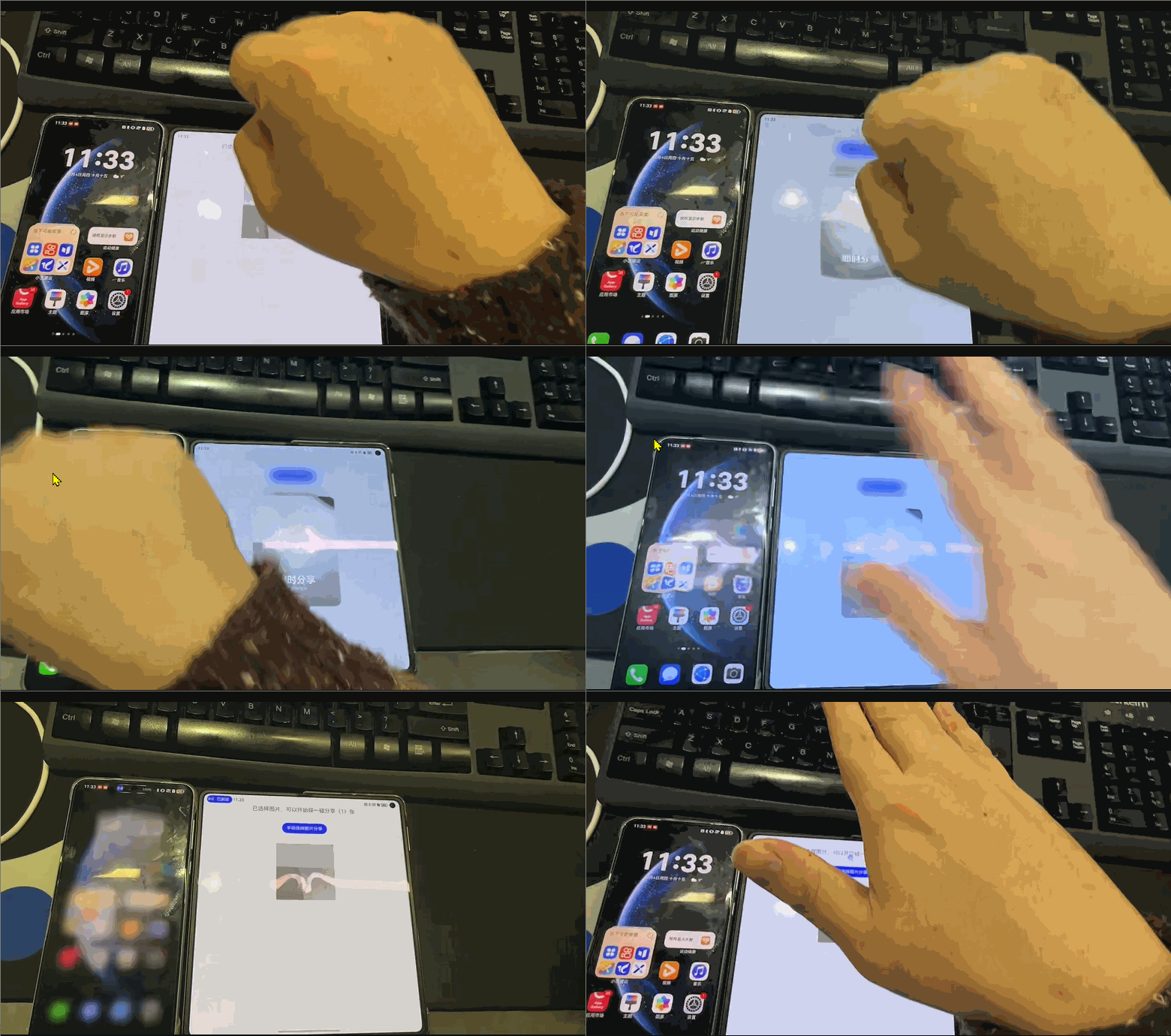
隔空传送是API20,也就是6.0系统上开放的系统功能接口。
通过在发起设备正面摄像头前,打开手掌后攥成拳头,来手势激活隔空传送的发起,在另外一台设备的正面摄像头前,将拳头展开。完整整个隔空传送的闭环分享操作。
需要注意的是,两个设备同账号,会自动分享。不同账号,一个小时内首次会有确认提示。
并且该功能,需要在设置中进行开启。(设置搜索框,搜索隔空传送即可找到入口,还会有手势引导学习,可以看下)
隔空传送的接口整体就分为三个: (1)监听隔空传送harmonyShare.on(‘gesturesShare’, this.onGesturesShare ) (2)取消监听隔空传送harmonyShare.off(‘gesturesShare’, this.onGesturesShare ) (3)收到隔空传送回调后,处理要分享的信息,调用分享发送接口。onGesturesShare 回调函数中的shareData分享包和调用share接口。
当监听到隔空传送发起操作时,就可以收到该操作的时机,时机指的就是分享回调。此时可以根据分享包shareData的参数信息,进行配置,比如分享图片,还是视频,还是链接等等。shareData中的参数非常多,可以实现不同的分享效果和展示样式,具体参考文末的链接。
当不需要处理分享时,关闭监听即可。整体逻辑非常简单。
二、代码实现和详细解释
核心工具类HarmonyShareMgr,碰一碰图片分享举例:
import { harmonyShare, systemShare } from "@kit.ShareKit";
import { uniformTypeDescriptor as utd } from '@kit.ArkData';
/**
 * 鸿蒙系统分享工具类
 */
export class HarmonyShareMgr{

  private TAG: string = "HarmonyShareMgr";

  private static mHarmonyShareMgr: HarmonyShareMgr | null = null;

  public static Ins(){
    if(!HarmonyShareMgr.mHarmonyShareMgr){
      HarmonyShareMgr.mHarmonyShareMgr = new HarmonyShareMgr();
    }
    return HarmonyShareMgr.mHarmonyShareMgr;
  }

  // 分享图片Uri
  private mImageUri: string = "";
  // 分享类型
  private mShareType: string = "";

  /**
   * 设置图片分享信息包
   */
  public setImageShareData(imageUri: string){
    this.mImageUri = imageUri;
    this.mShareType = utd.UniformDataType.JPEG;
  }

  /**
   * 隔空传送回调
   */
  private onGesturesShare = (shareTarget: harmonyShare.SharableTarget)=>{
    // 打包
    const shareData = new systemShare.SharedData({
      utd: this.mShareType,
      uri: this.mImageUri,
    });

    // 发送分享包
    shareTarget.share(shareData);
  }

  /**
   * 监听隔空传送
   */
  public registerGesturesShare(){
    console.log(this.TAG, " registerGesturesShare");
    // API20
    harmonyShare.on('gesturesShare', this.onGesturesShare);
  }

  /**
   * 取消监听隔空传送
   */
  public unRegisterGesturesShare(){
    console.log(this.TAG, " unRegisterGesturesShare");
    // API20
    harmonyShare.off('gesturesShare', this.onGesturesShare);
  }
}
测试页面内调用:
import { photoAccessHelper } from '@kit.MediaLibraryKit';
import { BusinessError } from '@kit.BasicServicesKit';
import { HarmonyShareMgr } from '../mgr/HarmonyShareMgr';

/**
 * 鸿蒙分享测试页面
 */
@Entry
@Component
struct HarmonyShareTestPage {
  private TAG: string = "HarmonyShareTestPage";

  onPageShow(): void {
    // 当前界面显示时,进行隔空传送监听
    HarmonyShareMgr.Ins().registerGesturesShare();
  }

  onPageHide(): void {
    HarmonyShareMgr.Ins().unRegisterGesturesShare();
  }

  onClickSelectPhoto = ()=>{
    try {
      let PhotoSelectOptions = new photoAccessHelper.PhotoSelectOptions();
      // 设置筛选过滤条件
      PhotoSelectOptions.MIMEType = photoAccessHelper.PhotoViewMIMETypes.IMAGE_TYPE;
      // 选择用户选择数量
      PhotoSelectOptions.maxSelectNumber = 1;
      // 实例化图片选择器
      let photoPicker = new photoAccessHelper.PhotoViewPicker();
      // 唤起安全相册组件
      photoPicker.select(PhotoSelectOptions, (err: BusinessError, PhotoSelectResult: photoAccessHelper.PhotoSelectResult) => {
        if (err) {
          console.error(this.TAG, "onClickSelectPhoto photoPicker.select error:" + JSON.stringify(err));
          return;
        }
        // 用户选择确认后,会回调到这里。
        console.info(this.TAG, "onClickSelectPhoto photoPicker.select successfully:" + JSON.stringify(PhotoSelectResult));
        // 调用碰一碰分享的图片分享赋值
        HarmonyShareMgr.Ins().setImageShareData(PhotoSelectResult.photoUris[0]);
      });
    } catch (error) {
      let err: BusinessError = error as BusinessError;
      console.error(this.TAG, "onClickSelectPhoto photoPicker.select catch failed:" + JSON.stringify(err));
    }
  }

  build() {
    Row(){
      Button('点击唤起相册选择')
        .onClick(this.onClickSelectPhoto)
    }
    .justifyContent(FlexAlign.Center)
    .size({
      width: "100%",
      height: "100%"
    })
  }

}
三、引用资料地址
空传送与隔空截屏的联动官方文档:https://developer.huawei.com/consumer/cn/doc/harmonyos-guides/gestures-share-open#section32701456165015
https://developer.huawei.com/consumer/cn/doc/best-practices/bpta-application-gesture-share
可信任设备间传输: https://developer.huawei.com/consumer/cn/doc/harmonyos-guides/gestures-share-trust
更多关于HarmonyOS 鸿蒙Next隔空传送分享开发源码和流程讲解的实战系列教程也可以访问 https://www.itying.com/category-93-b0.html


找HarmonyOS工作还需要会Flutter的哦,有需要Flutter教程的可以学学大地老师的教程,很不错,B站免费学的哦:https://www.bilibili.com/video/BV1S4411E7LY/?p=17

鸿蒙Next隔空传送基于NearLink星闪技术实现
鸿蒙Next隔空传送基于NearLink星闪技术实现,支持多设备间高速、低功耗数据传输。
开发流程
- 使用
@ohos.nearLink模块初始化NearLink服务; - 配置设备发现与连接参数;
- 通过Session管理传输会话;
- 调用
sendFile接口发送文件。
关键源码
关键源码涉及DeviceManager、SessionManager及FileTransfer类的调用。
权限声明
需在module.json5中声明ohos.permission.APPROXIMATELY_LOCATION等权限。

鸿蒙Next(HarmonyOS Next)的隔空传送功能基于其分布式能力实现,通常称为“万能卡片”分享或“跨端流转”。以下是核心开发流程和源码逻辑的简要说明:
一、核心机制
- 分布式软总线:设备自动发现、认证和组网,实现低延迟数据传输。
- 统一数据管理:通过分布式数据对象(DistributedDataObject)同步数据状态。
- 隐私安全:设备间通过华为账号互信,传输过程端到端加密。
二、开发流程
-
设备发现与连接
// 监听附近设备 import deviceManager from '[@ohos](/user/ohos).distributedDeviceManager'; deviceManager.createDeviceDiscovery({ mode: 0 }); // 主动发现模式 -
数据对象同步
import distributedObject from '[@ohos](/user/ohos).data.distributedDataObject'; let localObject = distributedObject.create({ content: '分享数据' }); localObject.setSessionId(sessionId); // 绑定设备会话 -
UI交互触发
- 使用
Want意图封装分享内容 - 调用
startAbility跨端启动对应服务
- 使用
三、关键配置
- 权限声明:在
module.json5中配置ohos.permission.DISTRIBUTED_DATASYNC - 特性标记:在
app.json5中声明"supports": ["continuation"]
四、注意事项
- 需使用HarmonyOS Next SDK API 10+版本
- 测试需两台搭载HarmonyOS Next的真实设备
- 数据格式需符合分布式对象序列化规范
该功能深度集成系统底层,开发者主要关注业务数据封装和设备会话管理,无需处理网络传输细节。具体实现可参考DevEco Studio中的“流转”模板工程。
