




HarmonyOS鸿蒙Next中点击确定后要在点击一下才显示,这是为什么?
HarmonyOS鸿蒙Next中点击确定后要再点击一下才显示,这是为什么?
import {twoTheme} from "../Theme/ThemeManager"
import { AppStorageV2, promptAction } from "@kit.ArkUI"
import { FailureCode } from "@ohos.app.ability.CompletionHandlerForAtomicService"
import { preferences } from "@kit.ArkData"
import { common } from "@kit.AbilityKit"

@Builder
export function PassProQuestBuilder(){
 PassPro_Question()
}


@CustomDialog
@Component
struct CustomDialogInput {
  @Link Index :number
  @Link TextInputQuestion : string
  @Consume TextInputValue : string
  @StorageLink("currentStatus") twoTheme: twoTheme = twoTheme.Light
  controllerInput?: CustomDialogController;
  cancel:() => void = () => {}
  confirm:() => void = () => {}

  build() {
    Column() {
      Text("自定义密保问题").fontSize(20).margin({top:"5%",bottom:"5%"}).fontColor("#000000")
      TextInput({placeholder:"请输入......",text:this.TextInputQuestion})
        .height("25%")
        .width("95%")
        .onChange((value:string)=>{
          this.TextInputQuestion=value
        })
      Flex({justifyContent:FlexAlign.SpaceAround}){
        Button('取消')
          .width("50%")
          .onClick(() => {
            if (this.controllerInput != undefined) {
              this.Index = 0
              this.controllerInput.close();
              this.cancel();
            }
          })
          .backgroundColor(this.twoTheme == twoTheme.Light ? "#E8E8E8":"#FFFFFF")
          .fontColor("#000000")
          .margin(20)
        Button('确认')
          .width("50%")
          .onClick(() => {
            if (this.controllerInput != undefined) {
              this.TextInputValue = this.TextInputQuestion
              this.controllerInput.close();
              this.confirm();
            }
          })
          .backgroundColor("#CCC" )
          .fontColor("#000000")
          .margin(20)
      }
      .borderRadius(20)
    }
    .width("90%")
    .height("28%")
  }
}


@Component
struct PassPro_Question{
  @State Index:number = 0;
  //密保问题
  @State TextInputQuestion : string =""
  @Provide TextInputValue :string = "自定义密保问题"
  //问题答案
  @State TextAnswer : string = ""
  @State Confirm_ON : boolean = false
  //其余变量
  @State DisValue:string = "您父亲的名字是"
  pathStack: NavPathStack = AppStorageV2.connect(NavPathStack,"NavPathStack",() => new NavPathStack())!
  @StorageLink("currentStatus") twoTheme: twoTheme = twoTheme.Light
  @State Quest :Array<string> =["您父亲的名字是?","您伴侣的姓名是?","您的小学班主任是?","您就读的中学名称是?","您最喜欢的歌手是?","自定义密保问题"]


  private SetQuestAnswer(Quest:string,Answer: string): void {
    const context: common.Context = this.getUIContext().getHostContext() as common.Context
    const option: preferences.Options = { name: 'Quest_Answer' }
    const pref: preferences.Preferences = preferences.getPreferencesSync(context,option)
    pref.putSync('Quest', Quest)
    pref.putSync('Answer',Answer)
    pref.flush()
  }


  dialogController : CustomDialogController | null = new CustomDialogController({
    builder: CustomDialogInput({
      cancel: ()=>{ this.onCancel(); },
      confirm: ()=>{ this.onConfirm(); },
      TextInputQuestion: this.TextInputQuestion,
      Index:this.Index
    }),
    cancel:this.onBack,
    autoCancel :true,
    onWillDismiss:(dismissDialogAction: DismissDialogAction)=> {
      if (dismissDialogAction.reason == DismissReason.PRESS_BACK) {
        dismissDialogAction.dismiss();
      }
      if (dismissDialogAction.reason == DismissReason.TOUCH_OUTSIDE) {
        dismissDialogAction.dismiss();
      }
    },
    alignment: DialogAlignment.Center,
    offset: { dx: 0, dy: -20 },
    gridCount: 4,
    customStyle: false,
    cornerRadius: 25 ,
    backgroundColor:this.twoTheme == twoTheme.Light ? "#FFFFFF":"#404040",
    borderColor:this.twoTheme == twoTheme.Light ? "#FFFFFF":"#404040"
  })


  // 在自定义组件即将析构销毁时将dialogController置空
  aboutToDisappear() {
    this.dialogController = null; // 将dialogController置空
  }
  //点击取消的回调函数
  onCancel() {
    console.info('当点击取消时进行回调');
  }
  //点击确认的回调函数
  onConfirm() {
    console.info('当点击确认时进行回调');
  }
  //退出时的回调函数
  onBack() {
    console.info('在空白区域点击返回按钮');
  }


  build() {
    NavDestination(){
      Column(){
        Row(){
          Text("请牢记密保问题答案。如忘记图案密码,可通过密保问题进行重置。")
            .height("15%")
            .fontSize(14)
            .fontColor(this.twoTheme == twoTheme.Light ? "#CCC":Color.Gray)
        }.justifyContent(FlexAlign.Center).width("90%")
        Select([
          { value : this.Quest[0], icon:$r("app.media.checkmark_white") },
          { value : this.Quest[1], icon:$r("app.media.checkmark_white") },
          { value : this.Quest[2], icon:$r("app.media.checkmark_white") },
          { value : this.Quest[3], icon:$r("app.media.checkmark_white") },
          { value : this.Quest[4], icon:$r("app.media.checkmark_white") },
          { value : this.Quest[5], icon:$r("app.media.checkmark_white") } ,
        ])
          .margin({bottom:"20%"})
          .optionWidth(OptionWidthMode.FIT_TRIGGER)
          .backgroundColor(this.twoTheme == twoTheme.Light ? "#E8E8E8":Color.Gray)
          .fontColor(this.twoTheme == twoTheme.Light ? "#000000":"#FFFFFF")
          .selected(this.Index)
          .value(this.DisValue)
          .onSelect((index: number, value?: string) => {
            this.Index = index;
            if (value) {
              this.DisValue = value
              if(this.Index == 5 && this.dialogController != null){
                this.dialogController.open();
                this.DisValue = this.TextInputQuestion
              }
            }
          })
        TextInput({text:this.TextAnswer,placeholder:"请输入2-18个字符"})
          .placeholderColor(this.twoTheme == twoTheme.Light ? Color.Gray:"CCC")
          .width("90%")
          .margin({top:"15%"})
          .defaultFocus(true) // 设置默认焦点为true,进入页面就会获取焦点,弹出键盘
          .focusable(true)
          .backgroundColor(this.twoTheme == twoTheme.Light ? "#E8E8E8":Color.Gray)
          .onChange((value:string)=>{
            this.TextAnswer =value
            if ((value).length >= 2) {
              this.Confirm_ON = true
            }
            else this.Confirm_ON =false
          })

      }
      .margin({left:"5%"})
      .width("95%")
      .height("80%")
      .alignItems(HorizontalAlign.Start)
      Row(){
        Button('取消')
          .width("40%")
          .onClick(() => {
            this.pathStack.pop()
          })
          .backgroundColor(this.twoTheme == twoTheme.Light ? "#E8E8E8":"#555555")
          .fontColor(this.twoTheme == twoTheme.Light ? "#000000":"#FFFFFF")
          .margin({left:"5%"})
        Button('确认')
          .width("40%")
          .enabled(this.Confirm_ON)
          .margin({right:"5%"})
          .onClick(() => {
            this.SetQuestAnswer(this.DisValue,this.TextAnswer)
            promptAction.showToast({message:"保存成功"})
            this.pathStack.pop()
          })
          .backgroundColor(this.twoTheme == twoTheme.Light ? "#949494":"#888")
          .fontColor(this.twoTheme == twoTheme.Light ? "#000000":"#FFFFFF")
      }
      .justifyContent(FlexAlign.SpaceBetween)
      .alignItems(VerticalAlign.Bottom)
      .height("18%")
      .width("100%")
    }
    .width("100%")
    .height("100%")
    .title("设置密保问题")
    .backgroundColor(this.twoTheme == twoTheme.Light ? "#FFFFFF":"#404040")
  }
}
更多关于HarmonyOS鸿蒙Next中点击确定后要在点击一下才显示,这是为什么?的实战教程也可以访问 https://www.itying.com/category-93-b0.html

问题在于数据更新时机不当。在选择自定义密保问题后会打开弹窗,在弹窗内输入自定义密保问题,但同步数据的步骤直接放在了打开弹窗的方法之后,使得第一次同步数据时,自定义密保问题还未输入,导致同步到的数据为空,第二次点击时数据已存在,则可以显示自定义密保问题。
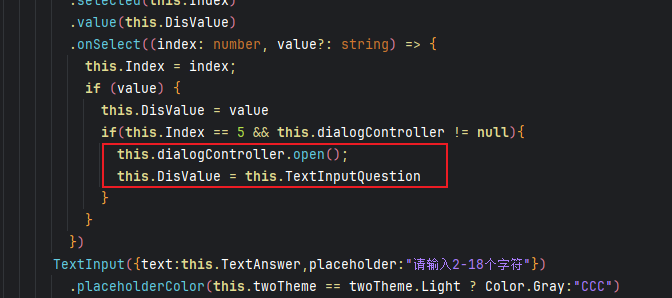
将数据同步的操作改到弹窗点击确定的回调即可。
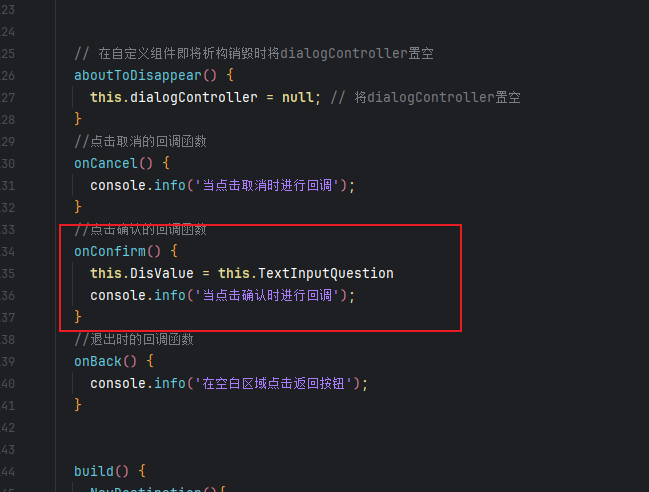
更多关于HarmonyOS鸿蒙Next中点击确定后要在点击一下才显示,这是为什么?的实战系列教程也可以访问 https://www.itying.com/category-93-b0.html

【解决方案】
看了下是因为Select组件的value属性设置的值为DisValue,而这边在弹窗中修改的是TextInputQuestion的值,TextInputQuestion在主页面上没有属性使用到,只是做了赋值不会触发页面的刷新,可以在弹窗confirm中给DisValue重新赋值触发页面的刷新。
confirm: () => {
  this.onConfirm();
  this.DisValue = this.TextInputQuestion
}

在HarmonyOS Next中,点击确定后需再次点击才显示,通常是由于界面渲染机制或事件处理逻辑导致。可能原因包括:UI组件状态更新延迟、事件冒泡处理不当,或异步操作未及时触发界面刷新。建议检查相关组件的状态绑定及事件回调函数,确保UI更新与用户操作同步。

根据你提供的代码,问题很可能出在自定义对话框 CustomDialogInput 中 TextInput 组件的数据绑定和状态更新机制上。
具体分析如下:
-
数据流问题:在
PassPro_Question组件中,你通过@Provide提供了TextInputValue,并在CustomDialogInput中通过@Consume进行消费。然而,在对话框的“确认”按钮点击事件中,你执行了:this.TextInputValue = this.TextInputQuestion this.controllerInput.close();这里将对话框内输入框的值 (
TextInputQuestion) 赋给了消费的变量 (TextInputValue)。但是,TextInputQuestion在CustomDialogInput组件中是通过@Link从父组件 (PassPro_Question) 传入的State变量。这个赋值操作直接修改了父组件的状态。 -
渲染时机与状态同步:在
PassPro_Question组件的Select组件onSelect回调中,当你选择“自定义密保问题”(Index == 5)时,有以下逻辑:if(this.Index == 5 && this.dialogController != null){ this.dialogController.open(); this.DisValue = this.TextInputQuestion // 问题点 }在打开对话框之后,你立即将
DisValue(即Select组件显示的值)设置为this.TextInputQuestion。然而,此时TextInputQuestion可能尚未更新为你在对话框中输入并确认的最新值。因为对话框的关闭和状态的回传是异步发生的。
核心原因:
Select 组件显示的 DisValue 没有与最终确认的 TextInputValue(或更新后的 TextInputQuestion)正确同步。对话框关闭后,DisValue 可能仍指向旧的 TextInputQuestion 值。你需要再次点击(例如触发一次界面重绘或焦点变化)才能使 DisValue 更新为最新值。
解决方案:
确保在对话框确认关闭后,DisValue 能自动更新为最新的自定义问题文本。修改 PassPro_Question 中 Select 组件的 value 绑定:
将
.value(this.DisValue)
改为直接绑定到最终存储自定义问题文本的变量。根据你的代码逻辑,这个变量应该是 TextInputValue(由 @Provide 提供,并在对话框确认时更新)。因此,可以尝试修改为:
.value(this.Index === 5 ? this.TextInputValue : this.DisValue)
同时,需要调整 onSelect 回调中设置 DisValue 的逻辑,确保它只在选择非自定义选项时更新,而在选择自定义选项时,DisValue 应能自动关联到 TextInputValue。
更简洁的做法是:Select 的 value 绑定可以根据 Index 动态决定:
.value(this.Index === 5 ? this.TextInputValue : this.Quest[this.Index])
这样,当选择自定义选项(Index === 5)时,显示的是 TextInputValue(它会在对话框确认时更新);选择其他预设选项时,显示对应数组中的字符串。这能确保显示的值总是与当前选择的状态同步,无需二次点击刷新。
