




HarmonyOS鸿蒙Next中为什么在图片属性那里看不到隐性标识
HarmonyOS鸿蒙Next中为什么在图片属性那里看不到隐性标识 【问题描述】:给图片加了隐性标识,日志打印显示成功,在电脑上点击图片属性看不到隐性标识,如何确认是否加成功了
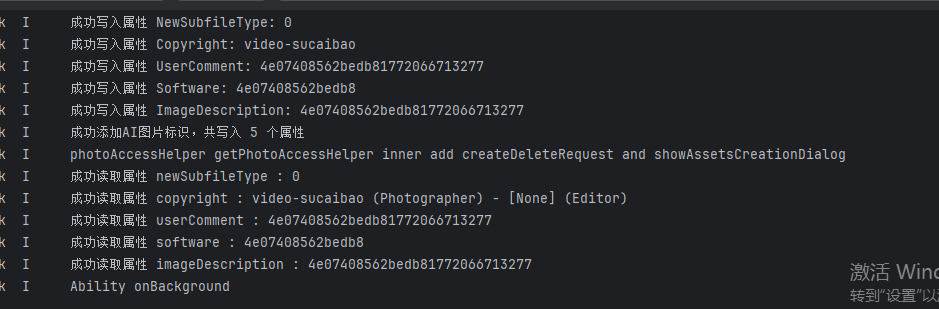
【问题现象】:属性中看不到隐性标识
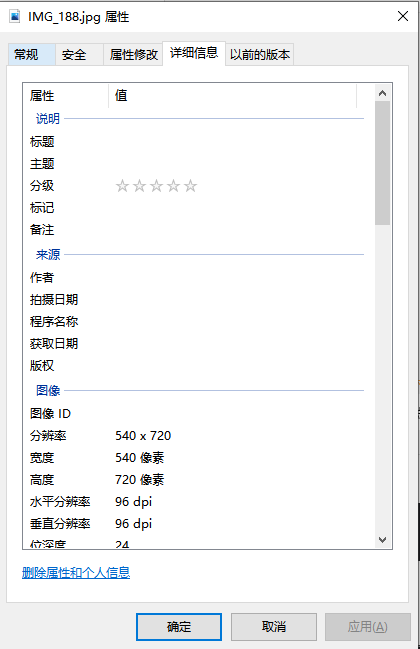
【版本信息】:6.0.2
【复现代码】:不涉及
【尝试解决方案】:不涉及
更多关于HarmonyOS鸿蒙Next中为什么在图片属性那里看不到隐性标识的实战教程也可以访问 https://www.itying.com/category-93-b0.html

开发者您好,如果本身已经能读到添加的元数据属性,您可以看下是否是调用图片编码接口未设置needsPackProperties。调用图片编码接口时,需要设置packingOption的needsPackProperties属性为true(该属性为是否需要编码图片属性信息,例如EXIF。true表示需要,false表示不需要。默认值为false)。我这边已验证添加后是可以看到隐性标识的
我本地的验证代码如下:
import { hilog } from '@kit.PerformanceAnalysisKit';
import { fileIo, fileIo as fs } from '@kit.CoreFileKit';
import { common } from '@kit.AbilityKit';
import { image } from '@kit.ImageKit';
import { photoAccessHelper } from '@kit.MediaLibraryKit';

const TAG = 'ImageMetadataUtil';
@Entry
@Component
struct Index {
  context: common.UIAbilityContext = this.getUIContext()?.getHostContext() as common.UIAbilityContext;
  aboutToAppear() {
  }
  @State filePath: string = '';
  build() {
    Column(){
      Button('添加隐式标识')
        .width('45%')
        .height(45)
        .margin(5)
        .onClick(async () => {
          this.filePath = this.context.filesDir+'/2.jpg'
          const file = await fs.open(this.filePath, fs.OpenMode.READ_WRITE);
          const imageSource = image.createImageSource(file.fd);

          // 尝试使用不同的属性键和更简单的值格式,提高兼容性
          // 🔧 修复:跳过USER_COMMENT属性,只写入Software和ImageDescription
          interface ExifProperty {
            key: image.PropertyKey;
            value: string;
          }

          const propertiesToTry: ExifProperty[] = [
            { key:image.PropertyKey.SOFTWARE, value: 'AI Generated sdsdsd' },
            { key: image.PropertyKey.IMAGE_DESCRIPTION, value: 'AI Generated afdfadffdas' }
          ];

          let successCount = 0;

          for (const prop of propertiesToTry) {
            try {
              await imageSource.modifyImageProperty(prop.key, prop.value);
              hilog.info(0x0000, TAG, `成功写入属性 ${prop.key}: ${prop.value}`);
              successCount++;
            } catch (error) {
              hilog.warn(0x0000, TAG, `写入属性 ${prop.key} 失败: ${JSON.stringify(error)}`);
              // 继续尝试其他属性,不中断流程
            }
          }

          await imageSource.release();
          await fs.close(file);
        })
      SaveButton({ text: SaveDescription.SAVE_IMAGE, buttonType: ButtonType.Normal }).onClick(async ()=>{
        let helper = photoAccessHelper.getPhotoAccessHelper(this.context);
        try {
          let uri = await helper.createAsset(photoAccessHelper.PhotoType.IMAGE, 'jpg')
          let file = await fileIo.open(uri, fileIo.OpenMode.READ_WRITE | fileIo.OpenMode.CREATE)
          // 写到媒体库文件中
          const source = image.createImageSource(this.filePath) // 图片对象
          const packer = image.createImagePacker() // 创建打包对象
          let commodityPixelMap: image.PixelMap = await source.createPixelMap();
          let pictureObj: image.Picture = image.createPicture(commodityPixelMap);

          const buffer = await packer.packing(pictureObj, {
            quality: 100,
            format: 'image/jpeg',
            needsPackProperties: true
          })
          await fileIo.write(file.fd, buffer);
          await fileIo.close(file.fd);
        } catch (error) {
          const err: BusinessError = error as BusinessError
          console.error(`Failed to save photo. Code is ${err.code}, message is ${err.message}`)
        }
      })
    }
  }
}
更多关于HarmonyOS鸿蒙Next中为什么在图片属性那里看不到隐性标识的实战系列教程也可以访问 https://www.itying.com/category-93-b0.html


在HarmonyOS鸿蒙Next中,图片属性不显示隐性标识是因为系统设计上可能未在标准属性面板直接集成该功能。隐性标识通常指图片的元数据(如EXIF信息),但鸿蒙Next可能默认隐藏或未提供直接查看入口。这可能是出于隐私保护或界面简洁的考虑。用户需通过特定API或开发者工具访问这些数据。

在HarmonyOS Next中,图片的“隐性标识”通常指的是通过ImageAttributes或相关API嵌入的元数据,这些数据是直接写入图片文件二进制流中的,不会显示在操作系统(如Windows)的常规文件属性对话框中。
您提供的日志打印成功,表明API调用已执行,但“电脑上点击图片属性看不到”是预期现象。Windows资源管理器的“属性”对话框仅显示标准元数据(如Exif),无法解析HarmonyOS SDK写入的自定义数据块。
要验证隐性标识是否添加成功,建议使用以下方法:
- 使用HarmonyOS API读取验证:在您的应用内,使用与写入对应的读取API(例如
ImageAttributes的读取方法)尝试从同一图片文件读取隐性标识。这是最可靠的验证方式。 - 使用十六进制编辑器查看:将图片文件导入到专业的十六进制编辑工具(如010 Editor、Hex Fiend等),直接搜索您写入的特定标识字符串或数据模式。隐性标识会以二进制形式存在于文件特定区域。
- 检查文件哈希或大小变化:比较添加标识前后文件的MD5/SHA值是否改变,或文件大小是否有微小增加(取决于标识数据量)。如有变化,可间接证明数据已被写入。
总结:Windows文件属性界面不显示是正常的,不代表添加失败。请通过HarmonyOS读取API或二进制分析工具进行确认。
