




HarmonyOS 鸿蒙Next中请教如何给常规按钮加上API23沉浸光感效果
HarmonyOS 鸿蒙Next中请教如何给常规按钮加上API23沉浸光感效果
-
想请教如何给常规按钮加上API23沉浸光感效果
-
桌面服务卡片端怎么实现点击蓝牙、wifi、nfc、数据网络等图标实现直接开关的控制呢

1、尊敬的开发者,您好!
我们已为您向业务部门提交了API 23版本查看/下载DevEco Studio及开发文档的权限申请,预计该权限将于今日20:00后开通,请您刷新下载中心和文档页面进行查看。感谢您的支持!
2、蓝牙开关API:access.enableBluetooth,需要先申请ohos.permission.ACCESS_BLUETOOTH权限;
3、wifi,nfc,数据网络等开关,不对三方应用开放,仅系统应用可用,对于这些页面可以使用startAbility跳转至设置页面,由用户去打开。
常见二级页面uri:https://developer.huawei.com/consumer/cn/blog/topic/03197807514267242
| 蓝牙二级页面 | bluetooth_entry |
|---|---|
| WLAN二级页面 | wifi_entry |
| 移动网络二级页面 | mobile_network_entry |
| NFC二级页面 | nfc_settings |
更多关于HarmonyOS 鸿蒙Next中请教如何给常规按钮加上API23沉浸光感效果的实战系列教程也可以访问 https://www.itying.com/category-93-b0.html


关于沉浸光感效果您可参考:沉浸光感:https://developer.huawei.com/consumer/cn/doc/harmonyos-guides/ui-design-hds-component-material
你这边是期望给普通的button按钮设计沉浸光感效果?如果上述沉浸光感无法满足你的业务需求,请详细描述你的问题。

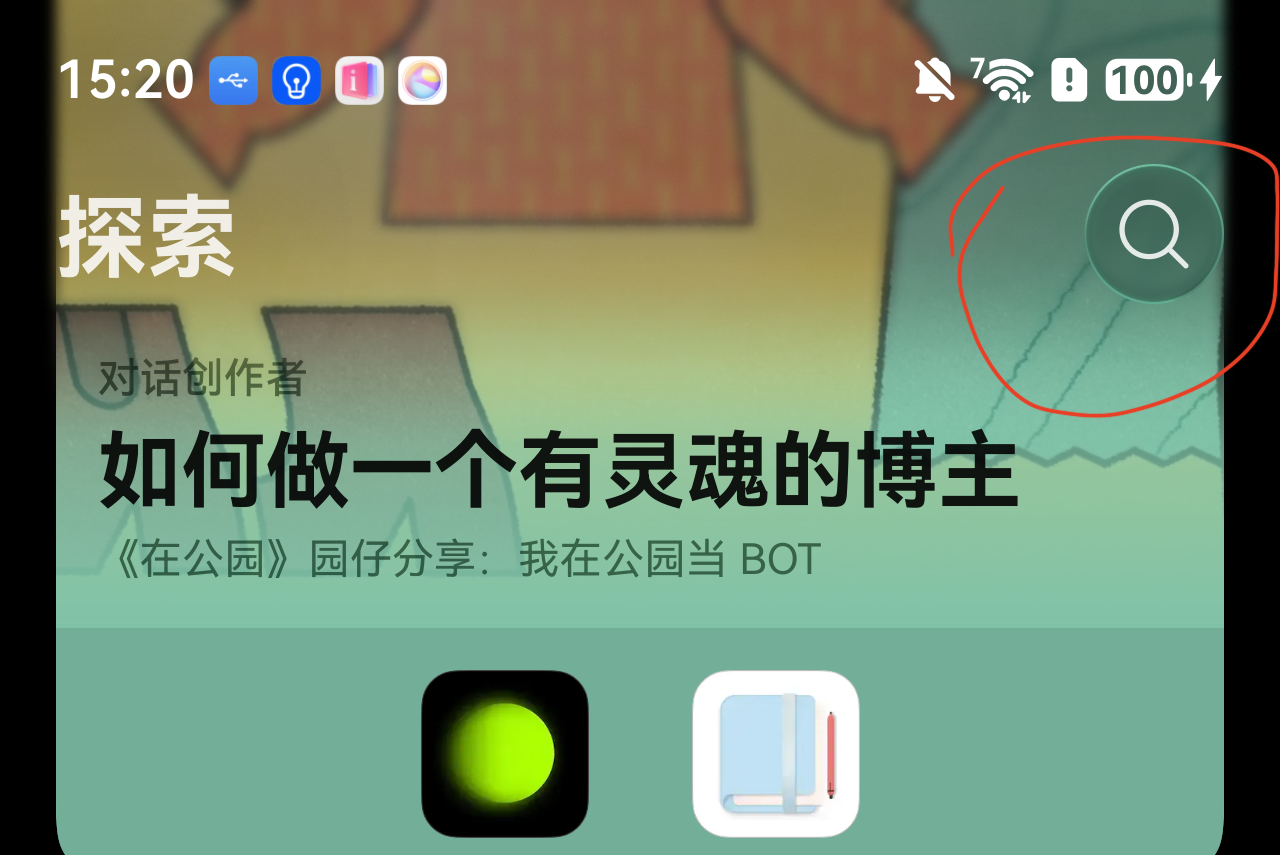

导入依赖@kit.UIDesignKit,然后代码实现
import { hdsEffect } from '@kit.UIDesignKit';
import { TouchType, ButtonStyleMode } from '@ohos ArkUI';

@Entry
@Component
struct ImmersiveLightButtonDemo {
  // 1. 状态管理:控制光源与阴影
  @State lightType: hdsEffect.PointLightSourceType = hdsEffect.PointLightSourceType.NONE;
  @State shadowType: hdsEffect.PressShadowType = hdsEffect.PressShadowType.NONE;

  build() {
    Column({ space: 30 }) {
      // 沉浸光感按钮(核心)
      Button('沉浸光感按钮', { stateEffect: false }) // 关闭默认效果
        .width(200)
        .height(56)
        .borderRadius(28)
        .backgroundColor('#1A73E8') // 主色
        .fontColor(Color.White)
        // ---------- 核心:光效组合 ----------
        .visualEffect(
          new hdsEffect.HdsEffectBuilder()
            // 1. 点光源(按下发光)
            .pointLight({
              sourceType: this.lightType,       // 光源类型(亮/柔和/无)
              illuminatedType: hdsEffect.PointLightIlluminatedType.BORDER, // 照亮边缘
              intensity: 0.8                   // 光强(0~1)
            })
            // 2. 按压阴影(立体下陷)
            .pressShadow(this.shadowType)
            .buildEffect()
        )
        // ---------- 触摸事件:触发光效 ----------
        .onTouch((event) => {
          if (event.type === TouchType.Down) {
            // 按下:亮光源 + 白色混合阴影
            this.lightType = hdsEffect.PointLightSourceType.BRIGHT;
            this.shadowType = hdsEffect.PressShadowType.BLEND_WHITE;
          } else if (event.type === TouchType.Up || event.type === TouchType.Cancel) {
            // 松开:关闭光源与阴影
            this.lightType = hdsEffect.PointLightSourceType.NONE;
            this.shadowType = hdsEffect.PressShadowType.NONE;
          }
        })
        // 可选:添加轻微缩放,增强手感
        .scale({ x: 1.0, y: 1.0 })
        .animation({ duration: 150, curve: Curve.EaseOut })

      // 示例2:柔和光感(低亮、大面积)
      Button('柔和光感', { stateEffect: false })
        .width(200)
        .height(56)
        .borderRadius(28)
        .backgroundColor('#4CAF50')
        .fontColor(Color.White)
        .visualEffect(
          new hdsEffect.HdsEffectBuilder()
            .pointLight({
              sourceType: this.lightType === hdsEffect.PointLightSourceType.BRIGHT
                ? hdsEffect.PointLightSourceType.SOFT  // 柔和光源
                : hdsEffect.PointLightSourceType.NONE,
              illuminatedType: hdsEffect.PointLightIlluminType.CONTENT, // 照亮内容
              intensity: 0.6
            })
            .pressShadow(hdsEffect.PressShadowType.GRADIENT) // 渐变阴影
            .buildEffect()
        )
        .onTouch((event) => {
          this.lightType = event.type === TouchType.Down
            ? hdsEffect.PointLightSourceType.BRIGHT
            : hdsEffect.PointLightSourceType.NONE;
          this.shadowType = event.type === TouchType.Down
            ? hdsEffect.PressShadowType.GRADIENT
            : hdsEffect.PressShadowType.NONE;
        })
        .animation({ duration: 150 })
    }
    .width('100%')
    .height('100%')
    .justifyContent(FlexAlign.Center)
    .backgroundColor('#0F0F0F') // 深色背景更显光感
  }
}

1.使用visualEffect和hdsEffect创建沉浸光感(点光源发光)效果。如果需要发光,配置sourceType属性;如果需要被照亮,配置illuminatedType属性。
以下代码表示:当中间的Button点击时,产生点光源效果,重复点击触发不同点光源效果。
import { hdsEffect } from '@kit.UIDesignKit';

@Entry
@Component
struct Index {
  @State bloomValue: number = 0;
  @State index: number = 0;
  @State illuminatedType: hdsEffect.PointLightIlluminatedType = hdsEffect.PointLightIlluminatedType.NONE;
  @State button_gradient_state: hdsEffect.PressShadowType = hdsEffect.PressShadowType.NONE;
  @State lightIntensity: number = 10;
  @State types: hdsEffect.PointLightIlluminatedType[] =
    [hdsEffect.PointLightIlluminatedType.NONE, hdsEffect.PointLightIlluminatedType.BORDER,
      hdsEffect.PointLightIlluminatedType.CONTENT, hdsEffect.PointLightIlluminatedType.BORDER_CONTENT,
      hdsEffect.PointLightIlluminatedType.DEFAULT_FEATHERING_BORDER];

  build() {
    Flex({
      direction: FlexDirection.Column,
      justifyContent: FlexAlign.Center,
      alignItems: ItemAlign.Center,
    }) {
      // 纵向循环
      ForEach(Array<number>(4).fill(0), (row: number) => {
        Flex({
          direction: FlexDirection.Row,
          justifyContent: FlexAlign.Center,
          alignItems: ItemAlign.Center,
        }) {
          // 横向循环
          ForEach(Array<number>(4).fill(0), (col: number) => {
            Flex()
              .visualEffect(new hdsEffect.HdsEffectBuilder().pointLight({
                illuminatedType: this.illuminatedType,
              }).buildEffect())
              .backgroundColor(0x808080)
              .size({ width: 60, height: 60 })
              .borderRadius(50)
              .margin({ top: 20, right: 10, left: 10 }) // 添加间距
          })
        }
        .width('100%') // 设置 Row 组件的宽度为 100%
      })

      Flex({
        direction: FlexDirection.Row,
        justifyContent: FlexAlign.Center, // 使用 SpaceBetween 来均匀分布间距
        alignItems: ItemAlign.Center,
      }) {
        Flex()
          .visualEffect(new hdsEffect.HdsEffectBuilder().pointLight({
            illuminatedType: this.illuminatedType,
          }).buildEffect())
          .backgroundColor(0x808080)
          .size({ width: 60, height: 60 })
          .borderRadius(50)
          .margin({ top: 20, right: 10, left: 10 })

        Button('点击发光')
          .size({ width: 140, height: 60 })
          .backgroundColor(0x808080)
          .fontColor(0xADD8E6)
          .visualEffect(new hdsEffect.HdsEffectBuilder()
            .pressShadow(this.button_gradient_state)
            .pointLight({
              options: {
                color: Color.White,
                intensity: this.lightIntensity,
                height: 150
              }
            })
            .pressShadow(this.button_gradient_state)
            .buildEffect())
          .onClick(() => {
            if (this.index <= 3) {
              this.index++;
              this.illuminatedType = this.types[this.index];
              this.button_gradient_state = hdsEffect.PressShadowType.BLEND_GRADIENT;
            }
            let message = 'NONE';
            if (this.illuminatedType == 1) {
              message = 'BORDER';
            } else if (this.illuminatedType == 2) {
              message = 'CONTENT';
            } else if (this.illuminatedType == 3) {
              message = 'BORDER_CONTENT';
            } else {
              message = 'DEFAULT_FEATHERING_BORDER';
            }
            this.getUIContext().getPromptAction().showToast({
              message: message,
              duration: 2000,
              bottom: '80%'
            });
          })
          .margin({ top: 20, right: 10, left: 10 })

        Flex()
          .visualEffect(new hdsEffect.HdsEffectBuilder().pointLight({
            illuminatedType: this.illuminatedType,
          }).buildEffect())
          .backgroundColor(0x808080)
          .size({ width: 60, height: 60 })
          .borderRadius(50)
          .margin({ top: 20, right: 10, left: 10 })
      }
      .width('100%') // 设置 Row 组件的宽度为 100%

      ForEach(Array<number>(4).fill(0), (row: number) => {
        Flex({
          direction: FlexDirection.Row,
          justifyContent: FlexAlign.Center,
          alignItems: ItemAlign.Center,
        }) {
          // 横向循环
          ForEach(Array<number>(4).fill(0), (col: number) => {
            Flex()
              .visualEffect(new hdsEffect.HdsEffectBuilder().pointLight({
                illuminatedType: this.illuminatedType,
              }).buildEffect())
              .backgroundColor(0x808080)
              .size({ width: 60, height: 60 })
              .borderRadius(50)
              .margin({ top: 20, right: 10, left: 10 })
          })
        }
        .width('100%') // 设置 Row 组件的宽度为 100%
      })
    }
    .backgroundColor(Color.Black)
  }
}
2.三方应用/卡片没有系统级开关权限,无法实现点击蓝牙、wifi、nfc、数据网络等图标实现直接开关的控制。

在HarmonyOS Next中,可通过设置按钮的阴影和背景色实现沉浸光感效果。使用.shadow(blurRadius, color, offsetX, offsetY)属性,blurRadius控制模糊度,color设置为半透明光色(如Color.hex('#33FFFFFF')),offsetX/Y调整偏移。同时搭配backgroundColor使用渐变或半透明颜色,并启用.blur()增强质感。具体参数需结合API调整。

关于API23沉浸光感效果(按钮实现)
在HarmonyOS Next中,要实现类似API23(即Android 6.0风格)的沉浸光感按钮效果,核心是利用系统提供的阴影和模糊能力模拟分层光晕,而非直接调用Android API。
具体实现路径:
- 使用
Button组件的shadow属性设置多层阴影:外层阴影(颜色柔和、扩散大,模拟光晕),内层阴影(颜色深、距离小,模拟物理按钮厚度)。例如:shadow({ radius: 20, color: '#80FFFFFF', offsetY: 0 })叠加shadow({ radius: 4, color: '#40000000', offsetY: 8 })。 - 配合背景色渐变(如从
#E8E8E8到#FFFFFF)和圆角borderRadius,营造脂感光效。 - 如需精确控制,可使用
Canvas自绘按钮,叠加模糊滤镜blur,产生类似Android「浮现式」的高光层。
注意:HarmonyOS Next的渲染引擎与Android不同,不存在直接等效的API,需通过属性组合模拟视觉效果。
关于桌面服务卡片点击实现系统开关
服务卡片(Form)的点击事件无法直接调用系统级API(如打开蓝牙、切换网络等),因为卡片是静态代理,运行在独立进程中,权限受限。
实现方法有两种:
-
通过UIAbility跳转(推荐)
- 卡片点击事件绑定
startAbility,启动一个不可见的UIAbility(例如WidgetActionAbility)。 - 在该UIAbility中,通过
systemCapability接口(如bluetooth.openBluetooth()、wifi.enableWifi()、telephony.setDefaultDataSlotId())调用对应系统能力。 - 关键:需在
module.json5中声明ohos.permission.MANAGE_BLUETOOTH、ohos.permission.GET_NETWORK_INFO等权限,且必须为系统级应用或预装应用才能获得授权(普通三方应用无此权限)。
- 卡片点击事件绑定
-
通过快捷设置面板(有限方案)
- 若只需引导用户进入系统设置,卡片点击时通过
startAbility跳转到com.android.settings(HarmonyOS Next兼容层)或系统设置页面(如SettingsAbility),让用户手动操作。
- 若只需引导用户进入系统设置,卡片点击时通过
核心限制:非系统签名应用无法在三方卡片的后台直接控制蓝牙、数据网络等开关。如果需要完整能力,必须将应用配置为系统应用,或使用ServiceExtension接收卡片事件。
总结
- 按钮光感:用多层阴影+渐变模拟,无需直接依赖Android API。
- 卡片开关:必须通过后台Ability调用系统接口,且需要系统权限,普通应用只能跳转设置页。
