




HarmonyOS 鸿蒙Next中为什么从相册选择的照片用IMAGE预览是空白的
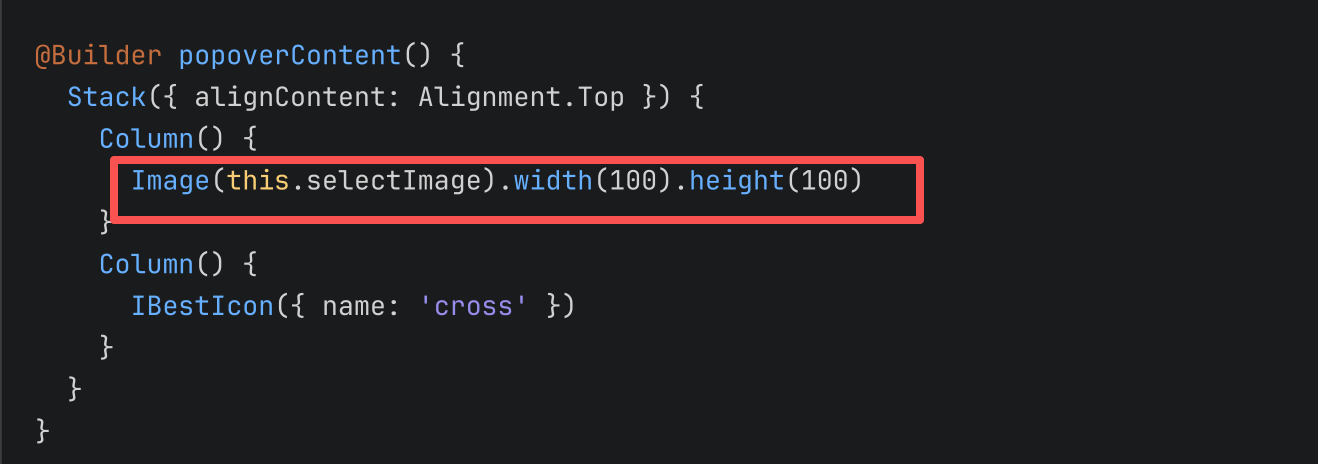
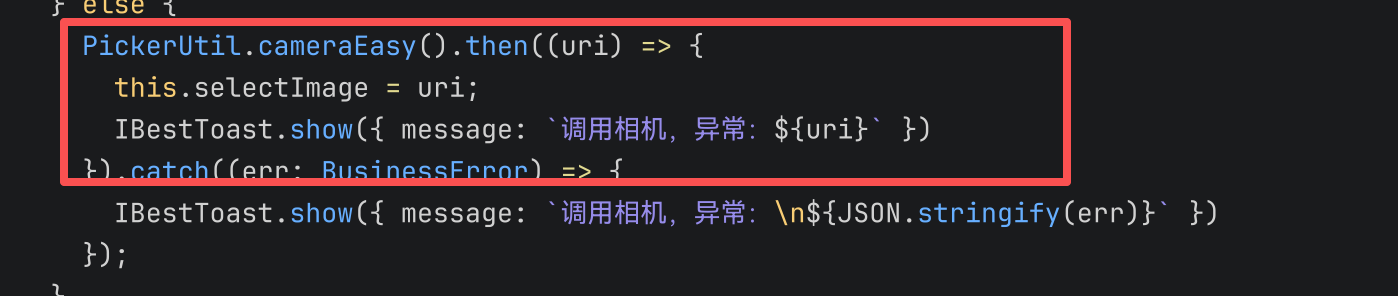
HarmonyOS 鸿蒙Next中为什么从相册选择的照片用IMAGE预览是空白的 使用拍照,选择相片等多个组件获取到的file:打头的地址的文件,无法用Image组件预览,请问这个文件预览还需要转换一下吗
更多关于HarmonyOS 鸿蒙Next中为什么从相册选择的照片用IMAGE预览是空白的的实战教程也可以访问 https://www.itying.com/category-93-b0.html


在鸿蒙(HarmonyOS / ArkUI)里,从相册/拍照组件拿到的 file://... 通常指向系统媒体库/公共存储。这类 URI 往往带有受控的临时只读权限,应用不能像访问自己沙箱文件那样直接读,于是你把它直接丢给 Image(fileUri) 时就可能出现白屏/空白。这不是“图片格式要转换”,本质是权限/可访问性问题。
你有两条常用处理方式(选一种即可):
方案 A(推荐):复制到应用沙箱后再用 Image 预览
把 file://... 对应的文件复制到 context.filesDir / cacheDir,然后用沙箱路径预览(此时权限可控、也方便后续上传/持久化)。
思路:
fs.openSync(uri, READ_ONLY)打开源文件- 在沙箱创建目标文件并拷贝
Image('file://' + sandboxPath)显示
方案 B:把 URI 解码成 PixelMap,再交给 Image 显示
不复制文件,直接用 ImageSource -> PixelMap,然后 Image(pixelMap) 显示;适合“只想预览”。
关键点:Image 的 src 本身就支持 PixelMap,所以你可以绕开“Image 直接读外部 file URI”的限制。
你还需要注意的一个坑
如果你用的是 PhotoViewPicker.select() 这类选择器:官方说明里提到,返回的 uri 是只读权限,并且不要在 picker 回调里立刻 open/read,应先保存 uri,等从图库界面返回后再触发读取(比如按钮触发/后续逻辑里调用 fileIo.openSync(uri, READ_ONLY) 读取)。

这是HarmonyOS开发中Image组件不识别"file:"开头URI的问题,需要做格式转换: 可以调用"fileURI"转"media"沙箱路径,或者使用"getRawFileContent"获取文件字节流后,通过"ImageSource"创建像素地图给Image组件加载,完成转换后即可正常预览图片。

找HarmonyOS工作还需要会Flutter的哦,有需要Flutter教程的可以学学大地老师的教程,很不错,B站免费学的哦:https://www.bilibili.com/video/BV1S4411E7LY/?p=17


目前最新的 harmony-utils 库应该是不支持拉起相机功能的,1.0.9版本是有拉起相机的工具的,但是新版本好像
"@pura/harmony-utils": "^1.4.0"
建议自己手敲个拉起相机拍照保存的代码,使用PhotoPicker组件访问图片/视频


开发者您好,可参考如下demo,获取的uri无需转换,可以使用image组件展示:
// Index.ets
import { photoAccessHelper } from '@kit.MediaLibraryKit';

@Entry
@Component
struct Index {
  @State imageUri: string = '';

  async selectPhoto() {
    try {
      const photoSelectOptions = new photoAccessHelper.PhotoSelectOptions();
      photoSelectOptions.MIMEType = photoAccessHelper.PhotoViewMIMETypes.IMAGE_TYPE;
      photoSelectOptions.maxSelectNumber = 1; // 选择单张图片

      const photoPicker = new photoAccessHelper.PhotoViewPicker();
      const photoSelectResult = await photoPicker.select(photoSelectOptions);
      this.imageUri = photoSelectResult.photoUris[0]; // 返回首张图片URI
      console.info('this.imageUri = ' + this.imageUri);
    } catch (err) {
      console.error(`选择失败: ${err.code}, ${err.message}`);
    }
  }

  build() {
    Column() {
      // 预览区域
      Image(this.imageUri ? this.imageUri : $r('app.media.xxx')) // 自行选择默认图片
        .width('100%')
        .height(300)
        .objectFit(ImageFit.Contain); // 保持比例完整显示

      // 选择按钮
      Button('选择照片')
        .onClick(async () => {
          await this.selectPhoto();
        });
    };
  }
}


原因通常为:相册选择返回的URI是媒体库Uri,IMAGE组件需传入物理文件路径或文件描述符。鸿蒙Next中需通过fileUri或fd属性加载,而非直接传入Uri字符串。此外,需确认已声明ohos.permission.READ_MEDIA权限。
在 HarmonyOS Next 中,相册返回的 file:// 路径属于应用沙箱外的受保护媒体文件,Image 组件无法直接通过该路径加载图片(会显示空白)。需要将其转换为 PixelMap 后再显示。
处理示例
import { photoAccessHelper } from '@kit.MediaLibraryKit';
import { image } from '@kit.ImageKit';
import { BusinessError } from '@kit.BasicServicesKit';
import { fileUri } from '@kit.CoreFileKit';

// 假设 uri 是从相册选择返回的 'file://media/Photo...'
async function loadImageFromUri(uri: string): Promise<image.PixelMap | undefined> {
  try {
    // 若为 file:// 格式,可直接创建 ImageSource
    let imageSource = image.createImageSource(uri);
    let pixelMap = await imageSource.createPixelMap();
    imageSource.release();
    return pixelMap;
  } catch (err) {
    console.error(`创建 PixelMap 失败: ${JSON.stringify(err)}`);
    return undefined;
  }
}

// 在组件中使用
@Entry
@Component
struct Preview {
  @State pixelMap: image.PixelMap | undefined = undefined;

  build() {
    Column() {
      Image(this.pixelMap)
        .width('100%')
        .height(400)
    }
  }
}
如果返回的是 content:// 格式,需通过 photoAccessHelper 打开文件描述符后再创建 ImageSource,核心逻辑相似。务必在 module.json5 中申请 ohos.permission.READ_IMAGEVIDEO 权限。
