



HarmonyOS鸿蒙Next中arkweb网页点击下载客户端弹窗选择保存路径demo
HarmonyOS鸿蒙Next中arkweb网页点击下载客户端弹窗选择保存路径demo
import { webview } from '@kit.ArkWeb';
import { BusinessError } from '@kit.BasicServicesKit';
import { picker, fileUri, fileIo } from '@kit.CoreFileKit';

// ====================== 新增接口定义 ======================
interface SavePathResult {
  fullPath: string;
  placeholderUri?: string;
}
// =======================================================

@Entry
@Component
struct WebComponent {
  controller: webview.WebviewController = new webview.WebviewController();
  delegate: webview.WebDownloadDelegate = new webview.WebDownloadDelegate();
  private delegateSet: boolean = false;

  onPageLoadEnd(_url: string): void {
    if (!this.delegateSet) {
      this.setupDownloadDelegate();
      this.delegateSet = true;
    }
  }

  setupDownloadDelegate(): void {
    try {
      this.delegate.onBeforeDownload(async (webDownloadItem: webview.WebDownloadItem) => {
        console.info("onBeforeDownload triggered");

        const saveResult: SavePathResult = await this.selectSavePathWithPicker();
        if (!saveResult.fullPath) {
          console.warn("用户取消选择");
          return;
        }

        console.info(`准备下载到: ${saveResult.fullPath}`);

        try {
          // 删除 Picker 创建的占位空文件
          if (saveResult.placeholderUri) {
            try {
              fileIo.unlinkSync(saveResult.placeholderUri);
              console.info("已删除 Picker 占位空文件");
            } catch (e) {
              // 忽略
            }
          }

          // 创建干净文件
          const fd = fileIo.openSync(saveResult.fullPath,
            fileIo.OpenMode.CREATE | fileIo.OpenMode.TRUNC | fileIo.OpenMode.WRITE_ONLY);
          fileIo.closeSync(fd);

          webDownloadItem.start(saveResult.fullPath);
          console.info("✅ webDownloadItem.start() 已调用");
        } catch (err) {
          const e = err as BusinessError;
          console.error(`文件操作失败: ${e.code} - ${e.message}`);
        }
      });

      this.delegate.onDownloadUpdated((item: webview.WebDownloadItem) => {
        console.info(`下载进度 - guid: ${item.getGuid()}, 百分比: ${item.getPercentComplete()}%`);
      });

      this.delegate.onDownloadFailed((item: webview.WebDownloadItem) => {
        console.error(`下载失败 - guid: ${item.getGuid()}, error: ${item.getLastErrorCode()}`);
      });

      this.delegate.onDownloadFinish((item: webview.WebDownloadItem) => {
        console.info(`✅ 下载完成 - guid: ${item.getGuid()}`);
      });

      this.controller.setDownloadDelegate(this.delegate);
      console.info("✅ DownloadDelegate 设置成功");
    } catch (error) {
      const e = error as BusinessError;
      console.error(`设置代理失败: ${e.code} - ${e.message}`);
    }
  }

  /** 使用 Picker 让用户选择保存路径和文件名 */
  async selectSavePathWithPicker(): Promise<SavePathResult> {
    try {
      const options = new picker.DocumentSaveOptions();
      options.pickerMode = picker.DocumentPickerMode.DEFAULT;
      options.fileSuffixChoices = ['.zip']

      const documentPicker = new picker.DocumentViewPicker();
      const result: Array<string> = await documentPicker.save(options);

      if (!result || result.length === 0) {
        return { fullPath: '' };
      }

      const placeholderUri = result[0];
      const uri = new fileUri.FileUri(placeholderUri);
      const fullPath = uri.path;

      return { fullPath, placeholderUri };
    } catch (err) {
      const e = err as BusinessError;
      console.error(`Picker 选择失败: ${e.code} - ${e.message}`);
      return { fullPath: '' };
    }
  }

  build() {
    Column() {
      Web({
        src: "http://a.b.c.d:e",
        controller: this.controller
      })
        .width('100%')
        .height('100%')
        .onPageEnd(this.onPageLoadEnd.bind(this))
    }
    .width('100%')
    .height('100%')
  }
}
更多关于HarmonyOS鸿蒙Next中arkweb网页点击下载客户端弹窗选择保存路径demo的实战教程也可以访问 https://www.itying.com/category-93-b0.html

同问
更多关于HarmonyOS鸿蒙Next中arkweb网页点击下载客户端弹窗选择保存路径demo的实战系列教程也可以访问 https://www.itying.com/category-93-b0.html


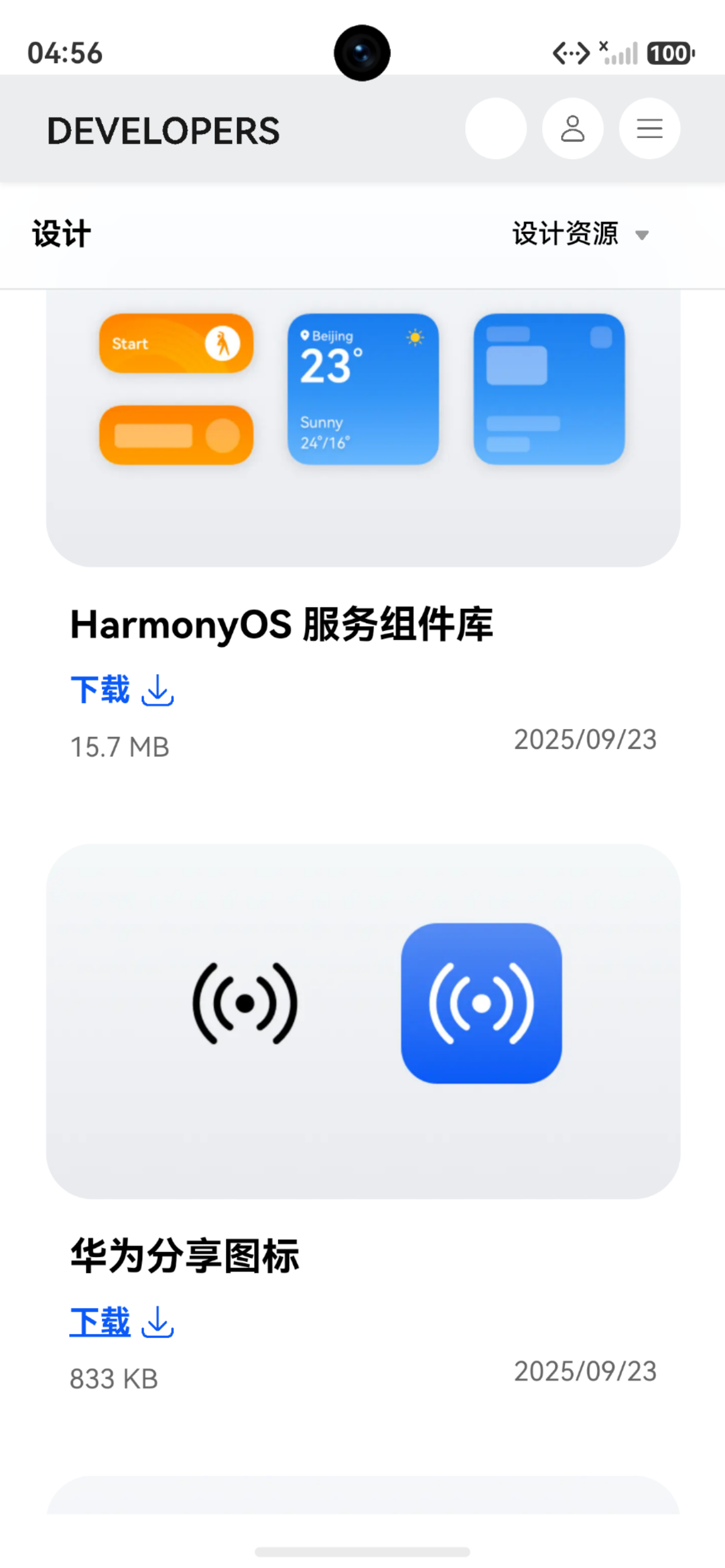
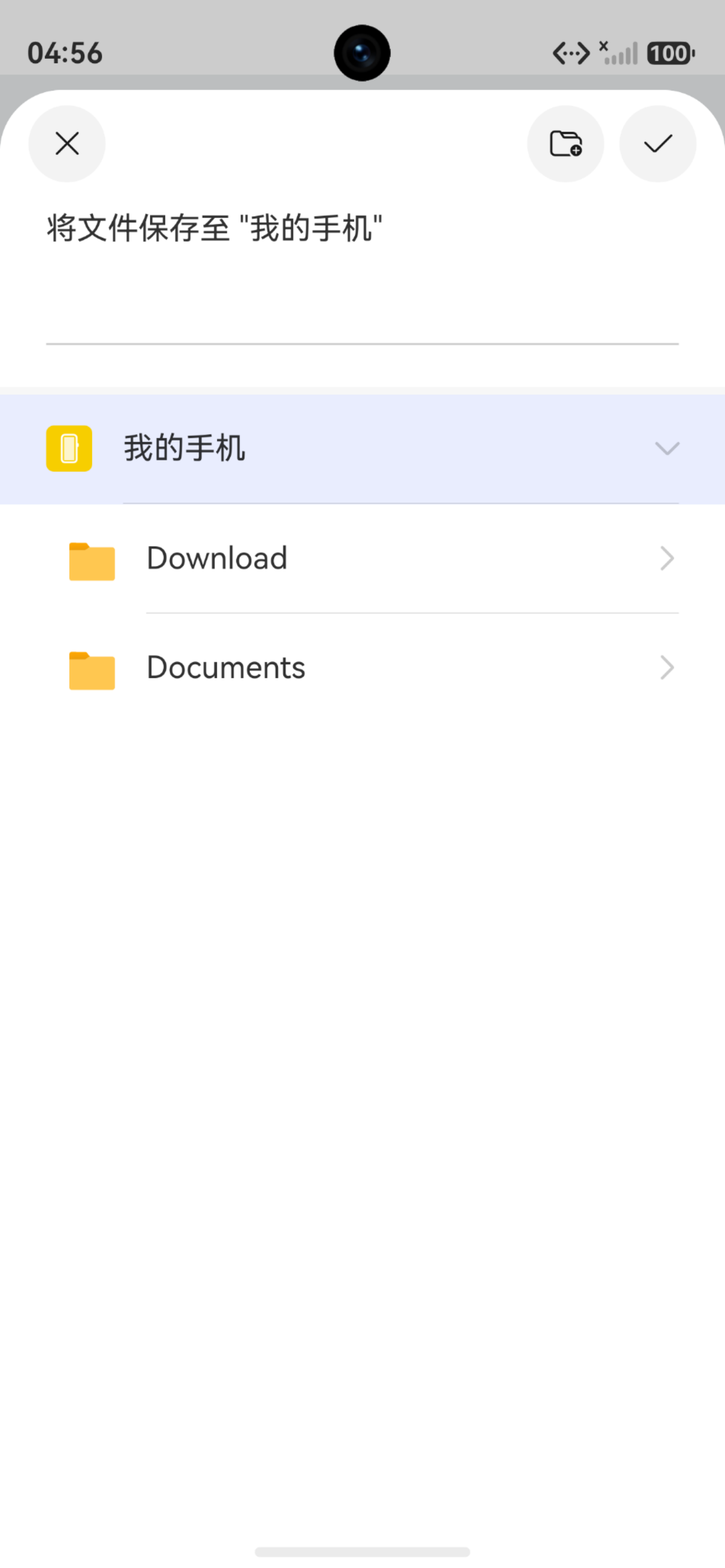
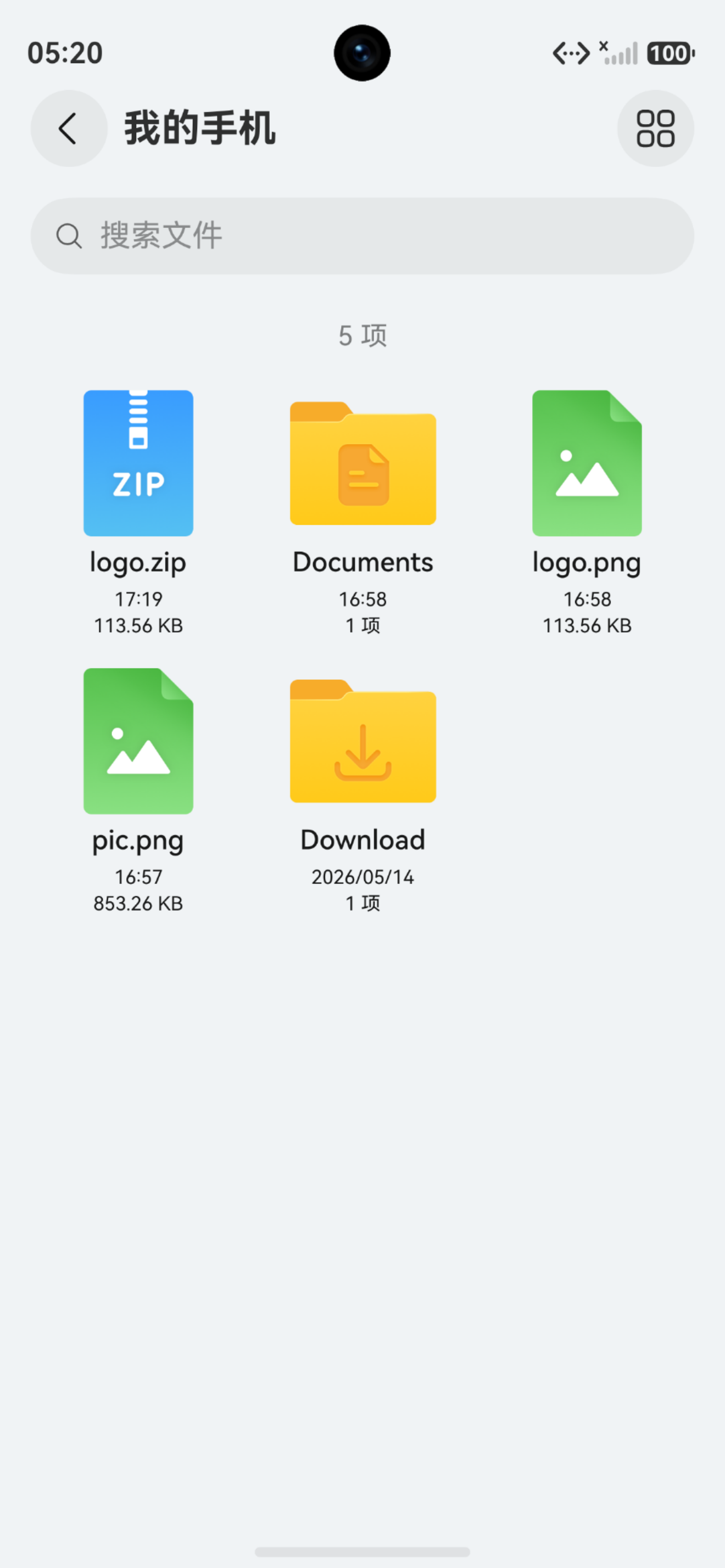
跑了一下demo,可以下载:
import { webview } from '@kit.ArkWeb';
import { BusinessError } from '@kit.BasicServicesKit';
import { picker, fileUri, fileIo } from '@kit.CoreFileKit';

interface SavePathResult {
  fullPath: string;
  placeholderUri?: string;
}

@Component
export struct WebComponent {
  controller: webview.WebviewController = new webview.WebviewController();
  delegate: webview.WebDownloadDelegate = new webview.WebDownloadDelegate();
  private delegateSet: boolean = false;

  // 箭头函数属性,自动绑定 this(无需 .bind)
  onPageLoadEnd = (): void => {
    if (!this.delegateSet) {
      this.setupDownloadDelegate();
      this.delegateSet = true;
    }
  }

  setupDownloadDelegate(): void {
    try {
      this.delegate.onBeforeDownload(async (webDownloadItem: webview.WebDownloadItem) => {
        console.info("onBeforeDownload triggered");

        const saveResult: SavePathResult = await this.selectSavePathWithPicker();
        if (!saveResult.fullPath) {
          console.warn("用户取消选择");
          return;
        }

        console.info(`准备下载到: ${saveResult.fullPath}`);

        try {
          // 删除 Picker 创建的占位空文件
          if (saveResult.placeholderUri) {
            try {
              fileIo.unlinkSync(saveResult.placeholderUri);
              console.info("已删除 Picker 占位空文件");
            } catch (e) {
              // 忽略
            }
          }

          // 直接启动下载,无需手动创建文件
          webDownloadItem.start(saveResult.fullPath);
          console.info("✅ webDownloadItem.start() 已调用");
        } catch (err) {
          const e = err as BusinessError;
          console.error(`文件操作失败: ${e.code} - ${e.message}`);
        }
      });

      this.delegate.onDownloadUpdated((item: webview.WebDownloadItem) => {
        console.info(`下载进度 - guid: ${item.getGuid()}, 百分比: ${item.getPercentComplete()}%`);
      });

      this.delegate.onDownloadFailed((item: webview.WebDownloadItem) => {
        const errorCode = item.getLastErrorCode();
        console.error(`下载失败 - guid: ${item.getGuid()}, error: ${errorCode}`);
        if (errorCode === 3) {
          console.warn("文件操作权限不足,请检查权限申请状态");
        }
      });

      this.delegate.onDownloadFinish((item: webview.WebDownloadItem) => {
        console.info(`✅ 下载完成 - guid: ${item.getGuid()}`);
      });

      this.controller.setDownloadDelegate(this.delegate);
      console.info("✅ DownloadDelegate 设置成功");
    } catch (error) {
      const e = error as BusinessError;
      console.error(`设置代理失败: ${e.code} - ${e.message}`);
    }
  }

  async selectSavePathWithPicker(): Promise<SavePathResult> {
    try {
      const options = new picker.DocumentSaveOptions();
      options.pickerMode = picker.DocumentPickerMode.DEFAULT;
      options.fileSuffixChoices = ['.zip'];

      const documentPicker = new picker.DocumentViewPicker();
      const result: Array<string> = await documentPicker.save(options);

      if (!result || result.length === 0) {
        return { fullPath: '' };
      }

      const placeholderUri = result[0];
      const uri = new fileUri.FileUri(placeholderUri);
      const fullPath = uri.path;

      return { fullPath, placeholderUri };
    } catch (err) {
      const e = err as BusinessError;
      console.error(`Picker 选择失败: ${e.code} - ${e.message}`);
      return { fullPath: '' };
    }
  }
  aboutToAppear(): void {
    webview.WebviewController.setWebDebuggingAccess(true);
  }
  build() {
    Column() {
      Web({ src: 'https://developer.huawei.com/consumer/cn/design/resource/', controller: this.controller })
        .domStorageAccess(true)    // 必需!百度等H5页面依赖DOM Storage[reference:0]
        .javaScriptAccess(true)    // 确保JavaScript可执行[reference:1]
        .mixedMode(MixedMode.All)  // 允许加载HTTP/HTTPS混合内容
        .onPageEnd(this.onPageLoadEnd)
    }
    .width('100%')
    .height('100%')
  }
}

你这个 Demo 的整体思路其实已经是目前 HarmonyOS NEXT 上 ArkWeb 下载保存里比较正确的一种实现方式了:
网页点击下载
→ onBeforeDownload
→ 弹系统文件保存选择器
→ 用户选择路径
→ start(path)
并且你还处理了:
- Picker 占位文件
- CREATE/TRUNC
- 下载回调
- 用户取消
这些都没问题。
但这里面有几个非常关键的坑,你这个 Demo 实际运行时大概率还会遇到下面这些问题。
一、你当前代码里的核心问题
你这里:
fileIo.unlinkSync(saveResult.placeholderUri);
这里是错的。
因为:
placeholderUri
是:
content://
或者:
file://
形式 URI。
而:
fileIo.unlinkSync()
要求的是:
真实沙箱路径
不能直接删 URI。
所以你这里虽然 try-catch 忽略了异常,但其实删除根本没成功。
二、为什么会有“0字节文件”
这是 HarmonyOS DocumentPicker 的机制。
当:
documentPicker.save()
成功后:
系统已经提前创建了一个目标文件。
所以:
用户刚点保存
↓
系统已经生成空文件
↓
你再 start()
因此:
- 下载失败
- 用户取消
- 空间不足
- start异常
都会残留 0KB 文件。
这是目前 ArkWeb 下载机制的现状。
三、真正正确的实现方式(推荐)
不要删除占位文件。
而是:
直接使用 Picker 返回的 fd/uri 对应文件。
也就是说:
不要再:
CREATE | TRUNC
重新创建。
四、推荐修改版(核心)
你现在:
const fd = fileIo.openSync(saveResult.fullPath,
  fileIo.OpenMode.CREATE |
  fileIo.OpenMode.TRUNC |
  fileIo.OpenMode.WRITE_ONLY);
建议改成:
const fd = fileIo.openSync(
  saveResult.fullPath,
  fileIo.OpenMode.WRITE_ONLY
);

fileIo.closeSync(fd);

webDownloadItem.start(saveResult.fullPath);
因为:
Picker 已经创建文件了。
你只需要验证可写即可。
五、最容易踩坑的问题(重点)
1. start(path) 必须是真实路径
你现在:
const uri = new fileUri.FileUri(placeholderUri);
const fullPath = uri.path;
这一点是对的。
因为:
webDownloadItem.start()
不能传 URI。
只能传:
/data/storage/...
真实路径。
2. fileSuffixChoices 不是下载后缀控制
你现在:
options.fileSuffixChoices = ['.zip']
这只是:
保存弹窗过滤
并不会:
- 自动改文件名
- 自动识别下载类型
所以:
如果网页下载:
xxx.apk
用户仍可能保存成:
xxx.zip
导致后续打不开。
六、推荐自动文件名方案(非常重要)
你应该从:
webDownloadItem
获取建议文件名。
例如:
const suggestName = webDownloadItem.getSuggestedFileName();
然后:
options.newFileNames = [suggestName];
例如:
const suggestName = webDownloadItem.getSuggestedFileName();

const options = new picker.DocumentSaveOptions();
options.newFileNames = [suggestName];
这样用户看到的就是:
test.apk
而不是默认空名。
七、空间不足问题(重点)
你前面问过“空间不足如何停止导出”。
这里同理。
ArkWeb 下载:
实际上:
Picker创建文件
↓
start()
↓
系统下载器写入
因此:
你无法在 start 前精准知道目标目录剩余空间
因为:
用户还没选目录。
正确处理方式
只能:
1. 下载过程中监听失败
onDownloadFailed
2. 检查错误码
例如:
item.getLastErrorCode()
可能会返回:
磁盘空间不足
相关错误。
3. 下载失败后清理空文件
这里才是真正应该删除:
fileIo.unlinkSync(fullPath)
注意:
这里必须是真实 path。
不能是 URI。
八、推荐最终版本(关键修改)
你应该:
删除这段
if (saveResult.placeholderUri) {
    fileIo.unlinkSync(saveResult.placeholderUri);
}
改成
try {
    const fd = fileIo.openSync(
      saveResult.fullPath,
      fileIo.OpenMode.WRITE_ONLY
    );

    fileIo.closeSync(fd);

    webDownloadItem.start(saveResult.fullPath);

} catch (err) {
}
九、最推荐的完整下载流程
推荐最终逻辑:
onBeforeDownload
↓
获取建议文件名
↓
弹 save picker
↓
用户选路径
↓
直接 start(path)
↓
监听进度
↓
失败时删除 path
↓
完成
十、你这个 Demo 还差一个权限(很多人漏)
如果保存到公共目录:
需要:
ohos.permission.FILE_ACCESS_PERSIST
否则:
部分设备:
start成功
但实际无法写入
十一、最终结论
你这个 Demo 的思路已经是正确方向。
但需要修正:
问题1(必须修)
不要:
unlinkSync(uri)
URI 不能删。
问题2(必须修)
不要重新 CREATE/TRUNC 文件。
Picker 已经创建。
问题3(建议修)
使用:
getSuggestedFileName()
自动填充文件名。
问题4(建议补)
失败后:
unlinkSync(fullPath)
清理 0KB 文件。
问题5(容易漏)
增加:
ohos.permission.FILE_ACCESS_PERSIST
否则部分真机会下载失败。
在 HarmonyOS Next 中,使用 ArkWeb 组件处理下载:
- 通过
onDownloadStart回调监听下载请求。 - 在回调中调用
picker.save()(@ohos.file.picker)弹出保存路径选择。 - 获取用户选择的 URI 后,使用
fs.copyFile()将临时文件写入目标路径。
核心代码片段(ArkTS):
webController.onDownloadStart((url, userAgent, contentDisposition, mimeType, contentLength) => {
  picker.save().then(uri => {
    fs.copyFile(tempFile, uri, 0);
  });
});

ArkWeb 下载时调用系统保存弹窗并开始下载的流程,核心逻辑清晰可用。它利用 WebDownloadDelegate 的 onBeforeDownload 拦截下载,使用 DocumentViewPicker 让用户选择保存路径与文件名,解决了 Web 组件默认不弹窗的问题。关键处理在于:Picker 调用后会生成一个占位空文件,需要先将其删除,再通过 fileIo.openSync 创建一个干净文件,最后把 fullPath 传给 webDownloadItem.start() 启动下载。
需要注意,DocumentViewPicker 正常弹出依赖于应用拥有 ohos.permission.READ_WRITE_DOWNLOAD_DIRECTORY 权限,且保存的目标路径需在应用沙箱下载目录或公共目录;否则可能获取不到合法路径。代码中还增加了下载进度、失败、完成等完整回调,便于实际产品集成。整体实现无冗余依赖,可直接作为 Demo 参考。
