




HarmonyOS鸿蒙Next中有什么方案可以怎么在pdf上自由手写文字,并且可以保存回pdf中?
HarmonyOS鸿蒙Next中有什么方案可以怎么在pdf上自由手写文字,并且可以保存回pdf中? 功能描述
现在我想在pdf上自由手写文字,并且可以把笔迹保存到pdf中去,pdf可能处于不同页码和放大倍数,我不想使用三方库来实现,是只能上面叠加一层canvas嘛??但是加以一个canvas透明层的话感觉太麻烦,手写的过程还要包含擦除,有没有什么方案可以实现???

如果想要实现手写文字并且保存回pdf中,建议您使用Canvas绘制图形,绘制后需要将绘制的图形通过addWatermark添加水印到PDF页面上。可以参考以下步骤:
- 使用Canvas组件和onTouch方法实现手绘功能。
Stack() {
  Canvas(this.context)
    .width('100%')
    .height('100%')
    .backgroundColor(Color.White)
    .onTouch((event) => {
      if (event.type === TouchType.Down) {
        this.showThickness = false;
        this.eventType = 'Down';
        this.isDrawing = true;
        this.x = event.touches[0].x;
        this.y = event.touches[0].y;
        this.context.beginPath();
        this.tempPath = new Path2D();
        this.tempPath.moveTo(this.x, this.y);
        this.context.lineCap = 'round';
      }
      if (event.type === TouchType.Up) {
        this.eventType = 'Up';
        this.isDrawing = false;
        this.context.closePath();
      }
      if (event.type === TouchType.Move) {
        if (!this.isDrawing) {
          return;
        }
        this.eventType = 'Move';
        this.isEmpty = false;
        // 绘画路径
        this.x = event.touches[0].x;
        this.y = event.touches[0].y;
        this.context.strokeStyle = '#000000';
        this.context.lineWidth = 3;
        this.tempPath.lineTo(this.x, this.y);
        this.context.stroke(this.tempPath);
      }
    });

  Column() {
    //resources/media下替换对应图片
    Image(this.isEmpty ? $r('app.media.startIcon') : $r('app.media.startIcon'))
      .width(30)
      .onClick(() => {
        this.context.clearRect(0, 0, 1080, 1922);
        this.isEmpty = true;
      });
  }
  .position({
    x: '85%',
    y: '2%'
  });
}
.width('100%')
.height('70%')
.backgroundColor('#F1F3F5')
.margin({
  top: 36,
  bottom: 5
})
.visibility(this.isShow ? Visibility.Visible : Visibility.None);
- 将绘制的Canvas内容以png的形式保存到沙箱路径。
// 将rawfile中的pdf文件转存至沙箱路径供预览使用
savePdfToCache() {
  this.UIContext.getHostContext()?.resourceManager.getRawFd('test.pdf', (err, data) => {
    let filePath = this.UIContext.getHostContext()?.tempDir + '/test.pdf';
    let dest = fs.openSync(filePath, fs.OpenMode.CREATE | fs.OpenMode.READ_WRITE);
    let bufsize = 4096;
    let buf = new ArrayBuffer(bufsize);
    let off = 0, len = 0, readedLen = 0;
    // 通过buffer将rawfile文件内容copy到沙箱路径
    while ((len = fs.readSync(data.fd, buf, { offset: data.offset + off, length: bufsize })) > 0) {
      readedLen += len;
      fs.writeSync(dest.fd, buf, { offset: off, length: len });
      off = off + len;
      if ((data.length - readedLen) < bufsize) {
        bufsize = data.length - readedLen;
      }
    }
    fs.close(dest.fd);
  });
}
- 使用addWatermark方法将图片作为水印添加到PDF上。
// 将沙箱中的canvas图片附加到pdf上
mergeCanvasToPdf() {
  let filePath = this.UIContext.getHostContext()?.tempDir + '/test.pdf';
  let res = this.pdfDocument.loadDocument(filePath);
  if (res === pdfService.ParseResult.PARSE_SUCCESS) {
    let wminfo: pdfService.ImageWatermarkInfo = new pdfService.ImageWatermarkInfo();
    wminfo.watermarkType = pdfService.WatermarkType.WATERMARK_IMAGE;
    wminfo.imagePath = this.path;
    wminfo.opacity = 1;
    wminfo.isOnTop = true;
    wminfo.rotation = 0;
    wminfo.scale = 0.5;
    wminfo.verticalAlignment = pdfService.WatermarkAlignment.WATERMARK_ALIGNMENT_TOP;
    wminfo.horizontalAlignment = pdfService.WatermarkAlignment.WATERMARK_ALIGNMENT_LEFT;
    wminfo.horizontalSpace = 0;
    wminfo.verticalSpace = 0;
    this.pdfDocument.addWatermark(wminfo, 0, 1, true, true);
    let outPdfPath = this.UIContext.getHostContext()?.filesDir + '/testImageWatermark.pdf';
    let result = this.pdfDocument.saveDocument(outPdfPath);
    if (result) {
      this.showToast('合并成功');
    }
    hilog.info(0x0000, 'PdfPage', 'addImageWatermark %{public}s!', result ? 'success' : 'fail');
  }
  this.pdfDocument.releaseDocument();
}
完整代码如下:
import { pdfService, PdfView, pdfViewManager } from '@kit.PDFKit';
import { image } from '@kit.ImageKit';
import { fileIo as fs } from '@kit.CoreFileKit';
import { hilog } from '@kit.PerformanceAnalysisKit';
import { promptAction } from '@kit.ArkUI';

@Entry
@Component
struct PaintPage {
  pathStack: NavPathStack = new NavPathStack();
  @StorageProp('topRectHeight') topRectHeight: number = 0;
  @StorageProp('bottomRectHeight') bottomRectHeight: number = 0;
  @State eventType: string = ''; //手指触碰事件类型
  @Provide isEraserMode: boolean = false; // 橡皮擦模式
  @State isDrawing: boolean = false; // 绘画笔
  @State showThickness: boolean = false;
  @State isEmpty: boolean = true;
  private settings: RenderingContextSettings = new RenderingContextSettings(true);
  private context: CanvasRenderingContext2D = new CanvasRenderingContext2D(this.settings);
  private x: number = 0; // 触摸点x坐标
  private y: number = 0; // 触摸点y坐标
  private tempPath: Path2D = new Path2D(); // 临时绘画路径
  @State pixelMap: image.PixelMap | undefined = undefined;
  @State UIContext: UIContext = this.getUIContext();
  private pdfDocument: pdfService.PdfDocument = new pdfService.PdfDocument();
  @State path: string = '';
  private controller: pdfViewManager.PdfController = new pdfViewManager.PdfController();
  @State isShow: boolean = true;
  private loadResult: pdfService.ParseResult = pdfService.ParseResult.PARSE_ERROR_FORMAT;

  // 将canvas图片以png形式保存至沙箱
  async saveCacheImg(pixelMap: image.PixelMap, path: string): Promise<string> {
    // 通过packing生成buffer数据写入文件 设置图片格式,并返回buffer
    const pixelMapArrayBuffer: ArrayBuffer = await image.createImagePacker().packToData(pixelMap, {
      format: 'image/png',
      quality: 98
    });
    let file = fs.openSync(path, fs.OpenMode.WRITE_ONLY | fs.OpenMode.CREATE);
    await fs.write(file.fd, pixelMapArrayBuffer);
    fs.closeSync(file);
    hilog.info(0x0000, 'PdfPage', 'Save Canvas %{public}s!', file ? 'success' : 'fail');
    this.showToast('canvas保存成功');
    return path;
  }

  // 将rawfile中的pdf文件转存至沙箱路径供预览使用
  savePdfToCache() {
    this.UIContext.getHostContext()?.resourceManager.getRawFd('test.pdf', (err, data) => {
      let filePath = this.UIContext.getHostContext()?.tempDir + '/test.pdf';
      let dest = fs.openSync(filePath, fs.OpenMode.CREATE | fs.OpenMode.READ_WRITE);
      let bufsize = 4096;
      let buf = new ArrayBuffer(bufsize);
      let off = 0, len = 0, readedLen = 0;
      // 通过buffer将rawfile文件内容copy到沙箱路径
      while ((len = fs.readSync(data.fd, buf, { offset: data.offset + off, length: bufsize })) > 0) {
        readedLen += len;
        fs.writeSync(dest.fd, buf, { offset: off, length: len });
        off = off + len;
        if ((data.length - readedLen) < bufsize) {
          bufsize = data.length - readedLen;
        }
      }
      fs.close(dest.fd);
    });
  }

  // 将沙箱中的canvas图片附加到pdf上
  mergeCanvasToPdf() {
    let filePath = this.UIContext.getHostContext()?.tempDir + '/test.pdf';
    let res = this.pdfDocument.loadDocument(filePath);
    if (res === pdfService.ParseResult.PARSE_SUCCESS) {
      let wminfo: pdfService.ImageWatermarkInfo = new pdfService.ImageWatermarkInfo();
      wminfo.watermarkType = pdfService.WatermarkType.WATERMARK_IMAGE;
      wminfo.imagePath = this.path;
      wminfo.opacity = 1;
      wminfo.isOnTop = true;
      wminfo.rotation = 0;
      wminfo.scale = 0.5;
      wminfo.verticalAlignment = pdfService.WatermarkAlignment.WATERMARK_ALIGNMENT_TOP;
      wminfo.horizontalAlignment = pdfService.WatermarkAlignment.WATERMARK_ALIGNMENT_LEFT;
      wminfo.horizontalSpace = 0;
      wminfo.verticalSpace = 0;
      this.pdfDocument.addWatermark(wminfo, 0, 1, true, true);
      let outPdfPath = this.UIContext.getHostContext()?.filesDir + '/testImageWatermark.pdf';
      let result = this.pdfDocument.saveDocument(outPdfPath);
      if (result) {
        this.showToast('合并成功');
      }
      hilog.info(0x0000, 'PdfPage', 'addImageWatermark %{public}s!', result ? 'success' : 'fail');
    }
    this.pdfDocument.releaseDocument();
  }

  // 加载pdf
  async loadPdf(path: string) {
    // 先释放再加载
    this.controller.releaseDocument();
    this.loadResult = await this.controller.loadDocument(path);
    if (this.loadResult == 0) {
      this.showToast('pdf加载成功');
    }
    hilog.info(0x0000, 'PdfPage', 'loadMergePdf %{public}s!', this.loadResult == 0 ? 'success' : 'fail');
  }

  // 提示
  showToast(str: string) {
    this.getUIContext().getPromptAction().showToast({
      message: str,
      duration: 500,
      showMode: promptAction.ToastShowMode.DEFAULT,
      bottom: 80
    });
  }

  aboutToAppear(): void {
    this.savePdfToCache();
  }

  build() {
    Column() {
      Column() {
        Stack() {
          Canvas(this.context)
            .width('100%')
            .height('100%')
            .backgroundColor(Color.White)
            .onTouch((event) => {
              if (event.type === TouchType.Down) {
                this.showThickness = false;
                this.eventType = 'Down';
                this.isDrawing = true;
                this.x = event.touches[0].x;
                this.y = event.touches[0].y;
                this.context.beginPath();
                this.tempPath = new Path2D();
                this.tempPath.moveTo(this.x, this.y);
                this.context.lineCap = 'round';
              }
              if (event.type === TouchType.Up) {
                this.eventType = 'Up';
                this.isDrawing = false;
                this.context.closePath();
              }
              if (event.type === TouchType.Move) {
                if (!this.isDrawing) {
                  return;
                }
                this.eventType = 'Move';
                this.isEmpty = false;
                // 绘画路径
                this.x = event.touches[0].x;
                this.y = event.touches[0].y;
                this.context.strokeStyle = '#000000';
                this.context.lineWidth = 3;
                this.tempPath.lineTo(this.x, this.y);
                this.context.stroke(this.tempPath);
              }
            });

          Column() {
            //resources/media下替换对应图片
            Image(this.isEmpty ? $r('app.media.startIcon') : $r('app.media.startIcon'))
              .width(30)
              .onClick(() => {
                this.context.clearRect(0, 0, 1080, 1922);
                this.isEmpty = true;
              });
          }
          .position({
            x: '85%',
            y: '2%'
          });
        }
        .width('100%')
        .height('70%')
        .backgroundColor('#F1F3F5')
        .margin({
          top: 36,
          bottom: 5
        })
        .visibility(this.isShow ? Visibility.Visible : Visibility.None);

        Column() {
          PdfView({
            controller: this.controller,
            pageFit: pdfService.PageFit.FIT_WIDTH,
            showScroll: false,
          })
            .id('pdfview_app_view')
            .layoutWeight(1);
        }
        .width('100%')
        .height('70%')
        .backgroundColor('#F1F3F5')
        .margin({
          top: 36,
          bottom: 5
        })
        .visibility(this.isShow ? Visibility.None : Visibility.Visible);

        Row() {
          Button('保存绘画')
            .width('120')
            .height('40')
            .margin({ right: 10 })
            .onClick(() => {
              this.pixelMap = this.context.getPixelMap(0, 0, 300, 300);
              this.path = this.UIContext.getHostContext()?.tempDir + '/canvas.png';
              this.saveCacheImg(this.pixelMap, this.path);
            });
          Button('合并至pdf')
            .width('120')
            .height('40')
            .onClick(() => {
              this.mergeCanvasToPdf();
            });
        }
        .margin({
          top: 10,
          bottom: 5
        })

        Row() {
          Button('加载原pdf')
            .width('120')
            .height('40')
            .margin({ right: 10 })
            .onClick(() => {
              this.loadPdf(this.UIContext.getHostContext()?.tempDir + '/test.pdf');
            });
          Button('加载新pdf')
            .width('120')
            .height('40')
            .onClick(() => {
              this.loadPdf(this.UIContext.getHostContext()?.filesDir + '/testImageWatermark.pdf');
            });
        }
        .margin({
          top: 5,
          bottom: 5
        });

        Button('切换展示')
          .width('120')
          .height('40')
          .onClick(() => {
            this.isShow = !this.isShow;
          })
          .margin({
            top: 5,
            bottom: 10
          });
      }
      .width('100%')
      .height('100%')
      .backgroundColor('#F1F3F5')
      .padding({
        top: this.topRectHeight,
        left: 16,
        right: 16
      });
    };
  }
}
更多关于HarmonyOS鸿蒙Next中有什么方案可以怎么在pdf上自由手写文字,并且可以保存回pdf中?的实战系列教程也可以访问 https://www.itying.com/category-93-b0.html

如果只想用鸿蒙官方的库的话。给你个思路。
《PDF Kit》的pdfService能力 + 《Pen Kit》的HandwriteComponent(或者Canvas自己画)。
无论PDFKit还是PenKit,目前官方的API都还没那么强大,有待完善。大致思路(PenKit为例):
- pdfService加载PDF,显示在Image里,效果需要自己实现,翻页上一下一等。
- 手写时HandwriteComponent透明显示,覆盖在上。PenKit现成,Canvas灵活。
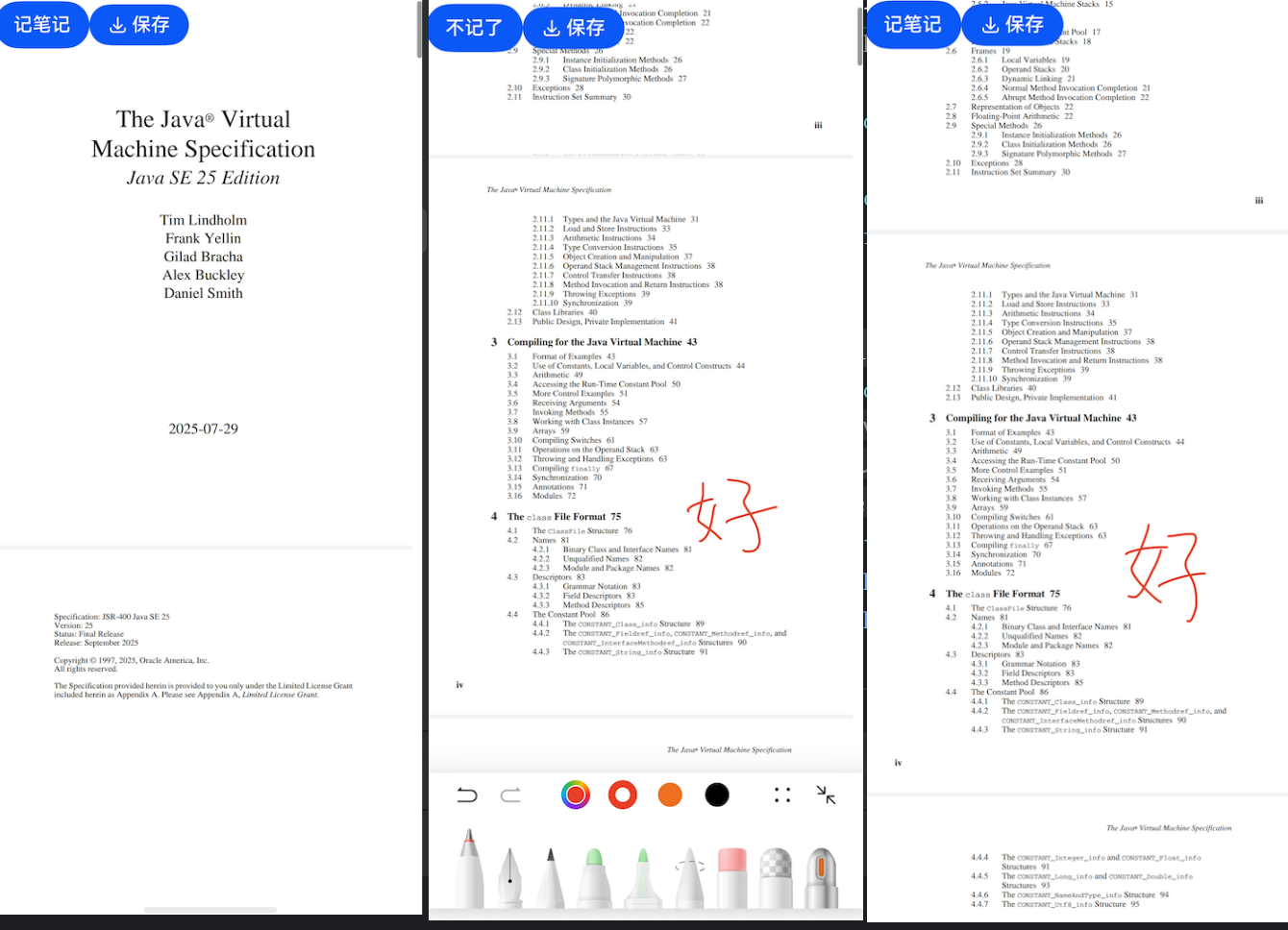
- 写完保存时,HandwriteController可以获取笔迹的PixelMap,PixelMap可以显示个Image里,Image可以做个随意拖动,放在想要的位置,然后这个图片就可以通过pdfkit里的添加图片《addImageObject》或《addWatermark》添加到PDF里。这里注意添加页码、页数和位置。
有问题再议啊。有帮助给采纳哈。😊


找HarmonyOS工作还需要会Flutter技术的哦,有需要Flutter教程的可以学学大地老师的教程,很不错,B站免费学的哦:https://www.bilibili.com/video/BV1S4411E7LY/?p=17

如果要求“自由手写、擦除、多页、缩放后不漂移、最后写回 PDF”,只叠一层 Canvas 可以做交互,但保存时仍要把笔迹转换成 PDF 坐标系里的对象,否则翻页和缩放后很容易错位。
比较稳的方案是:
- 用 PdfView/PDF Kit 负责加载和预览 PDF。
- 在当前页上方叠加 HandwriteComponent 或 Canvas,记录笔迹点,不只保存屏幕截图。
- 每条笔迹保存 pageIndex、PDF 页尺寸、当前缩放、滚动偏移和点位坐标。
- 保存时把屏幕坐标换算成 PDF 页面坐标,再用 PDF Kit 的批注、水印或图片写入能力落到指定页。
- 擦除最好作用在笔迹数据模型上,而不是只擦 Canvas 像素;否则保存和撤销会很难维护。
目前官方批注能力更偏高亮、下划线、删除线;自由手写如果要完全作为标准 Ink Annotation,公开能力未必一步到位。工程上常见折中是把笔迹渲染成透明图片,再按页和坐标写入 PDF。
pdfService提供了加载和保存PDF文档、在PDF页面中添加文本内容、图片、批注、页眉页脚、水印、背景图片、书签、判断PDF文档是否加密及删除文档加密等相关的功能,对PDF文档的操作有更多的应用场景。
参考地址
https://developer.huawei.com/consumer/cn/doc/harmonyos-guides/pdf-introduction
PDF手写功能实现方案分析
1. 问题核心需求
您希望实现:
-
✍️ 在PDF上自由手写文字
-
💾 将手写笔迹永久保存回PDF文件
-
📄 支持多页码/缩放场景
-
🖥️ 不使用第三方库(纯前端实现)
-
✨ 包含擦除功能
-
PDF本质是矢量文档,直接叠加Canvas层只会产生临时视觉效果(刷新页面即消失)
-
无法真正保存到PDF文件(浏览器中显示的PDF是渲染后的HTML,非原始文件)
-
Canvas层与PDF内容无关联,缩放/翻页时会出现错位
3. 可行方案(无需第三方库)
✅ 方案一:PDF.js + Canvas + PDF生成(推荐)
// 核心流程
1. 用PDF.js加载PDF → 获取页面为Canvas
2. 在页面上叠加手写Canvas层(透明层)
3. 捕获手写轨迹(坐标/笔画数据)
4. 将笔画数据转换为PDF注释对象
5. 用PDFLib.js(轻量级)生成新PDF文件

// 优势:
- 无需复杂第三方库(PDF.js是Mozilla官方库,PDFLib.js仅20KB)
- 笔迹真正嵌入PDF(非图片覆盖)
- 支持导出为标准PDF文件
✅ 方案二:利用PDF注释API(高级)
// 通过PDF.js的注释API实现
const annotation = {
  type: "ink",
  page: currentPage,
  rect: [x1, y1, x2, y2], // 笔画边界
  inkList: [[x,y], [x,y]...], // 坐标序列
  color: [0,0,0,1] // RGBA
};

// 优势:
- 笔迹是PDF标准注释(可被所有PDF阅读器识别)
- 支持缩放/旋转保持精度
- 体积小(仅存储坐标,非图片)
4. 为什么"纯Canvas层"不可行?
| 方案 | 是否保存到PDF | 缩放稳定性 | 文件体积 | 标准兼容性 |
|---|---|---|---|---|
| 仅Canvas层 | ❌ 临时显示 | ❌ 错位严重 | ⚠️ 大(需保存图片) | ❌ 仅当前浏览器可见 |
| PDF注释嵌入 | ✅ 永久保存 | ✅ 矢量缩放 | ✅ 极小 | ✅ 全PDF阅读器支持 |
5. 简易实现步骤(30行核心代码)
// 1. 加载PDF
const pdfDoc = await PDFDocument.load(pdfBytes);

// 2. 获取当前页
const page = pdfDoc.getPage(0);

// 3. 添加手写注释
page.addInkAnnotation({
  rect: [100, 100, 200, 200],
  inkList: [[100,100], [150,150], [200,100]],
  color: [0, 0, 0]
});

// 4. 保存为新PDF
const newPdfBytes = await pdfDoc.save();
6. 关键注意事项
- 必须用PDF库修改原始文件:仅靠前端Canvas无法修改PDF结构
- 推荐工具链:
pdf-lib(Node.js/浏览器):https://pdf-lib.js.org/PDF.js(渲染):https://mozilla.github.io/pdf.js/
- 避免踩坑:
- 不要用
toDataURL将Canvas转为图片插入PDF(会极大增加文件体积) - 不要尝试直接操作PDF二进制(格式极其复杂)
- 不要用
总结建议
- 放弃"纯Canvas层"思路 → 无法真正保存到PDF文件
- 采用PDF注释技术 → 用
pdf-lib将手写坐标转为标准PDF注释 - 最小化实现路径:
graph LR
A[PDF.js加载PDF] --> B[Canvas捕获手写轨迹]
B --> C[坐标转PDF注释]
C --> D[pdf-lib生成新PDF]
💡 实际案例:华为备忘录的PDF手写功能正是基于类似技术栈实现(PDF注释+矢量存储),而非简单的图片叠加。
建议先尝试用pdf-lib + PDF.js实现基础功能,官方示例:https://pdf-lib.js.org/examples/add-annotations/。如需具体代码片段,可进一步说明您的技术栈(React/Vue等)。


结合你补充的“平板上对议题 PDF 做审议、手写批注”的场景,我建议把手写笔迹当成“批注层”来设计,而不是尝试直接在 PDF 渲染层里改内容。
- PDF 预览层只负责翻页、缩放、滚动和渲染;上面叠一层透明 Canvas/自绘层负责采集手写轨迹。
- 笔迹不要只存屏幕坐标,建议按“页码 + PDF 页面坐标”或归一化坐标保存,例如 pageIndex、xRatio、yRatio、widthRatio、color、lineWidth、points。这样页面缩放、旋转、横竖屏切换后仍然能还原。
- 橡皮擦、撤销、重做不要擦位图,建议把每一笔当成一个 stroke 对象,橡皮擦做命中检测后删除或拆分 stroke,体验和后续保存都会更稳。
- 保存时再把某一页的笔迹层导出成透明图片,按 PDF 页面坐标映射回原页,通过 PDF Kit 的 addWatermark/addImageObject 一类能力合成到对应页,最后另存为新 PDF。
所以答案基本是:不用三方库可以做,但仍然绕不开“自绘批注层 + 坐标映射 + 最终扁平化写回 PDF”。如果你们后续还要求笔迹可再次编辑、多人批注、批注审计、签章或严格保留 PDF 原始结构,那就建议把原 PDF、批注数据、合成 PDF 分开存:原 PDF 不动,批注数据可追溯,导出时再生成带批注副本。这样更适合政务审议这类对可追溯性要求比较高的场景。


使用 HarmonyOS 的 Canvas 组件进行手写绘制,结合 @ohos.multimedia.pdf 的 PDF 编辑能力,通过 PDFDocument 加载 PDF,将手写内容叠加到页面图层,再导出保存为 PDF。
