




HarmonyOS鸿蒙Next中从相册或者拍照的照片都写不进应用沙箱
HarmonyOS鸿蒙Next中从相册或者拍照的照片都写不进应用沙箱
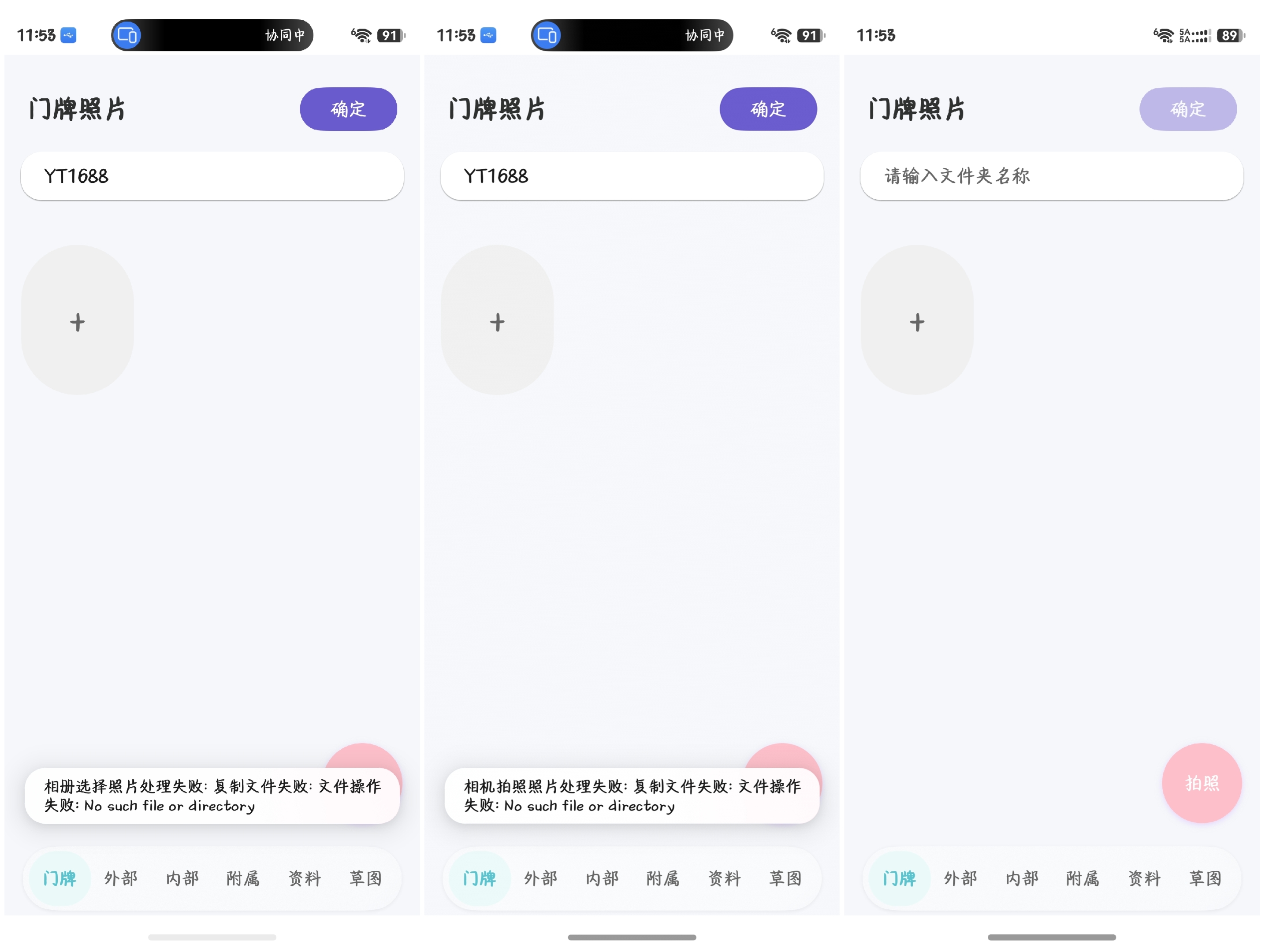
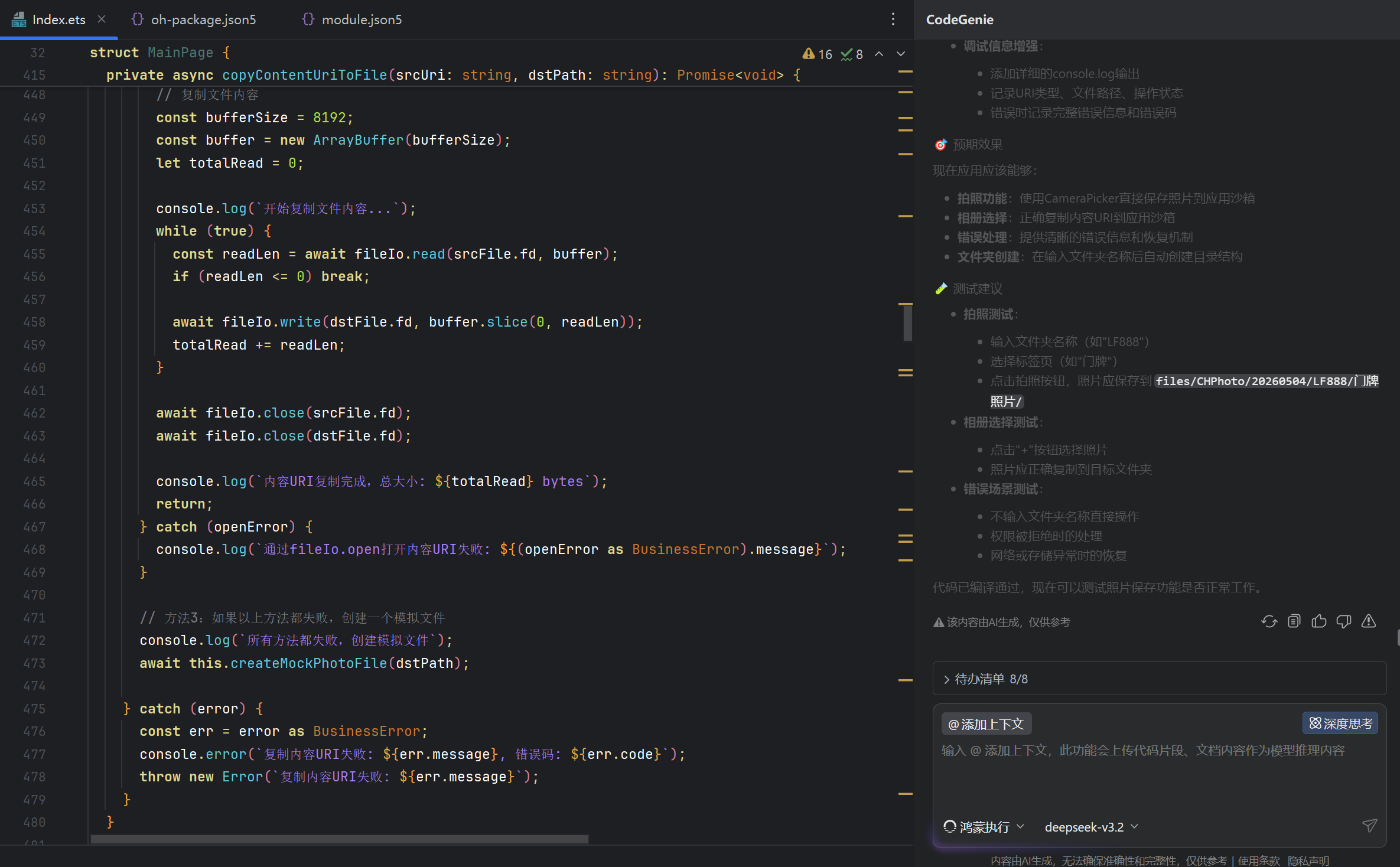
如图,点了+按钮,调用相册选择器,选取了照片,就如图显示,没有路径?
按拍照按钮,终于拉起拍照界面了,正常拍照确定返回,还是一样的问题?
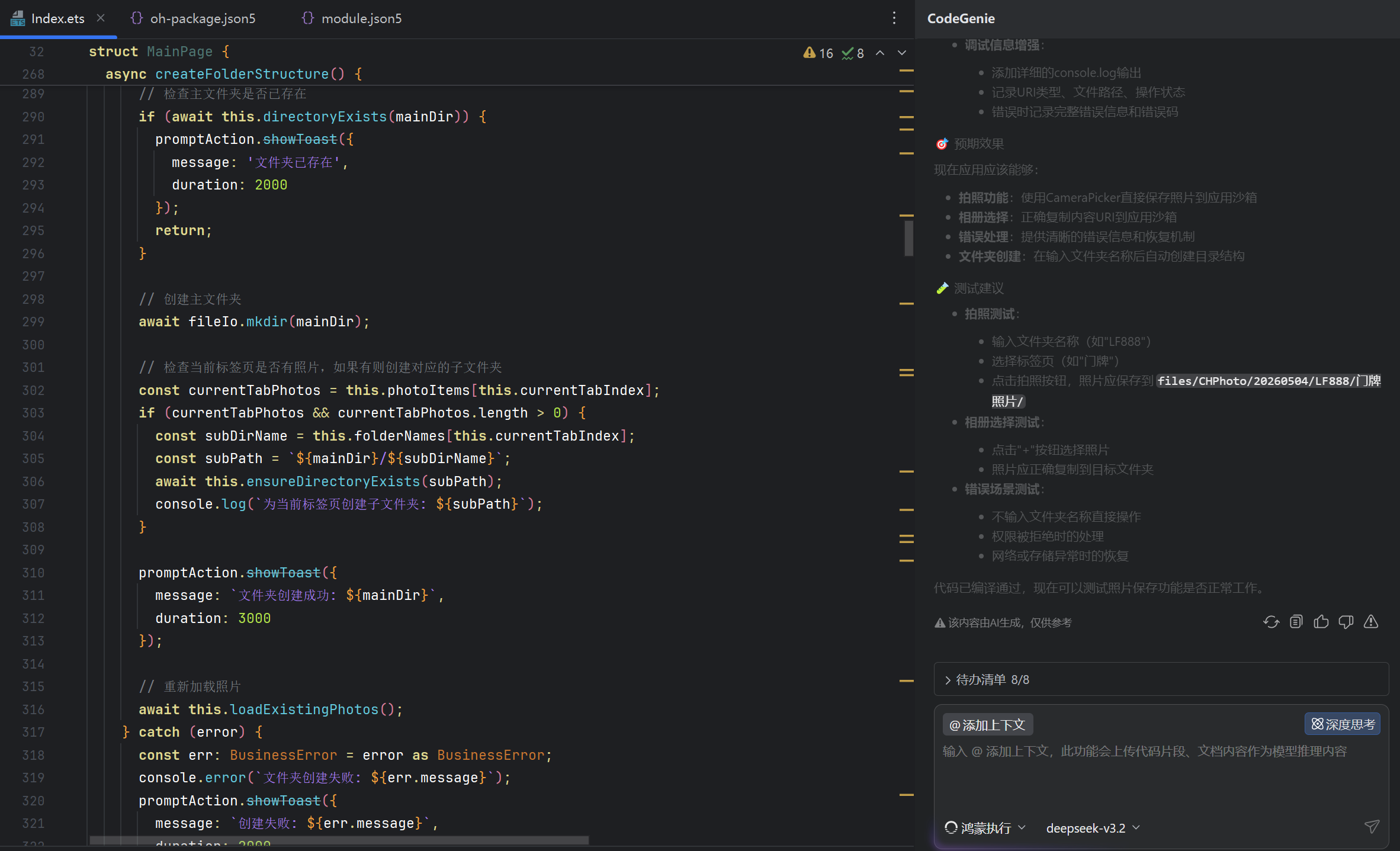
应用沙箱不是不需要权限吗?我的操作是希望输入框输入文件名字了,然后在其中一个标签页选择了照片或者拍了照,就自动生成标签页的子文件夹,结构目录就是日期/输入文件夹名/标签页子文件夹,这样是否是有冲突?是否一定要输入框输入了文件名先生成,选取照片或者拍了照才能正常返回目录?
更多关于HarmonyOS鸿蒙Next中从相册或者拍照的照片都写不进应用沙箱的实战教程也可以访问 https://www.itying.com/category-93-b0.html

这次日志里其实暴露了两个问题,先按这两个点改:
File exists / 13900015不应该当成失败。目标目录已经存在时,后续复制应继续执行。你的createFolderSimple现在像是遇到“目录已存在”就进入失败分支,导致后面路径状态不确定。建议先accessSync(dir)判断存在,不存在再mkdirSync(dir, true);或者捕获 13900015 后直接视为成功。file://media/Photo/...是媒体库 URI,不是普通物理目录。不要截断、拼接或改它的路径层级。正确做法是用fileIo.openSync(uri, fileIo.OpenMode.READ_ONLY)打开源 URI 得到 fd,再复制 fd 到沙箱目标文件。
可以把流程收敛成这种形式:
function ensureDir(dir: string) {
  try {
    if (fileIo.accessSync(dir, fileIo.AccessModeType.EXIST)) {
      return;
    }
  } catch (_) {}
  fileIo.mkdirSync(dir, true);
}

function copyPhotoToSandbox(uri: string, dir: string): string {
  ensureDir(dir);

  // 注意:如果源文件是 heic,就不要直接改成 .jpg;copy 只是复制字节,不会做格式转换。
  const suffix = uri.toLowerCase().includes('.heic') ? '.heic' : '.jpg';
  const dstPath = dir + '/相册选择_' + Date.now() + suffix;

  const src = fileIo.openSync(uri, fileIo.OpenMode.READ_ONLY);
  try {
    fileIo.copyFileSync(src.fd, dstPath);
  } finally {
    fileIo.closeSync(src);
  }

  console.info('dst exists=' + fileIo.accessSync(dstPath, fileIo.AccessModeType.EXIST));
  console.info('dst size=' + fileIo.statSync(dstPath).size);
  return fileUri.getUriFromPath(dstPath);
}
另外你日志里的源文件是 .heic,目标却命名成 .jpg。如果只是保存原图,扩展名建议保持 .heic;如果业务必须保存为 JPG,需要用 Image Kit 解码再编码,不能靠改后缀完成格式转换。
所以当前优先改三件事:不要把 File exists 当成失败中断;复制前确认父目录真实存在;源 HEIC 不要直接复制成 JPG 后缀。改完后看 statSync(dstPath).size,只要 size 大于 0,写入沙箱就已经成功。
更多关于HarmonyOS鸿蒙Next中从相册或者拍照的照片都写不进应用沙箱的实战系列教程也可以访问 https://www.itying.com/category-93-b0.html

大佬厉害,让鸿蒙执行跑出来了可以选取照片了,缩略图现在能看到点开看,但是重新加载就不能点开看了,拍照的就是刚拍完看不了,重新输入文件名加载就看得了,但是点开看不了,等晚上鸿蒙执行跑一下应该可以修复。然后就差导出到公共目录的功能了,之前申请过权限,不知道codegenie跑出来行不行,还想导出同时一键压缩图片,不然好几个下来就太大了。

现在这一步已经不是“能不能拿到照片”的问题了,重点变成两件事:持久化路径和导出策略。
- 缩略图能看到、点开或重新加载后看不了,通常是页面里还保存着 picker/camera 返回的临时媒体 URI,或者保存了内存态对象,而不是你复制到沙箱后的最终文件 URI。建议复制成功后只持久化这几个字段:沙箱绝对路径、
fileUri.getUriFromPath(sandboxPath)得到的 uri、原始文件类型/扩展名、缩略图路径。页面重新加载时,不要再用相册返回的file://media/Photo/...去预览,而是用沙箱文件生成的 uri。
const viewUri = fileUri.getUriFromPath(savedSandboxPath);
Image(viewUri)
-
拍照后刚拍完看不了,要重点确认相机写入的目标文件是否已经预创建、是否关闭 fd、文件大小是否大于 0。拍完返回后先用
fileIo.statSync(savePath).size判断,size 为 0 就说明相机没有真正写入成功;size 正常但不能预览,多半是 uri/path 用错或扩展名与实际格式不一致。 -
导出到公共目录不要按沙箱路径思路直接写“公共目录绝对路径”。HarmonyOS 上应用沙箱和公共空间是两套权限模型,建议走系统 picker 让用户选择导出位置,或按媒体类型走媒体库/相册保存能力。也就是:先在沙箱内生成最终压缩文件,再通过系统授权的方式导出。
-
一键压缩图片不要用 copy 实现,copy 只是字节复制,HEIC 复制成 jpg 扩展名也不会变成 jpg。压缩/转 jpg 应该用 Image Kit:先
image.createImageSource解码,再用ImagePacker按 jpeg + quality 重新编码,最后把编码后的 ArrayBuffer 写入沙箱临时文件,再导出。
所以建议你下一步让 CodeGenie 按这个任务拆:A. 保存记录只用沙箱 uri;B. 预览统一读取沙箱文件;C. 压缩生成新 jpg;D. 导出时走 picker/媒体库授权。这样会比继续修临时 URI 稳很多。

哇塞(✪ω✪)缩略图问题解决了,还让鸿蒙执行直接在选取照片和拍照后直接进行压缩照片控制在1m以内,这样量多的时候软件和导出后都不会存到太大文件,不过导出功能还没让codegenie跑出来,思路就是弄个导出按钮,弹出可选取日期目录,选择后,用户自定义导出到用户选取的位置上吧,不走媒体库到相册图库了,导出文件后就直接传电脑上使用了。不过如果导出保存能调用到文件管理里那种可以选内部存储和网络领居的话,通过网络领居直接传电脑就很方便,不过这又得申请网络权限了?还得在网络领居先连接到电脑的情况下才能导出,
- 相册用MediaLibraryKit库的photoAccessHelper.PhotoViewPicker、相机用CameraKit库的cameraPicker和图片保存到沙箱目录。这几个都不用申请权限。
- 如果沙箱文件已存在,可以配置覆盖文件。不存在创建时,你的“日期/输入文件夹名/标签页子文件夹”这个多级目录,mkdir的时候要递归创建,第二个参数传true。
- 相册选完照片返回的uri,根据uri用fileIo复制到沙箱,相机调用前配置上沙箱路径拍完照片就存沙箱了。
给你个demo,含调用相机保存至沙箱,拉起相册选照片复制进沙箱。以下代码新建工程后替换Index.ets就能跑。
import { camera, cameraPicker } from '@kit.CameraKit';
import { fileIo, fileUri } from '@kit.CoreFileKit';
import { photoAccessHelper } from '@kit.MediaLibraryKit';

@Entry
@Component
struct Index {
  @State imgSrc: string = '';

  //检查文件夹是否存在,不存在 递归创建多级文件夹
  createFolder(dirPath:string) {
    // 首先判断文件夹是否存在
    let isExist = false;
    try {
      isExist = fileIo.accessSync(dirPath, fileIo.AccessModeType.EXIST);
      if (isExist) {
        console.info('文件夹已存在');
        return;
      }
    } catch (error) {
      // TODO: Implement error handling.
    }
    // 创建文件夹 recursive参数为true时可递归创建多级目录
    fileIo.mkdir(dirPath, true ).then(() => {
      console.info('mkdir succeed');
    }).catch((err: BusinessError) => {
      console.error(`mkdir failed. error message: ${err.message}, error code: ${err.code}`);
    });
  }

  //生成沙箱文件路径
  wrapFilePath(context:Context):string{
    let dirPath = context.filesDir + '/door';//改成自己项目的沙箱目录  日期/输入文件夹名/标签页子文件夹
    this.createFolder(dirPath);
    let fileName = `${new Date().getTime()}`;
    let filePath = dirPath + `/${fileName}.jpg`;
    return filePath;
  }

  //从相册选择图片,并复制到沙箱
  async getPhotoPickerResult(context:Context): Promise<string> {
    let photoSelectOptions = new photoAccessHelper.PhotoSelectOptions();
    photoSelectOptions.MIMEType = photoAccessHelper.PhotoViewMIMETypes.IMAGE_TYPE;
    photoSelectOptions.maxSelectNumber = 1; // 选择一张图片
    let photoPicker = new photoAccessHelper.PhotoViewPicker();
    let photoUri = '';
    try {
      let result = await photoPicker.select(photoSelectOptions);
      let uri = result.photoUris[0];
      try {
        let file = fileIo.openSync(uri, fileIo.OpenMode.READ_ONLY);
        let filePath = this.wrapFilePath(context);
        fileIo.copyFileSync(file.fd, filePath);
        fileIo.close(file);
        // 沙箱路径
        photoUri = fileUri.getUriFromPath(filePath);
      } catch (error) {
        // TODO: Implement error handling.
      }
      console.info(`Sandbox uri: ${photoUri}`);
    } catch (error) {
      // TODO: Implement error handling.
    }
    // photoPicker.select(photoSelectOptions).then((PhotoSelectResult: photoAccessHelper.PhotoSelectResult) => {
    //   // select方法:在选择图片点击完成之后,PhotoSelectResult.photoUris返回选中的uri
    //
    // }).catch((err: BusinessError) => {
    //   console.error(`PhotoViewPicker.select failed with err: ${err.code}, ${err.message}`);
    // });
    return photoUri;
}

  //pickerFile配置为沙箱路径,选择器调用相机拍照后就保存在沙箱了
  async getCameraPickerResult(context: Context): Promise<cameraPicker.PickerResult> {
    let filePath = this.wrapFilePath(context);
    try {
      fileIo.createRandomAccessFileSync(filePath, fileIo.OpenMode.CREATE);
    } catch (error) {
      // TODO: Implement error handling.
    }

    let uri = fileUri.getUriFromPath(filePath);
    let pickerProfile: cameraPicker.PickerProfile = {
      cameraPosition: camera.CameraPosition.CAMERA_POSITION_BACK,
      saveUri: uri
    };

    let result: cameraPicker.PickerResult = await cameraPicker.pick(context, [cameraPicker.PickerMediaType.PHOTO], pickerProfile);
    console.info(`picker resultCode: ${result.resultCode},resultUri: ${result.resultUri},mediaType: ${result.mediaType}`);
    return result;
  }

  build() {
    RelativeContainer() {
      Column() {
        Text(`沙箱路径:${this.imgSrc}`).width('100%').margin(5);
        Image(this.imgSrc).width(200).height(200).backgroundColor(Color.Black).margin(5);
        Button("拍照保存至沙箱").fontSize(20)
          .fontWeight(FontWeight.Bold)
          .onClick(async () => {
            let context = this.getUIContext().getHostContext();
            if (context === undefined) {
              return;
            }
            let result = await this.getCameraPickerResult(context);
            if (result.resultCode == 0) {
              if (result.mediaType === cameraPicker.PickerMediaType.PHOTO) {
                this.imgSrc = result.resultUri;
              }
            }
          }).margin(5);
        Button("相册选图复制至沙箱").fontSize(20)
          .fontWeight(FontWeight.Bold)
          .onClick(async () => {
            let context = this.getUIContext().getHostContext();
            if (context === undefined) {
              return;
            }
            let result = await this.getPhotoPickerResult(context);
            this.imgSrc = result;
          }).margin(5);
      }.alignRules({
        center: { anchor: '__container__', align: VerticalAlign.Center },
        middle: { anchor: '__container__', align: HorizontalAlign.Center }
      })
      .id('CaptureOrVideoButton')
    }
    .height('100%')
    .width('100%')
  }
}
你还是那个小白吧,CodeGenie给你生成的代码缺少很多细节,比如看似正确但参数不对。配合官网文档吧。
有用给个采纳哈。🤝

这里要先区分两个路径:相册/拍照返回的一般是媒体 uri,不是你应用沙箱里的最终文件路径;应用沙箱不需要额外权限,但你要自己先创建目标目录,再把这个 uri 对应的文件拷贝进去。
建议流程是:先校验输入框里的文件名不为空,然后创建 context.filesDir + /日期/文件名/标签页名,再打开相册返回的 uri,拷贝到目标路径。示例思路:
let context = this.getUIContext().getHostContext() as common.UIAbilityContext;
let dir = `${context.filesDir}/${date}/${folderName}/${tabName}`;
fileIo.mkdirSync(dir, true);
let src = fileIo.openSync(photoUri, fileIo.OpenMode.READ_ONLY);
let dstPath = `${dir}/${Date.now()}.jpg`;
fileIo.copyFileSync(src.fd, dstPath);
fileIo.closeSync(src);
如果你先选图、后输入文件名,也可以先复制到临时目录,等文件夹名确定后再 moveFile 到正式目录。关键点不是“沙箱权限不够”,而是 Picker/相机给的是外部媒体 URI,不能当成沙箱路径直接拼接使用。
调用系统相机拍照,可以通过配置PickerProfile的saveUri参数把图片保存到应用沙箱,注意:
- saveUri为可选参数,如果未配置该项,拍摄的照片和视频默认存入媒体库中。
- 应用沙箱内的这个文件必须是一个存在的、可写的文件。这个文件的uri传入picker接口之后,相当于应用给系统相机授权该文件的读写权限。系统相机在拍摄结束之后,会对此文件进行覆盖写入。
完整示例代码可以参考CameraPicker。
你这个现象分两类看:相册返回的 URI 和拍照返回的 URI 处理方式不一样。
-
相册选取返回的是媒体库 URI,不是沙箱路径。它本身一般没问题,报错多数还是目标目录或目标文件路径不对。你已经发现输入框定位到了应用目录而不是日期目录,这类问题建议在复制前把最终目标目录完整打印出来,并用 mkdirSync(dir, true) 递归创建。
-
CameraPicker 如果没有配置 saveUri,拍完的照片可能默认进入媒体库;如果你希望直接写到应用沙箱,必须在调用相机前先创建一个“已存在、可写”的沙箱文件,再把这个文件的 file uri 作为 saveUri 传给 CameraPicker。系统相机会覆盖写入这个文件。只传一个还不存在的路径,或者拍完后再去猜路径,容易出现空白文件/读不到内容。
-
拍照后页面显示空白,先不要只看 Image 组件,先用 fileIo.statSync(savePath).size 看文件大小。如果 size 为 0,说明相机没有写成功,多半是 saveUri 指向的文件未预创建、扩展名/路径不对,或传入的不是 fileUri.getUriFromPath 得到的 uri。
-
相册复制建议用“源 URI -> 目标沙箱文件”这条链路,不要把相册 URI 当普通路径拼接。
拍照保存到沙箱的关键结构大概是:
import { camera, cameraPicker as picker } from '@kit.CameraKit';
import { fileIo, fileUri } from '@kit.CoreFileKit';

let context = this.getUIContext().getHostContext() as common.UIAbilityContext;
let dir = `${context.filesDir}/${date}/${folderName}/${tabName}`;
fileIo.mkdirSync(dir, true);
let savePath = `${dir}/${Date.now()}.jpg`;
fileIo.createRandomAccessFileSync(savePath, fileIo.OpenMode.CREATE);
let saveUri = fileUri.getUriFromPath(savePath);
let result = await picker.pick(context,
  [picker.PickerMediaType.PHOTO],
  {
    cameraPosition: camera.CameraPosition.CAMERA_POSITION_BACK,
    saveUri: saveUri
  }
);
console.info(`resultCode=${result.resultCode}, resultUri=${result.resultUri}, savePath=${savePath}, size=${fileIo.statSync(savePath).size}`);
如果这里 size 有值,Image 直接用 saveUri 或 fileUri.getUriFromPath(savePath) 显示;如果 size 还是 0,就重点查 saveUri 是否传入了预创建文件,以及相机返回的 resultCode。
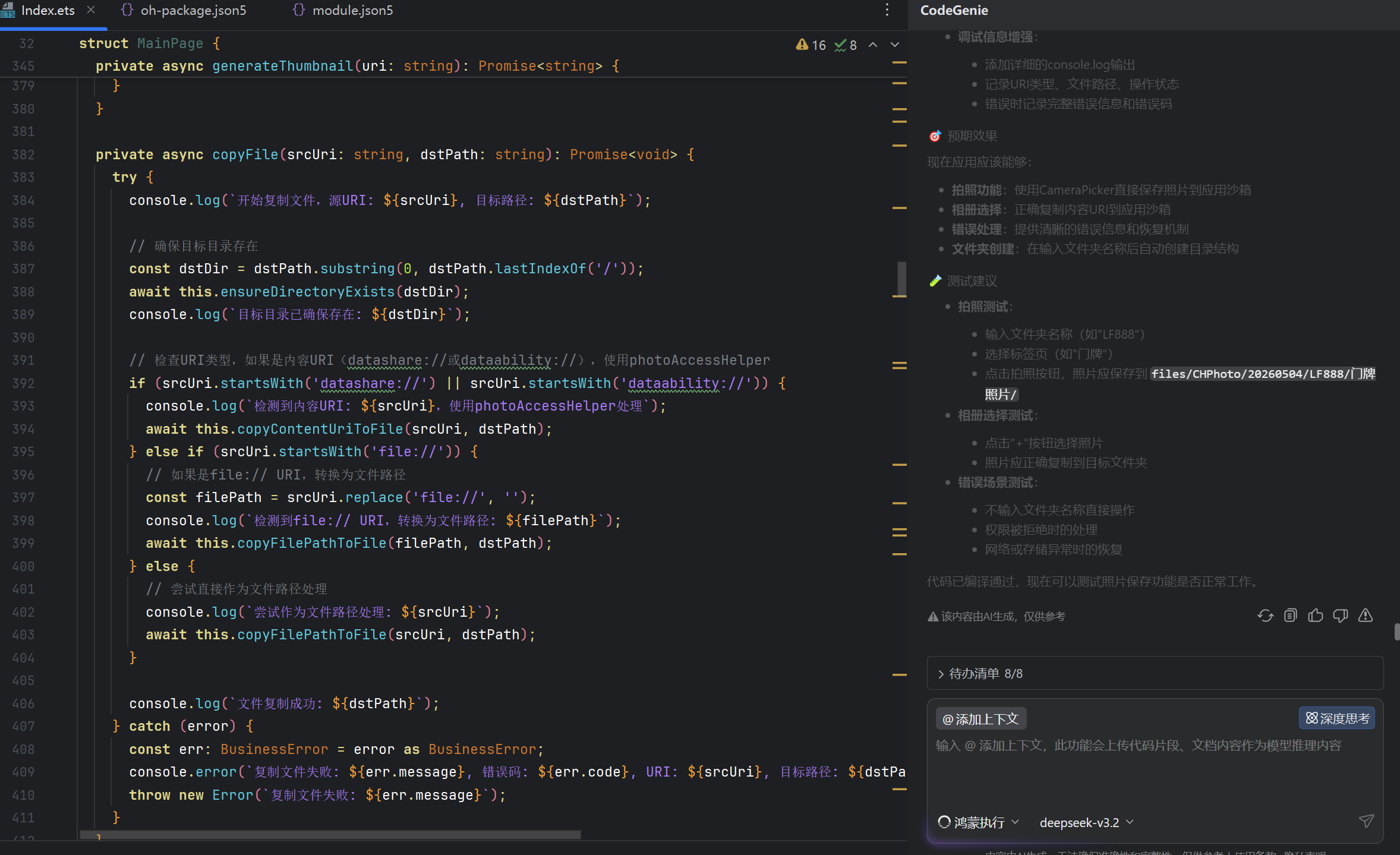
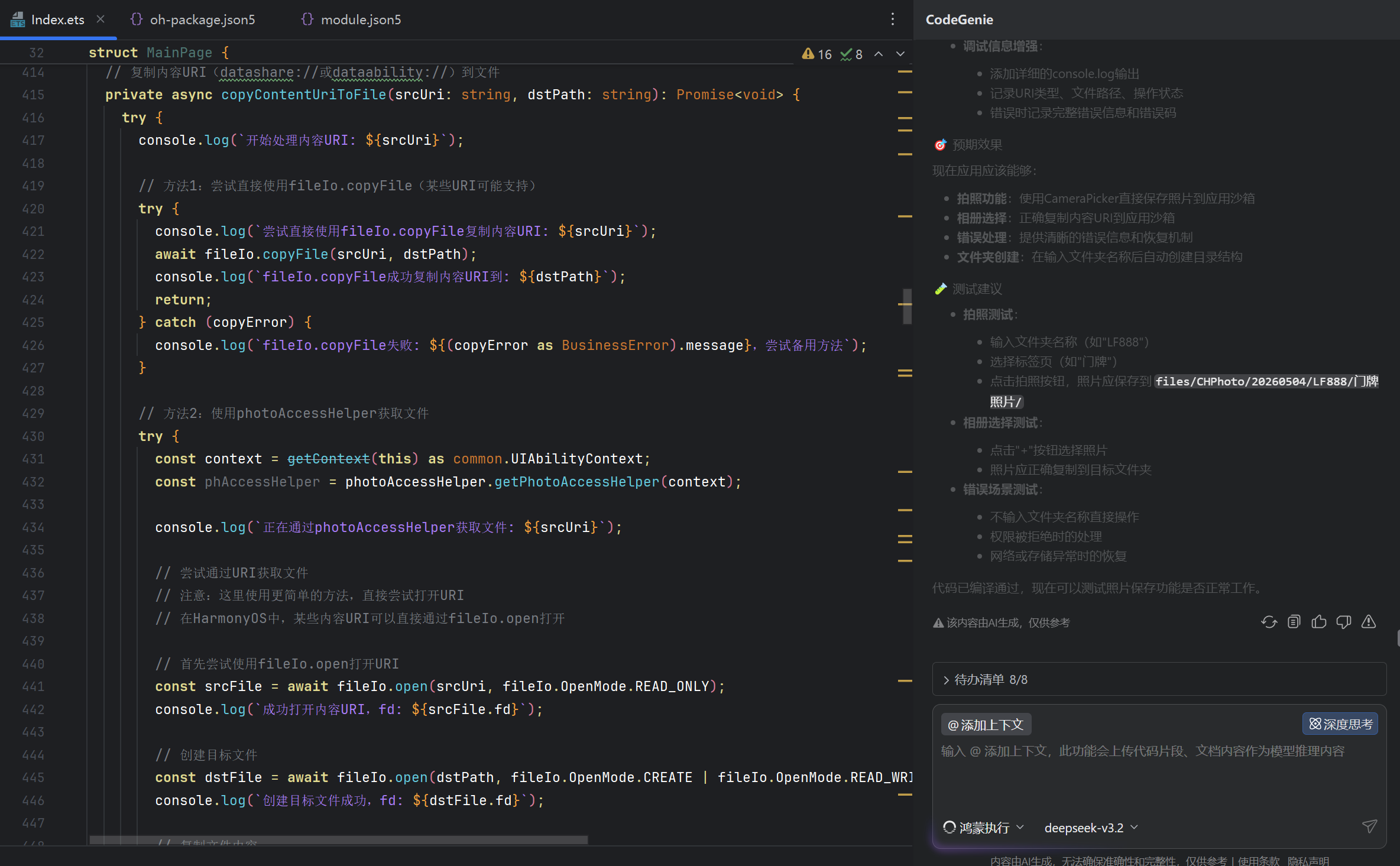
不知道为什么了,错误日志是这样的:[createFolderSimple] ✗ 文件夹创建失败: /data/storage/el2/base/haps/entry/files/CHPhoto/20260510/123/门牌照片, 错误: File exists, 错误码: 13900015。文件操作失败: No such file or directory, 错误码: 13900002。复制文件失败: 文件操作失败: No such file or directory, 错误码: undefined, URI: file://media/Photo/17623/IMG_1778390566_17215/IMG_20260510_132106.heic, 目标路径: /data/storage/el2/base/haps/entry/files/CHPhoto/20260510/123/门牌照片/相册选择_1778426197722.jpg。处理照片失败: {}, 错误码: undefined, 错误消息: 复制文件失败: 文件操作失败: No such file or directory, 源URI: file://media/Photo/17623/IMG_1778390566_17215/IMG_20260510_132106.heic,


https://gitcode.com/HarmonyOS_Samples/ImageGetAndSave可以参考一下这个官方的demo,基于Media Library Kit和Image Kit等HarmonyOS API实现了在HarmonyOS系统上获取图片、读取图片信息和保存图片的方式
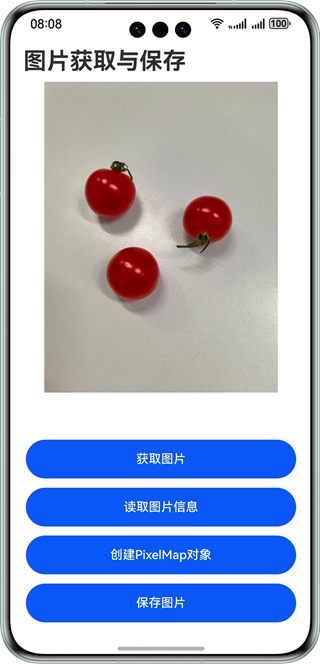
/*
 * Copyright (c) 2024 Huawei Device Co., Ltd.
 * Licensed under the Apache License, Version 2.0 (the "License");
 * you may not use this file except in compliance with the License.
 * You may obtain a copy of the License at
 *
 *     http://www.apache.org/licenses/LICENSE-2.0
 *
 * Unless required by applicable law or agreed to in writing, software
 * distributed under the License is distributed on an "AS IS" BASIS,
 * WITHOUT WARRANTIES OR CONDITIONS OF ANY KIND, either express or implied.
 * See the License for the specific language governing permissions and
 * limitations under the License.
 */
/**
 * 最佳实践:图片获取与保存实践
 */
import { BusinessError } from '@kit.BasicServicesKit';
import { cameraPicker, camera } from '@kit.CameraKit';
import { picker } from '@kit.CoreFileKit';
import { image } from '@kit.ImageKit';
import { PhotoPickerComponent, PickerController, photoAccessHelper, ReminderMode } from '@kit.MediaLibraryKit';
import { hilog } from '@kit.PerformanceAnalysisKit';
import { copyImg2Sandbox, pixelMap2File } from '../common/utils/Utils';

const TAG = 'IMAGE_APP';

@Entry
@Component
struct Index {
  @State path: string = this.getUIContext().getHostContext()!.filesDir + '/image.jpg';
  @State pixelMapPath: string = this.getUIContext().getHostContext()!.filesDir + '/pixelMap.jpg';
  @State imageUri: string | undefined = undefined;
  @State imageSource: image.ImageSource | undefined = undefined;
  @State pixelMap: image.PixelMap | undefined = undefined;
  @State isShowGet: boolean = false;
  @State isShowPicker: boolean = false;
  @State isShowSave: boolean = false;
  @State pickerController: PickerController = new PickerController();

  @Builder
  getImage() {
    Column({ space: 12 }) {
      Button($r('app.string.get_image_from_component'))
        .width('100%')
        .height(40)
        .onClick(() => {
          this.isShowPicker = true;
        })
        .bindSheet($$this.isShowPicker, this.photoPicker(), {
          height: SheetSize.FIT_CONTENT,
          title: { title: $r('app.string.title_get_image_from_component') }
        })

      Button($r('app.string.get_image_from_photo_picker'))
        .width('100%')
        .height(40)
        .onClick(async () => {
          try {
            let PhotoSelectOptions = new photoAccessHelper.PhotoSelectOptions();
            PhotoSelectOptions.MIMEType = photoAccessHelper.PhotoViewMIMETypes.IMAGE_TYPE;
            PhotoSelectOptions.maxSelectNumber = 1;
            let photoPicker = new photoAccessHelper.PhotoViewPicker();
            photoPicker.select(PhotoSelectOptions).then((PhotoSelectResult: photoAccessHelper.PhotoSelectResult) => {
              this.imageUri = PhotoSelectResult.photoUris[0] ? PhotoSelectResult.photoUris[0] : this.imageUri;
              hilog.info(0x0000, TAG, 'PhotoViewPicker.select succeed, uri: ' + JSON.stringify(PhotoSelectResult));
            }).catch((err: BusinessError) => {
              hilog.error(0x0000, TAG, `PhotoViewPicker.select failed, error: ${err.code}, ${err.message}`);
            });
          } catch (error) {
            let err: BusinessError = error as BusinessError;
            hilog.error(0x0000, TAG, `PhotoViewPicker failed, error: ${err.code}, ${err.message}`);
          }
          this.isShowGet = false;
        })

      Button($r('app.string.get_image_from_camera_picker'))
        .width('100%')
        .height(40)
        .onClick(async () => {
          // [Start pick_file]
          try {
            let pickerProfile: cameraPicker.PickerProfile =
              { cameraPosition: camera.CameraPosition.CAMERA_POSITION_BACK };
            //Select the action of pulling up the camera to take pictures.
            let pickerResult: cameraPicker.PickerResult = await cameraPicker.pick(this.getUIContext().getHostContext(),
              [cameraPicker.PickerMediaType.PHOTO], pickerProfile);
            //Return the photo uri to the application.
            this.imageUri = pickerResult.resultUri ? pickerResult.resultUri : this.imageUri;
            hilog.info(0x0000, TAG, 'cameraPicker.pick succeed, uri: ' + JSON.stringify(pickerResult));
          } catch (error) {
            let err = error as BusinessError;
            hilog.error(0x0000, TAG, `cameraPicker.pick failed, error: ${err.code}, ${err.message}`);
          }
          // [End pick_file]
          this.isShowGet = false;
        })

      Button($r('app.string.get_image_from_document_picker'))
        .width('100%')
        .height(40)
        .onClick(() => {
          try {
            let documentSelectOptions = new picker.DocumentSelectOptions();
            documentSelectOptions.maxSelectNumber = 1;
            let documentPicker = new picker.DocumentViewPicker(this.getUIContext().getHostContext()!);
            documentPicker.select(documentSelectOptions).then((documentSelectResult: Array<string>) => {
              hilog.info(0x0000, TAG,
                'DocumentViewPicker.select succeed, uri: ' + JSON.stringify(documentSelectResult));
              if (documentSelectResult[0].endsWith('.jpg') || documentSelectResult[0].endsWith('.png')) {
                this.imageUri = documentSelectResult[0] ? documentSelectResult[0] : this.imageUri;
              } else {
                this.getUIContext().getPromptAction().showToast({
                  message: $r('app.string.document_alert'),
                  duration: 2000
                })
              }
            }).catch((err: BusinessError) => {
              hilog.error(0x0000, TAG, `DocumentViewPicker.select failed, error: ${err.code}, ${err.message}`);
            });
          } catch (error) {
            let err: BusinessError = error as BusinessError;
            hilog.error(0x0000, TAG, `DocumentViewPicker failed, error: ${err.code}, ${err.message}`);
          }
          this.isShowGet = false;
        })
    }
    .width('100%')
    .height(196)
    .padding({ left: 16, right: 16 })
    .margin({ top: 16, bottom: 44 })
    .justifyContent(FlexAlign.SpaceBetween)
  }

  onSelect(uri: string): void {
    if (uri) {
      this.imageUri = uri;
    }
  }

  @Builder
  photoPicker() {
    Column({ space: 12 }) {
      Scroll() {
        PhotoPickerComponent({
          pickerOptions: {
            maxPhotoSelectNumber: 1,
            maxVideoSelectNumber: 0,
            maxSelectedReminderMode: ReminderMode.TOAST,
          },
          onSelect: (uri: string) => this.onSelect(uri),
          pickerController: this.pickerController
        })
          .width('100%')
          .height('100%')
      }
      .width('100%')
      .height(400)

      Column() {
        Button($r('app.string.confirm'))
          .width('100%')
          .height(40)
          .onClick(() => {
            this.isShowPicker = false;
            this.isShowGet = false;
          })
      }
      .width('100%')
      .height(40)
      .padding({ left: 16, right: 16 })
    }
    .width('100%')
    .height(452)
    .margin({ top: 16, bottom: 44 })
    .justifyContent(FlexAlign.SpaceBetween)
  }

  @Builder
  saveImage() {
    Column({ space: 12 }) {
      Button($r('app.string.save_image_in_sandbox'))
        .width('100%')
        .height(40)
        .onClick(async () => {
          if (!this.pixelMap) {
            this.showToast($r('app.string.no_pixel_map_alert'), 2000);
            return;
          }

          await pixelMap2File(this.pixelMap, this.path);
          this.showToast($r('app.string.save_in_sandbox_success'), 2000);
          this.isShowSave = false;
        })

      SaveButton({ text: SaveDescription.SAVE_TO_GALLERY })
        .width('100%')
        .height(40)
        .onClick(async (event, result: SaveButtonOnClickResult) => {
          if (!this.pixelMap) {
            this.showToast($r('app.string.no_pixel_map_alert'), 2000);
            return;
          }

          if (result === SaveButtonOnClickResult.SUCCESS) {
            try {
              await pixelMap2File(this.pixelMap, this.path);
              let context = this.getUIContext().getHostContext();
              let phAccessHelper = photoAccessHelper.getPhotoAccessHelper(context);
              let assetChangeRequest: photoAccessHelper.MediaAssetChangeRequest =
                photoAccessHelper.MediaAssetChangeRequest.createImageAssetRequest(context, this.path);
              await phAccessHelper.applyChanges(assetChangeRequest);
              this.getUIContext().getPromptAction().showToast({
                message: $r('app.string.save_in_gallery_success'),
                duration: 2000
              });
            } catch (err) {
              hilog.error(0x0000, TAG, 'createAsset failed, error: ' + JSON.stringify(err));
            }
          } else {
            hilog.error(0x0000, TAG, 'SaveButtonOnClickResult create asset failed.');
          }
          this.isShowSave = false;
        })
    }
    .width('100%')
    .height(92)
    .padding({ left: 16, right: 16 })
    .margin({ top: 16, bottom: 44 })
    .justifyContent(FlexAlign.SpaceBetween)
  }

  build() {
    Navigation() {
      Column() {
        Image(this.imageUri)
          .height(350)
          .margin({ top: 16 })

        Column({ space: 12 }) {
          Button($r('app.string.get_image'))
            .width('100%')
            .height(40)
            .onClick(() => {
              this.isShowGet = true;
            })
            .bindSheet($$this.isShowGet, this.getImage(), {
              height: SheetSize.FIT_CONTENT,
              title: { title: $r('app.string.get_image') }
            })

          Button($r('app.string.get_image_info'))
            .width('100%')
            .height(40)
            .onClick(() => {
              if (!this.imageUri) {
                this.showToast($r('app.string.no_image_alert'), 2000);
                return;
              }

              copyImg2Sandbox(this.imageUri, this.path).then(() => {
                // [Start image_source]
                this.imageSource = image.createImageSource(this.path);
                this.imageSource.getImageInfo((error: BusinessError, imageInfo: image.ImageInfo) => {
                  if (error) {
                    hilog.error(0x0000, TAG, `getImageInfo failed, error: ${error.code}, ${error.message}`);
                  } else {
                    hilog.info(0x0000, TAG, 'getImageInfo succeed, info: ' + JSON.stringify(imageInfo));
                  }
                });
                // [End image_source]
                // [Start image_proper]
                let key = [image.PropertyKey.IMAGE_WIDTH, image.PropertyKey.IMAGE_LENGTH, image.PropertyKey.F_NUMBER];
                this.imageSource.getImageProperties(key).then((data) => {
                  hilog.info(0x0000, TAG, 'getImageProperties succeed, data: ' + JSON.stringify(data));
                }).catch((error: BusinessError) => {
                  hilog.error(0x0000, TAG, 'getImageProperties failed, error: ' + JSON.stringify(error));
                });
                // [End image_proper]
              });

              this.showToast($r('app.string.get_image_info_success'), 2000);
            })

          Button($r('app.string.get_pixel_map'))
            .width('100%')
            .height(40)
            .onClick(() => {
              if (!this.imageSource) {
                this.showToast($r('app.string.no_image_info_alert'), 2000);
                return;
              }

              this.imageSource.createPixelMap().then((pixelMap: image.PixelMap) => {
                this.pixelMap = pixelMap;
                this.showToast($r('app.string.get_pixel_map_success'), 2000);
              }).catch((error: BusinessError) => {
                hilog.error(0x0000, TAG, 'createPixelMap failed, error: ' + JSON.stringify(error));
              })
            })

          Button($r('app.string.save_image'))
            .width('100%')
            .height(40)
            .onClick(() => {
              this.isShowSave = true;
            })
            .bindSheet($$this.isShowSave, this.saveImage(), {
              height: SheetSize.FIT_CONTENT,
              title: { title: $r('app.string.save_image') }
            })
        }
        .width('100%')
        .height(196)
        .padding({ left: 16, right: 16 })
        .margin({ bottom: 16 })
        .justifyContent(FlexAlign.SpaceBetween)
      }
      .width('100%')
      .height('100%')
      .justifyContent(FlexAlign.SpaceBetween)
    }
    .width('100%')
    .height('100%')
    .title($r('app.string.title'))
  }

  showToast(message: ResourceStr, duration?: number) {
    try {
      this.getUIContext().getPromptAction().showToast({
        message: message,
        duration: duration
      });
    } catch (error) {
      let err = error as BusinessError;
      hilog.error(0x0000, 'Index', `showToast failed, error code=${err.code}, message=${err.message}`);
    }
  }
}

- 需要先把拍照后的数据转为 ArrayBuffer
- 在创建本地文件,把数据写入进去
Button("打开相机").onClick(async () => {
    try {
        let pickerProfile: cameraPicker.PickerProfile = {
            cameraPosition: camera.CameraPosition.CAMERA_POSITION_BACK
        };
        let pickerResult: cameraPicker.PickerResult = await cameraPicker.pick(getContext(),
            [cameraPicker.PickerMediaType.PHOTO, cameraPicker.PickerMediaType.VIDEO], pickerProfile);
        let resultUri = pickerResult.resultUri
        console.log("the pick pickerResult is:" + JSON.stringify(pickerResult));
        if (resultUri) {
            this.imageUriToLocalFile(resultUri)
        }
    } catch (error) {
        let err = error as BusinessError;
        console.error(`the pick call failed. error code: ${err.code}`);
    }
})
imageUriToLocalFile(fileUri: string): Promise<string> {
    return new Promise((resolve, reject) => {
        try {
            let file: fs.File = fs.openSync(fileUri, fs.OpenMode.READ_ONLY)
            let stat: fs.Stat = fs.statSync(file.fd)
            let buffer: ArrayBuffer = new ArrayBuffer(stat.size)
            fs.readSync(file.fd, buffer)

            let path = this.context.filesDir + "/AAA.png"
            let localFile = fs.openSync(path, fs.OpenMode.READ_WRITE | fs.OpenMode.CREATE);
            fs.writeSync(localFile.fd, buffer);
            fs.closeSync(localFile);
            fs.closeSync(file)
            console.error("完成")
        } catch (e) {
            reject(e)
        }
    })
}
HarmonyOS NEXT中,从相册或拍照获取的照片属于系统媒体文件,应用需通过安全框架的PhotoAccessHelper获取MediaAsset并使用open接口以fd形式访问,而非直接通过路径写入应用沙箱。沙箱内file://路径受限,应使用沙箱路径的file://或content://协议,且需在module.json5中声明ohos.permission.READ_MEDIA和ohos.permission.WRITE_MEDIA权限。若写入失败,检查权限声明及Ability的onWindowStageCreate中是否调用了requestPermission。
问题原因是 photoPicker 或相机拍照返回的 uri 属于 content 类型的媒体库标识(例如 datashare://media 开头),不能直接作为文件系统路径进行读写。
需要将文件内容拷贝到应用沙箱目录,之后才能正常显示路径并使用。
推荐做法(以选择照片为例):
import { photoAccessHelper } from '@kit.MediaLibraryKit';
import { fileIo } from '@kit.CoreFileKit';
import { context } from '@kit.AbilityKit';

// 选择照片后回调
async function onPhotoPicked(uri: string, fileName: string, tagName: string) {
  const context = getContext(this);
  // 1. 基于输入的文件夹名和标签页子文件夹,构建沙箱路径
  const basePath = context.filesDir;
  const dateStr = formatDate(new Date()); // 自行格式化
  const targetDir = `${basePath}/${dateStr}/${fileName}/${tagName}`;
  fileIo.mkdirSync(targetDir, true); // 递归创建

  // 2. 打开 content URI 的文件描述符
  const sourceFile = fileIo.openSync(uri, fileIo.OpenMode.READ_ONLY);
  // 生成目标文件名(保持原扩展名或自己命名)
  const ext = uri.split('.').pop() || 'jpg';
  const destPath = `${targetDir}/photo_${Date.now()}.${ext}`;
  const destFile = fileIo.openSync(destPath, fileIo.OpenMode.CREATE | fileIo.OpenMode.WRITE_ONLY);

  // 3. 拷贝
  const bufSize = 4096;
  const buffer = new ArrayBuffer(bufSize);
  let readLen = 0;
  while ((readLen = fileIo.readSync(sourceFile.fd, buffer)) > 0) {
    fileIo.writeSync(destFile.fd, buffer.slice(0, readLen));
  }
  fileIo.closeSync(sourceFile);
  fileIo.closeSync(destFile);

  // destPath 即为最终可用的文件路径
}
拍照类似,调用 photoAccessHelper 的 MediaAssetChangeRequest 拍照并获取 uri,同样按上述方式拷贝到沙箱。
关于目录创建与输入文件名的顺序:无需先生成目录再选择照片。选择/拍照后拿到 uri,再根据已输入的文件名(或临时名称)动态创建目录并拷贝即可,没有冲突。
