




HarmonyOS鸿蒙Next中怎么避开安全区域?
HarmonyOS鸿蒙Next中怎么避开安全区域? 页面如何避开安全区域
4 回复

https://developer.huawei.com/consumer/cn/blog/topic/03190979953248148
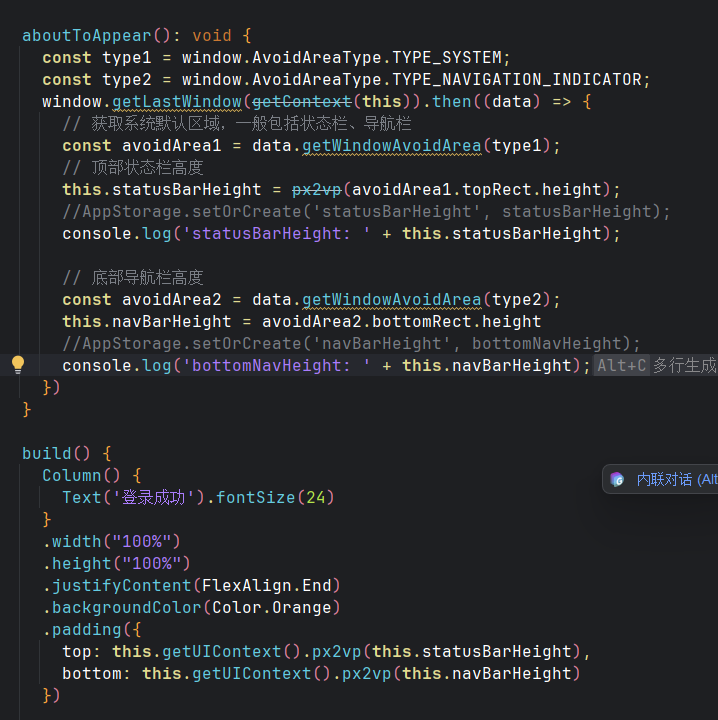
可以参考这个文档的沉浸式结合下面这段代码获取顶部状态栏高度和底部导航栏高度,使用padding属性进行安全区的避让
更多关于HarmonyOS鸿蒙Next中怎么避开安全区域?的实战系列教程也可以访问 https://www.itying.com/category-93-b0.html

**安全区域(Safe Area)**是指屏幕上不受系统UI元素(状态栏、导航栏、挖孔、圆角等)影响的可视区域。
- 获取安全区域边距,核心代码:
import { window } from '@kit.ArkUI'

@Entry
@Component
struct SafeAreaExample {
  @State safeArea: window.SafeAreaInsets = {
    top: 0,
    right: 0,
    bottom: 0,
    left: 0
  }

  aboutToAppear() {
    // 获取窗口实例
    window.getLastWindow(getContext(this)).then((win) => {
      // 监听安全区域变化
      win.on('safeAreaChange', (data) => {
        this.safeArea = data.safeAreaInsets
        console.info(`安全区域变化: ${JSON.stringify(this.safeArea)}`)
      })

      // 初始获取
      this.safeArea = win.getWindowAvoidArea(window.AvoidAreaType.TYPE_SYSTEM).topRect
    })
  }
}
- 避开安全区域
方案一、使用 expandSafeArea 属性控制组件绘制区域
...
  build() {
    Column() {
      Text('顶部内容')
        .fontSize(20)

      Blank()

      Text('底部内容')
        .fontSize(20)
    }
    .width('100%')
    .height('100%')
    .backgroundColor(Color.White)
    // ✅ 自动避开键盘和系统UI
    .expandSafeArea([SafeAreaType.SYSTEM, SafeAreaType.KEYBOARD])
  }
方案二、使用 padding + 安全区域值
代码略
方案三、使用 navigationBar 和 statusBar 配置,适用于全局配置状态栏和导航栏
NavDestination() {
      Column() {
        Text('内容区域')
      }
      .width('100%')
      .height('100%')
    }
    // ✅ 隐藏标题栏,自定义状态栏
    .hideTitleBar(true)
    .onShown(() => {
      // 设置状态栏样式
      window.getLastWindow(getContext(this)).then((win) => {
        // 状态栏深色内容(浅色背景用)
        win.setWindowSystemBarProperties({
          statusBarContentColor: '#000000',  // 黑色文字
          navigationBarContentColor: '#000000'
        })

        // 或状态栏浅色内容(深色背景用)
        // win.setWindowSystemBarProperties({
        //   statusBarContentColor: '#FFFFFF',  // 白色文字
        //   navigationBarContentColor: '#FFFFFF'
        // })
      })
    })

在HarmonyOS Next中,可通过设置组件的expandSafeArea属性避开安全区域,如.expandSafeArea(['top', 'bottom']);或使用SafeAreaNode组件包裹内容并指定insets。

