




HarmonyOS鸿蒙Next中自定义布局按钮等如何实现沉浸光感效果
HarmonyOS鸿蒙Next中自定义布局按钮等如何实现沉浸光感效果
目前系统提供的少部分控件才支持沉浸光感效果,自定义的布局按钮如何实现啦?还有搜索框又如何实现,我看应用市场的搜索框都是支持的,但是根本找不到对应的控件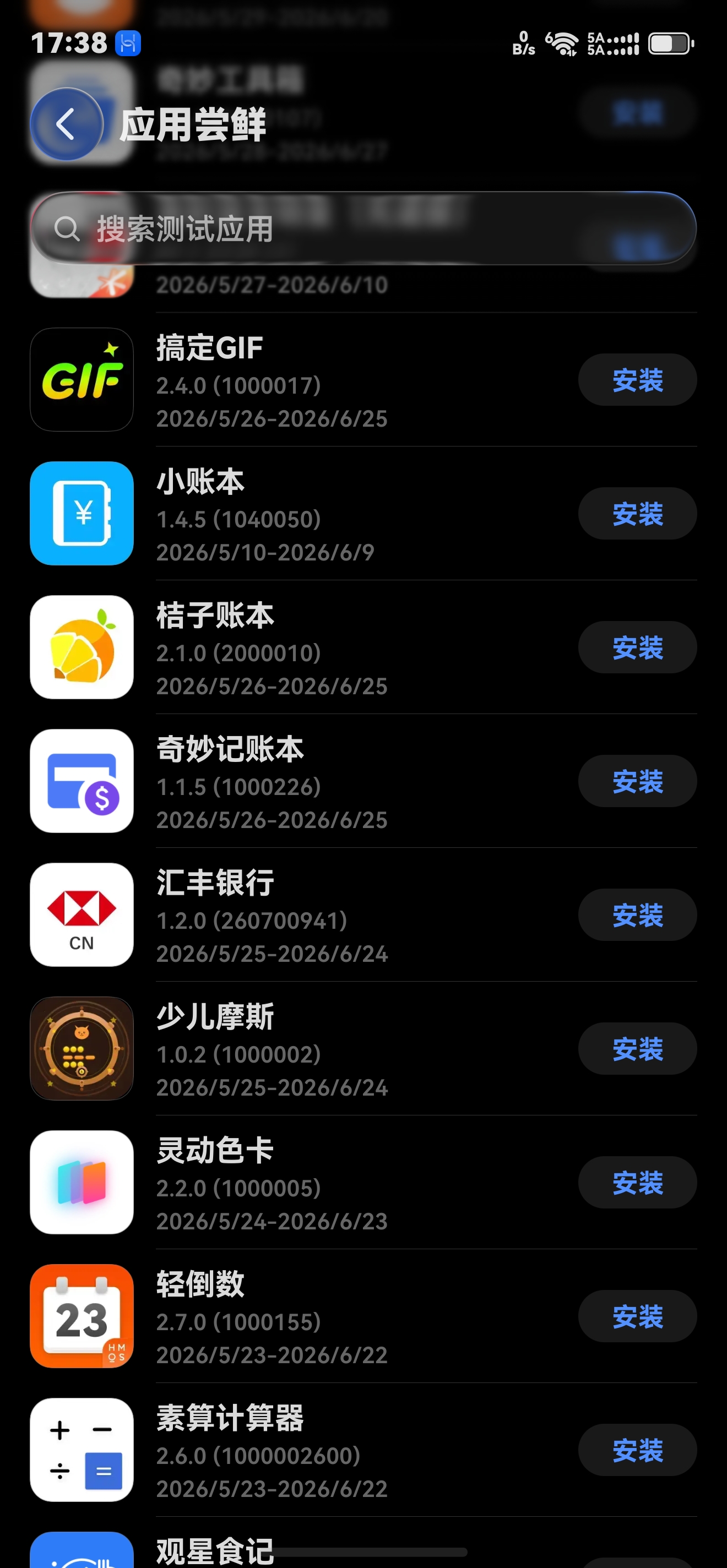
更多关于HarmonyOS鸿蒙Next中自定义布局按钮等如何实现沉浸光感效果的实战教程也可以访问 https://www.itying.com/category-93-b0.html

不要被那几个按钮误导了,本质上还是HdsNavigation里的组件!
HdsNavigation配置沉浸式模糊和材质的各类型效果:
// 从6.0.2(22)版本开始,无需手动导入HdsNavigationAttribute。具体请参考HdsNavigation的导入模块说明。
import {
  hdsMaterial,
  HdsNavigation,
  HdsNavigationAttribute,
  HdsNavigationTitleMode,
  ScrollEffectType,
} from '@kit.UIDesignKit'
import { promptAction } from '@kit.ArkUI'
@Entry
@Component
struct Index {
  private scrollerForScroll: Scroller = new Scroller();
  @State materialLevel: hdsMaterial.MaterialLevel = hdsMaterial.MaterialLevel.ADAPTIVE;
  @State materialType: hdsMaterial.MaterialType = hdsMaterial.MaterialType.IMMERSIVE;
  aboutToAppear(): void {
    // 该示例以系统支持的材质类型为hdsMaterial.MaterialType.IMMERSIVE为例
    try {
      let materialTypes: Array<hdsMaterial.MaterialType> = hdsMaterial.getSystemMaterialTypes();
      console.info(`getSystemMaterialTypes successed, types: ${materialTypes}`);
    } catch (err) {
      let message = (err as BusinessError).message;
      let code = (err as BusinessError).code;
      console.error(`getSystemMaterialTypes failed, code: ${code}, message: ${message}`);
    }
  }
  build() {
    HdsNavigation() {
      Scroll(this.scrollerForScroll) {
        Column() {
          // 'app.media.demo_img'需要替换为开发者所需的资源文件
          Image($r('app.media.demo_img'))
            .width('100%')
          Text(`当前材质Level为: ${this.materialLevel}`).fontSize(20).fontWeight(FontWeight.Bold)
          Text(`当前材质Type为: ${this.materialType}`).fontSize(20).fontWeight(FontWeight.Bold)
          Button('切换材质Type为None').onClick(() => {
            // 无材质效果
            this.materialType = hdsMaterial.MaterialType.NONE;
          }).margin({ top: 2 })
        }.height('100%')
      }.edgeEffect(EdgeEffect.Spring).height('100%')
    }
    .titleBar({
      content: {
        title: {
          mainTitle: '主标题',
        },
        menu: {
          value: [{
            content: {
              icon: $r('sys.symbol.search_things'),
              label: 'search',
              action: () => {
                promptAction.openToast({ message: 'on click' });
              },
            }
          }]
        },
      },
      style: {
        scrollEffectOpts: {
          // 从6.1.0(23)开始, 新增IMMERSIVE_GRADIENT_BLUR类型,标题文字和图标样式从白色到黑色线性过渡。
          scrollEffectType: ScrollEffectType.IMMERSIVE_GRADIENT_BLUR,
        },
        // 从6.1.0(23)开始,支持材质相关属性。
        // 推荐与ScrollEffectType.IMMERSIVE_GRADIENT_BLUR(推荐沉浸式图文类的场景使用) 或 ScrollEffectType.GRADIENT_BLUR(推荐非沉浸式列表类的场景使用)搭配使用。
        systemMaterialEffect: {
          materialType: this.materialType,
          materialLevel: this.materialLevel
        }
      },
    })
    .bindToScrollable([this.scrollerForScroll])
    .hideBackButton(true)
    .titleMode(HdsNavigationTitleMode.MINI)
    .ignoreLayoutSafeArea([LayoutSafeAreaType.SYSTEM], [LayoutSafeAreaEdge.TOP, LayoutSafeAreaEdge.BOTTOM])
  }
}
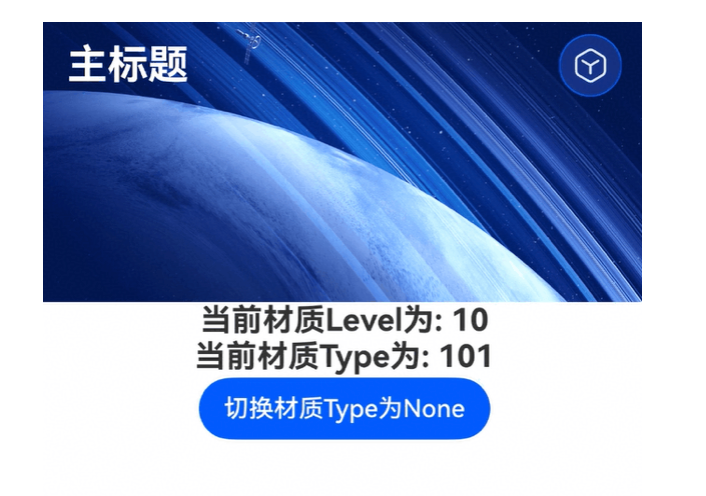
沉浸光感效果,官方文档:https://developer.huawei.com/consumer/cn/doc/harmonyos-guides/ui-design-hds-component-material
更多关于HarmonyOS鸿蒙Next中自定义布局按钮等如何实现沉浸光感效果的实战系列教程也可以访问 https://www.itying.com/category-93-b0.html


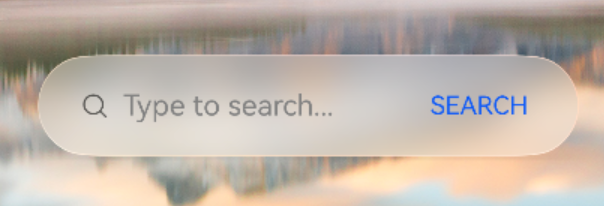


https://developer.huawei.com/consumer/cn/doc/harmonyos-guides/ui-design-hds-component-material
官方就有自定义的,
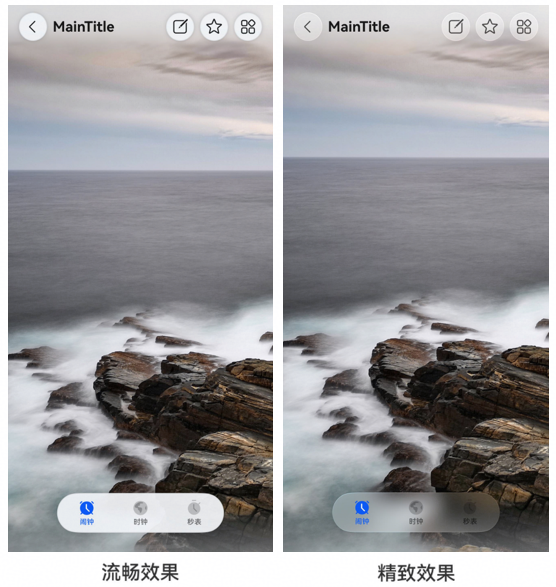
使用自定义沉浸光感效果
如果使用自定义沉浸光感的视觉效果,请先调用getSystemMaterialTypes()接口查询当前设备所支持的材质能力,再根据查询结果选用相应的材质效果枚举:
- 如果查询结果显示当前设备支持IMMERSIVE材质类型,可选用EXQUISITE或GENTLE效果。
- 如果查询结果显示当前设备不支持IMMERSIVE材质类型,则建议使用SMOOTH效果,以降低卡顿和发热风险,保障用户体验。
创建HDS导航和底部页签组件。导航标题栏包含1个返回按钮和3个功能按钮,底部页签包含3个子项。
以下示例代码为底部页签和标题栏的4个按钮设置了沉浸光感效果,根据设备所能支持的材质能力自定义动态切换显示效果。
import { HdsNavigation, HdsNavigationTitleMode, HdsTabs, HdsTabsController, HdsNavigationMenuContentOptions, ScrollEffectType, hdsMaterial } from '@kit.UIDesignKit';
import { SymbolGlyphModifier } from '@kit.ArkUI';
 @Entry
 @Component
 export struct Index {
   private scrollerForScroll: Scroller = new Scroller();
   private controller: HdsTabsController = new HdsTabsController();
   @State customMaterialLevel: hdsMaterial.MaterialLevel = hdsMaterial.MaterialLevel.EXQUISITE;

   private menus: HdsNavigationMenuContentOptions = {
     value: [{
       content: {
         label: 'menu1',
         icon: $r('sys.symbol.square_and_pencil')
       }
     }, {
       content: {
         label: 'menu2',
         icon: $r('sys.symbol.star')
       }
     },{
       content: {
         label: 'menu3',
         icon: $r('sys.symbol.more')
       }
     }
     ]
   };

   aboutToAppear(): void {
     // 获取系统支持的材质类型,用于根据设备能力选择合适的材质等级
     let materialTypes: Array<hdsMaterial.MaterialType> = hdsMaterial.getSystemMaterialTypes();
     if (materialTypes.indexOf(hdsMaterial.MaterialType.IMMERSIVE) < 0) {
       // 当前设备不支持IMMERSIVE材质类型,则使用SMOOTH效果以优化性能,降低卡顿和发热风险
       this.customMaterialLevel = hdsMaterial.MaterialLevel.SMOOTH;
     }
   }

   build() {
     HdsNavigation() {
       HdsTabs({ controller: this.controller }) {
         ForEach(MENU_CONFIG, (item: MenuItem) => {
           TabContent() {
             Stack() {
               Scroll(this.scrollerForScroll) {
                 Column() {
                   Image($r('app.media.scenery01')).width('100%') // scenery为自定义资源,开发者需替换本地资源
                 }
               }
               .clipContent(ContentClipMode.SAFE_AREA)
               .height('100%')
             }
           }
           .tabBar(new BottomTabBarStyle({
             normal: item.symbolGlyph, selected: item.symbolGlyph1
           }, item.label))
         })
       }
       .barOverlap(true)
       .vertical(false)
       .barPosition(BarPosition.End)
       .barFloatingStyle({
         barBottomMargin: 28,
         systemMaterialEffect: {
           materialType: hdsMaterial.MaterialType.ADAPTIVE,
           materialLevel: this.customMaterialLevel // 底部悬浮页签自定义沉浸光感材质效果
         }
       })
     }
     .mode(NavigationMode.Stack)
     .titleBar({
       content: {
         title: {
           mainTitle: 'MainTitle',
         },
         menu: this.menus,
       },
       style: {
         scrollEffectOpts: {
           enableScrollEffect: false,
           scrollEffectType: ScrollEffectType.GRADIENT_BLUR,
         },
         systemMaterialEffect: {
           materialType: hdsMaterial.MaterialType.ADAPTIVE,
           materialLevel: this.customMaterialLevel // 标题栏按钮自定义沉浸光感材质效果
         },
       },
       avoidLayoutSafeArea: false,
       enableComponentSafeArea: false
     })
     .bindToScrollable([this.scrollerForScroll])
     .hideBackButton(false)
     .titleMode(HdsNavigationTitleMode.MINI)
     .ignoreLayoutSafeArea([LayoutSafeAreaType.SYSTEM], [LayoutSafeAreaEdge.TOP, LayoutSafeAreaEdge.BOTTOM])
   }
 }

 interface MenuItem {
   symbolGlyph: SymbolGlyphModifier,
   symbolGlyph1: SymbolGlyphModifier,
   label: string,
   defaultBgColor: ResourceColor,
   hoverBgColor: ResourceColor,
   pressBgColor: ResourceColor,
 };

 const MENU_CONFIG: MenuItem[] = [
   {
     symbolGlyph: new SymbolGlyphModifier($r('sys.symbol.alarm_fill_1')).renderingStrategy(SymbolRenderingStrategy.MULTIPLE_COLOR)
       .fontColor([$r('sys.color.ohos_id_color_bottom_tab_icon_off'),
         $r('sys.color.ohos_id_color_bottom_tab_icon_auxcolor_off02')]),
     symbolGlyph1: new SymbolGlyphModifier($r('sys.symbol.alarm_fill_1')).renderingStrategy(SymbolRenderingStrategy.MULTIPLE_COLOR)
       .fontColor([$r('sys.color.ohos_id_color_activated'), $r('sys.color.ohos_id_color_primary_contrary')]),
     label: '闹钟',
     defaultBgColor: Color.Transparent,
     hoverBgColor: $r('sys.color.ohos_id_color_hover'),
     pressBgColor: $r('sys.color.ohos_id_color_click_effect')
   },
   {
     symbolGlyph: new SymbolGlyphModifier($r('sys.symbol.worldclock_fill_2')).renderingStrategy(SymbolRenderingStrategy.MULTIPLE_COLOR)
       .fontColor([$r('sys.color.ohos_id_color_bottom_tab_icon_off'),
         $r('sys.color.ohos_id_color_bottom_tab_icon_auxcolor_off02')]),
     symbolGlyph1: new SymbolGlyphModifier($r('sys.symbol.worldclock_fill_2')).renderingStrategy(SymbolRenderingStrategy.MULTIPLE_COLOR)
       .fontColor([$r('sys.color.ohos_id_color_activated'), $r('sys.color.ohos_id_color_primary_contrary')]),
     label: '时钟',
     defaultBgColor: Color.Transparent,
     hoverBgColor: $r('sys.color.ohos_id_color_hover'),
     pressBgColor: $r('sys.color.ohos_id_color_click_effect')
   },
   {
     symbolGlyph: new SymbolGlyphModifier($r('sys.symbol.stopwatch_2')).renderingStrategy(SymbolRenderingStrategy.MULTIPLE_COLOR)
       .fontColor([$r('sys.color.ohos_id_color_bottom_tab_icon_off'),
         $r('sys.color.ohos_id_color_bottom_tab_icon_auxcolor_off02')]),
     symbolGlyph1: new SymbolGlyphModifier($r('sys.symbol.stopwatch_2')).renderingStrategy(SymbolRenderingStrategy.MULTIPLE_COLOR)
       .fontColor([$r('sys.color.ohos_id_color_activated'), $r('sys.color.ohos_id_color_primary_contrary')]),
     label: '秒表',
     defaultBgColor: Color.Transparent,
     hoverBgColor: $r('sys.color.ohos_id_color_hover'),
     pressBgColor: $r('sys.color.ohos_id_color_click_effect')
   }
 ];
之前写的一段代码供你参考,看下是否有帮助。
struct Index {
  @StorageLink('bottomTabIndex') bottomTabIndex: number = 0;
  private hdsController: HdsTabsController = new HdsTabsController();
  private tabsController: TabsController = new TabsController();

  aboutToAppear(): void {
    if (!AppStorage.has('recentRefreshCounter')) {
      AppStorage.setOrCreate('recentRefreshCounter', 0);
    }
    if (!AppStorage.has('myShortcutsRefreshCounter')) {
      AppStorage.setOrCreate('myShortcutsRefreshCounter', 0);
    }

    if (!AppStorage.has('app_first_launch_done')) {
      AppStorage.setOrCreate('app_first_launch_done', true);
      this.bottomTabIndex = 1;
    } else if (!AppStorage.has('bottomTabIndex')) {
      AppStorage.setOrCreate('bottomTabIndex', 1);
    }
    const pendingTab = AppStorage.get<number>('pendingBottomTabIndex');
    if (pendingTab !== undefined && pendingTab !== null) {
      this.bottomTabIndex = pendingTab;
    }
    setTimeout(() => {
      AppLaunchRouter.consumePendingNavigation(this.getUIContext());
    }, 350);

    const ctx = this.getUIContext().getHostContext() as common.UIAbilityContext;
    PdfResourceService.refreshManifestIfNeeded(ctx, false).catch(() => {
    });
    IndicatorResourceService.refreshIfNeeded(ctx, false).catch(() => {
    });
  }

  @Builder
  tabContentBuilder(color: Color) {
    List() {
      ForEach([1, 2, 3, 4, 5, 6, 7, 8, 9, 10], (item: number) => {
        ListItem() {
          Column() {
            Row() {
            }.height(200)
            .width('100%')

            Row() {
            }.width('100%')
            .height(50)
            .background(color)
          }
        }
      })
    }
  }

  @Builder
  TabBuilder(index: number, name: string) {
    Column() {
      if (index === 4) {
        SymbolGlyph($r('sys.symbol.person'))
          .fontSize(24)
          .renderingStrategy(SymbolRenderingStrategy.SINGLE)
          .fontColor([this.bottomTabIndex === index ?
            $r('app.color.bottom_tabs_font_color_selected') :
            $r('app.color.bottom_tabs_font_color')])
          .opacity(this.bottomTabIndex === index ? 1 : 0.6)
      } else {
        Image(this.bottomTabIndex === index ? BottomTabsList[index].iconSelected : BottomTabsList[index].icon)
          .width('40%')
          .height('40%')
          .objectFit(ImageFit.Contain)
      }

      Text(BottomTabsList[index].text)
        .fontSize($r('app.float.bottom_font_size'))
        .opacity(0.6)
        .fontColor(this.bottomTabIndex === index ?
        $r('app.color.bottom_tabs_font_color_selected') : $r('app.color.bottom_tabs_font_color'))
    }
    .width('100%')
    .height('100%')
    .justifyContent(FlexAlign.Center)
    .border({ width: { top: 0.5 } })
  }

  build() {
    Column() {
      if (deviceInfo.distributionOSApiVersion >= 60100) {
        HdsTabs({ index: this.bottomTabIndex, controller: this.hdsController }) {
          TabContent() {
            YuTabs()
          }
          .tabBar(new BottomTabBarStyle(this.bottomTabIndex === 0 ? $r('app.media.chadinge_selected') : $r('app.media.chadinge'), '查询'))

          TabContent() {
            SuanTabs()
          }
          .tabBar(new BottomTabBarStyle(this.bottomTabIndex === 1 ? $r('app.media.Budget_selected') : $r('app.media.Budget'), '计算'))

          TabContent() {
            ZhiBiaoTabs()
          }
          .tabBar(new BottomTabBarStyle(this.bottomTabIndex === 2 ? $r('app.media.formal_selected') : $r('app.media.formal'), '指标'))

          TabContent() {
            VoicePage()
          }
          .tabBar(new BottomTabBarStyle(this.bottomTabIndex === 3 ? $r('app.media.ic_mic_active') : $r('app.media.ic_mic'), '语音查'))

          TabContent() {
            MyTab()
          }
          .tabBar(new BottomTabBarStyle({
            normal: new SymbolGlyphModifier($r('sys.symbol.person'))
              .fontSize(24)
              .renderingStrategy(SymbolRenderingStrategy.SINGLE)
              .fontColor([$r('app.color.bottom_tab_my_icon_off')]),
            selected: new SymbolGlyphModifier($r('sys.symbol.person'))
              .fontSize(24)
              .renderingStrategy(SymbolRenderingStrategy.SINGLE)
              .fontColor([$r('app.color.bottom_tabs_font_color_selected')]),
          }, '我的').labelStyle({
            unselectedColor: $r('app.color.bottom_tabs_font_color'),
            selectedColor: $r('app.color.bottom_tabs_font_color_selected'),
          }))
        }
        .barOverlap(true)
        .barPosition(BarPosition.End)
        .vertical(false)
        .barFloatingStyle({
          barWidth: { smallWidth: 320, mediumWidth: 400, largeWidth: 480 },
          barBottomMargin: 28,
          gradientMask: { maskColor: $r('app.color.tab_bar_mask'), maskHeight: 92 },
          systemMaterialEffect: {
            materialType: hdsMaterial.MaterialType.IMMERSIVE,
            materialLevel: hdsMaterial.MaterialLevel.ADAPTIVE
          },
        })
        .onChange((index: number) => {
          this.bottomTabIndex = index;
        })
      } else {
        Flex({ direction: FlexDirection.Column, alignItems: ItemAlign.End, justifyContent: FlexAlign.End }) {
          Tabs({ barPosition: BarPosition.End, index: this.bottomTabIndex, controller: this.tabsController }) {
            TabContent() {
              YuTabs()
            }.tabBar(this.TabBuilder(0, '查'))
            TabContent() {
              SuanTabs()
            }.tabBar(this.TabBuilder(1, '算'))
            TabContent() {
              ZhiBiaoTabs()
            }.tabBar(this.TabBuilder(2, '指标'))
            TabContent() {
              VoicePage()
            }.tabBar(this.TabBuilder(3, '语音'))
            TabContent() {
              MyTab()
            }.tabBar(this.TabBuilder(4, '我'))
          }
          .width('100%')
          .vertical(false)
          .barHeight('8%')
          .scrollable(true)
          .onChange((index: number) => {
            this.bottomTabIndex = index;
          })
          .onAnimationStart((index: number, targetIndex: number) => {
            if (index !== targetIndex) {
              this.bottomTabIndex = targetIndex;
            }
          })
          .height('100%')
        }
        .width('100%')
      }
    }
    .width('100%')
    .height('100%')
    .backgroundColor($r('app.color.bgcolor'))
  }
}

自定义按钮不能直接等同于系统 HDS 按钮的沉浸光感能力。当前公开能力主要挂在 HDS 导航、标题栏菜单、HdsTabs 等组件上,通过 systemMaterialEffect 配置材质效果。
如果要做搜索框或按钮,建议优先把它放到 HdsNavigation 的 titleBar/menu 或对应 HDS 容器里,让组件走系统材质链路;自己写的 Row/Button/Stack 只能做近似视觉,比如模糊背景、半透明叠层、按压态和边框高光,不能完全复刻系统根据设备算力自适应的沉浸光感。
实现时注意三点:
- 从 6.1.0(23) 开始关注 HDS 组件沉浸光感材质能力。
- systemMaterialEffect 建议先用 ADAPTIVE,设备不支持 IMMERSIVE 时降级到 SMOOTH。
- 搜索框如果要像系统应用那样跟随顶部内容滚动模糊,优先用 HdsNavigation + bindToScrollable,而不是在普通 Column 中单独叠 blur。

这里要区分“系统原生沉浸光感能力”和“自己模拟出类似视觉”。目前不是任意自定义按钮/布局都能直接挂同等级的系统沉浸光感,很多案例本质上还是基于 HDS 导航、标题栏、搜索等组件能力,或者基于系统材质 API 做的。你自己写的布局如果想接近这个效果,通常是:半透明背景 + backgroundBlurStyle/backdropBlur + 合适的圆角/描边/层级阴影;搜索框场景也更像是放在 HdsNavigation/HDS 体系里,而不是有一个单独“沉浸光感搜索框控件”。所以结论是:完全同系统组件一致的效果不一定对所有自定义控件开放,但可以通过材质和模糊能力做接近实现。


在HarmonyOS Next中,通过ArkUI的visualEffect设置BlurStyle(如BlurStyle.Thin)实现背景模糊,配合shadow添加光晕(颜色半透明白色),borderRadius圆角,以及brightness调整亮度。示例:
Button('按钮')
  .visualEffect({ blur: 30, brightness: 1.2 })
  .borderRadius(20)
  .shadow({ radius: 10, color: '#40ffffff' })
此方式无需Java或C代码。
在 HarmonyOS Next 中,自定义布局按钮或搜索框要模拟系统的沉浸光感效果(毛玻璃 / 背景模糊),核心是使用 backgroundBlurStyle 属性。
// 示例:自定义按钮实现光感
Button('沉浸按钮')
  .backgroundColor('rgba(255,255,255,0.2)')   // 半透明底色
  .backgroundBlurStyle(BlurStyle.Thick)       // 厚模糊,融入背景光感
  .borderRadius(20)

// 搜索框实现同样效果
Search({ placeholder: '搜索' })
  .backgroundColor('rgba(255,255,255,0.15)')
  .backgroundBlurStyle(BlurStyle.Regular)     // 或 Thick / Thin
  .borderRadius(24)
如果需要更强的光感层次,可以叠加 blendEffect:
Button('带光效')
  .backgroundBlurStyle(BlurStyle.BackgroundRegular)
  .blendEffect(BlendEffectStyle.Light)  // 增强光感
BlurStyle 枚举包含 Thin、Regular、Thick,另有 Background 系用于与壁纸交融。系统应用市场搜索框正是基于 Search 组件加 backgroundBlurStyle,并非独立控件,只需为 Search 组件设置该属性即可。
