




HarmonyOS鸿蒙Next中HdsTabs组件的控制器可以控制页签栏的显示和隐藏,这个显示和隐藏的动效时间可以设置吗?
HarmonyOS鸿蒙Next中HdsTabs组件的控制器可以控制页签栏的显示和隐藏,这个显示和隐藏的动效时间可以设置吗? 【问题描述】:HdsTabs组件的控制器可以控制页签栏的显示和隐藏,这个显示和隐藏的动效时间可以设置吗?
【问题现象】:HdsTabs组件的控制器可以控制页签栏的显示和隐藏,这个显示和隐藏的动效时间可以设置吗?
在HdsTabs组件中有一个page页,在page页里跳转page2页,跳转时调用接口applyHideAnimation隐藏,page2返回page时调用applyShowAnimation显示,感觉隐藏和显示时的动画慢,页面已经切换完了,动画还没走完
【版本信息】:API23
【复现代码】:不涉及
【尝试解决方案】:暂无
更多关于HarmonyOS鸿蒙Next中HdsTabs组件的控制器可以控制页签栏的显示和隐藏,这个显示和隐藏的动效时间可以设置吗?的实战教程也可以访问 https://www.itying.com/category-93-b0.html

开发者您好,本地测试了两个demo,开发者可以参考下,本地测试动画效果不是很慢:
1、用onVisibleAreaChange,页面显示一半就触发隐藏或显示tabbar动效
参考:
// 从6.0.2(22)版本开始,无需手动导入HdsTabsAttribute。具体请参考HdsTabs的导入模块说明。
import { hdsMaterial } from '@hms.hds.hdsMaterial'
import { HdsTabs, HdsTabsAttribute, HdsTabsController } from '@kit.UIDesignKit';

@Entry
@Component
struct Index {
  // 初始化HdsTabs控制器。
  private controller: HdsTabsController = new HdsTabsController();

  @Builder
  tabContentBuilder(color: Color) {
    List() {
      ForEach([1, 2, 3, 4, 5, 6, 7, 8, 9, 10], (item: number) => {
        ListItem() {
          Column() {
            Row() {
            }.height(200)
            .width('100%')

            Row() {
            }.width('100%')
            .height(50)
            .background(color)
          }
        }
      })
    }
  }

  @Builder
  miniBarBuilder() {
    Row() {
      Column() {
        Image($r('app.media.startIcon'))
          .width(40)
          .height(40)
          .borderRadius(40)
      }.width(48).height(48).justifyContent(FlexAlign.Center)

      Text('Hello')

      Column() {
        Image($r('sys.media.ohos_ic_public_pause'))
          .width(40)
          .height(40)
          .borderRadius(40)
      }.width(48).height(48).justifyContent(FlexAlign.Center)
    }
  }

  build() {
    Column() {
      HdsTabs({ controller: this.controller }) {
        TabContent() {
          this.tabContentBuilder(Color.Green)
        }
        .onVisibleAreaChange([0.5, 1.0], (isExpanding: boolean, currentRatio: number) => {
          if (isExpanding && currentRatio >= 0.5 && currentRatio <= 1) {
            this.controller.applyShowAnimation(0);
          }
          if (!isExpanding && currentRatio <= 0.5) {
            this.controller.applyHideAnimation(0);
          }
        })
        .tabBar(new BottomTabBarStyle($r('sys.media.ohos_ic_public_clock'), 'Green'))

        TabContent() {
          this.tabContentBuilder(Color.Blue)
        }
        .tabBar(new BottomTabBarStyle($r('sys.media.wifi_router_fill'), 'Blue'))

        TabContent() {
          this.tabContentBuilder(Color.Yellow)
        }
        .tabBar(new BottomTabBarStyle($r('sys.media.ohos_ic_public_clock'), 'Yellow'))
      }
      // 设置barOverlap为true,vertical为false,barPosition为BarPosition.End
      .barOverlap(true)
      .barPosition(BarPosition.End)
      .vertical(false)
      // 设置页签栏悬浮样式。
      .barFloatingStyle({
        barWidth: { smallWidth: 200, mediumWidth: 300, largeWidth: 400 },
        barBottomMargin: 28,
        gradientMask: { maskColor: '#66F1F3F5', maskHeight: 92 },
        systemMaterialEffect: {
          materialType: hdsMaterial.MaterialType.IMMERSIVE,
          materialLevel: hdsMaterial.MaterialLevel.EXQUISITE
        },
        // 设置迷你栏,若不设置,则仅有页签栏。
        miniBar: {
          miniBarBuilder: () => this.miniBarBuilder()
        }
      })
    }
  }
}
2、用onAnimationStart,切换页面开始时触发tabbar显示/隐藏
参考:
// 从6.0.2(22)版本开始,无需手动导入HdsTabsAttribute。具体请参考HdsTabs的导入模块说明。
import { hdsMaterial } from '@hms.hds.hdsMaterial'
import { HdsTabs, HdsTabsAttribute, HdsTabsController } from '@kit.UIDesignKit';

@Entry
@Component
struct Index {
  // 初始化HdsTabs控制器。
  private controller: HdsTabsController = new HdsTabsController();

  @Builder
  tabContentBuilder(color: Color) {
    List() {
      ForEach([1, 2, 3, 4, 5, 6, 7, 8, 9, 10], (item: number) => {
        ListItem() {
          Column() {
            Row() {
            }.height(200)
            .width('100%')

            Row() {
            }.width('100%')
            .height(50)
            .background(color)
          }
        }
      })
    }
  }

  @Builder
  miniBarBuilder() {
    Row() {
      Column() {
        Image($r('app.media.startIcon'))
          .width(40)
          .height(40)
          .borderRadius(40)
      }.width(48).height(48).justifyContent(FlexAlign.Center)

      Text('Hello')

      Column() {
        Image($r('sys.media.ohos_ic_public_pause'))
          .width(40)
          .height(40)
          .borderRadius(40)
      }.width(48).height(48).justifyContent(FlexAlign.Center)
    }
  }

  build() {
    Column() {
      HdsTabs({ controller: this.controller }) {
        TabContent() {
          this.tabContentBuilder(Color.Green)
        }
        .tabBar(new BottomTabBarStyle($r('sys.media.ohos_ic_public_clock'), 'Green'))

        TabContent() {
          this.tabContentBuilder(Color.Blue)
        }
        .tabBar(new BottomTabBarStyle($r('sys.media.wifi_router_fill'), 'Blue'))

        TabContent() {
          this.tabContentBuilder(Color.Yellow)
        }
        .tabBar(new BottomTabBarStyle($r('sys.media.ohos_ic_public_clock'), 'Yellow'))
      }
      .onAnimationStart((index: number, targetIndex: number, event: TabsAnimationEvent)=>{
        if (index === 1) {
          this.controller.applyShowAnimation(0);
        }
        else {
          this.controller.applyHideAnimation(0);
        }
      })
      // 设置barOverlap为true,vertical为false,barPosition为BarPosition.End
      .barOverlap(true)
      .barPosition(BarPosition.End)
      .vertical(false)
      // 设置页签栏悬浮样式。
      .barFloatingStyle({
        barWidth: { smallWidth: 200, mediumWidth: 300, largeWidth: 400 },
        barBottomMargin: 28,
        gradientMask: { maskColor: '#66F1F3F5', maskHeight: 92 },
        systemMaterialEffect: {
          materialType: hdsMaterial.MaterialType.IMMERSIVE,
          materialLevel: hdsMaterial.MaterialLevel.EXQUISITE
        },
        // 设置迷你栏,若不设置,则仅有页签栏。
        miniBar: {
          miniBarBuilder: () => this.miniBarBuilder()
        }
      })
    }
  }
}
开发者如果感觉还是慢,请提供下您本地测试的demo,方便我们这边进一步分析下问题
更多关于HarmonyOS鸿蒙Next中HdsTabs组件的控制器可以控制页签栏的显示和隐藏,这个显示和隐藏的动效时间可以设置吗?的实战系列教程也可以访问 https://www.itying.com/category-93-b0.html

开发者您好,可以使用HdsNavigation嵌套HdsTabs的形式:
import { HdsTabsController, HdsTabs, hdsMaterial, HdsNavigation, ScrollEffectType,
  HdsNavDestination,
  HdsNavDestinationTitleMode,
  HdsAnimationMode} from "@kit.UIDesignKit";

export const mainTabController = new HdsTabsController();

@Entry
@Component
struct Index {
  private navPathStack = new NavPathStack();

  @Builder
  pageMap(name: string) {
    if (name == 'DemoPage2') {
      DemoPage2();
    }
  }


  build() {
    Column() {
      HdsNavigation(this.navPathStack) {
        HdsTabs({ controller: mainTabController }) {
          TabContent() {
            Button("点击页面跳转")
              .onClick(() => {
                mainTabController.applyHideAnimation(HdsAnimationMode.SCROLL_ANIMATION);
                this.navPathStack.pushPathByName("DemoPage2", null);
              })
          }
          .tabBar("DEMO")
        }
        .vertical(false)
        .barOverlap(true)
        .scrollable(false)
        .animationDuration(0)
        .barPosition(BarPosition.End)
        .barFloatingStyle({
          barBottomMargin: 30,
          gradientMask: { maskColor: "#66F1F3F5", maskHeight: 92 },
          systemMaterialEffect: {
            materialType: hdsMaterial.MaterialType.ADAPTIVE,
            materialLevel: hdsMaterial.MaterialLevel.ADAPTIVE
          }
        })
      }
      .navDestination(this.pageMap)
      .hideToolBar(true)
      .hideBackButton(true)
      .backgroundColor($r("sys.color.background_secondary"))
      .titleBar({
        content: {
          title: { mainTitle: "首页" },
        },
        style: {
          scrollEffectOpts: {
            enableScrollEffect: false,
            scrollEffectType: ScrollEffectType.GRADIENT_BLUR
          },
          systemMaterialEffect: {
            materialType: hdsMaterial.MaterialType.ADAPTIVE,
            materialLevel: hdsMaterial.MaterialLevel.ADAPTIVE
          }
        },
        avoidLayoutSafeArea: true,
        enableComponentSafeArea: true
      })

    }
  }
}


@ComponentV2
struct DemoPage2 {
  private navPathStack?: NavPathStack;

  build() {
    HdsNavDestination() {
    }
    .hideToolBar(true)
    .size({ width: "100%", height: "100%" })
    .backgroundColor($r("sys.color.background_secondary"))
    .titleMode(HdsNavDestinationTitleMode.MINI)
    .titleBar({
      content: {
        title: { mainTitle: "跳转页面" }
      },
      style: {
        scrollEffectOpts: {
          enableScrollEffect: false,
          scrollEffectType: ScrollEffectType.GRADIENT_BLUR
        },
        systemMaterialEffect: {
          materialType: hdsMaterial.MaterialType.ADAPTIVE,
          materialLevel: hdsMaterial.MaterialLevel.ADAPTIVE
        }
      },
      avoidLayoutSafeArea: true
    })
    .onReady((context) => {
      this.navPathStack = context.pathStack;
    })
    .onBackPressed(() => {
      // 显示主Tab
      mainTabController.applyShowAnimation(HdsAnimationMode.SCROLL_ANIMATION);
      return false;
    })
  }
}
老师,我的问题是这样的,在这个HdsTabs组件里有一个pgae页(index加载的就是这个页面),在page页跳转到page2页时隐藏,page2跳转page时显示。demo和录屏已发


HdsTabs 控制器 applyHideAnimation() / applyShowAnimation() 的动效时长可以通过 animationDuration 属性控制,这是控制页签栏自身动画的属性。
通过控制器
// 获取控制器
private tabsController: TabsController = new TabsController()

// 在需要隐藏页签栏时
this.tabsController.animationDuration(100)  // 单位:毫秒
this.tabsController.applyHideAnimation()

// 在需要显示页签栏时
this.tabsController.animationDuration(100)
this.tabsController.applyShowAnimation()
参考文档:
你的问题主要是 TabContent 切换动画太慢,把 Tabs(animationDuration: 100) 调小就能解决。页签栏的 applyHideAnimation() 如果你不需要隐藏显示效果,animationDuration 设为 0 即可跳过它的动画。
也可以直接进行属性绑定,
HdsTabs({
  controller: this.tabsController,
  barHeight: this.tabBarVisible ? 56 : 0,  // 高度动画
})
.animation({
  duration: 100,    // 页签栏高度变化的动画时长,单位ms
  curve: Curve.EaseOut,
})

是的,HdsTabs组件的显示和隐藏动画时间通常是可以设置的。
这个功能一般是通过为HdsTabs组件或其控制器(Controller)设置一个 持续时间(Duration) 属性来实现的。这个属性决定了动画从开始到结束所需的毫秒数。
您可以尝试在代码中查找与HdsTabs相关的配置项,特别是以下几种可能性:
- 直接设置组件的duration属性
许多UI组件库允许在组件实例化时直接传入一个duration参数。您可以查看HdsTabs的构造函数或配置选项,看是否有类似下面的设置方式:
    HdsTabs(
      controller: _tabController,
      duration: Duration(milliseconds: 300), // 设置动画持续时间为300毫秒
      // 其他属性...
    )
- 通过控制器(Controller)设置
您提到了使用“控制器”来控制页签栏的显示和隐藏。有些组件会将动画相关的配置放在控制器中。您可以检查控制器的构造函数或相关方法,看是否可以传入duration参数。
- 查找组件的动画配置参数
仔细查阅HdsTabs组件的官方文档或API参考,寻找与“动画”、“动效”、“持续时间”等关键词相关的参数。不同的组件库命名习惯不同,可能的参数名还包括 animationDuration 、 tabAnimationDuration 等。
如果以上方法都无法找到确切的设置项,建议您查阅该UI库的官方文档或向其技术支持咨询,以获取最准确的配置信息。

针对你提到的 HdsTabs 组件控制器控制页签栏(TabBar)显示和隐藏时,动画时长无法调整的问题,在当前的 API 版本(API 23 / 6.0.1)中,无法直接通过属性设置来修改这个特定的显示/隐藏动效时间。
虽然 HdsTabs 提供了 animationDuration 属性,但它仅控制**页签内容切换(TabContent Change)的动画时长,而不控制页签栏整体显隐(Bar Show/Hide)**的动画时长。
以下是详细的技术分析和建议:
1. 为什么无法设置?(属性作用域分析)
根据华为开发者文档,HdsTabs 相关的动画属性如下表所示:
| 属性名 | 作用对象 | 控制内容 | 你的场景是否适用 |
|---|---|---|---|
animationDuration |
TabContent (内容区) | 控制点击页签或调用 changeIndex 切换页面时的滑动动画时长。 |
不适用。这是页面切换,不是栏的显隐。 |
barBackgroundBlurStyle |
TabBar (页签栏) | 设置背景模糊样式(如 BlurStyle),通常用于模糊效果的定义,不包含显隐时间。 |
不适用。 |
barOverlap |
TabBar (页签栏) | 设置页签栏是否叠加在内容之上并开启模糊,不涉及动画时长。 | 不适用。 |
结论: 文档中没有提供类似 barAnimationDuration 或 hideAnimationDuration 的属性来控制页签栏自身的显示和隐藏速度。
2. 问题根源分析
你提到的现象——“页面已经切换完了,动画还没走完”,通常是因为:
- 控制器逻辑: 当你通过控制器(如自定义逻辑)控制 TabBar 的显隐时,系统使用的是默认的“标准动效曲线”和“标准时长”。
- 动效与逻辑解耦: 在 API 23 中,UI 组件的显隐动效时长通常是硬编码在系统动效库中的,为了保持系统级的视觉一致性,开发者无法直接覆盖这一底层时间参数。
3. 建议解决方案
由于无法直接修改控制器的动效时间,建议通过以下两种方式优化体验:
方案 A:调整业务逻辑的时序(推荐)
不要等待 TabBar 动画结束再进行后续操作。
- 做法: 在触发页面切换(逻辑完成)后,立即执行后续业务,不要去监听 TabBar 动画的结束回调(如果有的话)。
- 原理: 将“页面逻辑切换”与“UI 动画播放”解耦。即使动画还在播放,只要逻辑上页面已经准备好,用户就可以进行交互,视觉上的滞后感会降低。
方案 B:降级使用基础 Tabs 组件
如果 HdsTabs 的固定动效严重影响了你的应用体验,且必须自定义速度,可以考虑回退到原生的 ArkUI Tabs 组件。
- 做法: 使用标准的
Tabs+Column/Stack布局手动构建页签栏。 - 优势: 手动构建的 UI 元素(如
Column)可以通过animateTo或属性动画完全自定义显示和隐藏的时间(例如设置为100ms)。 - 代价: 需要自己实现
HdsTabs提供的高级特性(如分割线、半屏居中、特定的模糊样式等)。
4. 补充信息
你提供的链接 #applyhideanimation 在官方文档中通常是关于“应用隐藏动画”的章节,这与 HdsTabs 组件内部的 UI 动画是两个不同的概念,请勿混淆。
总结: 目前无法通过配置修改该动效时间。建议优先采用 方案 A,在代码逻辑上忽略该动画的耗时,以解决“页面切换慢”的感知问题。

刚刚测试过,目前HdsTabs的设置里只有改变动效模式,没有改动画时长的,改为
| CLICK_ANIMATION | 1 | 点击动效 |
会感觉快一点,但整个光感效果是持续的,和设备性能也有一定关系吧:
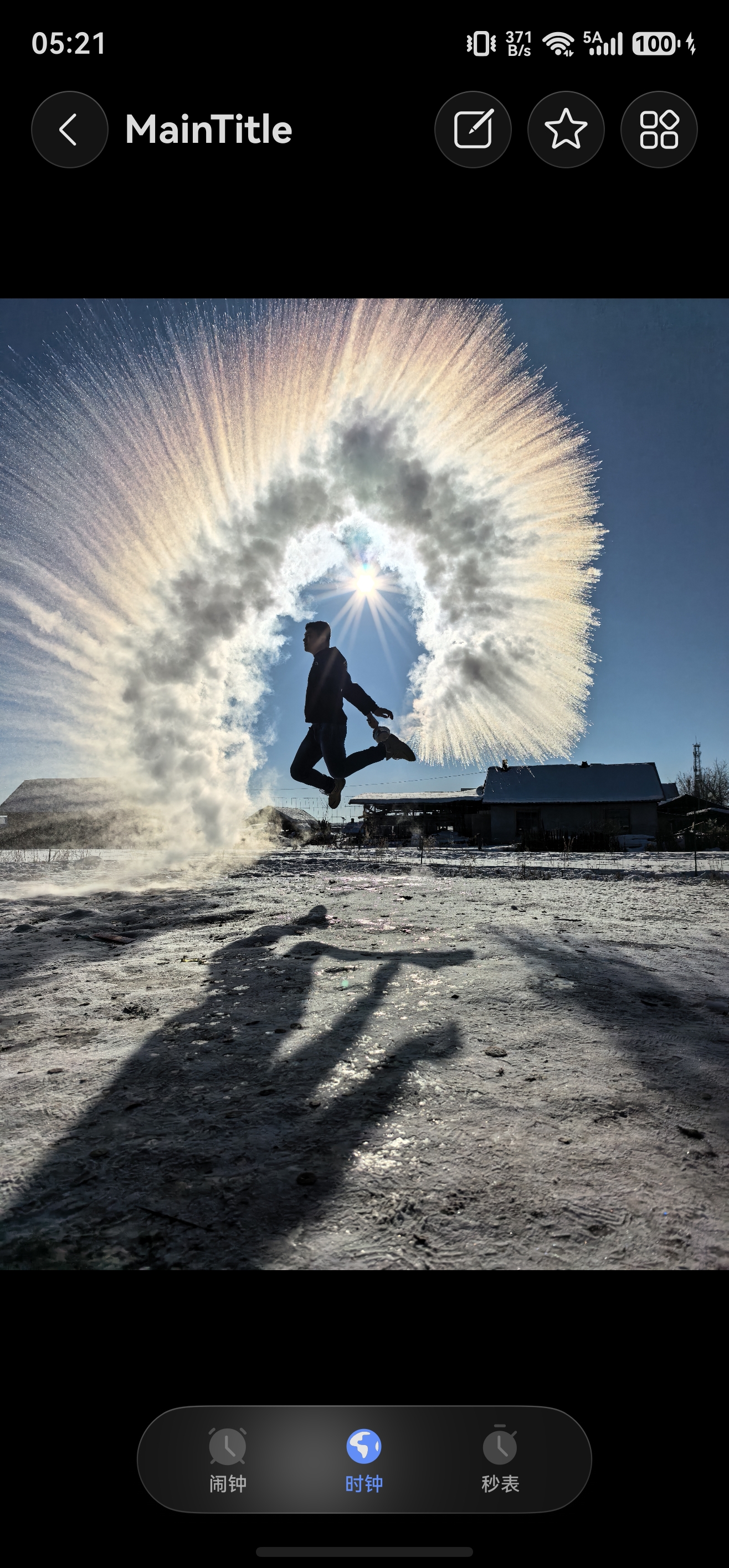
import { HdsAnimationMode, HdsNavigation, HdsNavigationTitleMode, HdsTabs, HdsTabsController, HdsNavigationMenuContentOptions, ScrollEffectType, hdsMaterial, } from '@kit.UIDesignKit';
import { SymbolGlyphModifier } from "@kit.ArkUI";

@Entry
@Component
export struct Index {
  private scrollerForScroll: Scroller = new Scroller();
  private controller: HdsTabsController = new HdsTabsController();

  aboutToAppear() {

    this.controller.applyHideAnimation(HdsAnimationMode.CLICK_ANIMATION);
    this.controller.applyShowAnimation(HdsAnimationMode.CLICK_ANIMATION );
  }

  private menus: HdsNavigationMenuContentOptions = {
    value: [{
      content: {
        label: 'menu1',
        icon: $r('sys.symbol.square_and_pencil'),
      }
    }, {
      content: {
        label: 'menu2',
        icon: $r('sys.symbol.star')
      },
    },{
      content: {
        label: 'menu3',
        icon: $r('sys.symbol.more')
      },
    }
    ],
  };

  build() {
    HdsNavigation() {
      HdsTabs({ controller: this.controller }) {
        ForEach(MENU_CONFIG, (item: MenuItem) => {
          TabContent() {
            Stack() {
              Scroll(this.scrollerForScroll) {
                Column() {
                  Image($r("app.media.scenery01")).width('100%') // scenery为自定义资源,开发者需替换本地资源
                }
              }
              .clipContent(ContentClipMode.SAFE_AREA)
              .height('100%')
            }
          }
          .tabBar(new BottomTabBarStyle({
            normal: item.symbolGlyph, selected: item.symbolGlyph1
          }, item.label))
        })
      }
      .barOverlap(true)
      .vertical(false)
      .barPosition(BarPosition.End)
      .barFloatingStyle({
        barBottomMargin: 28,
        systemMaterialEffect:  {
          materialType: hdsMaterial.MaterialType.ADAPTIVE,
          materialLevel: hdsMaterial.MaterialLevel.ADAPTIVE // 底部悬浮页签沉浸光感效果跟随系统策略自适应
        }
      })
    }
    .mode(NavigationMode.Stack)
    .titleBar({
      content: {
        title: {
          mainTitle: 'MainTitle',
        },
        menu: this.menus,
      },
      style: {
        scrollEffectOpts: {
          enableScrollEffect: false,
          scrollEffectType: ScrollEffectType.GRADIENT_BLUR,
        },
        systemMaterialEffect: {
          materialType: hdsMaterial.MaterialType.ADAPTIVE,
          materialLevel: hdsMaterial.MaterialLevel.ADAPTIVE // 标题栏按钮沉浸光感效果跟随系统策略自适应
        },
      },
      avoidLayoutSafeArea: false,
      enableComponentSafeArea: false
    })
    .bindToScrollable([this.scrollerForScroll])
    .hideBackButton(false)
    .titleMode(HdsNavigationTitleMode.MINI)
    .ignoreLayoutSafeArea([LayoutSafeAreaType.SYSTEM], [LayoutSafeAreaEdge.TOP, LayoutSafeAreaEdge.BOTTOM])
  }

}

interface MenuItem {
  symbolGlyph: SymbolGlyphModifier,
  symbolGlyph1: SymbolGlyphModifier,
  label: string,
  defaultBgColor: ResourceColor,
  hoverBgColor: ResourceColor,
  pressBgColor: ResourceColor,
};

const MENU_CONFIG: MenuItem[] = [
  {
    symbolGlyph: new SymbolGlyphModifier($r('sys.symbol.alarm_fill_1')).renderingStrategy(SymbolRenderingStrategy.MULTIPLE_COLOR)
      .fontColor([$r('sys.color.ohos_id_color_bottom_tab_icon_off'),
        $r('sys.color.ohos_id_color_bottom_tab_icon_auxcolor_off02')]),
    symbolGlyph1: new SymbolGlyphModifier($r('sys.symbol.alarm_fill_1')).renderingStrategy(SymbolRenderingStrategy.MULTIPLE_COLOR)
      .fontColor([$r('sys.color.ohos_id_color_activated'), $r('sys.color.ohos_id_color_primary_contrary')]),
    label: '闹钟',
    defaultBgColor: Color.Transparent,
    hoverBgColor: $r('sys.color.ohos_id_color_hover'),
    pressBgColor: $r('sys.color.ohos_id_color_click_effect')
  },
  {
    symbolGlyph: new SymbolGlyphModifier($r('sys.symbol.worldclock_fill_2')).renderingStrategy(SymbolRenderingStrategy.MULTIPLE_COLOR)
      .fontColor([$r('sys.color.ohos_id_color_bottom_tab_icon_off'),
        $r('sys.color.ohos_id_color_bottom_tab_icon_auxcolor_off02')]),
    symbolGlyph1: new SymbolGlyphModifier($r('sys.symbol.worldclock_fill_2')).renderingStrategy(SymbolRenderingStrategy.MULTIPLE_COLOR)
      .fontColor([$r('sys.color.ohos_id_color_activated'), $r('sys.color.ohos_id_color_primary_contrary')]),
    label: '时钟',
    defaultBgColor: Color.Transparent,
    hoverBgColor: $r('sys.color.ohos_id_color_hover'),
    pressBgColor: $r('sys.color.ohos_id_color_click_effect')
  },
  {
    symbolGlyph: new SymbolGlyphModifier($r('sys.symbol.stopwatch_2')).renderingStrategy(SymbolRenderingStrategy.MULTIPLE_COLOR)
      .fontColor([$r('sys.color.ohos_id_color_bottom_tab_icon_off'),
        $r('sys.color.ohos_id_color_bottom_tab_icon_auxcolor_off02')]),
    symbolGlyph1: new SymbolGlyphModifier($r('sys.symbol.stopwatch_2')).renderingStrategy(SymbolRenderingStrategy.MULTIPLE_COLOR)
      .fontColor([$r('sys.color.ohos_id_color_activated'), $r('sys.color.ohos_id_color_primary_contrary')]),
    label: '秒表',
    defaultBgColor: Color.Transparent,
    hoverBgColor: $r('sys.color.ohos_id_color_hover'),
    pressBgColor: $r('sys.color.ohos_id_color_click_effect')
  }
];
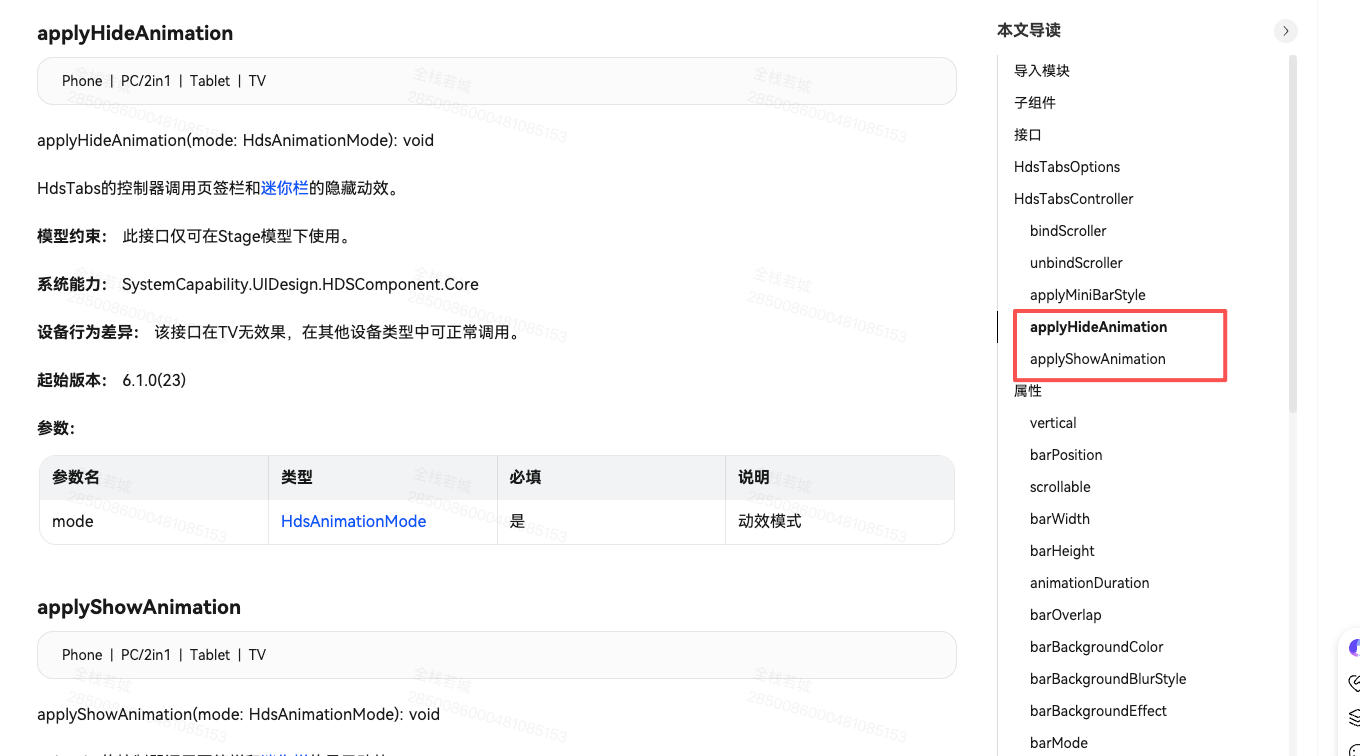
HdsAnimationMode
PhonePC/2in1TabletTV
显示隐藏动效模式。
模型约束: 此接口仅可在Stage模型下使用。
系统能力: SystemCapability.UIDesign.HDSComponent.Core
设备行为差异: 该接口在TV无效果,在其他设备类型中可正常调用。
起始版本: 6.1.0(23)
| 名称 | 值 | 说明 |
|---|---|---|
| SCROLL_ANIMATION | 0 | 滚动动效。 |
| CLICK_ANIMATION | 1 | 点击动效。 |
HdsBarStyle
PhonePC/2in1TabletTV
页签栏和迷你栏样式类型枚举。
模型约束: 此接口仅可在Stage模型下使用。
系统能力: SystemCapability.UIDesign.HDSComponent.Core
设备行为差异: 该接口在TV无效果,在其他设备类型中可正常调用。
起始版本: 6.1.0(23)
展开
| 名称 | 值 | 说明 |
|---|---|---|
| COLLAPSE | 0 | 折叠样式。 |
| EXPAND | 1 | 展开样式。 |

您遇到的问题是"页面导航切换时动画太慢",这里需要区分两个不同的动画:
- TabContent切换动画 - 点击TabBar切换页面内容的动画
- TabBar显示/隐藏动画 - 调用applyHideAnimation()/applyShowAnimation()时的动画
解决方案
方案一:控制TabContent切换动画时长
Tabs({ animationDuration: 100 }) // 单位:毫秒,设置为100ms可加快切换速度
这个属性控制的是TabContent之间的切换动画时长,默认300ms。
方案二:控制TabBar显示/隐藏动画时长
// 通过控制器设置
this.tabsController.animationDuration(100) // 先设置时长
this.tabsController.applyHideAnimation()   // 再执行隐藏动画

this.tabsController.animationDuration(100)
this.tabsController.applyShowAnimation()   // 执行显示动画
方案三:通过属性绑定实现平滑过渡
HdsTabs({
  controller: this.tabsController,
  barHeight: this.tabBarVisible ? 56 : 0
})
.animation({
  duration: 100,  // 动画时长
  curve: Curve.EaseOut  // 动画曲线
})

关于 HdsTabs 页签栏显示/隐藏动画时间的设置
目前 HdsTabs 控制器的 setTabBarVisible 或 applyHideAnimation 方法不支持直接设置动画时长参数。
现状分析:
HdsTabs 是 UI Design Kit 的高级组件,它基于基础的 Tabs 组件进行了封装
基础 Tabs 组件的 animationDuration 属性只能控制 TabContent 内容切换的动画时长,不能控制页签栏(TabBar)显示/隐藏的动画时长
HdsTabsController 的方法其动画时长是固定的,无法通过参数自定义
一、解决方案建议:
1、自定义动画时长控制(推荐方案)
hideTabBar() / showTabBar() - 使用 150ms 自定义动画
2、通过 animateTo + 控制 barHeight 和 opacity 实现
快速切换(无动画)
3、quickHideTabBar() / quickShowTabBar() - 瞬间切换,无过渡效果
控制器方法(固定动画时长)
hideWithController() / showWithController() - 使用系统默认动画时长
4、4个完整页签
首页、发现、消息、我的
每个页签有不同的背景色便于区分
二、测试按钮:
隐藏(150ms) / 显示(150ms) - 自定义动画时长的切换
快速隐藏 - 无动画瞬间隐藏
快速显示 - 无动画瞬间显示
控制器隐藏 - 使用控制器的固定动画
控制器显示 - 使用控制器的固定动画
💡 关键代码要点:
// 1. 状态管理
@State tabBarHeight: number = 56
@State tabBarOpacity: number = 1
@State isTabBarVisible: boolean = true

// 2. 自定义动画(可设置 duration)
this.getUIContext().animateTo({
  duration: 150,  // 这里可以自定义动画时长
  curve: Curve.EaseOut
}, () => {
  this.tabBarHeight = 0
  this.tabBarOpacity = 0
})

// 3. 应用到 HdsTabs
HdsTabs({...})
  .barHeight(this.tabBarHeight)  // 绑定高度
  .opacity(this.tabBarOpacity)    // 绑定透明度
完整示例代码:
import { HdsTabs, HdsTabsController } from '@kit.UIDesignKit'
import router from '@ohos.router'

/**
 * @author J.query
 * @date 2026/4/15 19:04
 * @email j-query@foxmail.com
 * Description: HdsTabs 页签栏显示/隐藏动画示例
 */
@Entry
@Component
struct MyPage {
  @State tabBarHeight: number = 56 // 正常高度
  @State tabBarOpacity: number = 1
  @State currentIndex: number = 0
  @State isTabBarVisible: boolean = true
  private controller: HdsTabsController = new HdsTabsController()

  // 隐藏页签栏 - 自定义动画时长
  hideTabBar() {
    if (!this.isTabBarVisible) {
      return
    }
    this.getUIContext().animateTo({
      duration: 150,  // 自定义动画时长,例如 150ms
      curve: Curve.EaseOut
    }, () => {
      this.tabBarHeight = 0
      this.tabBarOpacity = 0
      this.isTabBarVisible = false
    })
  }

  // 显示页签栏 - 自定义动画时长
  showTabBar() {
    if (this.isTabBarVisible) {
      return
    }
    this.getUIContext().animateTo({
      duration: 150,  // 自定义动画时长
      curve: Curve.EaseIn
    }, () => {
      this.tabBarHeight = 56
      this.tabBarOpacity = 1
      this.isTabBarVisible = true
    })
  }

  // 切换页签栏显示/隐藏
  toggleTabBar() {
    if (this.isTabBarVisible) {
      this.hideTabBar()
    } else {
      this.showTabBar()
    }
  }

  // 快速隐藏(无动画)
  quickHideTabBar() {
    this.tabBarHeight = 0
    this.tabBarOpacity = 0
    this.isTabBarVisible = false
  }

  // 快速显示(无动画)
  quickShowTabBar() {
    this.tabBarHeight = 56
    this.tabBarOpacity = 1
    this.isTabBarVisible = true
  }

  // 使用 animateTo 控制隐藏(带动画)
  hideWithController() {
    this.getUIContext().animateTo({
      duration: 300,  // 使用默认动画时长
      curve: Curve.EaseOut
    }, () => {
      this.tabBarHeight = 0
      this.tabBarOpacity = 0
      this.isTabBarVisible = false
    })
  }

  // 使用 animateTo 控制显示(带动画)
  showWithController() {
    this.getUIContext().animateTo({
      duration: 300,  // 使用默认动画时长
      curve: Curve.EaseIn
    }, () => {
      this.tabBarHeight = 56
      this.tabBarOpacity = 1
      this.isTabBarVisible = true
    })
  }

  build() {
    Column() {
      // 控制按钮区域
      Row({ space: 10 }) {
        Button(this.isTabBarVisible ? '隐藏(150ms)' : '显示(150ms)')
          .fontSize(12)
          .height(36)
          .onClick(() => {
            this.toggleTabBar()
          })

        Button('快速隐藏')
          .fontSize(12)
          .height(36)
          .backgroundColor('#FF6B6B')
          .onClick(() => {
            this.quickHideTabBar()
          })

        Button('快速显示')
          .fontSize(12)
          .height(36)
          .backgroundColor('#4ECDC4')
          .onClick(() => {
            this.quickShowTabBar()
          })

        Button('控制器隐藏')
          .fontSize(12)
          .height(36)
          .backgroundColor('#95E1D3')
          .onClick(() => {
            this.hideWithController()
          })

        Button('控制器显示')
          .fontSize(12)
          .height(36)
          .backgroundColor('#F38181')
          .onClick(() => {
            this.showWithController()
          })
      }
      .width('100%')
      .padding({ top: 10, bottom: 10, left: 10, right: 10 })
      .justifyContent(FlexAlign.SpaceEvenly)

      // HdsTabs 组件
      HdsTabs({ controller: this.controller, index: this.currentIndex }) {
        TabContent() {
          Column() {
            Text('首页内容')
              .fontSize(24)
              .fontWeight(FontWeight.Bold)
              .margin({ top: 50 })

            Text('当前页签索引: ' + this.currentIndex)
              .fontSize(16)
              .margin({ top: 20 })
              .fontColor('#666666')

            Text('页签栏状态: ' + (this.isTabBarVisible ? '显示' : '隐藏'))
              .fontSize(16)
              .margin({ top: 10 })
              .fontColor('#666666')
          }
          .width('100%')
          .height('100%')
          .backgroundColor('#F5F5F5')
          .justifyContent(FlexAlign.Center)
        }
        .tabBar({
          icon: $r('app.media.public_home_normal'),
          text: '首页'
        })

        TabContent() {
          Column() {
            Text('发现内容')
              .fontSize(24)
              .fontWeight(FontWeight.Bold)
              .margin({ top: 50 })

            Text('当前页签索引: ' + this.currentIndex)
              .fontSize(16)
              .margin({ top: 20 })
              .fontColor('#666666')
          }
          .width('100%')
          .height('100%')
          .backgroundColor('#E8F5E9')
          .justifyContent(FlexAlign.Center)
        }
        .tabBar({
          icon: $r('app.media.public_ic_search'),
          text: '发现'
        })

        TabContent() {
          Column() {
            Text('消息内容')
              .fontSize(24)
              .fontWeight(FontWeight.Bold)
              .margin({ top: 50 })

            Text('当前页签索引: ' + this.currentIndex)
              .fontSize(16)
              .margin({ top: 20 })
              .fontColor('#666666')
          }
          .width('100%')
          .height('100%')
          .backgroundColor('#E3F2FD')
          .justifyContent(FlexAlign.Center)
        }
        .tabBar({
          icon: $r('app.media.public_app_message'),
          text: '消息'
        })

        TabContent() {
          Column() {
            Text('我的内容')
              .fontSize(24)
              .fontWeight(FontWeight.Bold)
              .margin({ top: 50 })

            Text('当前页签索引: ' + this.currentIndex)
              .fontSize(16)
              .margin({ top: 20 })
              .fontColor('#666666')
          }
          .width('100%')
          .height('100%')
          .backgroundColor('#FFF3E0')
          .justifyContent(FlexAlign.Center)
        }
        .tabBar({
          icon: $r('app.media.public_app_setting'),
          text: '我的'
        })
      }
      .barHeight(this.tabBarHeight)
      .opacity(this.tabBarOpacity)
      .barPosition(BarPosition.End)
      .vertical(false)
      .onChange((index: number) => {
        this.currentIndex = index
        console.info('页签切换到索引: ' + index)
      })
    }
    .width('100%')
    .height('100%')
    .backgroundColor('#FFFFFF')
  }
}
如果是在页面导航切换时感觉动画慢,如果你想让动画更快,可以修改 duration 值:
100ms - 非常快速
150ms - 快速(当前设置)
200ms - 适中
300ms - 标准速度
现在你可以运行这个页面,点击不同的按钮来体验各种动画效果!

可以的,在API23及对应HarmonyOS版本下,HdsTabs组件支持通过animationDuration属性设置页签栏(TabBar)显示/隐藏以及页面切换的动效时长,具体实现方式如下:
一、核心配置说明
属性作用:animationDuration是HdsTabs组件专门用于配置点击TabBar页签、调用HdsTabsController.changeIndex() 切换TabContent时的动画时长参数,单位为毫秒(ms)。
默认值规则:
- 若TabBar为BottomTabBarStyle样式,未设置/异常值时默认时长为0ms;
- 若为其他样式的TabBar,未设置时默认时长为300ms。
设备限制:该属性在TV设备上无效果,Phone/PC/平板等设备可正常生效。
二、代码实现示例
// 1. 导入HdsTabs相关模块
import { HdsTabs, HdsTabsController } from '@ohos/ui-design-kit';

@Component
struct HdsTabsDemo {
  // 2. 创建控制器实例
  private tabsController: HdsTabsController = new HdsTabsController();
  // 3. 自定义动画时长(单位ms,可根据需求调整)
  private customAnimDuration: number = 150;

  build() {
    Column() {
      HdsTabs({
        controller: this.tabsController
      }) {
        // 页签内容配置...
      }
      // 4. 设置自定义动效时长
      .animationDuration(this.customAnimDuration)
      // 其他样式配置...
    }
  }
}
三、补充说明
如果需要快速关闭切换动画,可将animationDuration设置为0ms;若想加快切换速度,可设置小于默认300ms的数值(如100ms/150ms),反之调大数值可放缓动画节奏,能直接解决你提到的“页面已切换但动画未走完”的体验问题。

HdsTabs组件控制器的显示/隐藏动效时间可通过设置组件的animationDuration属性进行自定义,默认值固定。该属性接受数值(单位毫秒),修改后生效。无其他动态调整接口。
HdsTabs 控制器的 applyHideAnimation/applyShowAnimation 接口不支持设置显示和隐藏的动效时间,动画时长由系统固定,无法通过参数修改。
