




HarmonyOS 鸿蒙Next中地图Demo点击兴趣点无法选中、没有信息窗该怎么处置?
HarmonyOS 鸿蒙Next中地图Demo点击兴趣点无法选中、没有信息窗该怎么处置? 不是要自己给POI添加事件和弹窗吧?
@Entry
@Component
struct HuaweiMapDemo {
  private TAG = "HuaweiMapDemo";
  private mapOptions?: mapCommon.MapOptions;
  private callback?: AsyncCallback<map.MapComponentController>;
  private mapController?: map.MapComponentController;
  private mapEventManager?: map.MapEventManager;

  aboutToAppear(): void {
    // 地图初始化参数,设置地图中心点坐标及层级
    this.mapOptions = {
      position: {
        target: {
          latitude: 39.9,
          longitude: 116.4
        },
        zoom: 10
      }
    };

    // 地图初始化的回调
    this.callback = async (err, mapController) => {
      if (!err) {
        // 获取地图的控制器类,用来操作地图
        this.mapController = mapController;
        this.mapEventManager = this.mapController.getEventManager();
        let callback = () => {
          console.info(this.TAG, `on-mapLoad`);
        }
        this.mapEventManager.on("mapLoad", callback);
      } else {
        console.error(`Failed to initialize the map, code is:${err.code}, message is ${err.message}`);
      }
    };
  }

  // 页面每次显示时触发一次,包括路由过程、应用进入前台等场景,仅@Entry装饰的自定义组件生效
  onPageShow(): void {
    // 将地图切换到前台
    if (this.mapController) {
      this.mapController.show();
    }
  }

  // 页面每次隐藏时触发一次,包括路由过程、应用进入后台等场景,仅@Entry装饰的自定义组件生效
  onPageHide(): void {
    // 将地图切换到后台
    if (this.mapController) {
      this.mapController.hide();
    }
  }

  build() {
    Stack() {
      // 调用MapComponent组件初始化地图
      MapComponent({ mapOptions: this.mapOptions, mapCallback: this.callback }).width('100%').height('100%');
    }.height('100%')
  }
}
更多关于HarmonyOS 鸿蒙Next中地图Demo点击兴趣点无法选中、没有信息窗该怎么处置?的实战教程也可以访问 https://www.itying.com/category-93-b0.html

我看你代码,好像并没有POI 点击,选中这些逻辑啊。你得先自己监听 POI 点击事件的。类似这样加监听
this.mapEventManager.on("poiClick", (poi: map.Poi) => {
    console.info(this.TAG, "点击了POI:" + JSON.stringify(poi));
    this.showPoiInfo(poi); // 弹出信息窗
});
至于弹出信息框,简单点就用showInfoWindow
更多关于HarmonyOS 鸿蒙Next中地图Demo点击兴趣点无法选中、没有信息窗该怎么处置?的实战系列教程也可以访问 https://www.itying.com/category-93-b0.html


看看这个官方demo,比较全面的
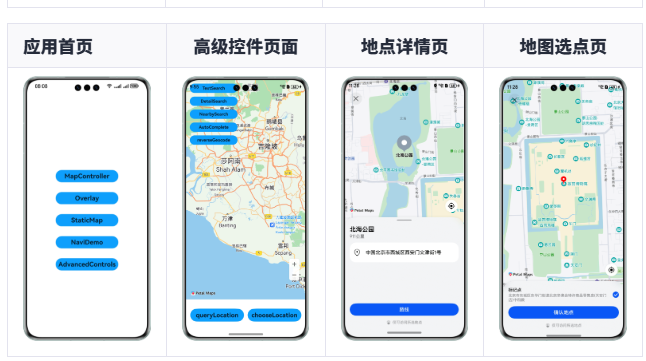
https://gitcode.com/HarmonyOS_Samples/map-kit_-sample-code_-demo-arkts
/*
 * Copyright (c) Huawei Technologies Co., Ltd. 2023-2023. All rights reserved.
 */
import { map, mapCommon, MapComponent, sceneMap, site } from '@kit.MapKit';
import { AsyncCallback, BusinessError, deviceInfo } from '@kit.BasicServicesKit';
import { common } from '@kit.AbilityKit';

@Builder
export function AdvancedControlsDemoBuilder() {
  AdvancedControlsDemo();
}

@Entry
@Component
struct AdvancedControlsDemo {
  pathStack: NavPathStack = new NavPathStack();
  private TAG = "OHMapSDK_AdvancedControlsDemo";
  private mapOption?: mapCommon.MapOptions;
  private mapController?: map.MapComponentController;
  private callback?: AsyncCallback<map.MapComponentController>;
  @State private tipText: string = "";

  aboutToAppear(): void {
    this.mapOption = {
      position: {
        target: {
          latitude: 2.922865,
          longitude: 101.58584
        },
        zoom: 10
      },
      tiltGesturesEnabled: true
    };

    this.callback = async (err, mapController) => {
      if (!err) {
        this.mapController = mapController;
        this.mapController?.on("poiClick", (poi) => {
          try {
            let option: sceneMap.LocationQueryOptions = {
              siteId: poi.id,
              name: poi.name,
              location: poi.position,
              language: 'zh'
            };
            sceneMap.queryLocation(this.getUIContext().getHostContext() as common.UIAbilityContext, option).then(() => {
              console.info(this.TAG, "queryLocation success:");
            }).catch((err: BusinessError) => {
              console.error(this.TAG, "queryLocation fail err=" + JSON.stringify(err));
            });
          } catch (err) {
            console.error(this.TAG, "queryLocation fail err=" + JSON.stringify(err));
          }
        });
      }
    };
  }

  build() {
    NavDestination() {
      Stack() {
        Column() {
          MapComponent({ mapOptions: this.mapOption, mapCallback: this.callback })
            .width('100%')
            .height('85%')

          Row() {
            Button() {
              Text('queryLocation').fontSize(20).fontWeight(FontWeight.Bold)
            }
            .type(ButtonType.Capsule)
            .margin({ top: 30 })
            .backgroundColor('#0D9FFB')
            .width('45%')
            .height('5%')
            .onClick(() => {
              try {
                let option: sceneMap.LocationQueryOptions = {
                  name: 'Beihai Park',
                  location: {
                    latitude: 39.925653,
                    longitude: 116.389264
                  },
                  address: 'No. 1, Wenjin Street, Xian Gate, Xicheng District, Beijing, China',
                  language: 'zh'
                };
                sceneMap.queryLocation(this.getUIContext().getHostContext() as common.UIAbilityContext, option)
                  .then(() => {
                    console.info(this.TAG, "queryLocation success:");
                  })
                  .catch((err: BusinessError) => {
                    console.error(this.TAG, "queryLocation fail err=" + JSON.stringify(err));
                  });
              } catch (err) {
                console.error(this.TAG, "queryLocation fail err=" + JSON.stringify(err));
              }
            })

            Button() {
              Text('chooseLocation').fontSize(20).fontWeight(FontWeight.Bold)
            }
            .type(ButtonType.Capsule)
            .margin({ top: 30, left: 12 })
            .backgroundColor('#0D9FFB')
            .width('45%')
            .height('5%')
            .onClick(() => {
              let option: sceneMap.LocationChoosingOptions =
                { searchEnabled: true, showNearbyPoi: true, snapshotEnabled: true };
              sceneMap.chooseLocation(this.getUIContext().getHostContext() as common.UIAbilityContext, option)
                .then(() => {
                  console.info(this.TAG, "chooseLocation success:");
                })
                .catch((err: BusinessError) => {
                  console.error(this.TAG, "chooseLocation fail err=" + JSON.stringify(err));
                });
            })
          }

        }.width('100%')

        Column({ space: 12 }) {
          Button() {
            Text('TextSearch').fontSize(14).fontWeight(FontWeight.Bold)
          }
          .type(ButtonType.Capsule)
          .backgroundColor('#0D9FFB')
          .width('100%')
          .height(30)
          .onClick(async () => {
            try {
              const rsp = await site.searchByText({
                query: 'Nanjing Museum',
                radius: 50,
                pageIndex: 1,
                pageSize: 5
              });
              if (rsp != undefined && rsp.sites != undefined) {
                this.setTipText(formatSites(rsp.sites));
              }
            } catch (error) {
              console.error(this.TAG, "query error = " + JSON.stringify(error));
              this.setTipText("query error = " + JSON.stringify(error));
            }
          })

          Button() {
            Text('DetailSearch').fontSize(14).fontWeight(FontWeight.Bold)
          }
          .type(ButtonType.Capsule)
          .backgroundColor('#0D9FFB')
          .width('100%')
          .height(30)
          .onClick(async () => {
            try {
              const rsp = await site.searchById({ siteId: '775911119489757696' });
              if (!rsp || !rsp.site) {
                this.setTipText("Result is Empty!");
                return;
              }
              this.setTipText(formatSites([rsp.site]));
            } catch (error) {
              console.error(this.TAG, "query error = " + JSON.stringify(error));
              this.setTipText("query error = " + JSON.stringify(error));
            }
          })

          Button() {
            Text('NearbySearch').fontSize(14).fontWeight(FontWeight.Bold)
          }
          .type(ButtonType.Capsule)
          .backgroundColor('#0D9FFB')
          .width('100%')
          .height(30)
          .onClick(async () => {
            try {
              const rsp = await site.nearbySearch({
                location: {
                  latitude: 32.040802206278556,
                  longitude: 118.82506327354875
                },
                pageIndex: 1,
                pageSize: 5
              });

              if (rsp != undefined && rsp.sites != undefined) {
                this.setTipText(formatSites(rsp.sites));
              }
            } catch (error) {
              console.error(this.TAG, "query error = " + JSON.stringify(error));
              this.setTipText("query error = " + JSON.stringify(error));
            }
          })

          Button() {
            Text('AutoComplete').fontSize(14).fontWeight(FontWeight.Bold)
          }
          .type(ButtonType.Capsule)
          .backgroundColor('#0D9FFB')
          .width('100%')
          .height(30)
          .onClick(async () => {
            try {
              const rsp = await site.queryAutoComplete({
                query: 'Nanjing Museum',
                radius: 1000,
                location: {
                  latitude: 32.040802206278556,
                  longitude: 118.82506327354875
                }
              });
              if (rsp != undefined && rsp.sites != undefined) {
                this.setTipText(formatSites(rsp.sites));
              }
            } catch (error) {
              console.error(this.TAG, "query error = " + JSON.stringify(error));
              this.setTipText("query error = " + JSON.stringify(error));
            }
          })

          Button() {
            Text('reverseGeocode').fontSize(14).fontWeight(FontWeight.Bold)
          }
          .type(ButtonType.Capsule)
          .backgroundColor('#0D9FFB')
          .width('100%')
          .height(30)
          .onClick(async () => {
            try {
              const rsp = await site.reverseGeocode({
                location: {
                  latitude: 32.040802206278556,
                  longitude: 118.82506327354875
                }
              });
              this.setTipText(JSON.stringify(rsp));
            } catch (error) {
              console.error(this.TAG, "query error = " + JSON.stringify(error));
              this.setTipText("query error = " + JSON.stringify(error));
            }
          })

          if (deviceInfo.deviceType === "2in1") {
            Button() {
              Text("goBack").fontSize(14).fontWeight(FontWeight.Bold)
            }
            .type(ButtonType.Capsule)
            .backgroundColor('#0D9FFB')
            .width('100%')
            .height(30)
            .onClick(async () => {
              this.pathStack.clear();
            })
          }

        }
        .margin({
          left: 12,
          top: 12
        })
        .width('40%')

        Row() {
          Text(this.tipText)
            .width('100%')
            .fontWeight(FontWeight.Bold)
            .fontSize(10)
            .fontColor(Color.White)
            .textAlign(TextAlign.Center)
            .margin({
              left: 1,
              top: 10,
              right: 1,
              bottom: 10
            })
        }
        .align(Alignment.Center)
        .margin({
          left: 1,
          top: 20,
          right: 1,
          bottom: 20
        })
        .visibility(!(this.tipText === undefined
          || this.tipText === null
          || this.tipText.length === 0) ? Visibility.Visible : Visibility.Hidden)
        .backgroundColor('#99302e2e')
        .borderRadius(15);
      }.height('100%')
      .alignContent(Alignment.TopStart)
    }.title('AdvancedControls')
    .onReady((context: NavDestinationContext) => {
      this.pathStack = context.pathStack;
    })
  }

  async setTipText(text: string) {
    if (text == undefined
      || text.length == 0) {
      return;
    }

    this.tipText = text;
    await this.sleep();
    this.tipText = "";
  }

  private async sleep(duration?: number) {
    await new Promise<void>(resolve => setTimeout(resolve, duration === undefined ? 5000 : duration));
  }
}

export function formatSites(sites: Array<site.Site>) {
  let string = "success\n";
  let site = sites[0];
  if (site) {
    string += `[0] ${JSON.stringify(site)}\n`;
  }
  return string;
}

是的,这里需要自己把“点击事件”和“业务选中态/弹窗”接起来。底图 POI 不会自动变成你页面里的 selectedPoi,也不会自动展示业务信息窗。
建议做法:
- mapLoad 后通过 mapController.getEventManager() 拿 MapEventManager。
- 监听 mapClick、pointAnnotationClick、bubbleClick 或对应覆盖物点击事件,按你使用的覆盖物类型选择。
- 点击后把当前点信息保存到组件状态里。
- 用 Marker、Bubble、InfoWindow 或 ArkUI 自定义面板展示详情。
- 再点地图空白处时清空选中态。
如果你的兴趣点来自业务数据,最好自己维护点位和 id;如果只是底图内置 POI,能拿到的信息通常有限,交互也需要你在应用层补齐。

是的,地图底图里的 POI 通常不会自动变成你业务里的“选中态 + 信息窗”。你需要自己监听点击事件,再决定展示 Marker、Bubble 或自定义面板。
可以按这个思路处理:
- mapLoad 后通过 this.mapController.getEventManager() 拿到 MapEventManager。
- 监听 POI/点标注/气泡相关点击事件,具体事件名要以你当前 Map Kit 版本的接口文档为准,例如 pointAnnotationClick、bubbleClick、markerClick/infoWindowClick 这类。
- 回调里拿到坐标或对象信息后,新增/更新一个 Marker 或 Bubble,并在业务状态里记录当前选中项。
- 如果要显示完整业务信息窗,不建议依赖底图 POI 默认行为,最好用自定义弹层承载标题、地址、按钮等内容。
你的代码现在只监听了 mapLoad,所以点击兴趣点没有后续动作是正常的。

核心问题解答:为什么点击兴趣点没有反应?
因为在这段代码中,只完成了地图的基础显示功能。根据华为Map Kit的设计,地图上默认的兴趣点(POI)可能没有内置的点击选中和信息窗功能,或者需要开发者通过 mapController 或相关API手动开启或自定义。
要实现点击兴趣点弹出信息窗的效果,您需要:
• 查找API :查阅华为Map Kit的官方文档,了解如何为Marker(标记点)或POI添加点击事件监听器。
• 添加事件 :使用类似 this.mapEventManager.on(“markerClick”, callback) 的方式,为地图上的标记点注册点击事件。
• 自定义弹窗 :在事件回调函数中,获取被点击的点的信息,然后手动创建并显示一个信息窗口(例如使用Dialog或自定义的弹窗组件)。


在鸿蒙Next地图Demo中,点击兴趣点无选中或信息窗,需确认已实现OnPoiClickListener接口并通过map.addPoiClickListener()注册监听。同时检查POI对象是否包含name、address等必要字段,并确保地图服务已正确初始化且权限已申请。若仍无效,请核对地图SDK版本兼容性。

是的,在HarmonyOS Next中,MapComponent组件不会自动为兴趣点(POI)提供点击选中和信息窗弹出功能。您需要在代码中通过MapController和MapEventManager手动实现。
核心思路是:
- 注册地图点击事件监听
- 获取点击位置的坐标
- 通过坐标查询POI信息
- 使用Marker或自定义信息窗展示
// 在callback中注册点击事件
this.mapEventManager.on("mapClick", (event) => {
  // 获取点击的经纬度
  const latLng = event.latLng;

  // 通过坐标反查POI(需引入相关服务)
  // 创建Marker显示在点击位置
  this.mapController.addMarker({
    position: latLng,
    title: "兴趣点名称",
    snippet: "描述信息",
    icon: {
      // 自定义图标资源
    }
  }, (err, marker) => {
    // Marker添加后,可监听Marker点击显示信息窗
    marker.showInfoWindow();
  });
});
Marker的showInfoWindow()会显示默认信息窗,也可通过自定义View实现更复杂的弹窗效果。POI数据需要您通过位置服务API额外查询或使用自有数据。
