

HarmonyOS鸿蒙Next中关于长时任务更新通知报202错误
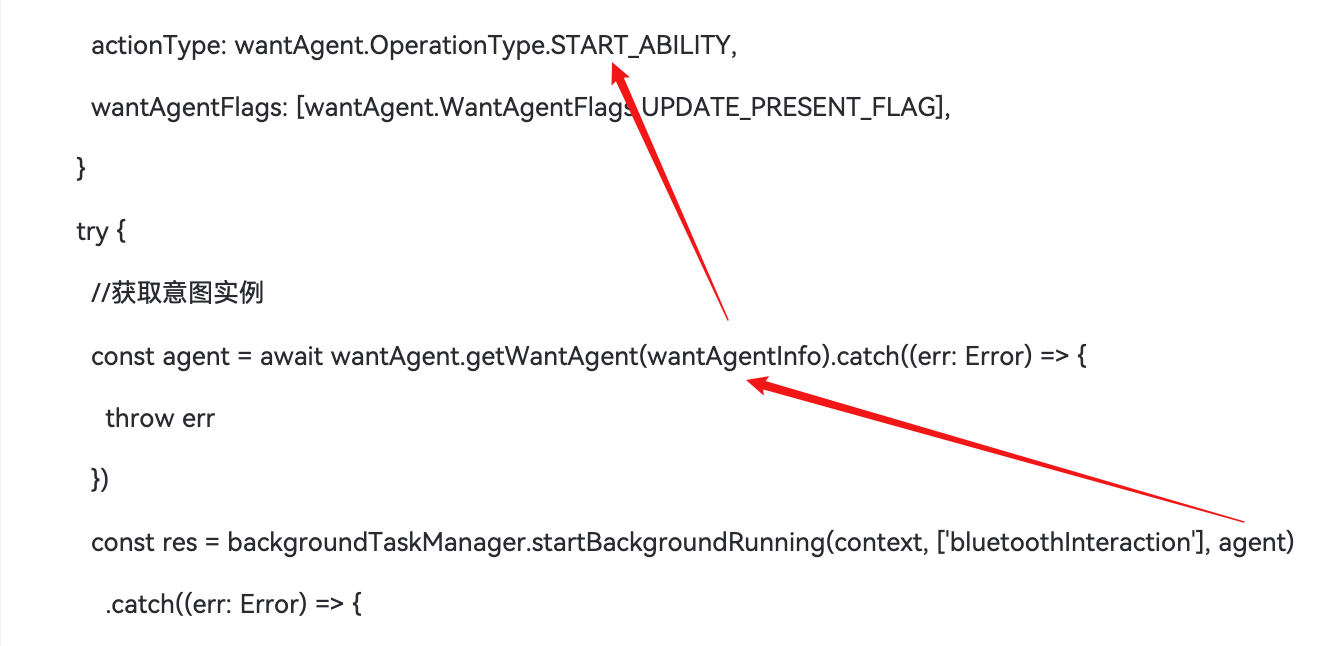
HarmonyOS鸿蒙Next中关于长时任务更新通知报202错误 按照系统文档给出的案例,如下图所示:
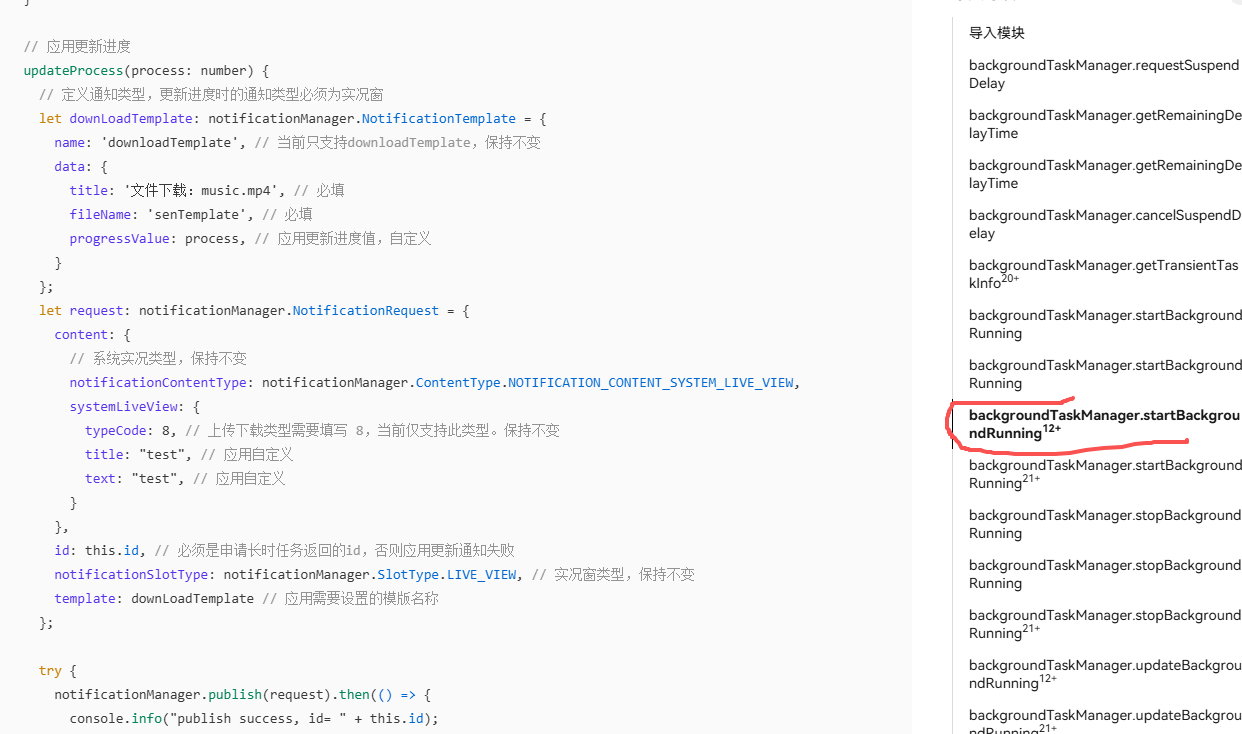
启动长时任务成功,但是在通过notificationId更新进度时,报202错误,Not system application to call the interface,已经按文档说的申请了"name": “ohos.permission.KEEP_BACKGROUND_RUNNING”,
是需要申请其他权限如"ohos.permission.NOTIFICATION_CONTROLLER",或者还是需要申请实况窗的权限才能操作?请高手指导,不胜感激!
更多关于HarmonyOS鸿蒙Next中关于长时任务更新通知报202错误的实战教程也可以访问 https://www.itying.com/category-93-b0.html

尊敬的开发者您好,当前仅支持数据传输类型的长时任务使用实况窗,您这边的蓝牙相关场景建议使用普通通知。
数据传输类型的长时任务代码可参考:
【解决方案】
以下载网络视频到应用本地为例,具体步骤如下:
-
添加后台运行权限
ohos.permission.KEEP_BACKGROUND_RUNNING和网络权限ohos.permission.INTERNET。 -
声明数据传输后台模式类型。在
module.json5文件中为需要使用长时任务的UIAbility声明相应的长时任务类型,配置文件中填写长时任务类型的配置项。示例如下:
"backgroundModes": [
  // 配置长时任务类型为数据传输
  "dataTransfer"
]
-
在UI页面申请数据传输长时任务,并且通知worker线程下载视频。
-
在worker中使用request.downloadFile接口下载视频。
完整代码示例如下:
Index.ets文件:
import { notificationManager } from '@kit.NotificationKit';
import { BusinessError } from '@kit.BasicServicesKit';
import { backgroundTaskManager } from '@kit.BackgroundTasksKit';
import { common, WantAgent, wantAgent } from '@kit.AbilityKit';
import { MessageEvents, worker } from '@kit.ArkTS';

const workerInstance = new worker.ThreadWorker('entry/ets/workers/Worker.ets');

@Entry
@Component
struct Index {
  context: common.UIAbilityContext = this.getUIContext().getHostContext() as common.UIAbilityContext;
  private notificationId: number = 0; // 保存通知id
  private filePath: string = '';
  private fileCount: number = 2;
  @State fileNameArr: Array<string> = new Array(this.fileCount);
  private fileUrl: string = 'https://xxx/xxx.mp4';

  aboutToAppear(): void {
    workerInstance.onmessage = (e: MessageEvents): void => {
      if (e.data.code == 100) {
        this.updateProcess(e.data.percent, e.data.currentName, e.data.completeCount);
      }
      if (e.data.code == 200) {
        this.stopContinuousTask();
      }
    };
  }

  build() {
    Column() {
      Button('开始下载')
        .type(ButtonType.Capsule)
        .margin({ top: 10 })
        .backgroundColor('#0A59F7')
        .width(300)
        .height(40)
        .onClick(() => {
          this.filePath = this.context.filesDir;
          let fileUrlArrTemp: Array<string> = new Array(this.fileCount);
          let fileNameArrTemp: Array<string> = new Array(this.fileCount);
          for (let index = 0; index < this.fileCount; index++) {
            this.fileNameArr[index] = `trailer${index}.mp4`;
            fileUrlArrTemp[index] = this.fileUrl;
            fileNameArrTemp[index] = `trailer${index + 1}.mp4`;
          }
          workerInstance.postMessage({
            code: 200,
            context: this.context,
            fileUrlArr: fileUrlArrTemp,
            filePath: this.filePath,
            fileNameArr: fileNameArrTemp
          });
          this.startContinuousTask();
        })
    }
    .height('100%')
    .width('100%')
    .justifyContent(FlexAlign.SpaceAround)
  }

  startContinuousTask() {
    let wantAgentInfo: wantAgent.WantAgentInfo = {
      // 点击通知后,将要执行的动作列表
      // 添加需要被拉起应用的bundleName和abilityName
      wants: [
        {
          bundleName: this.context.abilityInfo.bundleName,
          abilityName: 'MainAbility'
        }
      ],
      // 指定点击通知栏消息后的动作是拉起ability
      actionType: wantAgent.OperationType.START_ABILITY,
      // 使用者自定义的一个私有值
      requestCode: 0,
      // 点击通知后,动作执行属性
      actionFlags: [wantAgent.WantAgentFlags.UPDATE_PRESENT_FLAG],
    };

    try {
      // 通过wantAgent模块下getWantAgent方法获取WantAgent对象
      wantAgent.getWantAgent(wantAgentInfo).then((wantAgentObj: WantAgent) => {
        try {
          let list: Array<string> = ['dataTransfer'];
          backgroundTaskManager.startBackgroundRunning(this.context, list, wantAgentObj)
            .then((res: backgroundTaskManager.ContinuousTaskNotification) => {
              console.info('Operation startBackgroundRunning succeeded');
              // 保存通知id,用于更新进度条
              this.notificationId = res.notificationId;
            })
            .catch((error: BusinessError) => {
              console.error(`Failed to Operation startBackgroundRunning. code is ${error.code} message is ${error.message}`);
            });
        } catch (error) {
          console.error(`Failed to Operation startBackgroundRunning. code is ${(error as BusinessError).code} message is ${(error as BusinessError).message}`);
        }
      });
    } catch (error) {
      console.error(`Failed to Operation getWantAgent. code is ${(error as BusinessError).code} message is ${(error as BusinessError).message}`);
    }
  }

  // 停止长时任务
  stopContinuousTask() {
    backgroundTaskManager.stopBackgroundRunning(this.context).then(() => {
      console.info(`Succeeded in operationing stopBackgroundRunning.`);
    }).catch((err: BusinessError) => {
      console.error(`Failed to operation stopBackgroundRunning. Code is ${err.code}, message is ${err.message}`);
    });
  }

  // 应用更新进度
  updateProcess(process: Number, fileName: string, completeCount: number) {
    // 应用定义下载类通知模版
    let downLoadTemplate: notificationManager.NotificationTemplate = {
      name: 'downloadTemplate', // 当前只支持downloadTemplate,保持不变
      data: {
        title: `已下载${completeCount}个/共${this.fileNameArr.length}个`, // 必填
        fileName: `正在下载:${fileName}`, // 必填
        progressValue: process, // 应用更新进度值,自定义
      }
    };
    let request: notificationManager.NotificationRequest = {
      content: {
        // 系统实况类型,保持不变
        notificationContentType: notificationManager.ContentType.NOTIFICATION_CONTENT_SYSTEM_LIVE_VIEW,
        systemLiveView: {
          typeCode: 8, // 上传下载类型需要填写 8,当前仅支持此类型。保持不变
          title: `保存视频到相册`, // 应用自定义
          text: `正在下载:${fileName}`, // 应用自定义
        }
      },
      id: this.notificationId, // 必须是申请长时任务返回的id,否则应用更新通知失败
      notificationSlotType: notificationManager.SlotType.LIVE_VIEW, // 实况窗类型,保持不变
      template: downLoadTemplate // 应用需要设置的模版名称
    };

    try {
      notificationManager.publish(request).then(() => {
        console.info(`publish success, id= ${this.id}`);
      }).catch((err: BusinessError) => {
        console.error(`publish fail. code is ${(err as BusinessError).code} message is ${(err as BusinessError).message}`);
      });
    } catch (err) {
      console.error(`publish fail. code is ${(err as BusinessError).code} message is ${(err as BusinessError).message}`);
    }
  }
}
Worker.ets文件:
import { MessageEvents, ThreadWorkerGlobalScope, worker } from '@kit.ArkTS';
import { common } from '@kit.AbilityKit';
import { request } from '@kit.BasicServicesKit';

const workerPort: ThreadWorkerGlobalScope = worker.workerPort;
let completeCount: number = 0;
let isDownLoading: boolean = false;
let IntervalID: number = 0;

/**
 * Defines the event handler to be called when the worker thread receives a message sent by the host thread.
 * The event handler is executed in the worker thread.
 *
 * @param event message data
 */
workerPort.onmessage = (event: MessageEvents) => {
  completeCount = 0;
  let context: common.UIAbilityContext = event.data.context;
  let fileUrlArr: string = event.data.fileUrlArr;
  let filePath: string = event.data.filePath;
  let fileNameArr: Array<string> = event.data.fileNameArr;
  let totalCount: number = fileNameArr.length;
  console.info('------ start ------------');
  // 开启定时器,定时扫描当前是否下载完成,或者是否正在下载
  IntervalID = setInterval(() => {
    if (completeCount < totalCount) {
      if (isDownLoading === false) {
        downLoadFile(context, fileUrlArr[completeCount], filePath, fileNameArr[completeCount]);
      }
    } else {
      console.info('------ end ------------');
      workerPort.postMessage({ code: 200, data: 20 });
      clearInterval(IntervalID);
    }
  }, 500);
};

/**
 * Defines the event handler to be called when the worker receives a message that cannot be deserialized.
 * The event handler is executed in the worker thread.
 *
 * @param event message data
 */
workerPort.onmessageerror = (event: MessageEvents) => {
  console.log(`MessageEvents => ${JSON.stringify(event)}`);
};

/**
 * Defines the event handler to be called when an exception occurs during worker execution.
 * The event handler is executed in the worker thread.
 *
 * @param event error message
 */
workerPort.onerror = () => {
};

function downLoadFile(context: common.UIAbilityContext, fileUrl: string, filePath: string, fileName: string) {
  console.info(`download fileUrl: ${fileUrl}, fileName: ${fileName}, filePath: ${filePath}`);
  try {
    // 需要手动将url替换为真实服务器的HTTP协议地址
    isDownLoading = true;
    request.downloadFile(context, {
      url: fileUrl,
      filePath: context.filesDir + `/${fileName}`
    }, (err: BusinessError, data: request.DownloadTask) => {
      if (err) {
        console.error(`Failed to request the download. Code: ${err.code}, message: ${err.message}`);
        return;
      }
      let downloadTask: request.DownloadTask = data;
      downloadTask.on('progress', (receivedSize: number, totalSize: number) => {
        console.info(`download receivedSize: ${receivedSize}, totalSize: ${totalSize}`);
        let percent = Math.ceil((receivedSize / totalSize) * 100); // 计算进度值
        workerPort.postMessage({
          code: 100,
          percent: percent, // 当前正在下载的文件进度
          currentName: fileName, // 当前正在下载的文件名
          completeCount: completeCount // 下载完成的个数
        });
      });

      downloadTask.on('complete', () => {
        completeCount++;
        console.info('download complete');
        isDownLoading = false;
      });
    });
  } catch (err) {
    console.error(`Failed to request the download. Code: ${err.code}, message: ${err.message}`);
  }
}
更多关于HarmonyOS鸿蒙Next中关于长时任务更新通知报202错误的实战系列教程也可以访问 https://www.itying.com/category-93-b0.html

202 先按通用错误码排查:它表示“非系统应用调用系统 API”。普通应用更新自己发布的通知,不要走通知控制类系统接口;官方“更新通知”示例是复用同一个 NotificationRequest.id,修改内容后再次 notificationManager.publish。长时任务只负责 startBackgroundRunning,返回的 notificationId 只是标识该任务通知。 依据: https://developer.huawei.com/consumer/cn/doc/harmonyos-guides/update-notification https://developer.huawei.com/consumer/cn/doc/harmonyos-guides/continuous-task https://developer.huawei.com/consumer/cn/doc/harmonyos-references/errorcode-universal


看你这段代码,202 基本可以定位在 updateTaskInfo() 里的 notificationManager.publish(request),不是 startBackgroundRunning() 本身。
触发点是这两个配置:
notificationContentType: notificationManager.ContentType.NOTIFICATION_CONTENT_SYSTEM_LIVE_VIEW notificationSlotType: notificationManager.SlotType.LIVE_VIEW
这走的是系统实况窗/Live View 通知类型,普通三方应用不能把长时任务返回的 notificationId 拿来 publish 一个 SYSTEM_LIVE_VIEW 通知,所以会报 Not system application。也就是说 notificationId 是长时任务通知的标识,但不代表应用可以通过 Notification Kit 用系统实况窗类型重新发布/改写它。
你的场景是蓝牙采集健康数据,startBackgroundRunning(context, [‘bluetoothInteraction’], agent) 这个方向本身更接近蓝牙交互长时任务;但它对应的是后台保活和长时任务通知,不等于开放一个可任意更新进度模板的系统通知。想展示进度有三个选择:
- 保留 bluetoothInteraction 长时任务通知,另外用普通通知发布业务进度,使用你自己的 notification id,不要使用 SYSTEM_LIVE_VIEW/LIVE_VIEW。
- 如果业务确实是上传/下载类数据传输,按 API 21+ 的 MODE_DATA_TRANSFER + SUBMODE_LIVE_VIEW_NOTIFICATION 方向接入,并确认实况窗能力/场景准入;这和蓝牙采集本身不是一类场景。
- 如果只是页面内展示采集进度,优先放在应用页面或前台服务 UI,不要强依赖改写系统生成的长时任务通知。
所以你现在这段代码的最小修改是:不要在 publish() 里使用 NOTIFICATION_CONTENT_SYSTEM_LIVE_VIEW 和 SlotType.LIVE_VIEW,也不要复用长时任务返回的 notificationId 去发布实况窗通知。

我做了个简单页面,页面代码就不贴了,就是个按钮启动,在页面的对应的viewmodel里,发起长时任务及更新长时任务,相关代码如下:
testTask = async (context: UIContext): Promise<void> => {
    const taskContext = context.getHostContext() as common.UIAbilityContext
    const taskInfo = await MyTask.startTask(taskContext)
    Logger.info('===testTask', JSON.stringify(taskInfo))
    let count = 0
    const total = 10
    let timer: number | undefined
    timer = setInterval(() => {
        if (count === total) {
            MyTask.stopTask(taskContext)
            clearInterval(timer)
            Logger.info('===update', '结束')
        } else {
            MyTask.updateTaskInfo(count, total, '两小时', taskInfo.notificationId)
            Logger.info('===update', `计数:${count}`)
        }
        count++
    }, 1000)
}
长时任务的相关操作,我封装到一个类里了MyTask,代码如下:
export class MyTask {
    /*
    * 启动长程采集任务
    * */
    static startTask =
        async (context: common.UIAbilityContext): Promise<backgroundTaskManager.ContinuousTaskNotification> => {
            const wantAgentInfo: wantAgent.WantAgentInfo = {
                wants: [
                    {
                        bundleName: context.abilityInfo.bundleName,
                        abilityName: context.abilityInfo.name,
                    }
                ],
                requestCode: 0,
                actionType: wantAgent.OperationType.START_ABILITY,
                wantAgentFlags: [wantAgent.WantAgentFlags.UPDATE_PRESENT_FLAG],
            }
            try {
                //获取意图实例
                const agent = await wantAgent.getWantAgent(wantAgentInfo).catch((err: Error) => {
                    throw err
                })
                const res = backgroundTaskManager.startBackgroundRunning(context, ['bluetoothInteraction'], agent)
                    .catch((err: Error) => {
                        throw err
                    })
                return res
            } catch (err) {
                return Promise.reject(err.message)
            }
        }

    /*
    * 停止长程任务
    * */
    static stopTask = async (context: common.UIAbilityContext) => {
        await backgroundTaskManager.stopBackgroundRunning(context).catch((err: Error) => {
            return Promise.reject(err.message)
        })
    }

    /*
    * 更新长程任务信息
    * */
    static updateTaskInfo = (collectedTime: number, totalTime: number, timeTitle: string, notificationId: number) => {
        const template: notificationManager.NotificationTemplate = {
            name: 'downloadTemplate', // 当前只支持downloadTemplate,保持不变
            data: {
                title: '数据采集', // 必填
                fileName: '设定时长:' + timeTitle, // 必填
                progressValue: `${(collectedTime * 100 / totalTime).toFixed(2)} %`// 应用更新进度值,自定义
            }
        }
        const request: notificationManager.NotificationRequest = {
            content: {
                // 系统实况类型,保持不变
                notificationContentType: notificationManager.ContentType.NOTIFICATION_CONTENT_SYSTEM_LIVE_VIEW,
                systemLiveView: {
                    typeCode: 8, // 上传下载类型需要填写 8,当前仅支持此类型。保持不变
                    title: "test", // 应用自定义
                    text: "test", // 应用自定义
                }
            },
            id: notificationId, // 必须是申请长时任务返回的id,否则应用更新通知失败
            notificationSlotType: notificationManager.SlotType.LIVE_VIEW, // 实况窗类型,保持不变
            template: template // 应用需要设置的模版名称
        }
        Logger.info('===publish', `id:${notificationId}`)
        notificationManager.publish(request).then(() => {
            Logger.info('===publish', `time:${collectedTime}`)
        }).catch((err: Error) => {
            Logger.error('===publish', JSON.stringify(err) + err.message + err.name)
            throw err
        })
    }
}

不是这个原因,是官方目前只支持dataTransfer类型的就地更新进度,我把长时任务类型从bluetoothInteraction转成dataTransfer,就ok了,官方文档举例也不说明适用范围,真的是很坑啊。

这个 202 基本不是权限声明的问题,而是接口权限级别的问题。
你现在能成功 startBackgroundRunning(),说明:
ohos.permission.KEEP_BACKGROUND_RUNNING已经生效了;- 长时任务本身也已经启动成功;
- 问题不在后台任务权限。
真正的问题在于:
notificationManager.publish(request) 里用了:
notificationContentType: notificationManager.ContentType.NOTIFICATION_CONTENT_SYSTEM_LIVE_VIEW
还有:
notificationSlotType: notificationManager.SlotType.LIVE_VIEW
这两个属于“系统实况窗 / 系统级 Live View”能力。
而:
NOTIFICATION_CONTENT_SYSTEM_LIVE_VIEW
并不是普通三方应用开放的接口。
所以更新时系统直接报:
202 Not system application to call the interface
意思就是:
“你不是系统应用,不能调用这个系统级通知接口”。
你现在这个场景其实是:
- 启动长时任务:成功(普通应用可用)
- 更新系统级 Live View:失败(仅系统应用可用)
这是两个权限体系。
你提到的:
ohos.permission.NOTIFICATION_CONTROLLER
这个也是 system_basic/system_core 级权限。
普通应用申请了也不会生效。
包括很多“实况窗”相关能力,目前也不是完全对三方开放。
所以结论是:
- 不是 KEEP_BACKGROUND_RUNNING 的问题
- 不是 notificationId 的问题
- 不是代码逻辑问题
- 是你用了 SYSTEM_LIVE_VIEW 导致的系统级限制
你现在有两个方案:
方案1(推荐):
改成普通前台服务通知。
不要使用:
NOTIFICATION_CONTENT_SYSTEM_LIVE_VIEW
LIVE_VIEW
改普通 Notification。
这样三方应用可以正常更新进度。
方案2:
接入真正的“实况窗/卡片”能力。
但目前很多能力:
- 需要白名单
- 需要系统签名
- 或仅部分场景开放
并不是普通应用随便就能用。
所以现在大多数应用实际上都是:
-
长时任务
-
普通进度通知
而不是系统级 Live View。

之前就是用的长时任务加普通通知,但是显得很傻,有个后台任务的通知在那里,然后下面再加个普通通知,之后看到官方文档能在长时任务返回的通知id上更新信息,觉得华为是不是真的解决这个问题了,结果试了后报错,如果不开发给大家用,就不要在官方文档里展示这个示例吧,太失望了。
错误202 “Not system application to call the interface” 不是权限问题,而是API使用方式错了。普通应用只能通过通知发布/更新机制,不能直接操控系统通知控制器
先查询系统是否支持进度条模板类通知
notificationManager.isSupportTemplate('downloadTemplate').then((data: boolean) => {
let isSupportTemplate: boolean = data; // isSupportTemplate的值为true表示支持downloadTemplate模板类通知,false表示不支持
hilog.info(DOMAIN_NUMBER, TAG,
`Succeeded in supporting download template notification. data is ${isSupportTemplate}`);
}).catch((err: BusinessError) => {
hilog.error(DOMAIN_NUMBER, TAG,
`Failed to support download template notification. Code is ${err.code}, message is ${err.message}`);
});
这个 202 一般不是 KEEP_BACKGROUND_RUNNING 没配好,而是调用到了系统应用才允许的接口。NOTIFICATION_CONTROLLER 属于通知控制类权限,三方应用通常不能靠在 module.json5 里声明来获得,也不是用来更新自己长时任务通知的常规方案。
如果你是 API 21+ 的长时任务,建议把“通知 id”和“长时任务 id”区分开:更新长时任务应走 backgroundTaskManager 的 updateBackgroundRunning,并在 ContinuousTaskRequest 里传已存在的 continuousTaskId,且 backgroundTaskModes/backgroundTaskSubmodes 要和申请时匹配。文档里也说明 updateBackgroundRunning 时 continuousTaskId 必须存在,否则更新失败。
另外,如果场景是后台下载/上传这类数据传输,进度更新对应的是 MODE_DATA_TRANSFER + SUBMODE_LIVE_VIEW_NOTIFICATION,进度长时间不更新还会被系统取消;普通文本通知不能直接当作数据传输进度通知来更新。实况窗也不是单纯加一个权限就能替代普通通知,需要按 Live View/实况窗能力和场景接入。
建议按这个顺序排查:1)确认没有调用管理/控制其他通知的系统接口;2)确认用 continuousTaskId 更新长时任务,而不是混用 notificationId;3)确认长时任务主类型/子类型是开放给当前应用的组合;4)确认通知授权已开启。

HarmonyOS Next 中长时任务更新通知报202错误,通常因NotificationRequest的content或templateId参数无效,或通知ID与任务绑定不一致。检查通知ID是否与startLongTimeTask传入的ID匹配,并确保NotificationRequest内容不包含非法字符或缺失必需字段。

报 202 错误是因为直接调用了系统级通知发布接口(如 Notification.publish),HarmonyOS NEXT 中该接口仅限系统应用。长时任务的进度更新应使用长时任务实例提供的公开方法,不需要 NOTIFICATION_CONTROLLER 等系统权限。
在调用 startBackgroundRunning 成功后,你会获得一个 ContinuousTask 对象,使用它的 updateNotification 即可更新通知内容与进度,例如:
let continuousTask: continuousTask.ContinuousTask;
// 启动长时任务后获得 continuousTask 实例
let request: notification.NotificationRequest = {
  // 构造包含进度等更新的通知
};
continuousTask.updateNotification(request);
这样即不会触发权限错误,已申请的 KEEP_BACKGROUND_RUNNING 足够。实况窗是另一机制,此处无需申请。
