




HarmonyOS鸿蒙Next中AVPlayer怎么实现视频内截图功能?

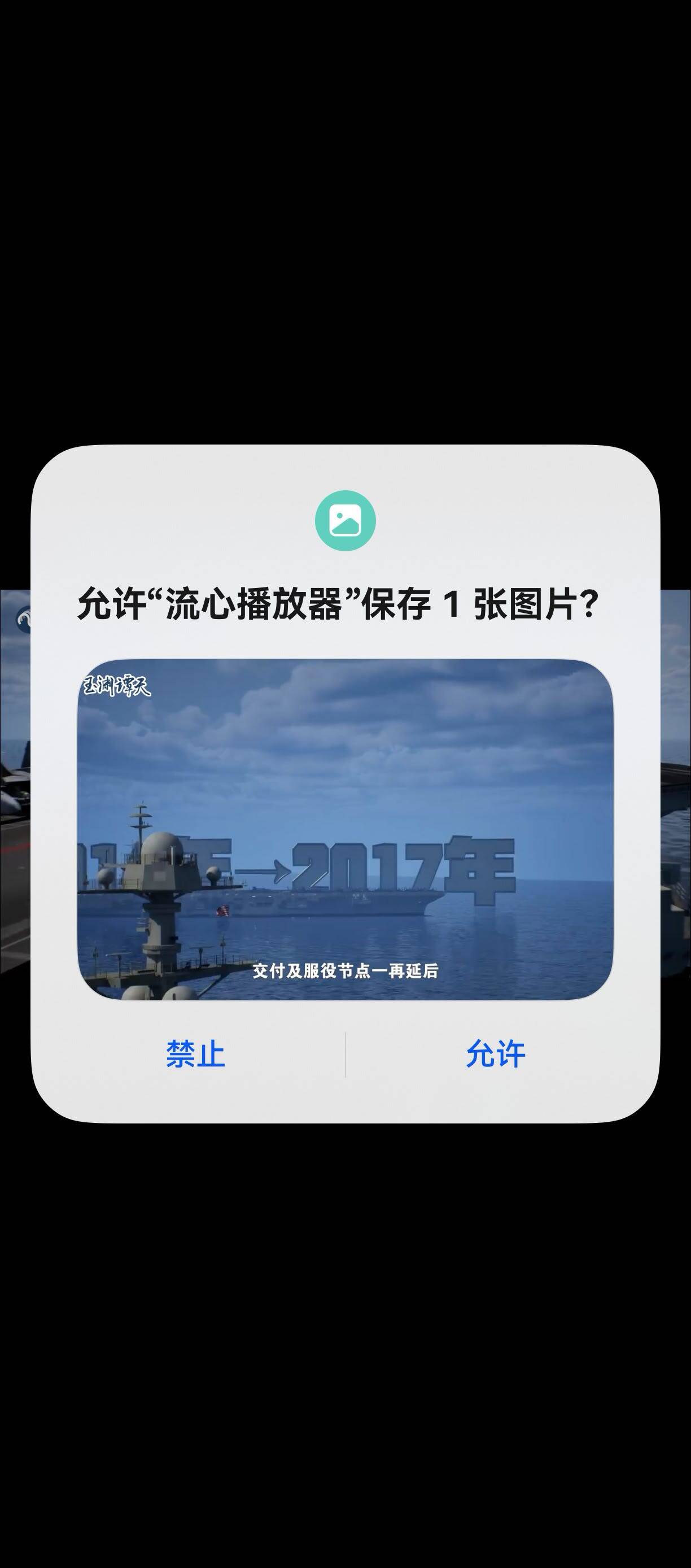
HarmonyOS鸿蒙Next中AVPlayer怎么实现视频内截图功能? 视频播放器场景。用户点击按钮,软件主动截取视频某一帧图片(不是全局截屏),最后弹出保存弹窗让用户来保存。

3 回复

演示图:
cke_523.jpeg

关键截图函数:

import { image } from '@kit.ImageKit';
import { photoAccessHelper } from '@kit.MediaLibraryKit';
import { fileIo, fileUri } from '@kit.CoreFileKit';

captureScreen = () => {
  // 1. 截屏 → 沙箱临时文件
  const pixelMap = image.createPixelMapFromSurfaceSync(this.player.surfaceID);
  const packOpts: image.PackingOption = { format: 'image/png', quality: 100 };
  const imagePackerApi = image.createImagePacker();

  const tempPath =this.context.tempDir + '/screenshot.png';
  const tempFile = fileIo.openSync(tempPath, fileIo.OpenMode.CREATE | fileIo.OpenMode.READ_WRITE);

  let srcUri: string;

  imagePackerApi.packToFile(pixelMap, tempFile.fd, packOpts)
    .then(() => imagePackerApi.release())
    .then(() => {
      fileIo.closeSync(tempFile);
      // 2. 用系统对话框保存到相册
      srcUri = fileUri.getUriFromPath(tempPath);
      const helper = photoAccessHelper.getPhotoAccessHelper(this.context);
      return helper.showAssetsCreationDialog(
        [srcUri],
        [{ photoType: photoAccessHelper.PhotoType.IMAGE, fileNameExtension: 'png' }]
      );
    })
    .then(dstUris => {
      // 3. 拷贝到用户选择的相册位置
      if (dstUris.length) {
        const src = fileIo.openSync(srcUri, fileIo.OpenMode.READ_ONLY);
        const dst = fileIo.openSync(dstUris[0], fileIo.OpenMode.READ_WRITE | fileIo.OpenMode.CREATE);
        fileIo.copyFileSync(src.fd, dst.fd);
        fileIo.closeSync(src);
        fileIo.closeSync(dst);
      }
    })
    .catch((err: BusinessError) => {
      console.error(`captureScreen failed: ${err.code}, ${err.message}`);
    });
}

更多关于HarmonyOS鸿蒙Next中AVPlayer怎么实现视频内截图功能?的实战系列教程也可以访问 https://www.itying.com/category-93-b0.html


在HarmonyOS Next中,使用AVPlayer实现视频截图,主要依赖image模块。在播放过程中,通过AVPlayergetCurrentTime()方法获取当前时间戳,然后调用image.createPixelMap()并传入时间戳参数来生成对应帧的PixelMap图像数据。最后,可使用imagePacker将PixelMap打包为图片文件(如JPEG、PNG)并保存到应用沙箱路径。

在HarmonyOS Next中,使用AVPlayer实现视频内截图(获取当前帧图像)的核心方法是getImage。以下是关键步骤和代码示例:

1. 获取当前播放时间戳

首先需要获取截图时刻的视频时间戳(微秒)。

let currentTime: number = avPlayer.currentTime; // 单位:微秒(μs)

2. 调用getImage方法截图

使用getImage方法获取指定时间的视频帧:

import { image } from '@kit.ImageKit';

// 配置截图参数
let param: image.GetImageParam = {
  index: 0, // 视频轨索引
  time: currentTime, // 截图时间戳
  width: 0, // 0表示使用原始宽度
  height: 0, // 0表示使用原始高度
  region: { // 截取区域(可选)
    x: 0,
    y: 0,
    width: 1920,
    height: 1080
  }
};

// 执行截图
avPlayer.getImage(param).then((imagePixelMap: image.PixelMap) => {
  // 处理获取到的图像数据
  this.processImage(imagePixelMap);
}).catch((error: BusinessError) => {
  console.error(`截图失败: ${error.code} - ${error.message}`);
});

3. 保存图像文件

将PixelMap保存为图片文件并弹出保存对话框:

import { picker } from '@kit.CoreFileKit';
import { photoAccessHelper } from '@kit.MediaLibraryKit';

async processImage(pixelMap: image.PixelMap) {
  try {
    // 创建图片保存选项
    const photoSaveOptions: photoAccessHelper.PhotoSaveOptions = {
      title: 'video_snapshot_' + Date.now()
    };

    // 保存到相册
    let photoUri = await photoAccessHelper.PhotoAccessHelper.savePhotoAsset(
      this.context,
      photoSaveOptions,
      pixelMap
    );

    // 弹出保存成功提示
    promptAction.showToast({
      message: '截图已保存',
      duration: 2000
    });

    // 可选:触发系统分享或进一步处理
    this.showSaveDialog(photoUri);
  } catch (error) {
    console.error(`保存失败: ${error.code} - ${error.message}`);
  }
}

// 显示保存确认对话框
async showSaveDialog(uri: string) {
  let saveUri = await picker.showSaveDialog({
    title: '保存截图',
    fileName: 'snapshot_' + Date.now() + '.jpg',
    fileSuffixChoices: ['.jpg', '.png']
  });
  
  if (saveUri) {
    // 执行文件复制到用户选择的位置
    // ...文件操作代码
  }
}

注意事项:

  1. 时间精度currentTime单位是微秒,确保时间戳在视频有效范围内
  2. 性能考虑:连续截图建议添加防抖处理,避免频繁调用影响播放性能
  3. 格式支持getImage支持输出多种图像格式,可通过ImageFormat参数指定
  4. 权限要求:保存到相册需要申请ohos.permission.READ_IMAGEVIDEOohos.permission.WRITE_IMAGEVIDEO权限

完整调用流程:

初始化AVPlayer → 播放视频 → 监听用户截图按钮 → 获取当前时间戳 → 调用getImage → 处理PixelMap → 保存到相册 → 弹出保存对话框

这种方法直接操作视频解码数据,截图质量高且不依赖UI渲染,适合需要精确帧控制的场景。

回到顶部