




HarmonyOS鸿蒙Next应用中systemDateTime 时间戳如何转换为时间格式 Date,DateTimeFormat
HarmonyOS鸿蒙Next应用中systemDateTime 时间戳如何转换为时间格式 Date,DateTimeFormat 在鸿蒙应用开发中,经常需要将时间戳转化为标准时间格式。即:一串数字转化为年月日时分秒。
时间戳通常是一个长整型的数字,如 1630416000000,对于普通用户来说,这个数字没有实际的意义,他们难以从中获取到有用的时间信息。
而将其转换为常见的时间格式,如 2021 - 09 - 01 00:00:00,用户可以直观地了解到具体的日期和时间,极大地提升了信息的可读性。
那鸿蒙应用中systemDateTime 时间戳如何转换为时间格式 Date,DateTimeFormat?
更多关于HarmonyOS鸿蒙Next应用中systemDateTime 时间戳如何转换为时间格式 Date,DateTimeFormat的实战教程也可以访问 https://www.itying.com/category-93-b0.html

一、结论
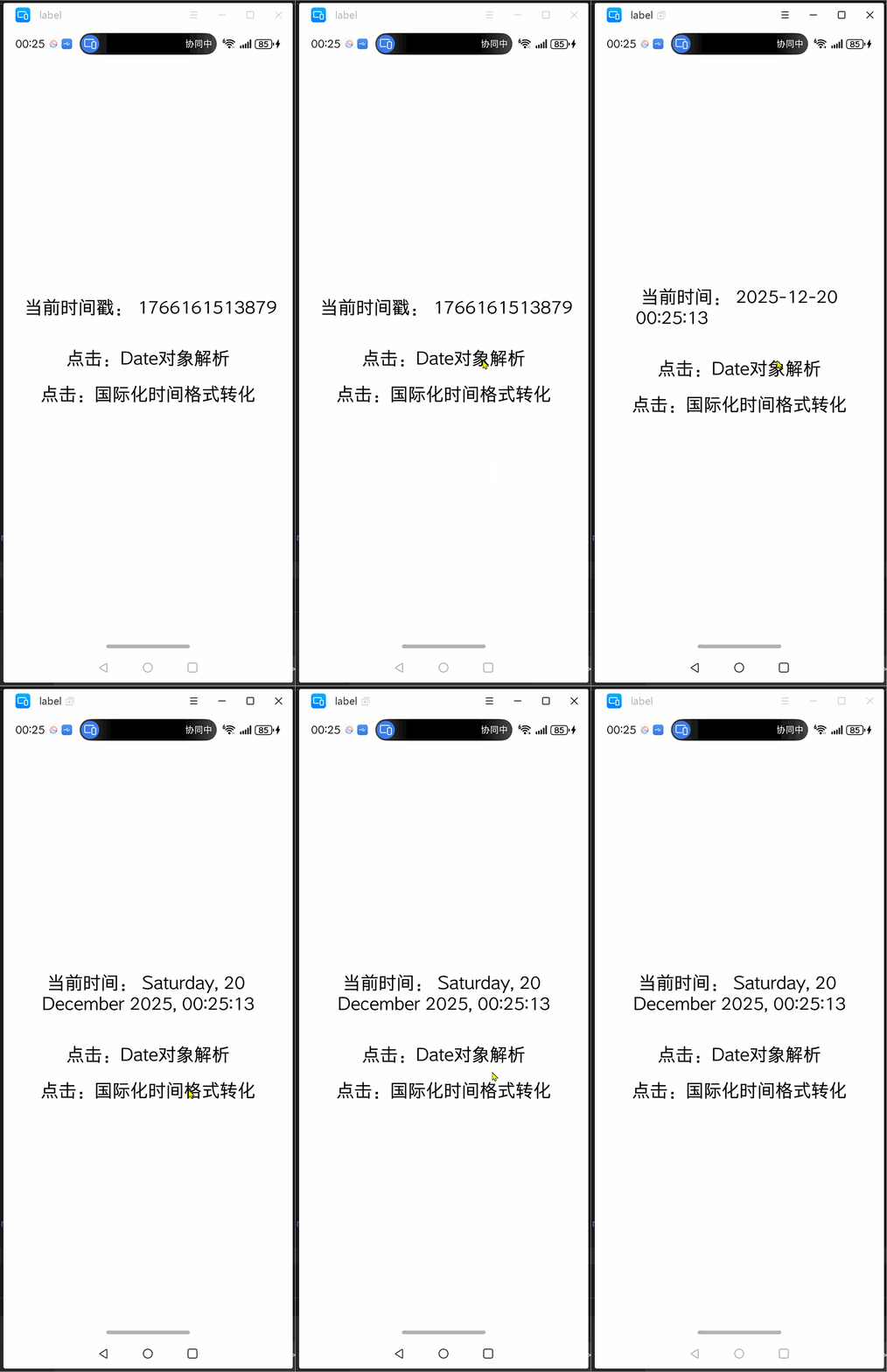
因为鸿蒙应用开发使用ArkTS包含于TypeScript语言,所以我们可以通过传统的Date对象解析进行时间戳转化时间格式的处理。
不过在鸿蒙系统API中,提供了用于国际化时间格式转化的接口。该接口根据不同的语言,进行了时间格式显示的处理。例如中国人喜欢从左到右 2021 - 09 - 01 。外国人某些场景下,习惯于另外的展示效果:Friday, 17 December 2021 at 03:24:00。
方案一,Date对象解析:
  private formatTimestamp(timestamp: number): string {
    // 创建一个 Date 对象,将时间戳转换为日期时间
    const date = new Date(timestamp);
    // 获取年份
    const year = date.getFullYear();
    // 获取月份,注意 getMonth() 返回的月份是从 0 开始的,所以要加 1
    const month = String(date.getMonth() + 1).padStart(2, '0');
    // 获取日期
    const day = String(date.getDate()).padStart(2, '0');
    // 获取小时
    const hours = String(date.getHours()).padStart(2, '0');
    // 获取分钟
    const minutes = String(date.getMinutes()).padStart(2, '0');
    // 获取秒数
    const seconds = String(date.getSeconds()).padStart(2, '0');

    // 按照 'YYYY-MM-DD HH:mm:ss' 的格式拼接时间字符串
    return `${year}-${month}-${day} ${hours}:${minutes}:${seconds}`;
  }
时间格式的拼接逻辑可以完全根据自己的需求进行修改。
方案二、国际化时间格式转化:
import { intl } from '@kit.LocalizationKit';

    // 使用系统当前locale创建DateTimeFormat对象
    let dateFormat = new intl.DateTimeFormat();
    let time = systemDateTime.getTime();
    const date = new Date(time);
    this.mTimeContent = " 当前时间: "  + dateFormat.format(date);
如果除了转换时间戳格式以外,还需要国际化的适配,需要给DateTimeFormat初始化进行配置:
let date = new Date(2021, 11, 17, 3, 24, 0); // 时间日期为2021.12.17 03:24:00
// 使用 en-GB locale创建DateTimeFormat对象
let datefmt = new intl.DateTimeFormat("en-GB");
let formattedDate = datefmt.format(date); // formattedDate "17/12/2021"

// 使用 en-GB locale创建DateTimeFormat对象,dateStyle设置为full,timeStyle设置为medium
datefmt = new intl.DateTimeFormat("en-GB", { dateStyle: 'full', timeStyle: 'medium' });
formattedDate = datefmt.format(date); // formattedDate "Friday, 17 December 2021 at 03:24:00"
二、代码实现DEMO源码:
import { systemDateTime } from '@kit.BasicServicesKit'
import { intl } from '@kit.LocalizationKit';
import { AtomicServiceWebController } from '@kit.ArkUI';

/**
 * 时间戳转化时间格式字符串测试页面
 */
@Entry
@Component
struct TimeFormatTestPage {

  private TAG: string = "TimeFormatTestPage";

  @State mTimeContent: string = "";
  private timeNum: number = 0;

  aboutToAppear(): void {
    // 获取当前系统时间戳
    let time = systemDateTime.getTime();
    console.info(this.TAG, "aboutToAppear systemDateTime: " + time);
    this.timeNum = time;
    this.mTimeContent = " 当前时间戳: " + time;
  }

  onChangeTimeFormat1 = ()=>{
    // 方案一,Date对象解析:
    this.mTimeContent = " 当前时间: " + this.formatTimestamp(this.timeNum);

  }

  onChangeTimeFormat2 = ()=>{

    // 方案二、国际化时间格式转化:
    // 使用系统当前locale创建DateTimeFormat对象
    let dateFormat = new intl.DateTimeFormat("en-GB", { dateStyle: 'full', timeStyle: 'medium' });
    const date = new Date(this.timeNum);
    this.mTimeContent = " 当前时间: "  + dateFormat.format(date);

  }

  private formatTimestamp(timestamp: number): string {
    // 创建一个 Date 对象,将时间戳转换为日期时间
    const date = new Date(timestamp);
    // 获取年份
    const year = date.getFullYear();
    // 获取月份,注意 getMonth() 返回的月份是从 0 开始的,所以要加 1
    const month = String(date.getMonth() + 1).padStart(2, '0');
    // 获取日期
    const day = String(date.getDate()).padStart(2, '0');
    // 获取小时
    const hours = String(date.getHours()).padStart(2, '0');
    // 获取分钟
    const minutes = String(date.getMinutes()).padStart(2, '0');
    // 获取秒数
    const seconds = String(date.getSeconds()).padStart(2, '0');

    // 按照 'YYYY-MM-DD HH:mm:ss' 的格式拼接时间字符串
    return `${year}-${month}-${day} ${hours}:${minutes}:${seconds}`;
  }


  build() {
    Column() {
      Text(this.mTimeContent)
        .fontSize(24)
        .fontColor(Color.Black)
        .margin(20)

      Text("点击:Date对象解析")
        .fontSize(24)
        .fontColor(Color.Black)
        .onClick(this.onChangeTimeFormat1)
        .margin(20)

      Text("点击:国际化时间格式转化")
        .fontSize(24)
        .fontColor(Color.Black)
        .onClick(this.onChangeTimeFormat2)

    }
    .height('100%')
    .width('100%')
    .justifyContent(FlexAlign.Center)
  }

}
更多关于HarmonyOS鸿蒙Next应用中systemDateTime 时间戳如何转换为时间格式 Date,DateTimeFormat的实战系列教程也可以访问 https://www.itying.com/category-93-b0.html


在HarmonyOS Next中,可以使用@ohos.i18n模块的DateTimeFormat类,将时间戳(毫秒数)格式化为易读的日期时间字符串。
核心步骤:
- 导入模块:在代码文件中导入
i18n模块。 - 创建DateTimeFormat对象:使用
DateTimeFormat的构造函数,并传入所需的区域设置和格式化选项。 - 执行格式化:调用
format方法,传入时间戳(毫秒数),即可得到格式化后的字符串。
代码示例:
import { i18n } from '@kit.I18nKit'; // 导入i18n模块

// 1. 定义时间戳 (例如:2021-09-01 00:00:00 对应的毫秒数)
let timestamp: number = 1630416000000;

// 2. 创建DateTimeFormat对象
// 指定区域设置,例如 'zh-CN' 表示中国大陆
// 指定日期时间格式化样式
let dateTimeFormat: i18n.DateTimeFormat = new i18n.DateTimeFormat(
  'zh-CN',
  {
    dateStyle: 'long', // 日期样式,如 'long', 'medium', 'short'
    timeStyle: 'medium' // 时间样式,如 'long', 'medium', 'short'
  }
);

// 3. 执行格式化,将时间戳转换为字符串
let formattedDate: string = dateTimeFormat.format(timestamp);
console.log('Formatted Date:', formattedDate); // 输出示例:2021年9月1日 00:00:00

// 你也可以使用更详细的选项进行自定义格式化
let customFormat: i18n.DateTimeFormat = new i18n.DateTimeFormat('zh-CN', {
  year: 'numeric',
  month: '2-digit',
  day: '2-digit',
  hour: '2-digit',
  minute: '2-digit',
  second: '2-digit',
  hour12: false // 使用24小时制
});
let customFormattedDate: string = customFormat.format(timestamp);
console.log('Custom Formatted Date:', customFormattedDate); // 输出示例:2021/09/01 00:00:00
关键点说明:
- 时间戳:
systemDateTime或其他来源获取的时间戳,通常是以毫秒为单位的数字(如1630416000000)。确保你传入的是正确的毫秒数。 - 区域设置:
'zh-CN'表示中文(中国),这会影响月份、星期等的显示语言。你可以根据应用需求调整,如'en-US'。 - 格式化选项:
dateStyle/timeStyle:预定义的样式,快速设置日期和时间的显示格式。- 你也可以通过
year,month,day,hour,minute,second,weekday等字段进行更精细的控制。字段值可以是'numeric','2-digit','short','long'等。 hour12:设置为false表示使用24小时制。
关于 Date 对象:
在HarmonyOS Next的ArkTS开发中,标准的JavaScript/TypeScript Date 对象同样可用,但 DateTimeFormat 提供了更强大、更国际化的日期时间格式化能力,推荐用于面向用户的日期时间显示。
// 使用标准 Date 对象(基础方法)
let date: Date = new Date(timestamp);
let year: number = date.getFullYear();
let month: number = date.getMonth() + 1; // 月份从0开始,需+1
let day: number = date.getDate();
// ... 手动拼接字符串,但不如 DateTimeFormat 方便和国际化
总结:
使用 @ohos.i18n.DateTimeFormat 是HarmonyOS Next中将时间戳转换为本地化、可读日期时间字符串的标准和推荐方法。通过配置区域设置和格式化选项,可以灵活满足不同的显示需求。
