




HarmonyOS鸿蒙Next中使用pasteboard实现复制与粘贴功能
HarmonyOS鸿蒙Next中使用pasteboard实现复制与粘贴功能 复制和粘贴是操作系统最基础、最核心的功能之一。我们经常需要将一段文本(如验证码、分享链接、优惠码)放入系统剪贴板,或者从剪贴板中读取用户在其他应用中复制的内容,那我们应该如何使用 pasteboard 实现复制与粘贴功能呢?

使用场景
很多场景都需要使用到复制粘贴的功能点,如验证码、分享链接、优惠码等
实现思路
第一步:获取系统剪贴板服务,所有对剪贴板的操作都始于获取系统服务,这是一个异步操作,使用 pasteboard.getSystemPasteboard() 来获取全局的剪贴板服务实例。
第二步:写入剪贴板,首先,需要创建一个 PasteData 对象。PasteData 是剪贴板中数据的统一载体。对于纯文本,使用 PasteData.createData(pasteboard.MIMETYPE_TEXT_PLAIN, ‘your text’) 来创建一个包含指定文本的 PasteData 对象。调用剪贴板服务的 setData(pasteData) 方法,将创建好的数据对象放入系统剪贴板。
第三步:读取剪贴板,调用剪贴板服务的 getData() 方法,获取当前剪贴板中的 PasteData 对象。
关键步骤:剪贴板中可能存放着多种类型的数据(文本、图片、URI等)。在读取前,必须检查是否包含纯文本数据。
第四步:如果确认存在文本,再调用 pasteData.getPrimaryText() 来获取文本内容。
实现效果
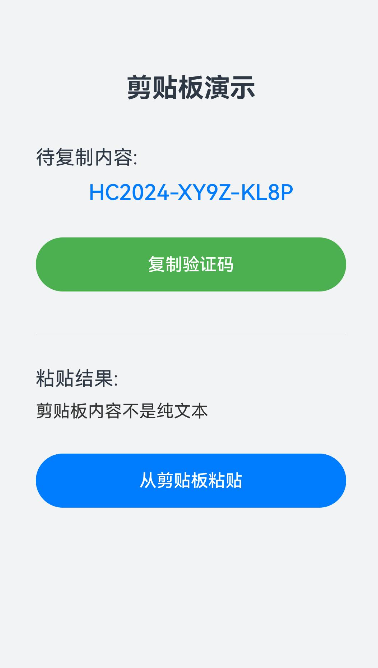
完整实现代码
import pasteboard from '@ohos.pasteboard';

@Entry
@Component
struct ClipboardDemoPage {
  @State textToCopy: string = 'HC2024-XY9Z-KL8P'; // 预设要复制的文本
  @State pastedText: string = '点击下方按钮粘贴内容'; // 用于显示粘贴的内容
  @State copyButtonText: string = '复制验证码';
  private systemPasteboard: pasteboard.SystemPasteboard | null = null;

  async aboutToAppear() {
    // 页面初始化时获取系统剪贴板服务
    try {
      this.systemPasteboard = await pasteboard.getSystemPasteboard();
      console.info('剪贴板服务获取成功');
    } catch (error) {
      console.error(`获取剪贴板服务失败: ${JSON.stringify(error)}`);
    }
  }

  // 2. 写入剪贴板(复制)
  async copyToClipboard() {
    if (!this.systemPasteboard) {
      console.error('剪贴板服务未初始化');
      return;
    }
    try {
      // 创建包含纯文本的PasteData对象
      const pasteData = pasteboard.createData(pasteboard.MIMETYPE_TEXT_PLAIN, this.textToCopy);
      // 将数据写入系统剪贴板
      await this.systemPasteboard.setData(pasteData);
      console.info(`成功复制到剪贴板: ${this.textToCopy}`);
      this.copyButtonText = '已复制!';
      // 2秒后恢复按钮文字
      setTimeout(() => {
        this.copyButtonText = '复制验证码';
      }, 2000);
    } catch (error) {
      console.error(`复制失败: ${JSON.stringify(error)}`);
    }
  }

  // 3. 读取剪贴板(粘贴)
  async pasteFromClipboard() {
    if (!this.systemPasteboard) {
      console.error('剪贴板服务未初始化');
      return;
    }
    try {
      // 获取剪贴板数据
      const pasteData = await this.systemPasteboard.getData();
      // 检查是否包含纯文本
      if (pasteData.hasMimeType(pasteboard.MIMETYPE_TEXT_PLAIN)) {
        const text = pasteData.getPrimaryText();
        this.pastedText = text || '剪贴板为空或内容不是文本';
        console.info(`成功从剪贴板粘贴: ${this.pastedText}`);
      } else {
        this.pastedText = '剪贴板内容不是纯文本';
        console.warn('剪贴板内容不是纯文本');
      }
    } catch (error) {
      console.error(`粘贴失败: ${JSON.stringify(error)}`);
      this.pastedText = '粘贴失败';
    }
  }

  build() {
    Column() {
      Text('剪贴板演示')
        .fontSize(24)
        .fontWeight(FontWeight.Bold)
        .margin({ top: 50, bottom: 40 })

      Text('待复制内容:')
        .fontSize(18)
        .alignSelf(ItemAlign.Start)
        .margin({ left: '10%', bottom: 10 })

      Text(this.textToCopy)
        .fontSize(20)
        .fontColor('#007DFF')
        .fontWeight(FontWeight.Medium)
        .margin({ bottom: 30 })

      Button(this.copyButtonText)
        .width('80%')
        .height(50)
        .backgroundColor('#4CAF50')
        .onClick(() => {
          this.copyToClipboard();
        })

      Divider()
        .width('80%')
        .margin({ top: 40, bottom: 30 })

      Text('粘贴结果:')
        .fontSize(18)
        .alignSelf(ItemAlign.Start)
        .margin({ left: '10%', bottom: 10 })

      Text(this.pastedText)
        .fontSize(16)
        .fontColor('#333333')
        .maxLines(3)
        .textOverflow({ overflow: TextOverflow.Ellipsis })
        .width('80%')
        .margin({ bottom: 30 })

      Button('从剪贴板粘贴')
        .width('80%')
        .height(50)
        .onClick(() => {
          this.pasteFromClipboard();
        })
    }
    .width('100%')
    .height('100%')
    .justifyContent(FlexAlign.Start)
    .backgroundColor('#F1F3F5')
    .padding({ top: 20 })
  }
}
更多关于HarmonyOS鸿蒙Next中使用pasteboard实现复制与粘贴功能的实战系列教程也可以访问 https://www.itying.com/category-93-b0.html

鸿蒙Next中,pasteboard模块提供复制粘贴功能。使用createSystemPasteboard()获取系统剪贴板实例。复制时,调用setData()方法写入数据,支持文本、图片等类型。粘贴时,通过getData()读取剪贴板内容。数据操作需在UI主线程执行。

