




HarmonyOS 鸿蒙Next中如何使用animation实现应用启动页?
HarmonyOS 鸿蒙Next中如何使用animation实现应用启动页?
如何使用animation实现应用启动页?

效果预览
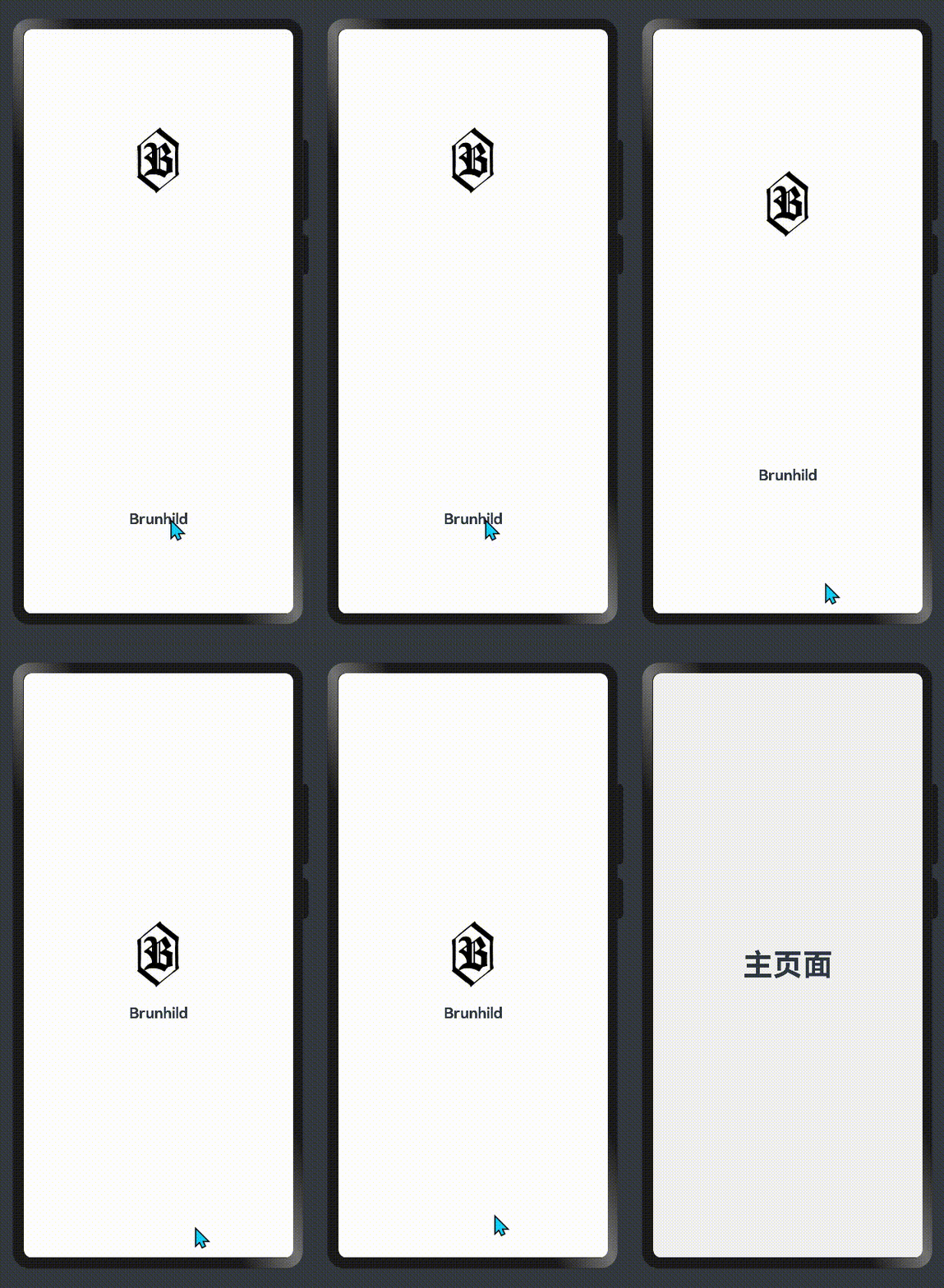
使用场景
启动页是应对每次冷启动过程中展示给用户的一个过渡页面,用于缓解用户打开应用时等待过程的焦虑情绪
实现思路
- 中间的Column界面展示内容向上移动-200 2.在1运动过程中把(单词)透明度变成0
完整代码
@Entry
@Component
struct Index {
  @State top: number = 0
  @State state: number = 1

  onPageShow() {  // 2 find 🔍
    this.state = 0
    this.top = -200
  }

  build() {
    Column() {

      Column() {
        Text('不').fontSize(30).fontColor('###fff').margin({ top: 10 })
        Text('背').fontSize(30).fontColor('###fff').margin({ top: 10 })
        Column() {
          Text('单').fontSize(30).fontColor('###fff').margin({ top: 10 })
          Text('词').fontSize(30).fontColor('###fff').margin({ top: 10 })
        }
        .opacity(this.state)  // 1 who ✅   单词透明度慢慢变弱
        .animation({ duration: 1000, curve: Curve.EaseIn })  // 先慢后快  3 fixed💕
      }.width(80)
      .translate({ x: 0, y: this.top })  // 1 who ✅   不背单词一起 负数 向上
      .animation({ duration: 1000, curve: Curve.EaseIn })  // 先慢后快 3 fixed💕
    }.width('100%').height('100%').backgroundColor('###000').justifyContent(FlexAlign.Center).alignItems(HorizontalAlign.Center)
  }
}
更多关于HarmonyOS 鸿蒙Next中如何使用animation实现应用启动页?的实战系列教程也可以访问 https://www.itying.com/category-93-b0.html

在HarmonyOS Next中,使用animation实现应用启动页,可通过ArkUI的动画能力。在EntryAbility的onWindowStageCreate()中加载启动页UI,使用属性动画(如animateTo)或显式动画(如KeyframeAnimate)控制图片或组件的透明度、缩放等属性。定义动画曲线(如Curves.EaseInOut)设置动效。动画结束后,跳转至主页面。代码需在Stage模型下,基于ArkTS编写。

在HarmonyOS Next中,可以使用Animator和动画组件实现应用启动页动画。以下是核心实现步骤:
-
定义动画资源:在
resources/base/media/目录下创建动画描述JSON文件,定义属性动画(如透明度、平移、缩放)。 -
使用AnimatorController:在启动页Ability的
onWindowStageCreate生命周期中,通过AnimatorController加载动画资源并控制播放。 -
结合组件动画:在布局XML中为Image或Text等组件设置
animation属性,或使用animateTo方法实现过渡效果。 -
监听动画结束:通过
AnimatorStateChangeListener监听动画完成事件,结束后跳转至主页面。
关键代码示例(ArkTS):
// 加载动画控制器
let animatorController = new AnimatorController();
animatorController.loadAnimation('start_animation.json');

// 播放动画并跳转
animatorController.start();
animatorController.on('stateChange', (state) => {
  if (state === AnimatorState.Finished) {
    // 导航到主页面
  }
});
注意:启动页动画需简洁高效,避免影响应用启动性能。建议使用轻量级属性动画,并合理设置时长。
