




HarmonyOS鸿蒙Next中如何实现提交表单错误选项抖动效果?

HarmonyOS鸿蒙Next中如何实现提交表单错误选项抖动效果?

3 回复

效果
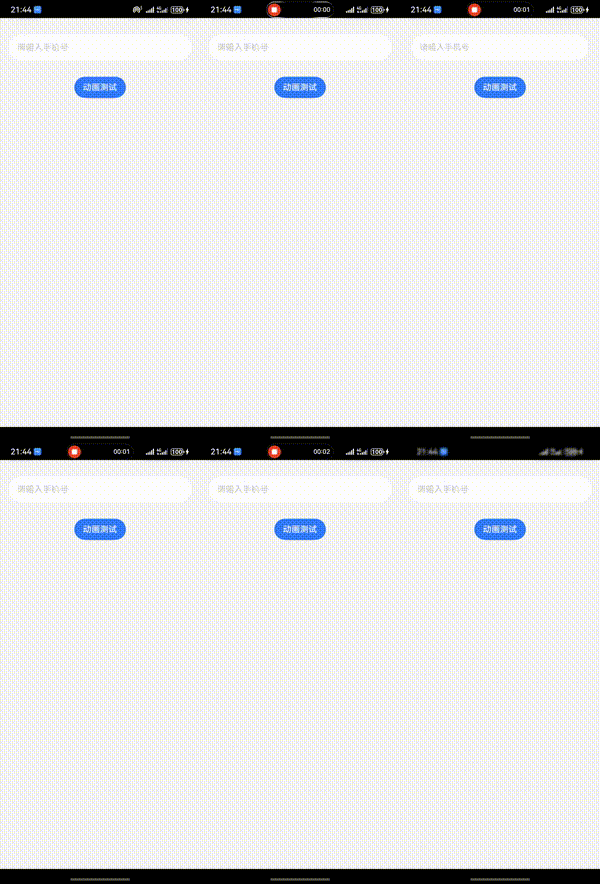
效果

思路

点击按钮时,控制输入框的scale属性,通过显示动画animateTo   运动曲线模拟物理弹簧效果

完整代码

import curves from "@ohos.curves"

@Entry
@Component
export struct Index {
  @State textPhone: string = ''
  @State doScale: ScaleOptions = { x: 1, y: 1 }

  startAnimation() {
    animateTo({
      duration: 800,
      // 应用`curves.springCurve`生成的Spring Curve动画曲线,模拟物理弹簧效果
      curve: curves.springCurve(0, 10, 80, 10),
      iterations: 1,
    }, () => {
      this.doScale = { x: 1.1, y: 1.1 };
    })
    this.doScale = { x: 1, y: 1 };
  }

  build() {
    Column() {
      TextInput({ text: $$this.textPhone, placeholder: '请输入手机号' })
        .margin({ top: 30 })
          // .padding({ left: 0 })
        .width('658lpx')
        .height('96lpx')
        .scale(this.doScale)
        .backgroundColor(Color.White)
        .type(InputType.PhoneNumber)
        .maxLength(13)
        .placeholderColor("#CBCBCB")
        .fontColor("#2E2E2E")
        .fontSize('36lpx')
        .caretColor('#FF1919')
        .borderRadius(40)

      Button('动画测试').margin({ top: 30 }).onClick(() => {
        this.startAnimation()
      })
    }.width('100%').height('100%')
    .backgroundColor("#f5f5f5")
  }
}

更多关于HarmonyOS鸿蒙Next中如何实现提交表单错误选项抖动效果?的实战系列教程也可以访问 https://www.itying.com/category-93-b0.html


在HarmonyOS Next中,实现表单错误选项抖动效果可使用ArkUIanimation动画。通过animateTo方法结合translate变换,快速改变组件位置。示例代码为错误组件设置关键帧动画,在X轴方向小幅度来回移动,模拟抖动。动画时长通常设为200-500毫秒,循环次数2-3次。需在表单验证失败时触发此动画。

在HarmonyOS Next中,实现表单错误选项的抖动效果,可以通过ArkUI的动画能力结合状态管理来完成。核心是利用animateTo函数和组件的位置偏移属性(如translate)来创建快速往复运动。

以下是一个典型的实现步骤和代码示例:

  1. 定义状态变量:为需要抖动的组件(例如一个TextInput输入框)绑定一个状态变量,用于触发和控制动画。
  2. 使用animateTo执行关键帧动画:在提交表单验证失败时,通过animateTo函数,在极短时间内(如100毫秒)连续改变组件的translate属性,形成“左-右-左”或类似路径。
  3. 封装为可复用方法:可以将抖动动画逻辑封装在一个函数或自定义组件方法中。

示例代码(ArkTS)

import { animateTo } from '@kit.ArkUI';

@Entry
@Component
struct FormPage {
  // 1. 定义控制抖动的状态变量
  @State shakeOffsetX: number = 0;
  // 假设的用户输入和错误状态
  @State username: string = '';
  @State isUsernameError: boolean = false;

  // 抖动动画函数
  startShakeAnimation() {
    // 动画关键帧:快速向左、向右、回原位
    const shakeSequence = [ -5, 5, -3, 3, 0 ]; // 像素偏移值
    let duration = 50; // 每段动画持续时间(ms)

    // 使用animateTo串联动画
    animateTo({
      duration: duration,
      tempo: 1.0,
      curve: Curve.Linear,
      onFinish: () => {
        // 第一段动画:向左偏移5像素
        this.shakeOffsetX = shakeSequence[0];
        animateTo({
          duration: duration,
          tempo: 1.0,
          curve: Curve.Linear,
          onFinish: () => {
            // 第二段动画:向右偏移5像素
            this.shakeOffsetX = shakeSequence[1];
            animateTo({
              duration: duration,
              tempo: 1.0,
              curve: Curve.Linear,
              onFinish: () => {
                // 第三段动画:向左偏移3像素
                this.shakeOffsetX = shakeSequence[2];
                animateTo({
                  duration: duration,
                  tempo: 1.0,
                  curve: Curve.Linear,
                  onFinish: () => {
                    // 第四段动画:向右偏移3像素
                    this.shakeOffsetX = shakeSequence[3];
                    animateTo({
                      duration: duration,
                      tempo: 1.0,
                      curve: Curve.Linear,
                      onFinish: () => {
                        // 最后复位
                        this.shakeOffsetX = shakeSequence[4];
                      }
                    }, () => {
                      this.shakeOffsetX = shakeSequence[3];
                    })
                  }
                }, () => {
                  this.shakeOffsetX = shakeSequence[2];
                })
              }
            }, () => {
              this.shakeOffsetX = shakeSequence[1];
            })
          }
        }, () => {
          this.shakeOffsetX = shakeSequence[0];
        })
      }
    }, () => {
      // 动画开始前的状态(可选)
    })
  }

  // 表单提交验证函数
  handleSubmit() {
    // 模拟验证失败
    if (this.username.trim() === '') {
      this.isUsernameError = true;
      // 触发抖动动画
      this.startShakeAnimation();
    } else {
      this.isUsernameError = false;
      // 正常提交逻辑...
    }
  }

  build() {
    Column({ space: 20 }) {
      // 2. 将shakeOffsetX绑定到TextInput的translate变换上
      TextInput({ placeholder: '请输入用户名' })
        .width('90%')
        .height(40)
        .backgroundColor(this.isUsernameError ? '#FFF0F0' : '#F5F5F5') // 错误时背景变红
        .border({ color: this.isUsernameError ? Color.Red : Color.Gray, width: 1 })
        .translate({ x: this.shakeOffsetX }) // 关键:绑定水平偏移量
        .onChange((value: string) => {
          this.username = value;
          // 用户开始输入时,可清除错误状态
          if (value) {
            this.isUsernameError = false;
          }
        })

      Button('提交')
        .onClick(() => {
          this.handleSubmit();
        })
    }
    .width('100%')
    .height('100%')
    .padding(20)
    .justifyContent(FlexAlign.Center)
  }
}

代码要点说明

  • 动画原理:通过连续执行多个animateTo,在极短时间内改变translate的x值,产生视觉上的抖动感。示例中采用了振幅递减(5px -> 3px -> 0)的模式,使动画更自然。
  • 状态绑定TextInput.translate({ x: this.shakeOffsetX })将组件位置与shakeOffsetX状态变量绑定,当shakeOffsetX通过动画快速变化时,组件随之移动。
  • 触发时机:在handleSubmit函数中验证输入,如果无效,设置错误状态isUsernameErrortrue,并调用startShakeAnimation()启动动画。
  • 视觉增强:示例中同时改变了错误输入框的背景色和边框颜色,与抖动效果结合,提升错误提示的感知强度。

优化建议

  • 可以将startShakeAnimation函数和相关的状态(shakeOffsetX)封装在一个自定义组件(如ShakeTextInput)中,提高代码复用性。
  • 通过AnimatorProperty或更复杂的关键帧动画API(如果HarmonyOS Next版本提供)可能可以写出更简洁的连续动画代码。请关注官方文档@kit.ArkUI动画部分的更新。

此方法仅依赖ArkUI的基础动画和状态管理能力,无需额外库,是HarmonyOS Next中实现此类交互动效的标准方式。

回到顶部