




HarmonyOS鸿蒙Next中如何实现图片列表按压缩放效果?
HarmonyOS鸿蒙Next中如何实现图片列表按压缩放效果? 如何实现图片列表按压缩放效果?如何实现图片列表按压缩放效果?
3 回复

效果
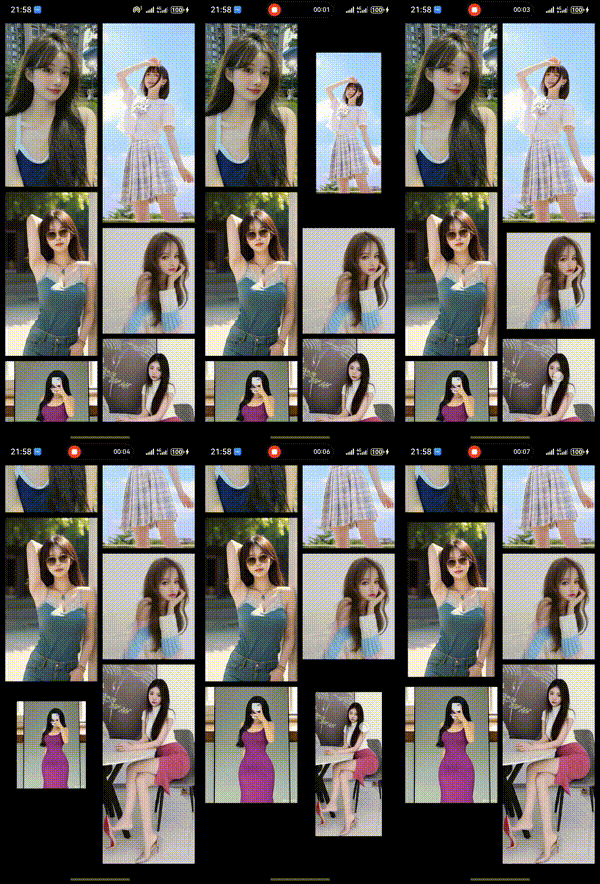
思路
- 通过WaterFlow 实现瀑布流
- 给每个图片绑定 scale 缩放属性 数据来源于响应式
- 绑定点击点击事件,通过关键帧动画 keyframeAnimateTo 控制缩放属性值
完整代码
记得配置网络权限
@Entry
@Component
struct Index {
  @State scaleXY: number = 1
  @State selectIndex:number = -1
  @State imgSrc: string[] = [
    'https://tse2-mm.cn.bing.net/th/id/OIP-C.CFev6LAEXxvcqAH9BkJvMwHaNK?rs=1&pid=ImgDetMain',
    'https://pic2.zhimg.com/v2-379be37e0b4d372aa60046f9ce771f12_r.jpg',
    'https://pic-image.yesky.com/uploadImages/newPic/2023/188/04/7H87NC6W8T0A.png',
    'https://c-ssl.duitang.com/uploads/item/202004/04/20200404163239_avipl.jpg',
    'https://tse1-mm.cn.bing.net/th/id/OIP-C.njlhPi8v28sP8mpG3LlujwAAAA?rs=1&pid=ImgDetMain',
    'https://tse2-mm.cn.bing.net/th/id/OIP-C.WgwRdIP_PFIE19eyu-cHgQHaJW?rs=1&pid=ImgDetMain'
  ]

  build() {
    Column() {
      WaterFlow() {
        ForEach(this.imgSrc, (item: string,index:number) => {
          FlowItem() {
            Image(item)
              .width('100%')
              .scale({ x:this.selectIndex===index? this.scaleXY:1, y: this.selectIndex===index? this.scaleXY:1 })
          }
          .onClick(() => {
              this.selectIndex = index
            this.getUIContext().keyframeAnimateTo({ iterations: 1 }, [
              {
                // 第一段关键帧动画时长为800ms,scale属性做从1到1.5的动画
                duration: 100,
                event: () => {
                  this.scaleXY = 0.75;
                }
              },
              {
                // 第二段关键帧动画时长为500ms,scale属性做从1.5到1的动画
                duration: 200,
                event: () => {
                  this.scaleXY = 1;
                }
              }
            ])
          })
        })

      }
      .columnsTemplate('1fr 1fr')
      .columnsGap(10)
      .rowsGap(10)

    }
    .width('100%')
    .padding(10)

  }
}
更多关于HarmonyOS鸿蒙Next中如何实现图片列表按压缩放效果?的实战系列教程也可以访问 https://www.itying.com/category-93-b0.html

在HarmonyOS Next中,实现图片列表的压缩放效果,可使用ArkUI的List组件结合Image组件的objectFit属性。将objectFit设置为ImageFit.Cover或ImageFit.Contain来控制图片的缩放和裁剪方式。同时,利用ListItem的swipeAction或自定义手势事件,配合Scale动画或属性动画,可以实现交互式的压缩放效果。具体实现涉及@ohos.graphics.image模块的图片解码和display模块的屏幕适配。

在HarmonyOS Next中,实现图片列表的按压缩放效果,核心是使用ArkUI的手势处理和状态管理机制。主要通过GestureGroup与PanGesture、PinchGesture配合,结合状态变量动态改变图片的缩放比例和位移。
以下是实现该效果的关键步骤和代码思路:
-
布局与状态定义: 使用
List或Scroll组件创建图片列表。为每个图片项定义状态变量,通常绑定到@State或@Prop装饰的变量,用于控制其缩放和位置。@Entry @Component struct ImageListPage { // 图片数据源 private imageList: Array<ImageItem> = [...] // 用于记录当前被操作图片的索引和状态(可选,更精细控制时使用) @State activeIndex: number = -1 build() { List() { ForEach(this.imageList, (item: ImageItem, index: number) => { ListItem() { ZoomableImage({ item: item, index: index, activeIndex: $activeIndex }) } }) } } } -
可缩放图片组件: 创建自定义组件
ZoomableImage,在其中封装手势和动画逻辑。@Component struct ZoomableImage { private item: ImageItem private index: number @Link activeIndex: number // 与父组件联动,用于处理列表内多图互斥等场景 // 控制当前图片的缩放比例 @State scale: number = 1.0 // 控制当前图片的位移(用于双指缩放时跟随中心点) @State offsetX: number = 0 @State offsetY: number = 0 // 记录上次的手势状态,用于计算增量 private lastScale: number = 1.0 private lastOffset: { x: number, y: number } = { x: 0, y: 0 } build() { Image(this.item.src) .width(100) .height(100) .scale({ x: this.scale, y: this.scale }) .translate({ x: this.offsetX, y: this.offsetY }) // 关键:绑定组合手势 .gesture( GestureGroup( // 并行识别拖拽和缩放手势 GestureMode.Parallel, PanGesture() .onActionStart(() => { // 可选:记录开始状态或激活当前项 this.activeIndex = this.index }) .onActionUpdate((event: GestureEvent) => { // 在缩放状态下,更新位移 if (this.scale > 1.0) { this.offsetX = this.lastOffset.x + event.offsetX this.offsetY = this.lastOffset.y + event.offsetY } }) .onActionEnd(() => { // 手势结束时,保存最后位移值,并考虑边界回弹 this.lastOffset = { x: this.offsetX, y: this.offsetY } this.reboundIfNeeded() }), PinchGesture() .onActionStart(() => { this.activeIndex = this.index }) .onActionUpdate((event: GestureEvent) => { // 计算基于上次状态的当前缩放比 let currentScale = this.lastScale * event.scale // 限制缩放范围,例如最小1倍,最大4倍 currentScale = Math.max(1.0, Math.min(currentScale, 4.0)) this.scale = currentScale }) .onActionEnd(() => { // 保存缩放值,如果缩放结束为1,则复位位移 this.lastScale = this.scale if (this.scale <= 1.0) { this.resetPosition() } }) ) ) // 可选:添加点击事件,用于双击复位等操作 .onClick(() => { if (this.scale !== 1.0) { this.animateToReset() } }) } // 复位位置与缩放 private resetPosition() { animateTo({ duration: 200 }, () => { this.scale = 1.0 this.offsetX = 0 this.offsetY = 0 this.lastScale = 1.0 this.lastOffset = { x: 0, y: 0 } }) } // 边界回弹检查 private reboundIfNeeded() { // 根据图片缩放后的实际宽高与容器边界比较,计算是否需要回弹 // 实现逻辑略 } // 动画复位 private animateToReset() { animateTo({ duration: 200 }, () => { this.scale = 1.0 this.offsetX = 0 this.offsetY = 0 this.lastScale = 1.0 this.lastOffset = { x: 0, y: 0 } }) } } -
关键点说明:
- 手势组合:使用
GestureGroup并设置为GestureMode.Parallel,使拖拽和缩放手势可以同时被识别和处理。 - 状态管理:
@State装饰的变量驱动UI更新。手势回调中修改这些变量,ArkUI会自动更新视图。 - 动画:使用
animateTo在手势结束时添加平滑的复位动画,提升体验。 - 性能:对于长列表,需考虑组件复用和状态管理,避免不必要的UI刷新。
- 手势组合:使用
此方案提供了核心交互逻辑。在实际开发中,你可能需要根据具体设计(如缩放中心、边界限制、动画曲线、与列表滚动的互斥逻辑)进行调整和优化。
