




HarmonyOS 鸿蒙Next中如何实现搜索关键词高亮
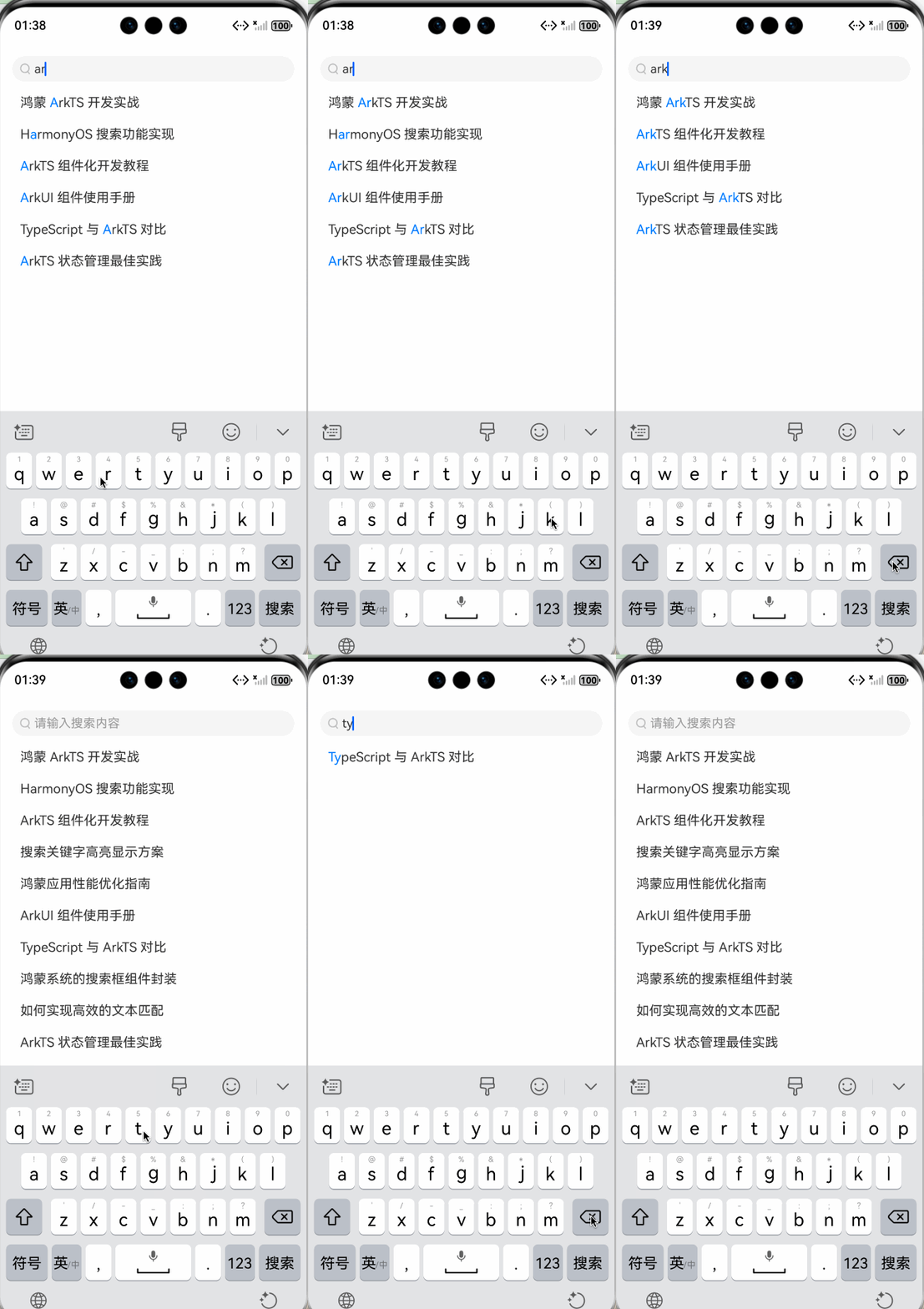
HarmonyOS 鸿蒙Next中如何实现搜索关键词高亮 支持实时搜索,关键词忽略大小写,关键词高亮显示。
5 回复


预览效果:
一、我们先自定义一个简单的搜索框:
/**
 * @fileName : SearchBar.ets
 * @author : @cxy
 * @date : 2025/12/22
 * @description : 搜索框
 */


@Component
export struct SearchBar {
  @Prop placeholder: string = '请输入搜索内容'
  @Prop text: string = ''
  onChanged?: (value: string) => void

  build() {
    Row() {
      Row({ space: 5 }) {
        Image($r('[reslib].media.ic_search')).width(12)
        TextInput({ placeholder: this.placeholder || '请输入搜索内容', text: this.text })
          .placeholderColor('#999')
          .borderRadius(0)
          .backgroundColor(Color.Transparent)
          .fontSize(15)
          .placeholderFont({ size: 15 })
          .fontColor('#333')
          .maxLength(20)
          .padding(0)
          .enterKeyType(EnterKeyType.Search)
          .onChange((value: string) => {
            this.onChanged?.(value.trim())
          })
          .layoutWeight(1)
          .height(32)
      }
      .layoutWeight(1)
      .padding({ left: 10 })
      .justifyContent(FlexAlign.Start)
      .alignItems(VerticalAlign.Center)
      .height(32)
      .borderRadius('50%')
      .backgroundColor('#f6f6f6')
    }
    .alignItems(VerticalAlign.Center)
    .width('100%')
    .height(44)
    .backgroundColor('#fff')
  }
}
二、高亮显示实现思路
将一段字符串根据关键词拆分为多个节点:
比如字符串“arkts搜索高亮”, 关键词为 ‘ts’,那么可以拆分为三个节点 [ark,ts,搜索高亮]。
定义节点为:
interface ResultNode {
  text: string
  highlight: boolean // 该text是否需要高亮
}
生成的节点数组结构为:
[
  {
    text: "ark",
    highlight: false
  },
  {
    text: "ts",
    highlight: true
  },
  {
    text: "搜索高亮",
    highlight: false
  },
]
渲染的时候,使用 Text + ForEach + Span:
 Text() {
  // 循环生成Span节点
  ForEach(item.nodes, (node: ResultNode) => {
    Span(node.text)
      .fontColor(node.highlight ? '#0073ff' : '#333')
  })
}
搜索和匹配时,还需要主要忽略大小写。拆分算法,则是使用indexOf获取下标,进行字符串分割。不断移动下标,最终得到拆分节点数组。
三、完整demo源码:
/**
 * @fileName : SearchDemo.ets
 * @author : @cxy
 * @date : 2025/12/22
 * @description : 关键字搜索高亮demo
 */
import { SearchBar } from "./SearchBar";


interface ResultNode {
  text: string
  highlight: boolean // 该text是否需要高亮
}

interface ResultItem {
  nodes: ResultNode[]
}

@Component
export struct SearchDemo {
  @State results: ResultItem[] = []
  // 模拟源数据
  private sources: string[] = [
    "鸿蒙 ArkTS 开发实战",
    "HarmonyOS 搜索功能实现",
    "ArkTS 组件化开发教程",
    "搜索关键字高亮显示方案",
    "鸿蒙应用性能优化指南",
    "ArkUI 组件使用手册",
    "TypeScript 与 ArkTS 对比",
    "鸿蒙系统的搜索框组件封装",
    "如何实现高效的文本匹配",
    "ArkTS 状态管理最佳实践",
    "搜索结果的高亮渲染技巧"
  ];

  aboutToAppear(): void {
    // 默认显示全部
    this.onSearch('')
  }

  build() {
    Column() {
      SearchBar({
        onChanged: (text: string) => {
          this.onSearch(text.trim());
        }
      })

      List() {
        ForEach(
          this.results,
          (item: ResultItem) => {
            ListItem() {
              Text() {
                // 循环生成Span节点
                ForEach(item.nodes, (node: ResultNode) => {
                  Span(node.text)
                    .fontColor(node.highlight ? '#0073ff' : '#333')
                })
              }
              .fontSize(16)
            }
            .padding(10)
          },
          (items: ResultItem[], index: number) => JSON.stringify(items) + index
        )
      }
      .layoutWeight(1)
    }
    .padding(15)
    .width('100%')
    .height('100%')
  }

  onSearch(keyword: string) {
    this.results = [];

    // 筛选搜索,忽略大小写
    const lowerKeyword = keyword.toLowerCase();
    const matchedItems = lowerKeyword ? this.sources.filter((e) => {
      return e.toLowerCase().includes(lowerKeyword);
    }) : this.sources;

    // 处理匹配结果:拆分文本为高亮节点
    this.results = matchedItems.map((e) => {
      return {
        nodes: this.splitTextToNodes(e, keyword)
      } as ResultItem
    });
  }

  /**
   * 拆分文本为普通/高亮节点
   * @param text 文本
   * @param keyword 关键词
   * @returns 节点数组
   */
  private splitTextToNodes(text: string, keyword: string): ResultNode[] {
    const nodes: ResultNode[] = [];
    if (!keyword) {
      nodes.push({
        text: text,
        highlight: false
      });
      return nodes;
    }

    const lowerText = text.toLowerCase();
    const lowerKeyword = keyword.toLowerCase();
    let currentIndex = 0;
    let matchIndex = lowerText.indexOf(lowerKeyword);
    const keywordLength = keyword.length;

    // 循环查找所有匹配的关键字位置,拆分文本
    while (matchIndex !== -1) {
      // 1. 添加匹配位置前的文本
      if (matchIndex > currentIndex) {
        nodes.push({
          text: text.substring(currentIndex, matchIndex),
          highlight: false
        });
      }

      // 2. 添加匹配到的关键词
      nodes.push({
        text: text.substring(matchIndex, matchIndex + keywordLength),
        highlight: true
      });

      // 更新索引,继续查找下一个匹配
      currentIndex = matchIndex + keywordLength;
      matchIndex = lowerText.indexOf(lowerKeyword, currentIndex);
    }

    // 3. 添加最后文本
    if (currentIndex < text.length) {
      nodes.push({
        text: text.substring(currentIndex),
        highlight: false
      });
    }

    return nodes;
  }
}
在HarmonyOS Next中,搜索关键词高亮可通过Text组件的Span功能实现。使用TextSpan设置关键词样式,结合TextDecoration与TextStyle定义高亮颜色和字体。通过字符串匹配算法定位关键词位置,将文本拆分为普通片段与高亮片段,分别用TextSpan包装后组合显示。

在HarmonyOS Next中实现搜索关键词高亮,核心是使用Text组件的Span功能。以下是关键步骤和代码示例:
核心思路
- 文本处理:将原始文本与搜索词(忽略大小写)进行匹配,找出所有出现的位置。
- 构建Span数组:遍历文本,将匹配到的关键词部分用
Span设置为高亮样式,其余部分保持普通样式。 - 渲染:将构建好的
Span数组赋值给Text组件的spans属性。
代码实现示例
// 1. 定义高亮Span的样式
const highlightSpan: Span = {
  value: '', // 值会在后续填充
  style: {
    color: '#007DFF', // 高亮颜色,例如蓝色
    fontWeight: FontWeight.Bold // 可选:加粗
  }
};

// 2. 实现高亮函数
function buildHighlightedSpans(fullText: string, searchWord: string): Span[] {
  const spans: Span[] = [];
  const lowerFullText = fullText.toLowerCase();
  const lowerSearchWord = searchWord.toLowerCase();
  let lastIndex = 0;

  // 循环查找所有匹配位置
  let matchIndex = lowerFullText.indexOf(lowerSearchWord, lastIndex);
  while (matchIndex !== -1) {
    // 添加非高亮部分(匹配前的普通文本)
    if (matchIndex > lastIndex) {
      spans.push({
        value: fullText.substring(lastIndex, matchIndex),
        style: {} // 普通样式
      });
    }

    // 添加高亮部分(关键词)
    const highlightSpan = {
      value: fullText.substring(matchIndex, matchIndex + searchWord.length),
      style: {
        color: '#007DFF',
        fontWeight: FontWeight.Bold
      }
    };
    spans.push(highlightSpan);

    // 更新查找位置
    lastIndex = matchIndex + searchWord.length;
    matchIndex = lowerFullText.indexOf(lowerSearchWord, lastIndex);
  }

  // 添加剩余的非高亮文本
  if (lastIndex < fullText.length) {
    spans.push({
      value: fullText.substring(lastIndex),
      style: {}
    });
  }

  return spans;
}

// 3. 在组件中使用
@Entry
@Component
struct SearchHighlightPage {
  @State fullText: string = '这是一个示例文本,用于演示HarmonyOS Next的高亮功能。';
  @State keyword: string = '示例';
  @State highlightedSpans: Span[] = [];

  aboutToAppear() {
    this.updateHighlight();
  }

  updateHighlight() {
    if (this.keyword.trim() === '') {
      // 关键词为空时,显示普通文本
      this.highlightedSpans = [{ value: this.fullText, style: {} }];
    } else {
      this.highlightedSpans = buildHighlightedSpans(this.fullText, this.keyword);
    }
  }

  build() {
    Column() {
      // 搜索输入框
      TextInput({ placeholder: '输入搜索词' })
        .onChange((value: string) => {
          this.keyword = value;
          this.updateHighlight();
        })

      // 显示高亮文本
      Text() {
        Span(this.highlightedSpans)
      }
      .fontSize(16)
      .margin(10)
    }
  }
}
关键点说明
- 忽略大小写:通过
toLowerCase()统一转为小写进行匹配,但显示时保留原始大小写。 - 实时搜索:在
TextInput的onChange事件中触发高亮更新。 - 性能考虑:对于长文本,可考虑防抖优化,避免频繁计算。
扩展建议
- 可封装为自定义组件,方便复用。
- 如需支持多关键词高亮,可修改匹配逻辑,遍历关键词数组。
- 样式可根据应用主题动态配置。
此方案直接利用ArkUI的Span能力,无需额外依赖,性能与兼容性良好。
