




HarmonyOS鸿蒙Next中列表输入框TextInput刷新数据的问题
HarmonyOS鸿蒙Next中列表输入框TextInput刷新数据的问题
export class ItemBean {
  aaa?: string
  bbb?: string
}

@Component
export struct TestPage {
  @State msg: ItemBean[] = []

  aboutToAppear() {

    let a1 = new ItemBean
    a1.aaa = '哈哈哈'
    a1.bbb = '呵呵呵'

    let a2 = new ItemBean
    a2.aaa = '大大大'
    a2.bbb = '滚滚滚'

    this.msg.push(a1, a2)

  }

  build() {

    NavDestination() {
      Column() {

        Grid() {
          ForEach(this.msg, (item: ItemBean, index) => {
            GridItem() {
              Row() {

                Text(item.aaa)
                  .fontColor($r('app.color.color_ef3838'))
                  .fontSize(12)
                  .maxLines(1)
                  .textOverflow({ overflow: TextOverflow.Ellipsis })

                TextInput({ text: item.bbb }).onChange((value: string) => {
                  item.aaa += value
                  // this.msg = [...this.msg]
                })
                  .layoutWeight(1)
              }
            }
          })
        }.layoutDirection(GridDirection.Column)
        .width('100%')
        .scrollBar(BarState.Off)
        .columnsTemplate('1fr 1fr')

      }
      .backgroundColor($r('app.color.color_f9f9f8'))
      .layoutWeight(1)
    }.backgroundColor($r('app.color.color_white'))
    .height('100%')
    .hideTitleBar(true)
  }
}
效果图
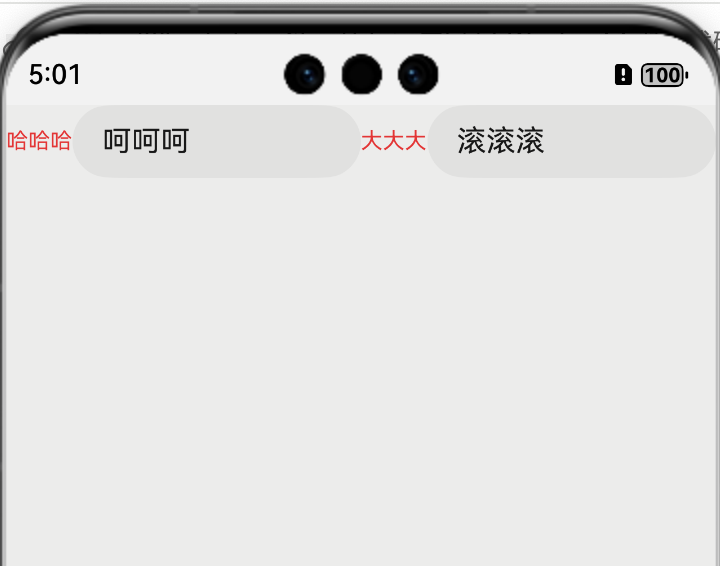
在列表有多个输入框,如何根据输入框内容,然后动态修改同一个item 的text的内容? 一边刷新左边text的内容,又不能打断正在输入。
更多关于HarmonyOS鸿蒙Next中列表输入框TextInput刷新数据的问题的实战教程也可以访问 https://www.itying.com/category-93-b0.html

【背景知识】 [@State装饰的变量](https://developer.huawei.com/consumer/cn/doc/harmonyos-guides/arkts-state),或称为状态变量,一旦变量拥有了状态属性,就可以触发其直接绑定UI组件的刷新。当状态改变时,UI会发生对应的渲染改变。[@Observed/@ObjectLink配套使用](https://developer.huawei.com/consumer/cn/doc/harmonyos-guides/arkts-observed-and-objectlink)是用于嵌套场景的观察,主要是为了弥补装饰器仅能观察一层的能力限制,可以用来观察二维数组、数组项class、class的属性是class,这些第二层的属性变化。
【问题定位】
- @State装饰器仅能观察到第一层的变化,但是在实际应用开发中,应用会根据开发需要,封装自己的数据模型。对于多层嵌套的情况,比如二维数组、对象数组,或者对象内套对象,他们的第二层的属性变化是无法观察到的。例如:当装饰对象为对象数组时,可以观察到数组本身的赋值和添加、删除、更新数组的变化,但是数组项中属性的赋值观察不到。
- 如果想要实现动态渲染,需要使用@Observed/@ObjectLink装饰器:
- @Observed用于对象数组、数组对象、嵌套对象场景中,观察对象类属性变化,用于修饰类。
- @ObjectLink装饰器装饰的状态变量用于接收@Observed装饰的类的实例,和父组件中对应的状态变量建立双向数据绑定。注意:@ObjectLink装饰器不能在@Entry装饰的自定义组件中使用。
【解决方案】
- 使用@Observed修饰类:
[@Observed](/user/Observed) export class ItemBean { aaa?: string bbb?: string //用来判断是否为首次赋值造成的变化 isFirst: boolean constructor(aaa: string, bbb: string, isFirst: boolean) { this.aaa = aaa this.bbb = bbb this.isFirst = isFirst } } - 自定义子组件,注意@ObjectLink装饰器不能在@Entry装饰的自定义组件中使用:
@Component struct ItemList{ [@ObjectLink](/user/ObjectLink) itemBeam: ItemBean build() { Row(){ Text(this.itemBeam.aaa) .fontColor(Color.Red) .fontSize(12) .maxLines(1) .textOverflow({ overflow: TextOverflow.Ellipsis }) TextInput({ text: this.itemBeam.bbb }).onChange((value: string) => { if(!this.itemBeam.isFirst){ this.itemBeam.aaa += value this.itemBeam.bbb = value } this.itemBeam.isFirst = false // this.msg = [...this.msg] }) .layoutWeight(1) } } } - 在父组件中使用子组件:
【总结】 @State装饰器仅能观察到第一层的变化。对于多层嵌套的情况,比如对象数组等,他们的第二层的属性变化是无法观察到的。@Observed装饰的类,可以观察到属性的变化;@ObjectLink装饰器装饰的状态变量用于接收@Observed装饰的类的实例,和父组件中对应的状态变量建立双向数据绑定。[@Entry](/user/Entry) @Component export struct TestPage { [@State](/user/State) msg: ItemBean[] = [] aboutToAppear() { let a1 = new ItemBean('哈哈哈', '呵呵呵', true) let a2 = new ItemBean('大大大', '滚滚滚', true) this.msg.push(a1, a2) } build() { NavDestination() { Column() { Grid() { ForEach(this.msg, (item: ItemBean, index) => { /*GridItem() { ItemList({itemBeam: item}) }*/ ItemList({itemBeam: item}) }) } .width('100%') //.scrollBar(BarState.Off) //.columnsTemplate('1fr 1fr') } .backgroundColor(Color.Gray) .layoutWeight(1) }.backgroundColor(Color.White) .height('100%') .hideTitleBar(true) } }
更多关于HarmonyOS鸿蒙Next中列表输入框TextInput刷新数据的问题的实战系列教程也可以访问 https://www.itying.com/category-93-b0.html

问题分析与解决方案
您遇到的问题是直接修改对象属性不会触发UI刷新,而重新赋值整个数组会导致组件重新渲染,打断输入状态。
以下是优化后的代码实现:
export class ItemBean {
  aaa?: string
  bbb?: string
}

@Component
export struct TestPage {
  @State msg: ItemBean[] = []

  aboutToAppear() {
    let a1 = new ItemBean();
    a1.aaa = '哈哈哈';
    a1.bbb = '呵呵呵';

    let a2 = new ItemBean();
    a2.aaa = '大大大';
    a2.bbb = '滚滚滚';

    this.msg = [a1, a2]; // 使用赋值而非push
  }

  build() {
    NavDestination() {
      Column() {
        Grid() {
          ForEach(this.msg, (item: ItemBean, index) => {
            GridItem() {
              // 使用自定义组件处理每个项
              ListItemView({ item: item, index: index })
            }
          }, (item: ItemBean) => JSON.stringify(item))
        }
        .layoutDirection(GridDirection.Column)
        .width('100%')
        .scrollBar(BarState.Off)
        .columnsTemplate('1fr 1fr')
      }
      .backgroundColor($r('app.color.color_f9f9f8'))
      .layoutWeight(1)
    }
    .backgroundColor($r('app.color.color_white'))
    .height('100%')
    .hideTitleBar(true)
  }
}

// 自定义组件处理每个列表项
@Component
struct ListItemView {
  @Param item: ItemBean;
  @Param index: number;
  @Local textValue: string = ''; // 本地状态管理输入框值

  aboutToAppear() {
    this.textValue = this.item.bbb || '';
  }

  build() {
    Row() {
      Text(this.item.aaa) // 显示aaa属性
        .fontColor($r('app.color.color_ef3838'))
        .fontSize(12)
        .maxLines(1)
        .textOverflow({ overflow: TextOverflow.Ellipsis })

      TextInput({ text: this.textValue })
        .onChange((value: string) => {
          this.textValue = value; // 更新本地状态
          this.item.aaa += value; // 修改aaa属性
          this.item.bbb = value; // 同步bbb属性
        })
        .layoutWeight(1)
    }
  }
}
关键优化点
-
分离组件结构:将每个列表项提取为独立组件
ListItemView,避免全局状态更新导致的整个列表重渲染 -
使用本地状态:在
ListItemView中使用@Local装饰器管理输入框的值,确保输入流畅不中断 -
直接修改对象属性:虽然直接修改对象属性不会自动触发UI更新,但由于我们使用了独立组件,组件内部的Text会响应本地状态变化
-
添加唯一键生成器:在ForEach中添加键生成函数,确保每个项有唯一标识
进一步优化建议
如果上述方案仍不能满足需求,可以考虑以下进阶方案:
// 在ItemBean类中添加观察能力
export class ItemBean {
  aaa?: string = '';
  bbb?: string = '';

  // 添加变化监听
  private listeners: ((aaa: string, bbb: string) => void)[] = [];

  // 添加监听器
  addListener(listener: (aaa: string, bbb: string) => void) {
    this.listeners.push(listener);
  }

  // 更新属性并通知监听器
  updateAaa(value: string) {
    this.aaa = value;
    this.notifyListeners();
  }

  updateBbb(value: string) {
    this.bbb = value;
    this.notifyListeners();
  }

  // 通知所有监听器
  private notifyListeners() {
    this.listeners.forEach(listener => {
      listener(this.aaa || '', this.bbb || '');
    });
  }
}

// 在ListItemView组件中
@Component
struct ListItemView {
  @Param item: ItemBean;
  @Param index: number;
  @State localAaa: string = '';
  @State localBbb: string = '';

  aboutToAppear() {
    this.localAaa = this.item.aaa || '';
    this.localBbb = this.item.bbb || '';

    // 注册监听器
    this.item.addListener((aaa, bbb) => {
      this.localAaa = aaa;
      this.localBbb = bbb;
    });
  }

  build() {
    Row() {
      Text(this.localAaa)
        .fontColor($r('app.color.color_ef3838'))
        .fontSize(12)
        .maxLines(1)
        .textOverflow({ overflow: TextOverflow.Ellipsis })

      TextInput({ text: this.localBbb })
        .onChange((value: string) => {
          this.item.updateAaa((this.item.aaa || '') + value);
          this.item.updateBbb(value);
        })
        .layoutWeight(1)
    }
  }
}
这个进阶方案通过给ItemBean添加监听机制,实现了更精细的状态管理,确保UI能够响应数据变化而不打断输入体验。


在HarmonyOS Next中,你遇到的问题是由于ArkUI的响应式更新机制导致的。当TextInput的onChange事件中直接修改item.aaa时,由于item对象本身不是响应式数据源(@State、@Link等装饰的变量),UI不会自动刷新。
解决方案:
-
使用@State装饰数组元素: 将ItemBean的属性改为@State装饰,或者使用@Observed和@ObjectLink装饰类。
[@Observed](/user/Observed) class ItemBean { [@State](/user/State) aaa: string = ''; bbb: string = ''; } @Component export struct TestPage { [@State](/user/State) msg: ItemBean[] = [] // ... aboutToAppear保持不变 build() { // ForEach部分改为: ForEach(this.msg, (item: ItemBean, index) => { GridItem() { Row() { Text(item.aaa) // ... 样式设置 TextInput({ text: item.bbb }).onChange((value: string) => { item.aaa += value // 现在这会触发UI更新 }) } } }) } } -
如果不想用@Observed,可以创建新数组触发更新: 取消注释你代码中的
// this.msg = [...this.msg],但这会重新渲染整个列表,可能影响输入体验。 -
更推荐的做法:使用索引更新特定项:
TextInput({ text: item.bbb }).onChange((value: string) => {
  this.msg[index].aaa += value
  this.msg = this.msg.slice() // 浅拷贝触发更新
})
关键点:
- ArkUI需要响应式数据变化才能触发UI更新
- 直接修改普通对象的属性不会通知框架
- @Observed/@ObjectLink 或 @State 装饰器可以建立对象属性的响应式关联
- 对于列表项更新,保持数据源的响应性是核心
这样修改后,TextInput输入时会实时更新同项的Text显示,且不会打断输入。
