




HarmonyOS 鸿蒙Next中如何选择应用沙箱文件夹进行导出复制到手机存储
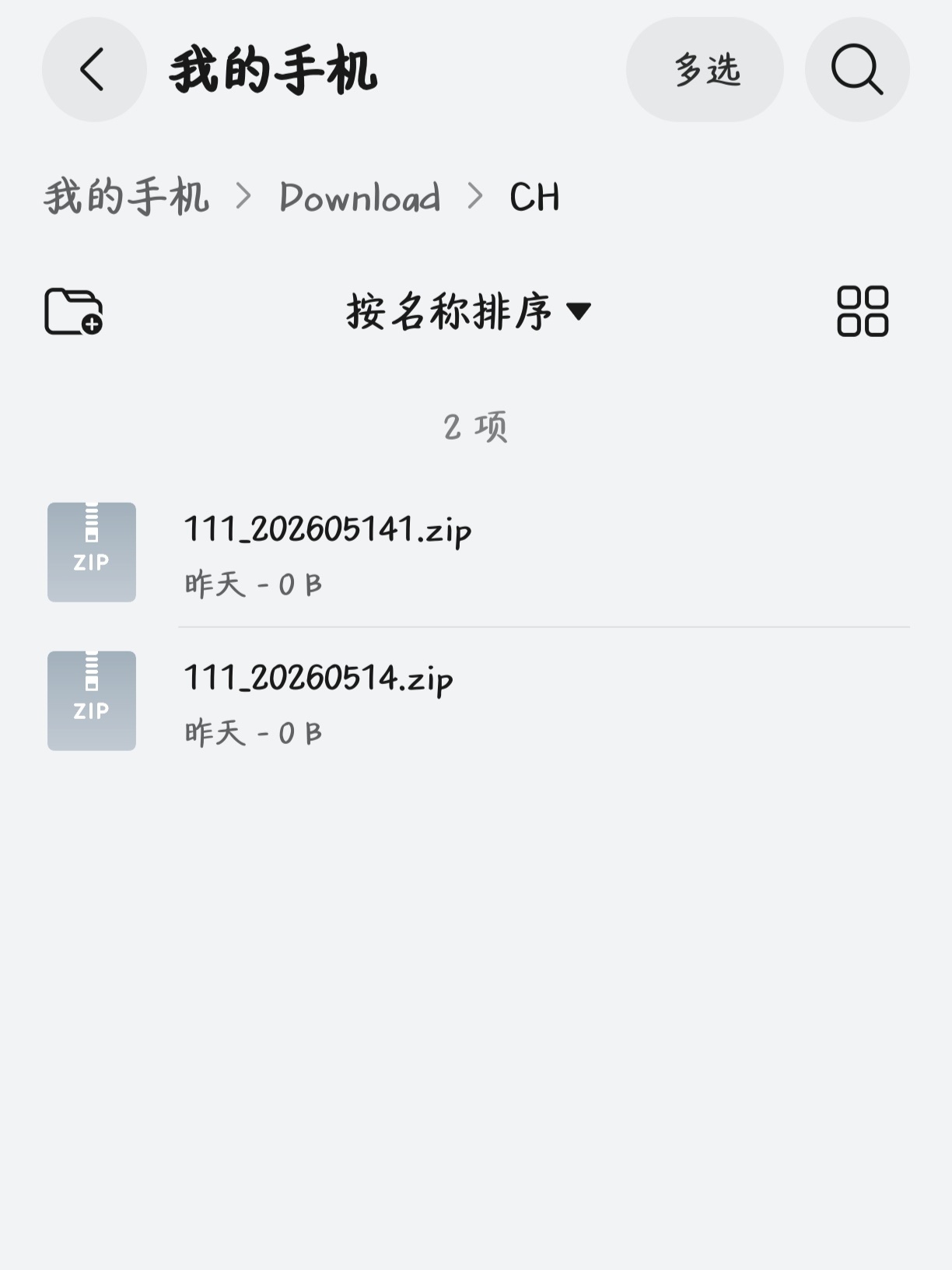
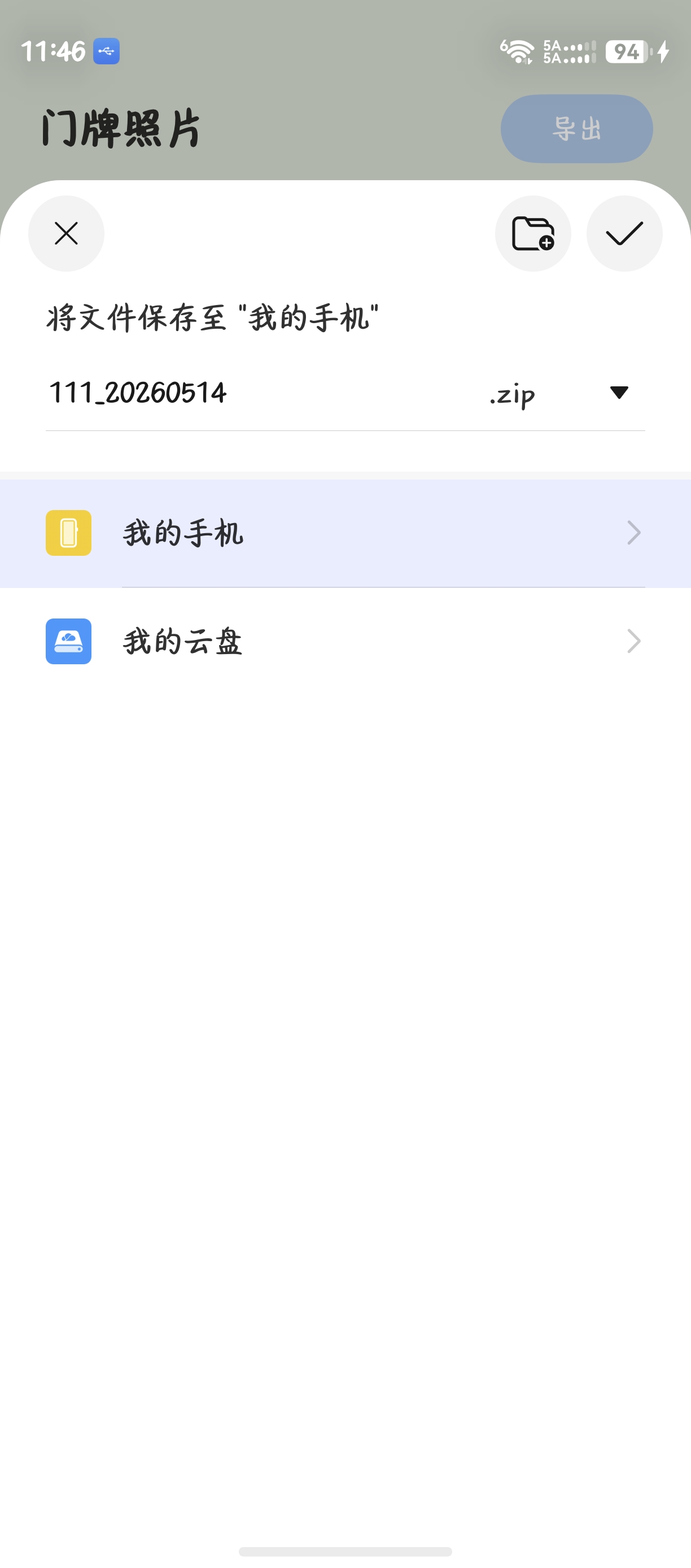
HarmonyOS 鸿蒙Next中如何选择应用沙箱文件夹进行导出复制到手机存储 现在就是这个问题,我让codegenie跑了两次都不行,要输入文件夹名称,然后点导出后只能导出当前输入框输入的文件,而且还要压缩成zip文件(压缩和复制过去的zip也是0kb,打卡显示错误),不能直接文件夹复制到用户选择目录吗? 我需求就是访问应用沙箱里的文件夹,可以像文件管理一样选取到 输入框输入的对应创建的文件夹,然后进行导出到用户选取的目录。 除非改成一开始的想法,先让用户选取可访问的公共目录,然后输入框输入文件夹的时候直接创建文件夹到对应目录,这样就不用多一步导出功能了,因为需要分类的文件夹然后直接传到电脑上使用的
更多关于HarmonyOS 鸿蒙Next中如何选择应用沙箱文件夹进行导出复制到手机存储的实战教程也可以访问 https://www.itying.com/category-93-b0.html


写了个demo你可以试下,主要通过列表显示本地沙箱文件,选择后通过打开
picker.DocumentSaveOptions()去保存到外部存储
import { webview } from '@kit.ArkWeb'
import { fileIo as fs, picker, ReadOptions, WriteOptions } from "@kit.CoreFileKit"
import { promptAction, router } from '@kit.ArkUI'
import { common } from '@kit.AbilityKit'
import { buffer } from '@kit.ArkTS'

@Entry
@Component
struct SandboxPage {
    @StorageProp("topRectHeight") topRectHeight: number = 20
    controller: webview.WebviewController = new webview.WebviewController()
    @State path: string = ""
    @State fileList: string[] = []
    @State isFile: boolean = false
    pathList: string[] = []
    @State isShowMenu: boolean = false
    @State chooseName: string = ""
    @State menuX: number = 0
    @State menuY: number = 0

    aboutToAppear(): void {
        this.path = `${getContext().filesDir.slice(0, -6)}`
        this.fileList = fs.listFileSync(this.path)
        this.pathList = [this.path]
    }

    /**
     * 返回方法
     * @returns
     */
    backFunction(): boolean {
        this.isFile = this.isFile ? !this.isFile : this.isFile
        if (this.pathList.length > 1) {
            this.pathList.pop()
            this.path = this.pathList[this.pathList.length - 1]
            this.fileList = fs.listFileSync(this.path)
            return true
        } else {
            return false
        }
    }

    onBackPress(): boolean | void {
        return this.backFunction()
    }

    @Builder
    Menu() {
        Column() {
            Row() {
                Text("删除")
                    .fontSize(30)
            }
            .alignItems(VerticalAlign.Top)
            .padding(15)
            .onClick(() => {
                this.isShowMenu = false
                this.delete(`${this.path}/${this.chooseName}`)
                this.fileList = fs.listFileSync(this.path)
            })
        }
        .translate({ x: this.menuX, y: this.menuY })
        .backgroundColor("#F0F0F0")
        .width(200)
    }

    @Builder
    SandboxNavbar() {
        // 导航栏
        Row({ space: 10 }) {
            Text("←")
                .fontSize(24)
                .fontColor("white")
                .onClick(() => {
                    this.backFunction() ? "" : router.back()
                })
            Text("沙箱浏览")
                .fontSize(24)
                .fontColor("white")
        }
        .width("100%")
        .backgroundColor("black")
        .padding({
            top: this.topRectHeight,
            bottom: 15,
            left: 15,
            right: 15
        })
    }

    @Builder
    SandboxFileItem(name: string, isDir: boolean) {
        Column() {
            Row({ space: 10 }) {
                // 表示是文件还是文件夹
                if (isDir) {
                    Image($r('app.media.icon_dir'))
                        .width(40)
                        .height(40)
                } else {
                    Image($r('app.media.icon_file'))
                        .width(40)
                        .height(40)
                }

                Text(name)
                    .fontSize(26)
                    .width("90%")
            }
            .width("100%")
            .alignSelf(ItemAlign.Start)
            .onClick(() => {
                this.path = `${this.path}/${name}`
                this.pathList.push(this.path)
                if (isDir) {
                    this.fileList = fs.listFileSync(this.path)
                } else {
                    this.isFile = true
                    //选取文件后
                    this.saveSandboxFile(this.path, name)
                }
                this.isShowMenu = false
            })

            Divider()
        }
        .gesture(
            LongPressGesture({ repeat: false })
                .onAction((event) => {
                    this.isShowMenu = true
                    this.menuX = event.fingerList[0].displayX
                    this.menuY = event.fingerList[0].displayY
                    this.chooseName = name
                })
        )
        .padding(15)
    }

    saveSandboxFile(localPath: string, name: string) {
        const documentSaveOptions = new picker.DocumentSaveOptions();
        documentSaveOptions.newFileNames = [name];
        let context = this.getUIContext().getHostContext() as common.UIAbilityContext;
        const documentViewPicker = new picker.DocumentViewPicker(context);
        documentViewPicker.save(documentSaveOptions).then((documentSaveResult: string[]) => {
            let file = fs.openSync(localPath, fs.OpenMode.READ_WRITE | fs.OpenMode.CREATE);
            // 创建一个大小为1024字节的ArrayBuffer对象,用于存储从文件中读取的数据
            let arrayBuffer = new ArrayBuffer(1024);
            // 设置读取的偏移量和长度,单位为Byte
            let readOptions: ReadOptions = {
                offset: 0,
                length: arrayBuffer.byteLength
            };
            let readLen = fs.readSync(file.fd, arrayBuffer, readOptions);
            // 将ArrayBuffer对象转换为Buffer对象,并转换为字符串输出
            let buf = buffer.from(arrayBuffer, 0, readLen);

            let path = documentSaveResult[0];
            this.writeEasy(path, buf.buffer, false)
            fs.closeSync(file.fd);
            this.getUIContext().getPromptAction().showToast({
                message: "写入成功",
                duration: 2000,
                showMode: promptAction.ToastShowMode.TOP_MOST,
                bottom: 85
            });

        }).catch((err: BusinessError) => {
            console.error(`Invoke documentViewPicker.save failed, code is ${err.code}, message is ${err.message}`);
        });
    }

    writeEasy(path: string, content: ArrayBuffer | string, append: boolean = true): boolean {
        try {
            let file = fs.openSync(path, fs.OpenMode.READ_WRITE | fs.OpenMode.CREATE);
            let offset = append ? fs.statSync(file.fd).size : 0
            let options: WriteOptions = { offset: offset, encoding: 'utf-8' };
            fs.writeSync(file.fd, content, options)
            fs.closeSync(file.fd); //关闭文件;
            return true
        } catch (err) {
            return false;
        }
    }

    build() {
        Stack({ alignContent: Alignment.Top }) {
            Column() {
                this.SandboxNavbar()
                if (!this.isFile) {
                    Column() {
                        if (this.fileList.length === 0) {
                            Text("该文件夹下暂无文件")
                                .fontSize(26)
                                .padding(20)
                        } else {
                            List() {
                                ForEach(this.fileList, (name: string) => {
                                    ListItem() {
                                        if (name) {
                                            // 解决不知道哪来的读不到文件的错误
                                            if (fs.accessSync(`${this.path}/${name}`)) {
                                                this.SandboxFileItem(name, fs.statSync(`${this.path}/${name}`).isDirectory())
                                            }
                                        }
                                    }
                                })
                            }
                        }
                    }
                }
            }
            .width("100%")

            if (this.isShowMenu) {
                Column() {
                    this.Menu()
                }
                .justifyContent(FlexAlign.Start)
                .alignItems(HorizontalAlign.Start)
                .width("100%")
                .height("100%")
                .onClick(() => {
                    // 点击其他地方取消菜单
                    this.isShowMenu = false
                })
            }
        }
        .width("100%")
        .height("100%")
    }

    delete(filePath: string): void {
        let stat = fs.statSync(filePath);
        if (stat.isDirectory()) {
            fs.rmdirSync(filePath);
        } else if (stat.isFile()) {
            fs.unlinkSync(filePath)
        }
    }
}

这个思路挺好。
saveSandboxFile也可以用fileIo的copyFile直接复制。
如果文件大,建议用taskpool。
saveSandboxFile(srcPath: string, name: string) {
  const documentSaveOptions = new picker.DocumentSaveOptions();
  documentSaveOptions.newFileNames = [name];
  let context = this.getUIContext().getHostContext() as common.UIAbilityContext;
  const documentViewPicker = new picker.DocumentViewPicker(context);
  documentViewPicker.save(documentSaveOptions).then((documentSaveResult: string[]) => {
    this.copyFile(srcPath, documentSaveResult[0])
  }).catch((err: BusinessError) => {
    console.error(`Invoke documentViewPicker.save failed, code is ${err.code}, message is ${err.message}`);
  });
}

copyFile(srcPath: string, targetPath: string): boolean {
  try {
    let srcFile = fileIo.openSync(srcPath);
    let destFile = fileIo.openSync(targetPath, fs.OpenMode.READ_WRITE | fs.OpenMode.CREATE)
    fileIo.copyFile(srcFile.fd, destFile.fd).then(() => {
      fileIo.closeSync(srcFile.fd);
      fileIo.closeSync(destFile.fd);
    }).catch(() => {
      return false;
    })
  } catch (error) {
    return false;
  }
  return true;
}

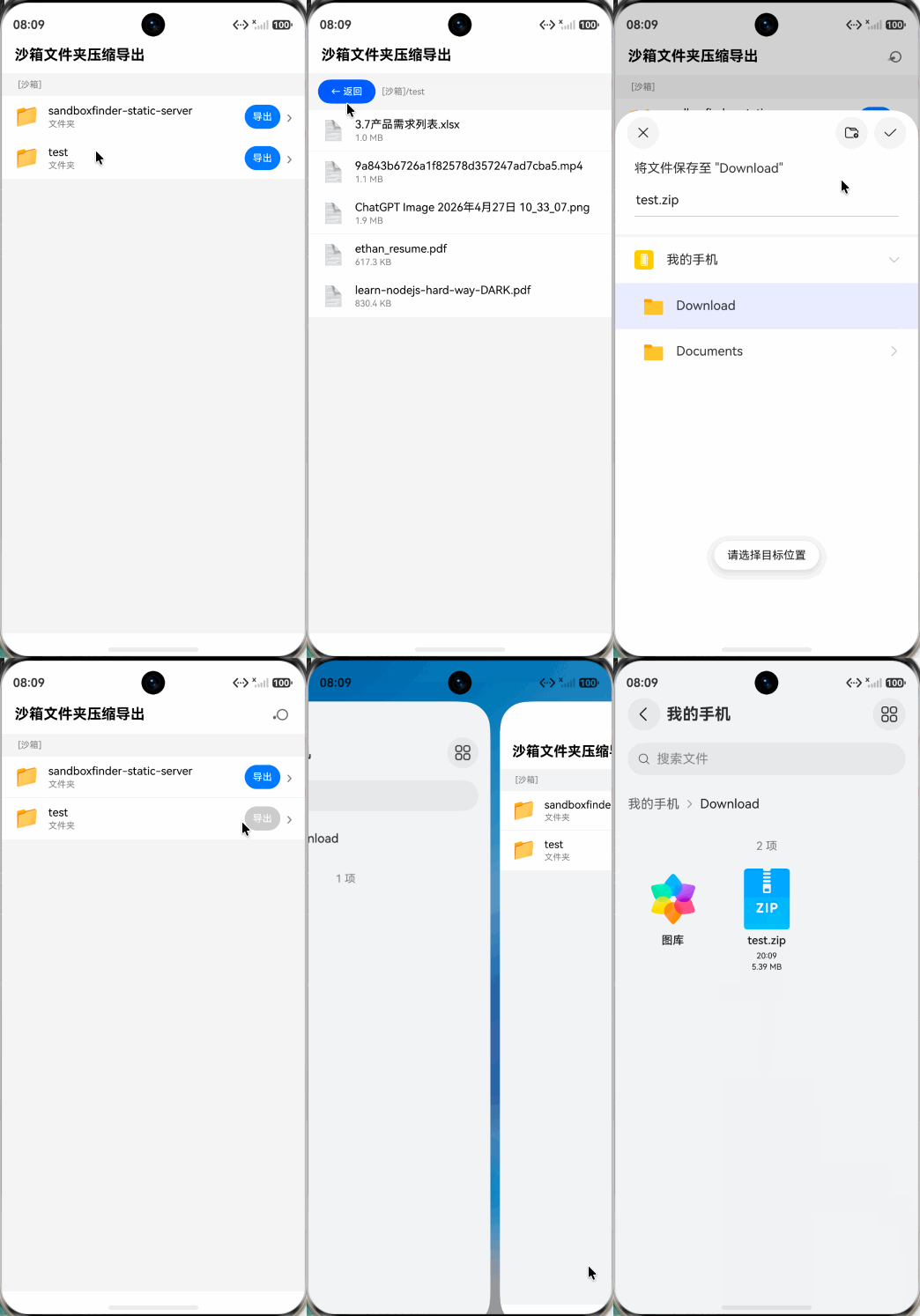
你好,下面实现将沙箱文件夹导出到手机存储,保存为.zip的步骤和示例:
-
展示沙箱目录,点击文件夹进入,点击‘导出’按钮触发
-
zlib.compressFile 将文件夹压缩为沙箱临时 zip
-
DocumentViewPicker.save 让用户选择手机存储保存位置
-
将 zip 内容写入目标 URI,清理临时 zip
/**
 * @fileName : SaveFileToDoc.ets
 * @author : @cxy
 * @date : 2026/5/15
 * @description : 沙箱文件夹压缩后导出到手机存储
 *
 * 流程:
 * 1. 展示沙箱目录,点击文件夹进入,点击「导出」按钮触发
 * 2. zlib.compressFile 将文件夹压缩为沙箱临时 zip
 * 3. DocumentViewPicker.save 让用户选择手机存储保存位置
 * 4. 将 zip 内容写入目标 URI,清理临时 zip
 */

import { fileIo as fs, picker } from '@kit.CoreFileKit'
import { common } from '@kit.AbilityKit'
import { BusinessError, zlib } from '@kit.BasicServicesKit'

interface SandboxItem {
  name: string
  path: string
  isDirectory: boolean
  size: number
}

@Entry
@Component
export struct SaveFileToDoc {
  @State sandboxItems: SandboxItem[] = []
  @State currentPath: string = ''
  @State isLoading: boolean = false
  @State isExporting: boolean = false
  @State exportingFolder: string = ''
  private context: common.UIAbilityContext = this.getUIContext().getHostContext() as common.UIAbilityContext
  private rootPath: string = this.context.filesDir

  aboutToAppear(): void {
    this.currentPath = this.rootPath
    this.loadDir(this.currentPath)
  }

  loadDir(dirPath: string): void {
    this.isLoading = true
    this.sandboxItems = []
    try {
      const entries: string[] = fs.listFileSync(dirPath)
      const items: SandboxItem[] = []
      for (const name of entries) {
        const fullPath: string = dirPath + '/' + name
        try {
          const stat: fs.Stat = fs.statSync(fullPath)
          items.push({
            name,
            path: fullPath,
            isDirectory: stat.isDirectory(),
            size: stat.size
          })
        } catch (e) {
          console.warn('stat error: ' + (e as BusinessError).message)
        }
      }
      items.sort((a: SandboxItem, b: SandboxItem): number => {
        if (a.isDirectory && !b.isDirectory) {
          return -1
        }
        if (!a.isDirectory && b.isDirectory) {
          return 1
        }
        return a.name.localeCompare(b.name)
      })
      this.sandboxItems = items
    } catch (e) {
      console.warn('loadDir error: ' + (e as BusinessError).message)
    }
    this.isLoading = false
  }

  goBack(): void {
    if (this.currentPath === this.rootPath) {
      try {
        this.getUIContext().getPromptAction().showToast({ message: '已是沙箱根目录' })
      } catch (e) { /* ignore */
      }
      return
    }
    const parent: string = this.currentPath.substring(0, this.currentPath.lastIndexOf('/'))
    if (parent) {
      this.currentPath = parent
      this.loadDir(parent)
    }
  }

  formatSize(size: number): string {
    if (size < 1024) {
      return `${size} B`
    }
    if (size < 1024 * 1024) {
      return `${(size / 1024).toFixed(1)} KB`
    }
    return `${(size / 1024 / 1024).toFixed(1)} MB`
  }

  safeDelete(path: string): void {
    try {
      fs.unlinkSync(path)
    } catch (e) { /* ignore */
    }
  }

  async onFolderExport(srcFolderPath: string, folderName: string): Promise<void> {
    if (this.isExporting) {
      try {
        this.getUIContext().getPromptAction().showToast({ message: '正在处理中,请稍候...' })
      } catch (e) { /* ignore */
      }
      return
    }

    this.isExporting = true
    this.exportingFolder = folderName
    const tmpZipPath: string = this.rootPath + '/' + folderName + '_export.zip'

    // 压缩
    try {
      await zlib.compressFile(srcFolderPath, tmpZipPath, {
        level: zlib.CompressLevel.COMPRESS_LEVEL_DEFAULT_COMPRESSION
      })
    } catch (e) {
      this.safeDelete(tmpZipPath)
      this.isExporting = false
      this.exportingFolder = ''
      try {
        this.getUIContext().getPromptAction().showToast({ message: `压缩失败:${(e as BusinessError).message}` })
      } catch (e2) { /* ignore */
      }
      return
    }

    // Picker 选择保存位置
    const saveOptions: picker.DocumentSaveOptions = new picker.DocumentSaveOptions()
    saveOptions.newFileNames = [folderName + '.zip']
    const docPicker: picker.DocumentViewPicker =
      new picker.DocumentViewPicker(this.getUIContext().getHostContext() as common.UIAbilityContext)

    let destUri: string = ''
    try {
      const uris: string[] = await docPicker.save(saveOptions)
      if (!uris || uris.length === 0) {
        this.safeDelete(tmpZipPath)
        this.isExporting = false
        this.exportingFolder = ''
        return
      }
      destUri = uris[0]
    } catch (e) {
      this.safeDelete(tmpZipPath)
      this.isExporting = false
      this.exportingFolder = ''
      try {
        this.getUIContext().getPromptAction().showToast({ message: `保存失败:${(e as BusinessError).message}` })
      } catch (e2) { /* ignore */
      }
      return
    }

    // 写入目标 URI
    try {
      const srcFile: fs.File = fs.openSync(tmpZipPath, fs.OpenMode.READ_ONLY)
      const destFile: fs.File = fs.openSync(destUri, fs.OpenMode.WRITE_ONLY | fs.OpenMode.TRUNC)
      fs.copyFileSync(srcFile.fd, destFile.fd)
      fs.closeSync(srcFile)
      fs.closeSync(destFile)
    } catch (e) {
      this.safeDelete(tmpZipPath)
      this.isExporting = false
      this.exportingFolder = ''
      try {
        this.getUIContext().getPromptAction().showToast({ message: `写入失败:${(e as BusinessError).message}` })
      } catch (e2) { /* ignore */
      }
      return
    }

    // 清理临时 zip
    this.safeDelete(tmpZipPath)
    this.isExporting = false
    this.exportingFolder = ''
    try {
      this.getUIContext().getPromptAction().showToast({ message: `「${folderName}.zip」已导出` })
    } catch (e) { /* ignore */
    }
  }

  build() {
    Column() {

      // ── 标题栏 ──────────────────────────────────────────
      Row() {
        Text('沙箱文件夹压缩导出')
          .fontSize(18)
          .fontWeight(FontWeight.Bold)
          .fontColor(Color.Black)
          .layoutWeight(1)
        if (this.isExporting) {
          LoadingProgress().width(24).height(24)
        }
      }
      .width('100%')
      .padding({
        top: 16,
        bottom: 12,
        left: 16,
        right: 16
      })
      .backgroundColor(Color.White)

      // ── 路径导航 ─────────────────────────────────────────
      Row() {
        Button('← 返回')
          .fontSize(12)
          .height(30)
          .fontColor(Color.White)
          .visibility(this.currentPath != this.rootPath ? Visibility.Visible : Visibility.None)
          .onClick(() => {
            this.goBack()
          })
        Text(this.currentPath.replace(this.rootPath, '[沙箱]'))
          .fontSize(11)
          .fontColor(Color.Gray)
          .maxLines(1)
          .textOverflow({ overflow: TextOverflow.Ellipsis })
          .layoutWeight(1)
          .margin({ left: 8 })
      }
      .width('100%')
      .padding({
        top: 8,
        bottom: 8,
        left: 12,
        right: 12
      })
      .backgroundColor('#f5f5f5')

      // ── 文件列表 ─────────────────────────────────────────
      if (this.isLoading) {
        LoadingProgress().width(40).height(40).margin({ top: 40 })
      } else if (this.sandboxItems.length === 0) {
        Column() {
          Text('📂').fontSize(48).margin({ bottom: 8 })
          Text('该目录为空').fontSize(14).fontColor(Color.Gray)
        }
        .width('100%')
        .margin({ top: 60 })
        .alignItems(HorizontalAlign.Center)
      } else {
        List() {
          ForEach(this.sandboxItems, (item: SandboxItem) => {
            ListItem() {
              Row() {
                Text(item.isDirectory ? '📁' : '📄')
                  .fontSize(24)
                  .margin({ right: 12 })

                Column() {
                  Text(item.name)
                    .fontSize(14)
                    .fontColor(Color.Black)
                    .maxLines(1)
                    .textOverflow({ overflow: TextOverflow.Ellipsis })
                  Text(item.isDirectory ? '文件夹' : this.formatSize(item.size))
                    .fontSize(11)
                    .fontColor(Color.Gray)
                    .margin({ top: 2 })
                }
                .alignItems(HorizontalAlign.Start)
                .layoutWeight(1)

                if (item.isDirectory) {
                  Button('导出')
                    .fontSize(12)
                    .height(30)
                    .padding({
                      left: 10,
                      right: 10,
                      top: 0,
                      bottom: 0
                    })
                    .backgroundColor(this.exportingFolder === item.name ? Color.Gray : '#1677ff')
                    .fontColor(Color.White)
                    .margin({ right: 8 })
                    .enabled(this.exportingFolder !== item.name)
                    .onClick(() => {
                      this.onFolderExport(item.path, item.name)
                    })

                  Text('›')
                    .fontSize(20)
                    .fontColor(Color.Gray)
                    .onClick(() => {
                      this.currentPath = item.path
                      this.loadDir(item.path)
                    })
                }
              }
              .width('100%')
              .padding({
                top: 10,
                bottom: 10,
                left: 16,
                right: 16
              })
              .backgroundColor(Color.White)
              .onClick(() => {
                if (item.isDirectory) {
                  this.currentPath = item.path
                  this.loadDir(item.path)
                }
              })
            }
          })
        }
        .width('100%')
        .height('100%')
        .layoutWeight(1)
        .divider({ strokeWidth: 0.5, color: '#eeeeee' })
      }

    }
    .width('100%')
    .height('100%')
    .backgroundColor('#f5f5f5')
  }
}

在 HarmonyOS Next 中,应用沙箱文件夹无法直接导出。应通过 ohos.file.picker 模块的 DocumentViewPicker.save() 或 FilePicker.save() 拉起系统保存界面,让用户选择存储位置;再使用 fileIo 读取沙箱文件并写入所选目录。

方案:让用户先选目标公共目录,再直接复制沙箱文件夹
这样避免“导出”步骤,一次完成“分类文件夹直接传到电脑”。
步骤与代码示例:
- 拉起
DocumentViewPicker选择保存位置(需要ohos.permission.READ_WRITE_DOWNLOAD_DIRECTORY等权限,视目标目录而定)。 - 获取沙箱源文件夹路径(如
getContext().filesDir + '/myFolder')。 - 递归复制(使用
fileIo或fs,这里用同步示例以便理解,实际建议异步)。
import picker from '@ohos.file.picker';
import fileIo from '@ohos.file.fs';
import { BusinessError } from '@ohos.base';

// 用户点击“导出文件夹”
async function exportFolder() {
  try {
    // 1. 选择目标公共目录
    let documentSelectOptions = new picker.DocumentViewPickerSaveOptions();
    documentSelectOptions.newFileNames = ["ExportedFolder"]; // 占位,实际目标是个目录
    let documentPicker = new picker.DocumentViewPicker();
    let uris = await documentPicker.save(documentSelectOptions);
    if (uris.length === 0) return;
    let destUri = uris[0]; // 用户选的文件夹路径,如 file://docs/storage/Users/currentUser/Download/xxx

    // 2. 源文件夹路径
    let context = getContext(this);
    let srcDir = context.filesDir + '/myDataFolder'; // 你的沙箱文件夹

    // 3. 递归复制(核心方法)
    copyFolderRecursive(srcDir, destUri);
    console.info('导出成功');
  } catch (err) {
    let error = err as BusinessError;
    console.error('导出失败: ' + JSON.stringify(error));
  }
}

function copyFolderRecursive(srcDir: string, destDir: string) {
  fileIo.mkdirSync(destDir, true); // 确保目标存在
  let files = fileIo.listFileSync(srcDir);
  for (let file of files) {
    let srcPath = srcDir + '/' + file;
    let destPath = destDir + '/' + file;
    let stat = fileIo.statSync(srcPath);
    if (stat.isDirectory()) {
      copyFolderRecursive(srcPath, destPath);
    } else {
      fileIo.copyFileSync(srcPath, destPath, 0);
    }
  }
}
说明:
- 上述示例使用同步API(
Sync)演示逻辑,实际应用应使用异步版本避免阻塞UI。 - 若目标目录需要具体存储权限,在
module.json5中声明如ohos.permission.WRITE_IMAGEVIDEO或ohos.permission.READ_WRITE_DOWNLOAD_DIRECTORY。 - 如果必须由用户选择沙箱文件夹,则使用
DocumentViewPicker拉取沙箱内部目录目前受限,更稳妥的是反过来:用户选择公共文件夹,然后代码把沙箱内容复制过去,完全符合你的“先选公共目录再创建/复制”需求。
这样,文件夹直接以原始结构出现在用户指定位置,无压缩,0KB问题自然消失。
