




HarmonyOS鸿蒙Next中判断uri资源是否为视频资源
HarmonyOS鸿蒙Next中判断uri资源是否为视频资源 我需要通过该方法判断该uri资源是否为视频资源,但是运行时好像有点问题?

更多关于HarmonyOS鸿蒙Next中判断uri资源是否为视频资源的实战教程也可以访问 https://www.itying.com/category-93-b0.html

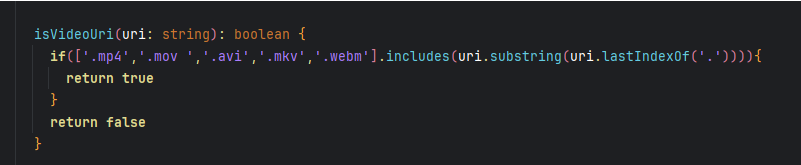
该方法写的只能返回true, || 这个会被if识别成一个判断条件,后面的字母转换为boolean值为true,所以不管你uri传了什么,就算没传,也会返回true。修改成这样,就能正常判断了
更多关于HarmonyOS鸿蒙Next中判断uri资源是否为视频资源的实战系列教程也可以访问 https://www.itying.com/category-93-b0.html


isvideouri(uri:string):boolean{
    if(uri.substring(uri.lastIndexOf(".")) === "4" ||"v" ||"i"||"v"||"m"){
      return true
    }
    return false
  }
你这个if判断它的判断逻辑是,如果uri.substring(uri.lastIndexOf(".")) === “4” 成立,或者"v"成立,或者"i"成立,或者"v"成立,或者"m"成立则为true。if 的判断条件有点问题。 试试这样写:
isVideoUri(uri: string): boolean {
  const videoExtensions = ['mp4', 'avi', 'mov', 'mkv', 'webm', 'flv', 'wmv', 'mpeg', 'mpg'];
  const ext = uri.substring(uri.lastIndexOf('.') + 1).toLowerCase();
  return videoExtensions.includes(ext);
}

在HarmonyOS Next中,判断URI资源是否为视频资源,可以使用ResourceManager模块的getMediaType方法。该方法会返回资源的MIME类型。通过检查返回的MIME类型是否以"video/"开头,即可判定是否为视频资源。例如,"video/mp4"即表示视频资源。此方法直接、高效,无需依赖文件扩展名。

在HarmonyOS Next中,判断URI资源是否为视频资源,推荐使用PhotoAccessHelper和FileAccessHelper来获取文件的媒体类型。
核心方法是:通过PhotoAccessHelper.getAssets()或FileAccessHelper.openFile()获取到文件对象后,访问其mediaType属性。
具体步骤:
-
获取URI对应的文件Asset: 使用
PhotoAccessHelper.getAssets()接口,通过资源URI获取到对应的PhotoAsset对象。 -
查询媒体类型: 访问
PhotoAsset的mediaType属性。该属性的值是PhotoAccessHelper.MediaType枚举。- 如果
mediaType等于MediaType.VIDEO,则该资源是视频。 - 如果等于
MediaType.IMAGE,则是图片。
- 如果
代码示例:
import photoAccessHelper from '@ohos.file.photoAccessHelper';
import dataSharePredicates from '@ohos.data.dataSharePredicates';

async function isVideoUri(uri: string): Promise<boolean> {
  try {
    // 1. 创建PhotoAccessHelper实例
    const phAccessHelper = photoAccessHelper.getPhotoAccessHelper(context);

    // 2. 通过URI获取PhotoAsset对象
    // 注意:uri需要是'file://'或'dataability://'格式,并且应用有相应权限
    let asset: photoAccessHelper.PhotoAsset = await phAccessHelper.getAssets(uri);

    // 3. 判断mediaType
    if (asset.mediaType === photoAccessHelper.MediaType.VIDEO) {
      return true; // 是视频
    } else {
      return false; // 不是视频(可能是图片或其他)
    }
  } catch (error) {
    console.error(`Failed to get asset from URI. Code: ${error.code}, message: ${error.message}`);
    return false; // 获取失败,按非视频处理
  }
}

// 使用示例
let uri = 'file://com.example.app/data/storage/el2/base/haps/entry/files/sample.mp4';
isVideoUri(uri).then((isVideo) => {
  console.log(`Is video: ${isVideo}`);
});
关键点说明:
- 权限:确保应用已申请必要的存储权限(如
ohos.permission.READ_IMAGEVIDEO)。 - URI格式:此方法适用于应用自有文件目录(
file://)或通过PhotoViewPicker等系统Picker获取的URI。对于content://或dataability://格式的URI,可能需要使用FileAccessHelper来打开并查询。 - 错误处理:
getAssets()可能因URI无效或权限不足而失败,需要进行异常捕获。 - 性能:此方法涉及I/O操作,建议在异步任务中执行。
如果遇到运行时问题,请检查:
- URI是否有效且应用有权访问。
- 是否在异步函数中调用。
- 是否已声明并获取所需权限。
对于通过FileAccessHelper获取的文件,可以类似地使用openFile()获取FileAsset后,通过其mediaType属性判断。
