




HarmonyOS 鸿蒙Next中首页如何内容区全屏
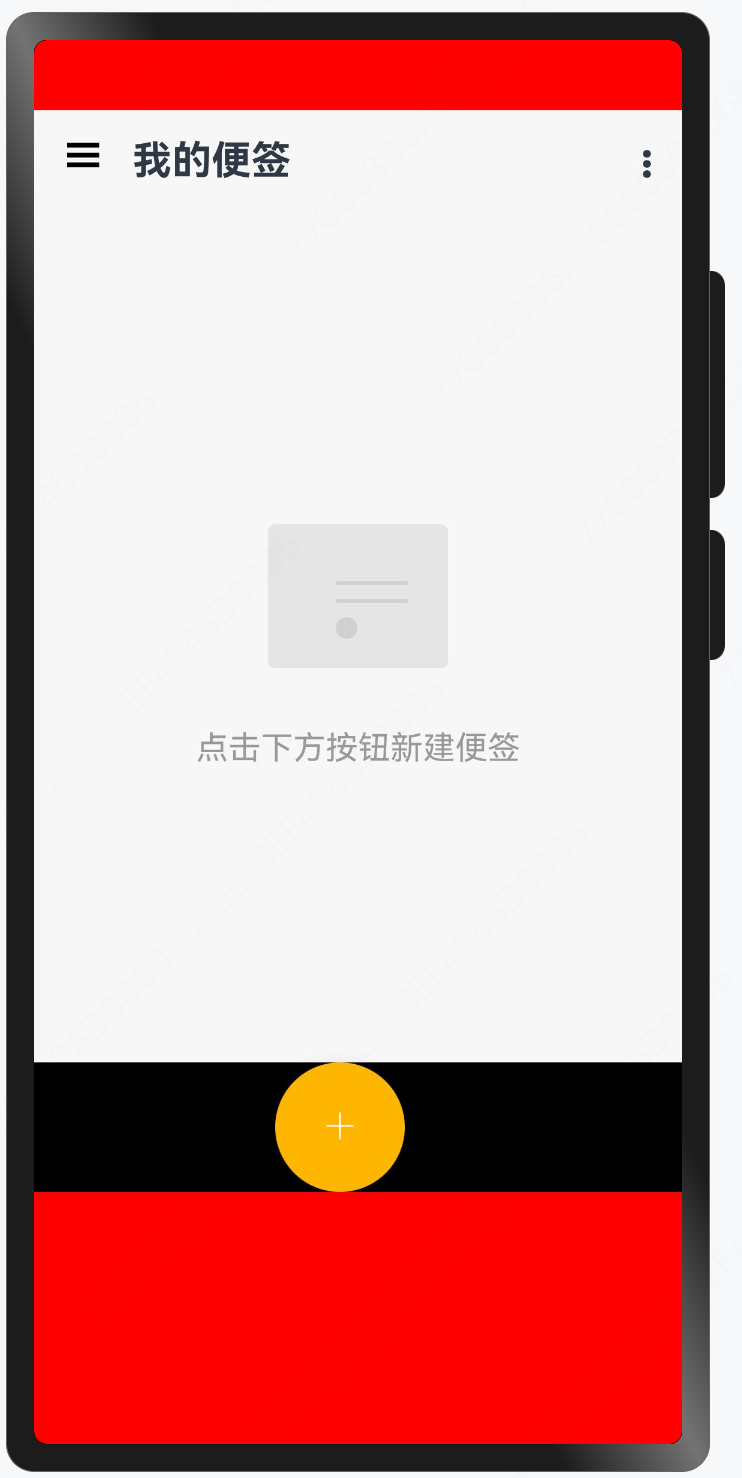
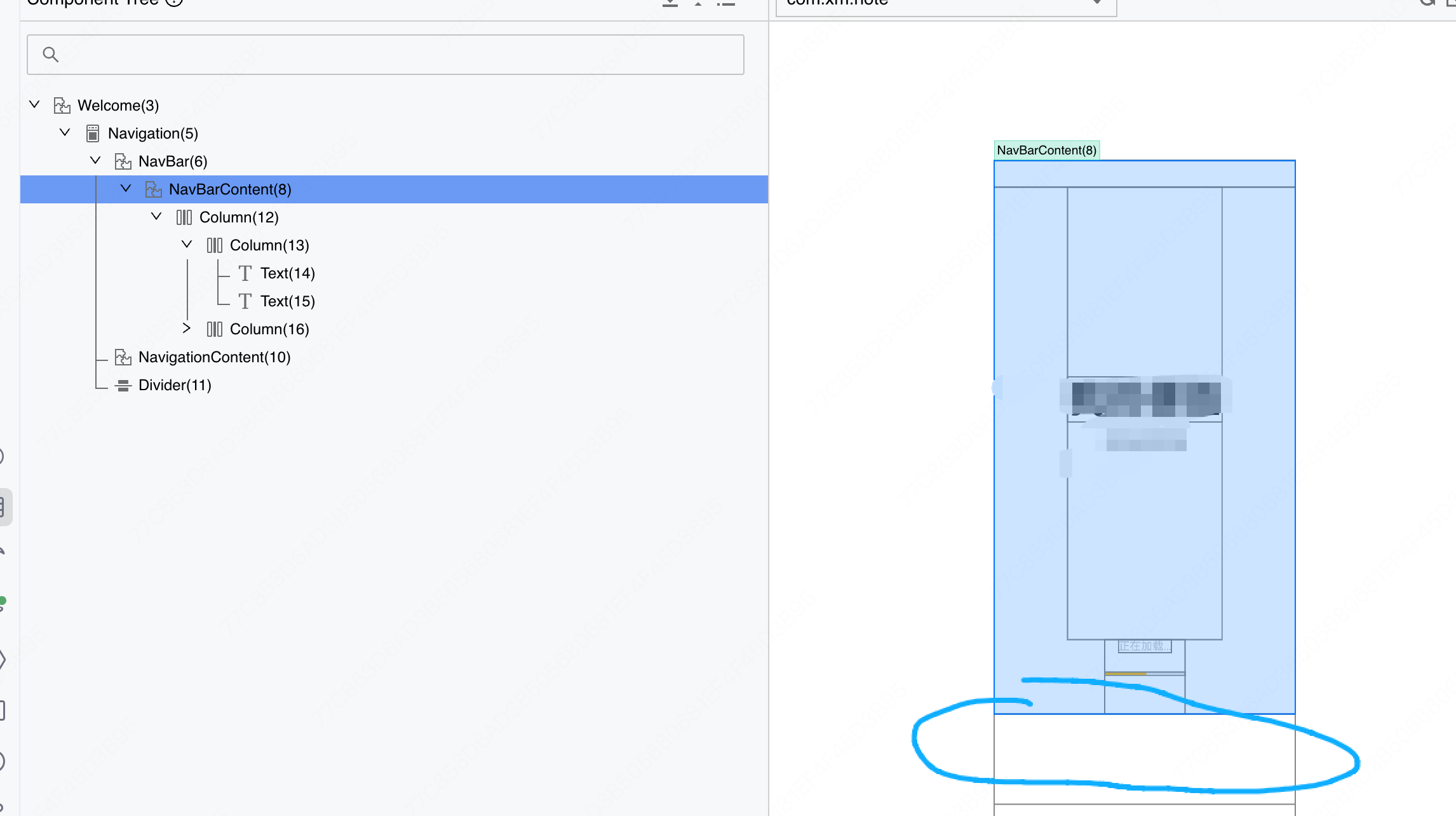
HarmonyOS 鸿蒙Next中首页如何内容区全屏 首页,如何设置底部的红色区域无法去掉??大家遇到过没有。
更多关于HarmonyOS 鸿蒙Next中首页如何内容区全屏的实战教程也可以访问 https://www.itying.com/category-93-b0.html

开发者您好,我这边测试Navgation是可以实现内容区全屏的,您这边可以看下代码是否是没有设置隐藏标题栏和工具栏导致占位,可以通过以下代码设置一下然后再运行试一下
.hideTitleBar(true)
.hideToolBar(true)
如果仍然存在问题,可以将复现代码和复现对应API版本号提供过来方便我们这边排查。
以下是我这边测试的代码:
@Entry
@Component
struct NavigationExample {
  private arr: number[] = [0, 1, 2, 3, 4, 5, 6, 7, 8, 9];


  build() {
    Column() {
      Navigation() {
        Column(){
          TextInput({ placeholder: 'search...' })
            .width('90%')
            .height(40)
            .backgroundColor('#FFFFFF')
            .margin({ top: 8 })

          List({ space: 12, initialIndex: 0 }) {
            ForEach(this.arr, (item: number) => {
              ListItem() {
                Text('' + item)
                  .width('90%')
                  .height(72)
                  .backgroundColor('#FFFFFF')
                  .borderRadius(24)
                  .fontSize(16)
                  .fontWeight(500)
                  .textAlign(TextAlign.Center)
              }
            }, (item: number) => item.toString())
          }
          .height(324)
          .width('100%')
          .margin({ top: 12, left: '10%' })
        }
        .height('100%')
        .backgroundColor(Color.Pink)

      }
      .titleMode(NavigationTitleMode.Full)
      .border({})
      .hideTitleBar(true)
      .hideToolBar(true)
      .onTitleModeChange((titleModel: NavigationTitleMode) => {
        console.info('titleMode' + titleModel)
      })
    }.width('100%').height('100%').backgroundColor(Color.Red)
  }
}
更多关于HarmonyOS 鸿蒙Next中首页如何内容区全屏的实战系列教程也可以访问 https://www.itying.com/category-93-b0.html



在HarmonyOS Next中,实现首页内容区全屏,需在module.json5的abilities配置中,将当前页面对应的Window设置为全屏模式。具体操作为:在"abilities"的"window"字段内,设置"isFullScreen": true。此配置将隐藏状态栏和导航栏,使应用内容占据整个屏幕。
在HarmonyOS Next中,首页内容区要实现全屏显示,并处理底部红色区域(通常指安全区域或导航栏区域)的问题,可以通过以下方式解决:
1. 使用全屏窗口模式
在EntryAbility的onWindowStageCreate生命周期中,设置窗口为全屏模式:
import window from '[@ohos](/user/ohos).window';

onWindowStageCreate(windowStage: window.WindowStage) {
  // 获取主窗口
  let mainWindow = await windowStage.getMainWindow();
  // 设置全屏
  await mainWindow.setFullScreen(true);
  // 隐藏系统UI(如导航栏)
  await mainWindow.setSystemBarEnable(['status', 'navigation']);
}
2. 适配安全区域
如果红色区域是安全区域(Safe Area),需要在UI布局中避开:
- 使用
safeArea组件或padding避开底部区域:import { safeArea } from '@kit.ArkUI'; @Entry @Component struct Index { build() { Column() { // 页面内容 } .width('100%') .height('100%') .safeArea(SafeAreaType.BOTTOM) // 适配底部安全区域 } }
3. 检查布局约束
确保页面根容器的宽度和高度设置为100%,并检查是否有固定高度的组件占用了底部空间。
4. 隐藏导航栏
如果红色区域是导航栏,可以通过窗口管理隐藏:
await mainWindow.setSystemBarProperties({
  navigationBarColor: '#00000000', // 透明色
  navigationBarContentColor: '#FFFFFF' // 图标颜色
});
总结
通过设置全屏窗口、适配安全区域或隐藏导航栏,可以解决底部红色区域无法去掉的问题。具体方法需根据红色区域的类型(安全区域、导航栏或布局问题)选择。
