




HarmonyOS 鸿蒙Next中如何实现横竖屏切换
HarmonyOS 鸿蒙Next中如何实现横竖屏切换 在视频播放或者股票行情图横竖屏切换如何实现?

预览效果:
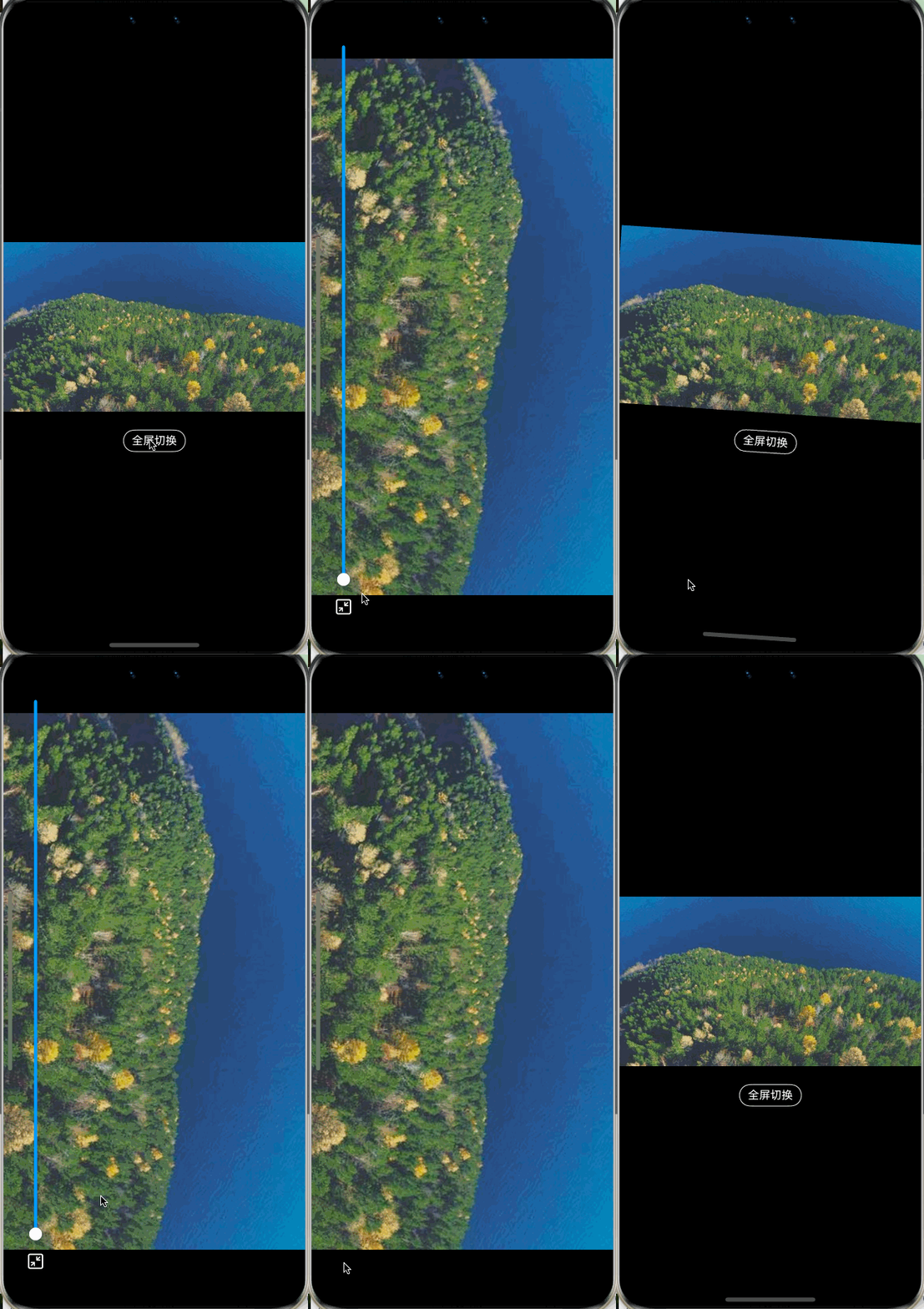
1、在全屏展示时,通常需要开启沉浸式效果:
window.getLastWindow(this.getUIContext().getHostContext()).then(win => {
  win.setWindowLayoutFullScreen(true)
});
2、使用 setPreferredOrientation 方法实现屏幕旋转
window.getLastWindow(this.getUIContext().getHostContext()).then(win => {
  this.isFullScreen = !this.isFullScreen;
  win.setPreferredOrientation(this.isFullScreen ? window.Orientation.AUTO_ROTATION_LANDSCAPE :
    window.Orientation.PORTRAIT)
});
完整的demo:
/**
 * @fileName : ScreenRotate.ets
 * @author : @cxy
 * @date : 2025/12/20
 * @description : 实现横竖屏切换
 */
import { window } from "@kit.ArkUI";

@Component
export struct ScreenRotate {
  @State isFullScreen: boolean = false

  aboutToAppear(): void {
    // 开启沉浸式
    window.getLastWindow(this.getUIContext().getHostContext()).then(win => {
      win.setWindowLayoutFullScreen(true)
    });
  }

  build() {
    Stack() {
      Stack() {
        Image('https://picsum.photos/800/450?random=1')
          .width('100%')
          .aspectRatio(16 / 9)
          .constraintSize({
            maxWidth: '100%',
            maxHeight: '100%'
          })

        if (this.isFullScreen) {
          Row({ space: 10 }) {
            Slider({
              value: 100,
            })
              .selectedColor('#ff0099ff')
              .layoutWeight(1)

            Image($r('app.media.fullout'))
              .width(24)
              .height(24)
              .onClick(() => {
                this.onFullChange()
              })
          }
          .width('100%')
          .alignItems(VerticalAlign.Center)
          .padding({
            left: 44, right: 44, bottom: 20
          })
        } else {
          Text('全屏切换')
            .borderWidth(1)
            .borderRadius('50%')
            .borderColor('#fff')
            .fontColor('#fff')
            .fontSize(14)
            .padding({
              left: 10,
              right: 10,
              top: 5,
              bottom: 5
            })
            .onClick(() => {
              this.onFullChange()
            })
            .offset({
              y: 50
            })
        }
      }
      .alignContent(Alignment.Bottom)
    }
    .backgroundColor('#000')
    .width('100%')
    .height('100%')
  }

  onFullChange() {
    window.getLastWindow(this.getUIContext().getHostContext()).then(win => {
      this.isFullScreen = !this.isFullScreen;
      win.setPreferredOrientation(this.isFullScreen ? window.Orientation.AUTO_ROTATION_LANDSCAPE :
        window.Orientation.PORTRAIT)
    });
  }
}
更多关于HarmonyOS 鸿蒙Next中如何实现横竖屏切换的实战系列教程也可以访问 https://www.itying.com/category-93-b0.html

在HarmonyOS Next中,通过window模块的getLastWindow方法获取窗口对象,然后调用setPreferredOrientation方法设置屏幕方向。支持的参数包括:Orientation.PORTRAIT(竖屏)、Orientation.LANDSCAPE(横屏)和Orientation.AUTO_ROTATION(自动旋转)。此方法可动态改变应用界面方向。
在HarmonyOS Next中,实现横竖屏切换主要依赖于UIAbility组件的配置和响应式UI布局能力。以下是核心实现方法:
-
配置UIAbility支持方向 在
module.json5文件中,为对应的UIAbility配置orientation属性,例如设置为["unspecified"]或指定方向如["landscape", "portrait"]。 -
使用响应式布局 通过ArkUI的媒体查询(
@ohos.mediaquery)或栅格系统(GridRow/GridCol)自动适配不同屏幕方向。例如:import { mediaquery } from '[@kit](/user/kit).ArkUI'; // 监听屏幕方向变化 let listener = mediaquery.matchMedia('(orientation: landscape)'); listener.on('change', (result) => { // 根据result.matches调整布局 }); -
视频/股票图表的特殊处理
- 视频播放:使用
<Video>组件,设置displayControls和fit属性以适应不同方向。 - 股票图表:利用Canvas或图表库(如
@ohos/charts)结合媒体查询重绘图表,确保数据可视化区域自适应。
- 视频播放:使用
-
手动锁定/解锁方向 通过
window模块的setPreferredOrientation方法可临时锁定屏幕方向,例如全屏播放视频时锁定横屏:import { window } from '[@kit](/user/kit).ArkUI'; window.getLastWindow(ctx).then(win => { win.setPreferredOrientation(window.Orientation.LANDSCAPE); });
注意事项:
- 横竖屏切换会触发UIAbility的
onWindowStageChange生命周期,可在此处理布局更新。 - 对于需要保持界面状态(如播放进度)的场景,建议结合
AppStorage或PersistentStorage管理数据。
以上方法可灵活实现视频播放、股票行情等场景的横竖屏适配,确保用户体验一致性。
